

Use these steps to work with NozomuNoto PDF planners and notebooks on Bigme. E-readers are best for calm writing, reading, bookmarks, page review, and light annotation, so this guide keeps the setup simple and points out where a tablet app may still be better.
Before you start
- Keep the original download untouched, then import one working copy into Bigme.
- If the product arrives in a ZIP, extract it first, then transfer the PDF file your e-reader can open.
- After the first step, test one Index link, one writing mark, and one page action before setting up the whole planner.
Reference links
Use these for current app or device help, downloads, updates, vendor support, and manual references.
Import the PDF on Bigme
- Save the original NozomuNoto download somewhere safe first.
- Extract the ZIP if the product arrives as a ZIP, then use the PDF file.
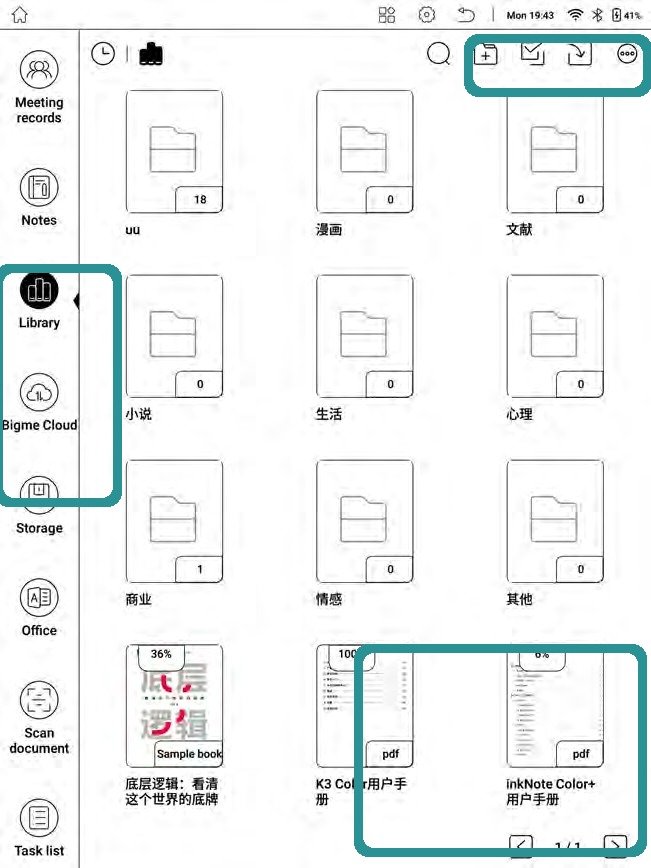
Bigme libraryBigme manual UI showing Library, storage, and PDF files. - Open Bookshelf or Library on the Bigme device.
- Use the import or add-file control, then choose WiFi Import or Local Import depending on where the PDF is stored.
- Open the imported planner PDF and check the cover, Index, and one writing page before using it every day.
- Keep one untouched backup outside Bigme so you can import a clean copy again later.