

Browse help topics
Getting Started
Need help choosing?
Need help after purchase?
Download & Import
Using your notebook/planner
- How to change or reuse template pages on planner landing pages
- Why stickers look blurry when enlarged
- What to check if a product does not work on your device
- How to use NozomuNoto index pages
- How to use NozomuNoto template pages
- How to change a digital planner cover
- How to install and use digital stickers
Product Tutorials
- How to use Yume Techo Landscape tutorial pages
- How to use Yume Techo Portrait tutorial pages
- How to use Shibui Techo Weeks tutorial pages
- How to use Shibui Techo Months tutorial pages
- How to use Yume Noto V1 Landscape tutorial pages
- How to use Yume Noto V1 Portrait tutorial pages
- How to use Yume Noto V2 Landscape tutorial pages
- How to use Yume Noto V2 Portrait tutorial pages
- How to use Yume Noto V3 Portrait tutorial pages
- How to use NozomuNoto Ultimate Digital Stickers
- How to use NozomuNoto Digital Covers
- Which NozomuNoto instruction or tutorial file should I open first?
Device & App
iOS / iPadOS
GoodNotes
Notability
Noteshelf
Noteful
StarNote
Flexcil
Kilonotes
Android
StarNote
Samsung Notes
Penly
Flexcil
Noteshelf
Xodo
E-reader Devices
Boox devices
reMarkable
Bigme
Supernote
Portrait vs landscape planner: which should I choose?
Compare portrait and landscape digital planners so you can choose the best layout for your screen size, handwriting space, desk setup, split-screen use, and planning style.
On this page
- Quick answer
- Screen size shortcut
- Choose portrait if
- Choose landscape if
- Common situations
- Try this 5-minute orientation test
- When this choice gets tricky
- 1. The landscape layout looks better, but the tablet is small
- 2. Portrait feels natural, but you need a schedule view
- 3. You plan in more than one place
- 4. You want both a planner and a notebook feeling
- If you are still unsure
- Go next
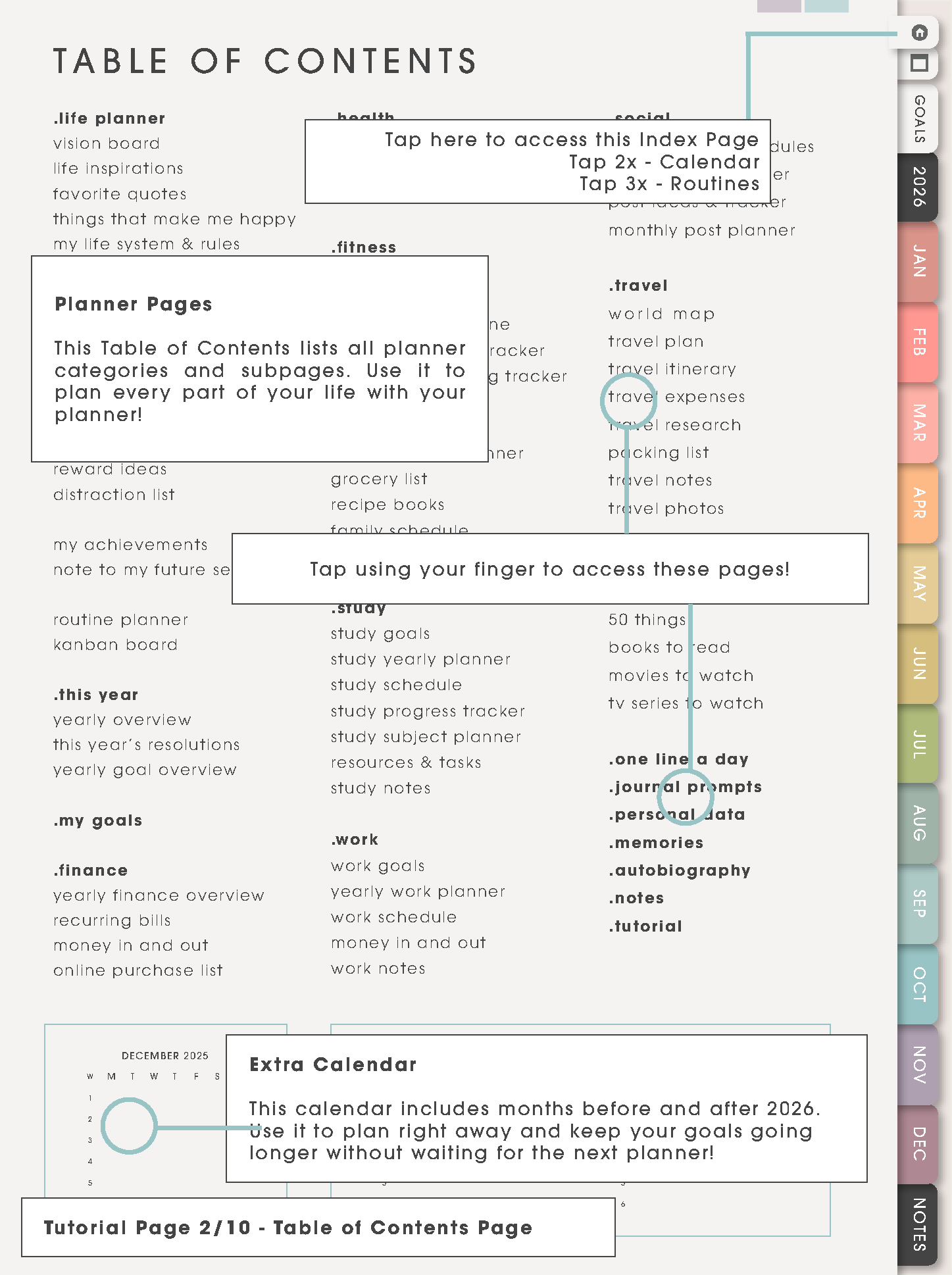
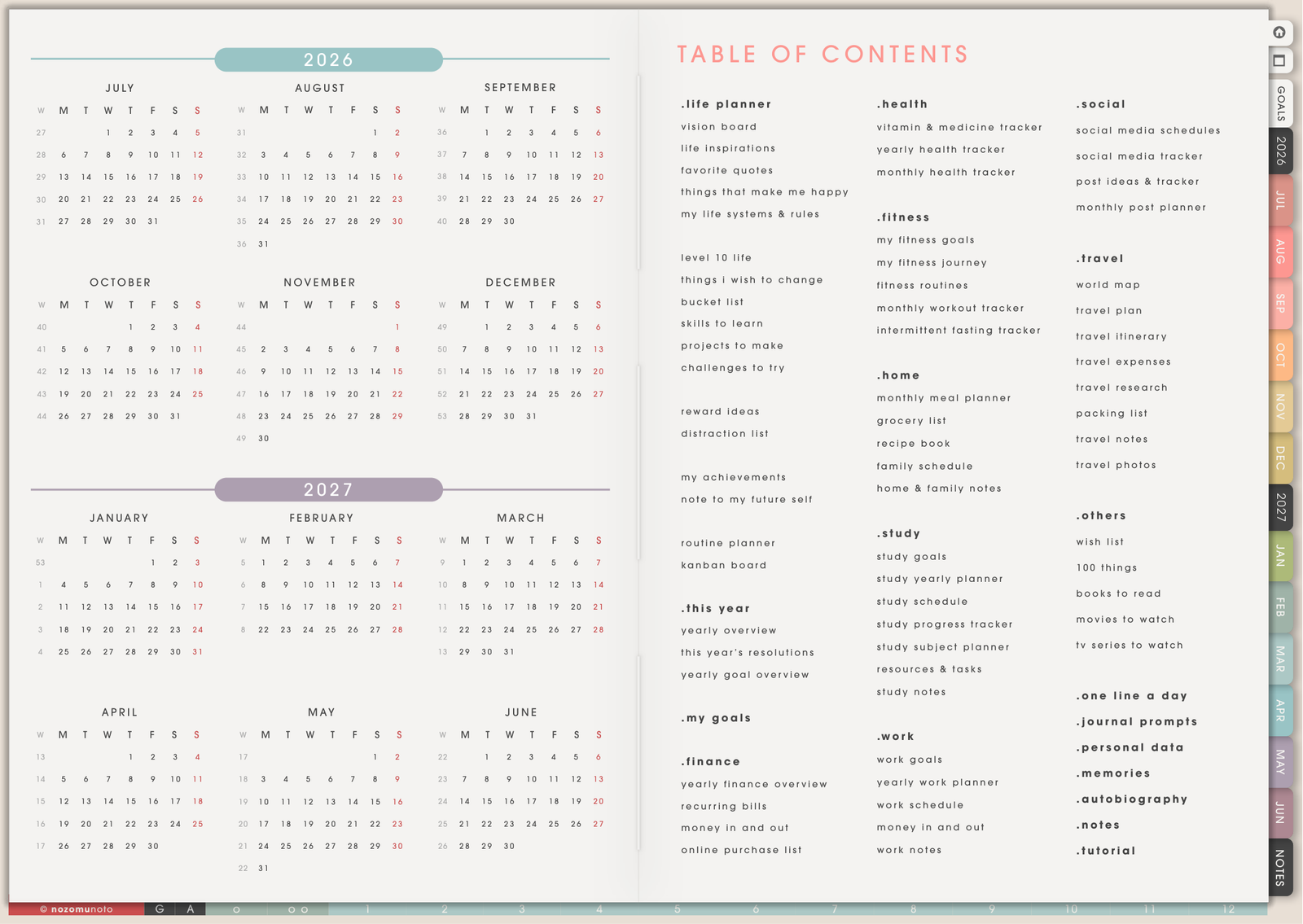
Portrait vs landscape digital planner: portrait planners are taller than they are wide, while landscape planners are wider than they are tall. This guide helps you choose the best digital planner layout for your tablet, handwriting style, desk setup, split-screen use, and planning style.
If you are unsure, start with your real device instead of feature lists. How do you naturally hold the tablet when you actually plan?
Quick answer
- Choose portrait if you like vertical notebooks, long lists, journaling, daily pages, and holding your tablet upright.
- Choose landscape if you like wide weekly views, dashboards, schedules, split screen, and planning with your tablet on a desk or stand.
- Choose by posture first if both layouts look beautiful. The planner you can write in easily is usually the planner you will open more often.
Screen size shortcut
If you are choosing a planner layout for tablet use, start with device size and writing posture. This is the fastest way to compare portrait planner vs landscape planner options without getting stuck on screenshots.
Choose portrait when the tablet is smaller, you hold it like a notebook, you write long lists or daily pages, or you want less zooming.
Choose landscape when the tablet is larger, you plan on a desk or stand, you like wide weekly views, or you use split screen.
If both the portrait digital planner and landscape digital planner look beautiful, choose the one you would still open on a tired day.
This also helps with iPad digital planner orientation decisions because the best layout is the one that fits your screen, posture, and daily planning place.
Choose portrait if
- You hold your tablet like a notebook. Portrait feels natural when the device is upright in your hand.
- You write long lists. Daily tasks, journal entries, reading notes, study notes, and habit notes often feel better vertically.
- You use a smaller tablet or phone preview. Portrait pages can feel easier to read on narrower screens.
- You want a familiar paper-planner feeling. Portrait feels closer to many notebooks, journals, and printed planners.
- You plan in short sessions. Portrait can feel easy for quick check-ins, personal notes, and everyday lists.
Choose landscape if
- You like wide weekly layouts. Landscape gives more room across the page for days, columns, schedules, and projects.
- You use split screen. Landscape works well when you keep a planner beside a browser, textbook, email, calendar, or PDF.
- You plan at a desk. If your tablet sits on a stand or keyboard case, landscape often feels natural.
- You need dashboard space. Wide pages are useful for monthly overviews, project maps, lesson planning, content calendars, and family schedules.
- You use larger tablets. A bigger screen can make landscape planners feel roomy instead of cramped.
Common situations
- Student: landscape if you use split screen with textbooks or lectures; portrait if you mainly write notes and lists.
- Work: landscape for meetings, project timelines, dashboards, and weekly planning; portrait for task lists and daily notes.
- Home or family: landscape for family schedules and meal planning; portrait for personal routines and journaling.
- ADHD planning: landscape can help make time visible; portrait can feel less crowded if wide pages overwhelm you.
- Creative planning: landscape for moodboards, launch maps, and content calendars; portrait for idea lists, journaling, and project notes.
Try this 5-minute orientation test
- Hold your device in portrait for one minute. Pretend you are writing tomorrow's tasks, a daily note, or a journal entry.
- Turn the device to landscape for one minute. Pretend you are planning the week, blocking classes, checking family schedules, or mapping work projects.
- Put the device where you usually plan. Try your desk, sofa, bed, kitchen table, commute bag, or tablet stand.
- Notice your hand position. If your wrist feels cramped, the beautiful layout may become annoying later.
- Choose the one you would open on a tired day. That answer is usually more honest than choosing the layout that looks most impressive.
When this choice gets tricky
1. The landscape layout looks better, but the tablet is small
What happens: the wide spread looks amazing in screenshots, but on a smaller tablet the writing areas may feel tiny when zoomed out.
Example: weekly columns, monthly boxes, and side panels are visible, but you need to zoom in and out often to write easily.
What to do: choose landscape if you like zooming or use a larger tablet. Choose portrait if you want less zooming and a notebook-style writing flow.
2. Portrait feels natural, but you need a schedule view
What happens: portrait feels natural to hold, but your week has classes, shifts, client calls, family events, or time blocks that need horizontal room.
Example: everything fits as a list, but seeing how Monday through Sunday relate to each other is hard.
What to do: choose landscape if seeing the whole week at once matters. Choose portrait if your planning is mostly lists, notes, and daily pages.
3. You plan in more than one place
What happens: one orientation works at the desk, but another feels better when holding the tablet in bed, on the sofa, or while traveling.
Example: landscape is perfect on a stand, but awkward when the tablet is in your hands.
What to do: choose for the place where you will plan most often. If the planner is mainly a desk tool, landscape usually feels natural. If it follows you around, portrait may feel easier.
4. You want both a planner and a notebook feeling
What happens: landscape looks better for weekly planning, but portrait feels better for journaling, study notes, and long lists.
Example: you want a wide weekly dashboard and also a clean vertical writing page.
What to do: choose the planner orientation for calendar work first. Then use notes or a digital notebook for the writing style you miss. A landscape planner plus a portrait notebook can be a very practical pair.
If you are still unsure
Choose the digital planner orientation that matches how you naturally hold your device. An easy writing posture matters more than having the most features. If you are still undecided, choose portrait for a notebook feeling and landscape for a full desk-planner feeling.
Go next
Still need help?
Send your order number, product name, device, app, and a screenshot or short screen recording if the issue is visual.