

Browse help topics
Getting Started
Need help choosing?
Need help after purchase?
Download & Import
Using your notebook/planner
- How to change or reuse template pages on planner landing pages
- Why stickers look blurry when enlarged
- What to check if a product does not work on your device
- How to use NozomuNoto index pages
- How to use NozomuNoto template pages
- How to change a digital planner cover
- How to install and use digital stickers
Product Tutorials
- How to use Yume Techo Landscape tutorial pages
- How to use Yume Techo Portrait tutorial pages
- How to use Shibui Techo Weeks tutorial pages
- How to use Shibui Techo Months tutorial pages
- How to use Yume Noto V1 Landscape tutorial pages
- How to use Yume Noto V1 Portrait tutorial pages
- How to use Yume Noto V2 Landscape tutorial pages
- How to use Yume Noto V2 Portrait tutorial pages
- How to use Yume Noto V3 Portrait tutorial pages
- How to use NozomuNoto Ultimate Digital Stickers
- How to use NozomuNoto Digital Covers
- Which NozomuNoto instruction or tutorial file should I open first?
Device & App
iOS / iPadOS
GoodNotes
Notability
Noteshelf
Noteful
StarNote
Flexcil
Kilonotes
Android
StarNote
Samsung Notes
Penly
Flexcil
Noteshelf
Xodo
E-reader Devices
Boox devices
reMarkable
Bigme
Supernote
How to Manage NozomuNoto Planner Pages in CollaNote on iPad
Learn how to manage NozomuNoto pages in CollaNote, including duplicating, moving, copying, deleting, and organizing pages safely.
On this page
Use these steps to work with NozomuNoto PDF planners, notebooks, stickers, covers, and template pages in CollaNote. The official links below are for downloads, updates, and current help pages.
Before moving pages
Save a clean backup of your planner or notebook before changing page order, deleting pages, or experimenting with template pages in CollaNote.
- Index pages: they are your main planner map.
- Template source pages: keep a clean reusable page.
- Main section pages: they may be linked from tabs, buttons, or Index areas.
- Tutorial pages: they explain how the planner works.
- Pages with important links: test navigation after changes.
- Filled pages: copy or export important writing before deleting anything.
Safe workflow: duplicate first, edit the duplicate, and keep the original file saved outside CollaNote.
Reference links
Use these for current app or device help, downloads, updates, vendor help, and manual references.
Manage pages in CollaNote on iPad
- Open the imported planner or notebook.
- Open the page thumbnail panel from the top-right page icon.
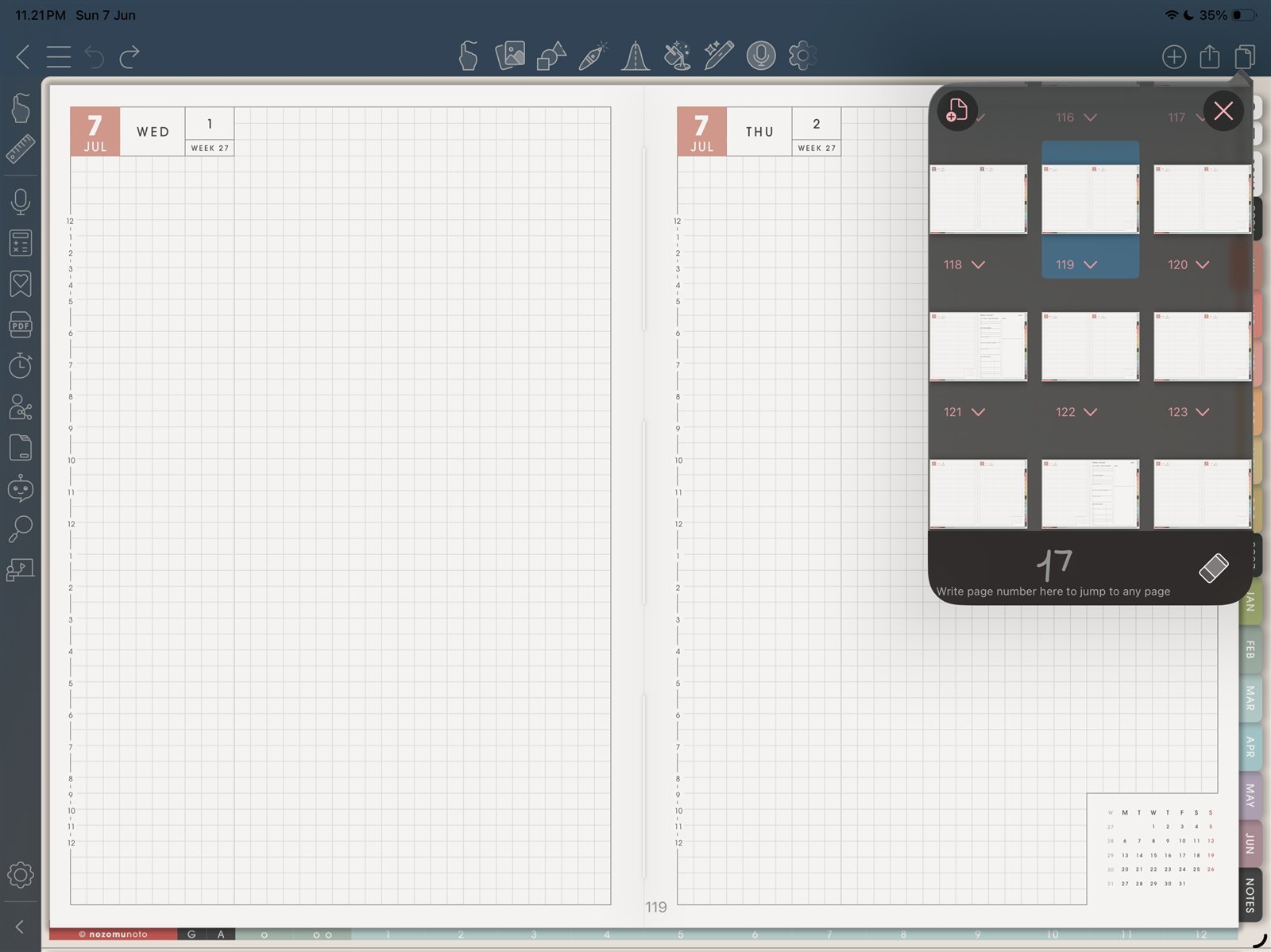
Page thumbnailsOpen page thumbnails before managing pages. Product shown: Yume Techo Academic 26-27 Landscape. - Tap the page menu for the page you want to manage.
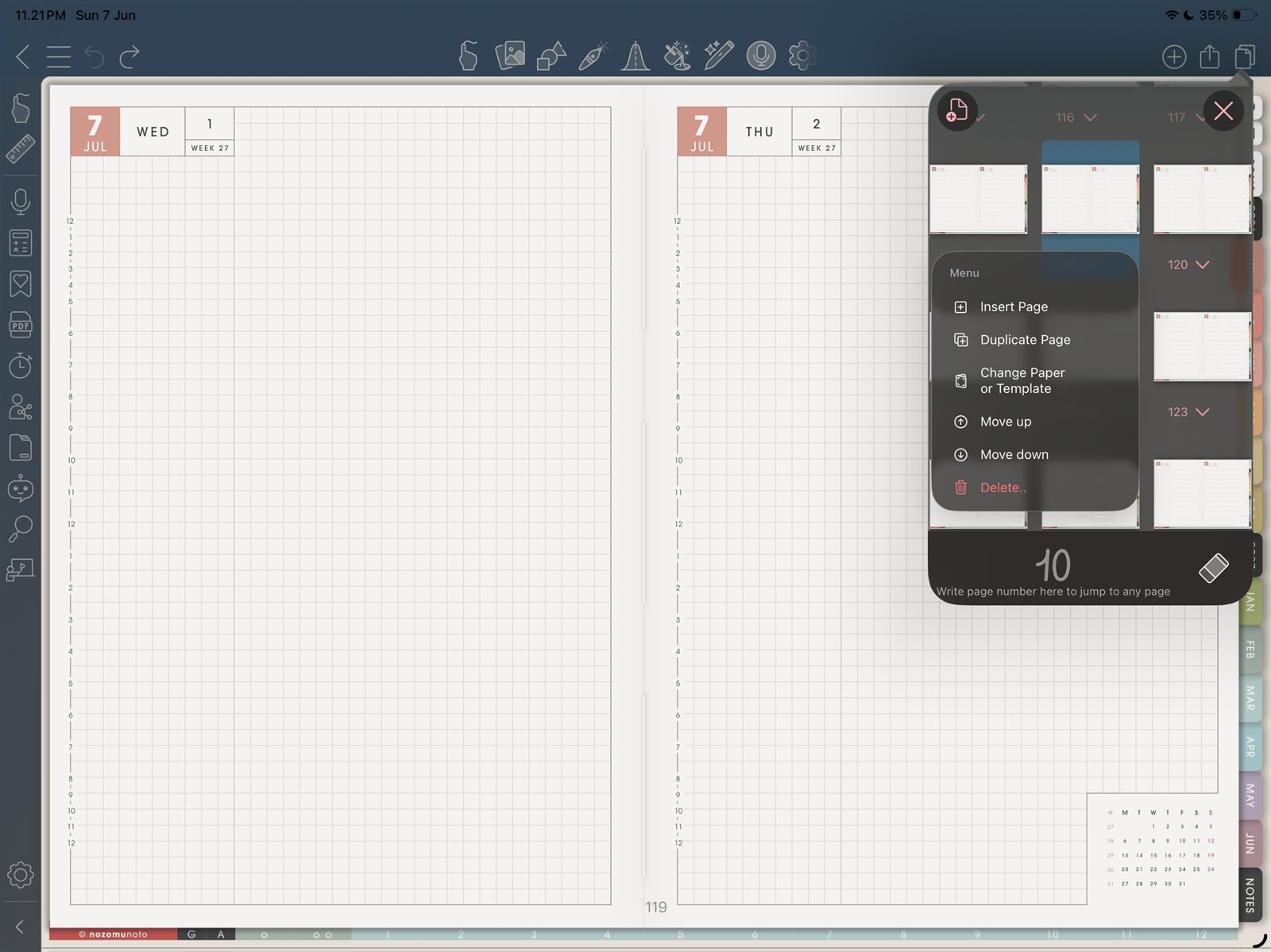
Page actionsUse Insert Page, Duplicate Page, Change Paper or Template, Move up/down, or Delete carefully. Product shown: Yume Techo Academic 26-27 Landscape. - Use visible controls such as Insert Page, Duplicate Page, Change Paper or Template, Move up, Move down, or Delete carefully.
- Use copied pages mainly for NozomuNoto template pages. Avoid moving dated planner pages unless you have tested links afterward.
- After any page change, return to the Index and test one month tab, one weekly link, and one daily link.
Page moves to treat carefully
Make page changes slowly in CollaNote. Use page tools mostly for template pages, notes pages, and small experiments. Be careful with dated monthly, weekly, daily, Index, tutorial, and tabbed pages because those pages are part of the planner map.
What to copy or duplicate first
- Template source pages: duplicate the clean template before writing.
- Notes pages: add room when one section needs more space.
- Daily or weekly pages: copy only when you intentionally want an extra planning page, because dated pages already exist.
- Filled pages: copy or export important writing before deleting anything.
If page actions get confusing
1. The copied page is hard to find
What happens: the page exists but disappears among thumbnails.
What to do: bookmark it or keep it near the section where you use it.
2. The planner map feels strange
What happens: after page changes, you are not sure where links should go.
What to do: test Index and a few main tabs. If the file feels messy, return to a clean imported copy and move only the notes you still need.
Next CollaNote page links
Still need help?
Send your order number, product name, device, app, and a screenshot or short screen recording if the issue is visual.