
Browse help topics
Getting Started
Need help choosing?
Need help after purchase?
Download & Import
Using your notebook/planner
- How to change or reuse template pages on planner landing pages
- Why stickers look blurry when enlarged
- What to check if a product does not work on your device
- How to use NozomuNoto index pages
- How to use NozomuNoto template pages
- How to change a digital planner cover
- How to install and use digital stickers
Product Tutorials
- How to use Yume Techo Landscape tutorial pages
- How to use Yume Techo Portrait tutorial pages
- How to use Shibui Techo Weeks tutorial pages
- How to use Shibui Techo Months tutorial pages
- How to use Yume Noto V1 Landscape tutorial pages
- How to use Yume Noto V1 Portrait tutorial pages
- How to use Yume Noto V2 Landscape tutorial pages
- How to use Yume Noto V2 Portrait tutorial pages
- How to use Yume Noto V3 Portrait tutorial pages
- How to use NozomuNoto Ultimate Digital Stickers
- How to use NozomuNoto Digital Covers
- Which NozomuNoto instruction or tutorial file should I open first?
Device & App
iOS / iPadOS
GoodNotes
Notability
Noteshelf
Noteful
StarNote
Flexcil
Kilonotes
Android
StarNote
Samsung Notes
Penly
Flexcil
Noteshelf
Xodo
E-reader Devices
Boox devices
reMarkable
Bigme
Supernote
How to use Shibui Techo Months tutorial pages
Learn how to start using Shibui Techo Months tutorial pages, including what to open first, how to plan one month, test links, and use Daily Extra.
On this page
- Start with this month
- Built-in tutorial pages and visual guide
- Tutorial Page 1/7 - Basic Navigation
- Tutorial Page 2/7 - Index Page
- Tutorial Page 3/7 - Template Page
- Tutorial Page 4/7 - Yearly Page
- Tutorial Page 5/7 - Monthly Page
- Tutorial Page 6/7 - Weekly Page
- Tutorial Page 7/7 - Daily Extra Page
- What Shibui Techo Months is best for
- Helpful setup links
- How to use Shibui Techo Months first
- Best uses for this product
- What the tutorial pages may not explain
- When the Shibui Techo Months setup gets tricky
- 1. You expect daily or weekly dated pages
- 2. The monthly page gets crowded
- 3. Copied templates are hard to find later
- 4. The month review feels like another task
- Where to go next
Use this guide when you want a light monthly planner with flexible note and template pages. Shibui Techo Months is good for big-picture planning, monthly projects, bills, launches, and simple recurring routines.
Start with this month
- Save the original download as your clean backup.
- Import one working copy into your planner app.
- Open the main monthly page or Index page.
- Tap one link to test navigation.
- Choose the month you want to plan.
- Add only the real events, tasks, reminders, or notes you need this month.
- Learn the next feature only when you need it.
Built-in tutorial pages and visual guide
Use the images below as visual checkpoints. The extra notes explain what to do with the page after you understand what it shows.
Tutorial Page 1/7 - Basic Navigation
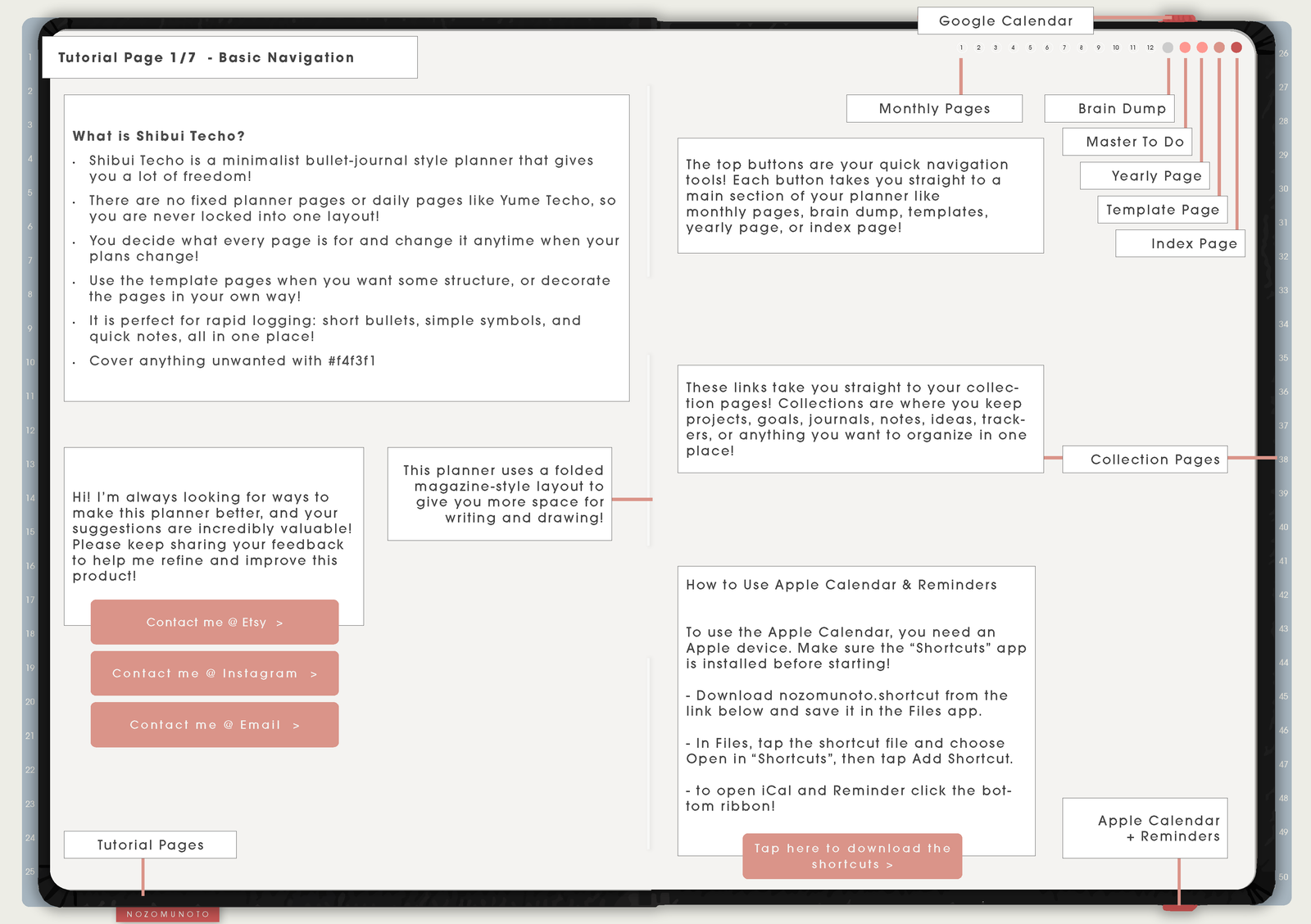
Start with this page to understand the monthly planner map. It shows where to find Index, yearly planning, monthly pages, templates, notes, and product help links.
For everyday use, keep the setup light: use Monthly for dates, then copy a template or use Weekly/Daily Extra when a month needs more room.
Tutorial Page 2/7 - Index Page
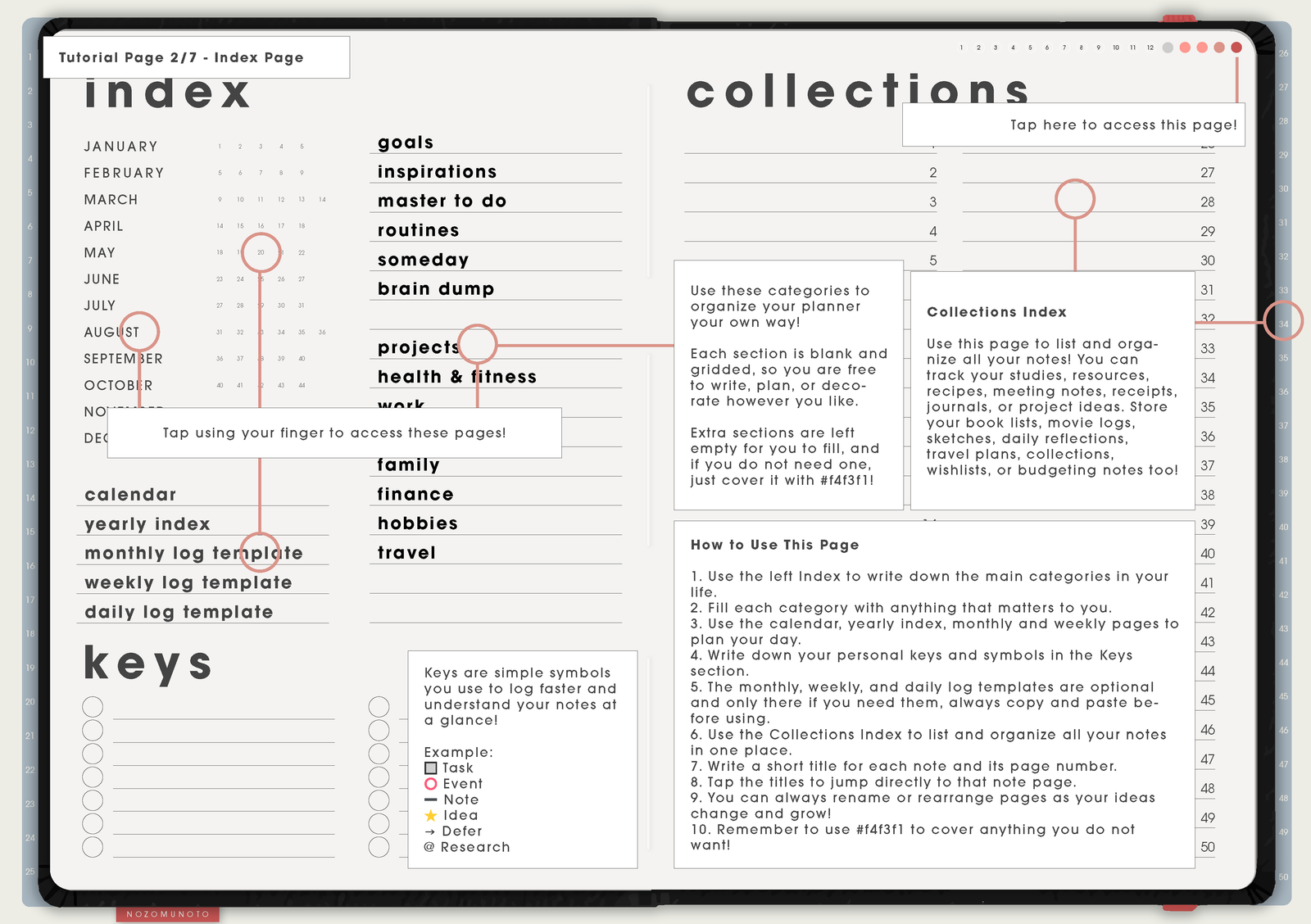
Use Index when you want to move quickly. For a monthly planner, Index is especially helpful because it keeps yearly, monthly, weekly, template, and flexible pages from becoming one long scroll.
If you create copied pages for a month, bookmark them or write their names on a small monthly detail list.
Tutorial Page 3/7 - Template Page
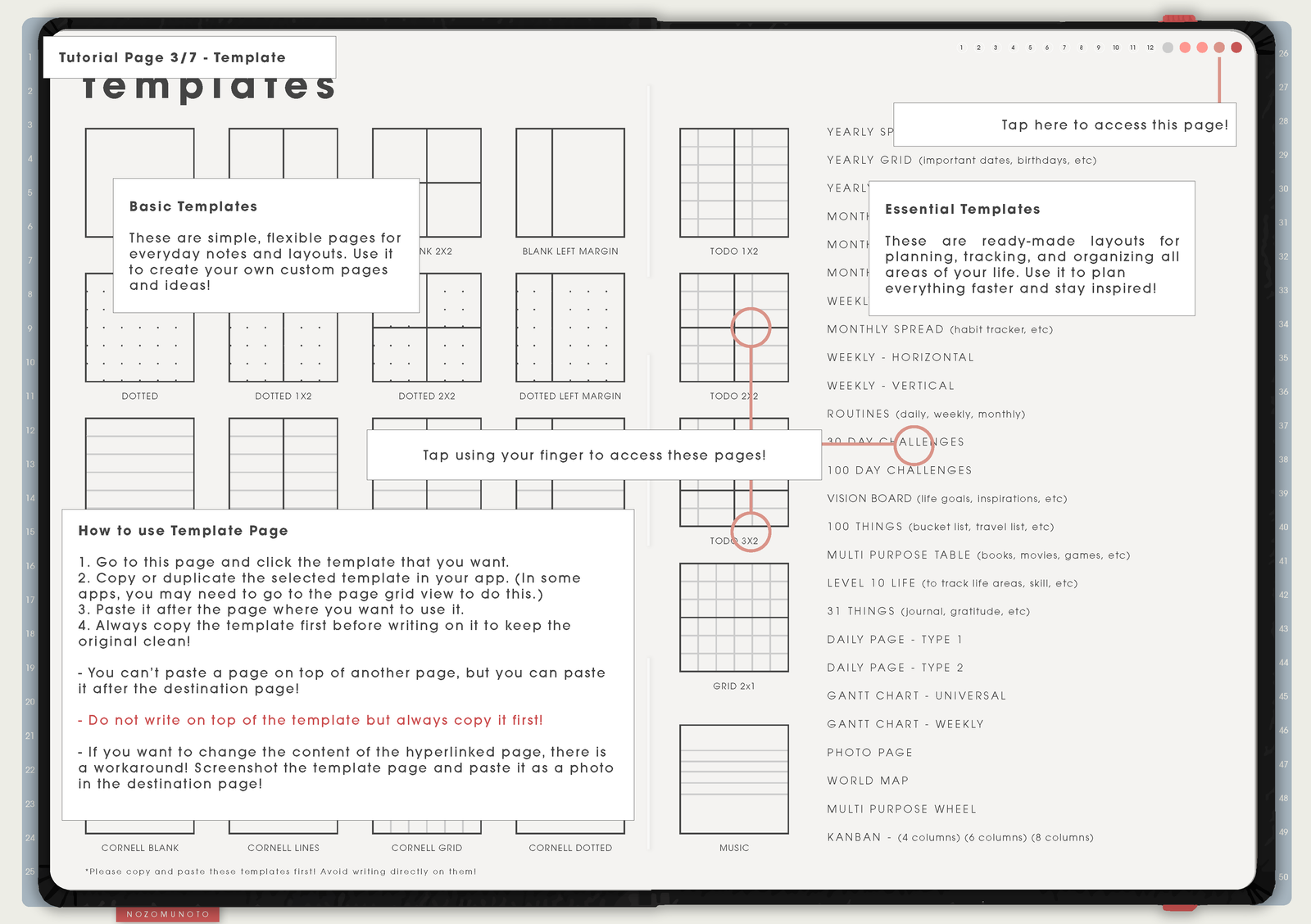
Duplicate a clean template before writing. Put copies near the month, project, or notes area where they belong, then use bookmarks or thumbnails to return to the copies.
Tutorial Page 4/7 - Yearly Page
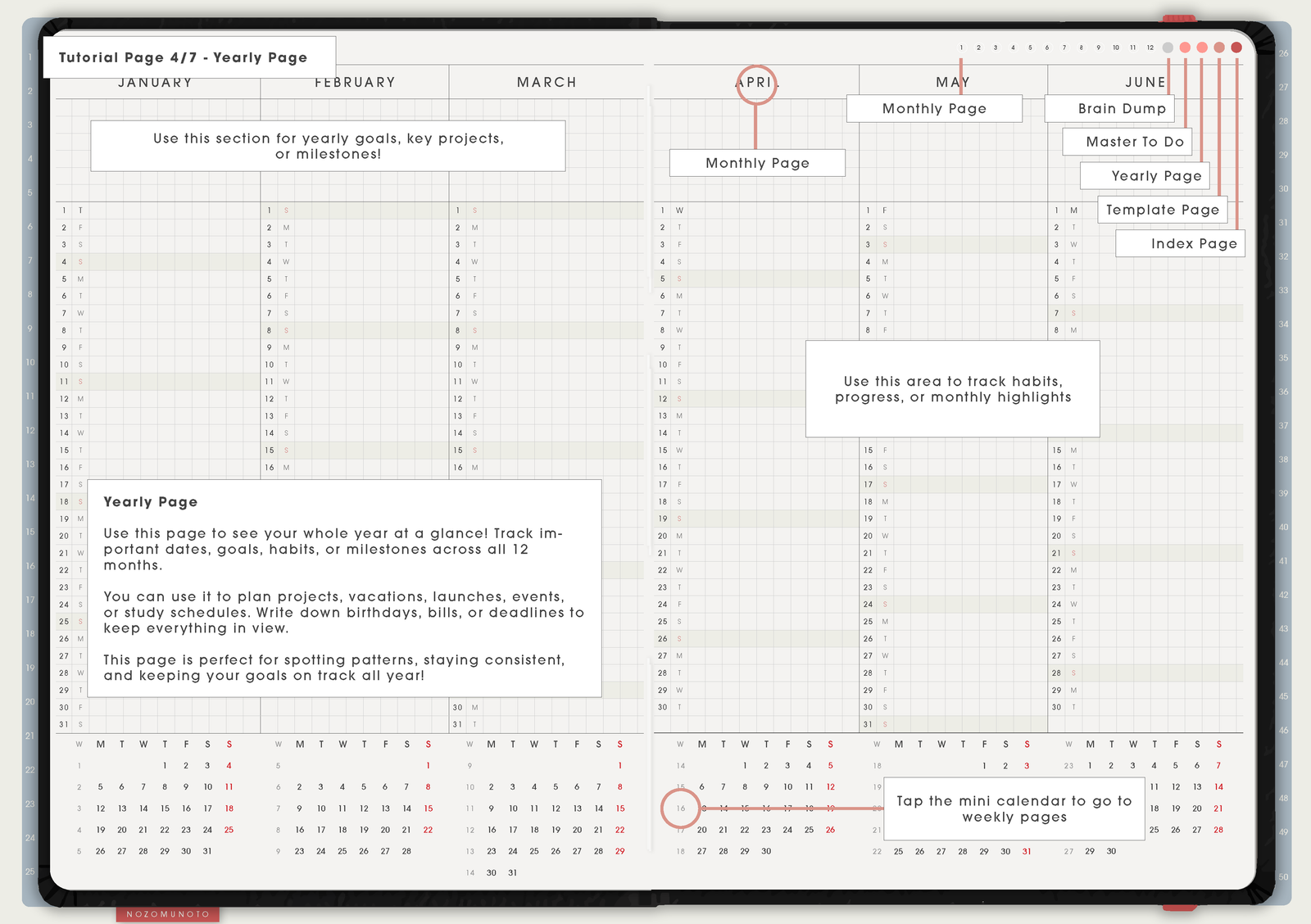
Use the yearly page for the dates that shape the whole year: trips, school terms, launches, renewals, holidays, appointments, and monthly themes.
Tutorial Page 5/7 - Monthly Page
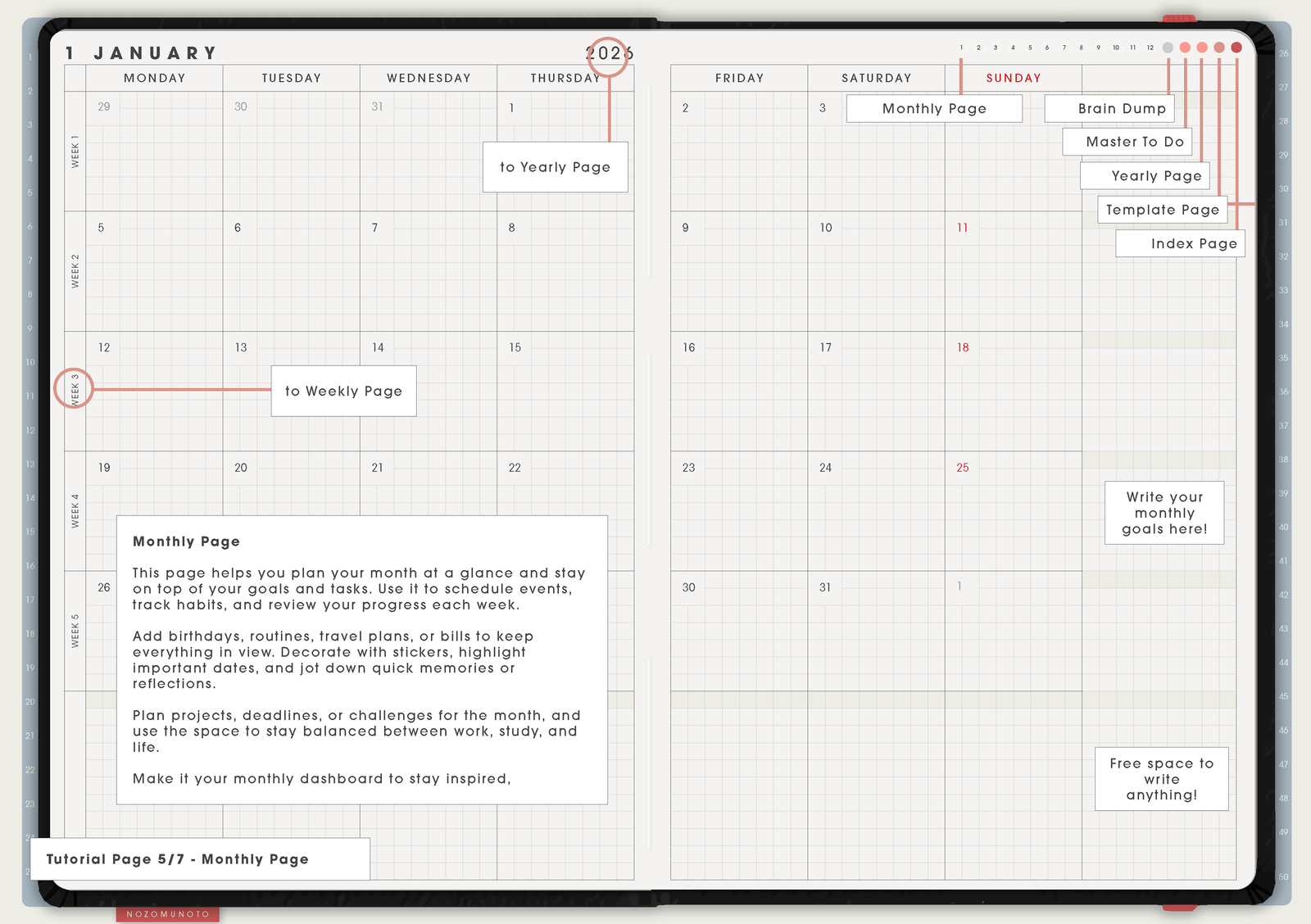
Monthly is the main page for Shibui Techo Months. Use it for appointments, bills, birthdays, deadlines, launches, school events, travel, renewals, and monthly review notes.
Keep the month readable. Use short labels on the calendar, then continue details on Weekly, Daily Extra, notes, or a copied template page.
Tutorial Page 6/7 - Weekly Page
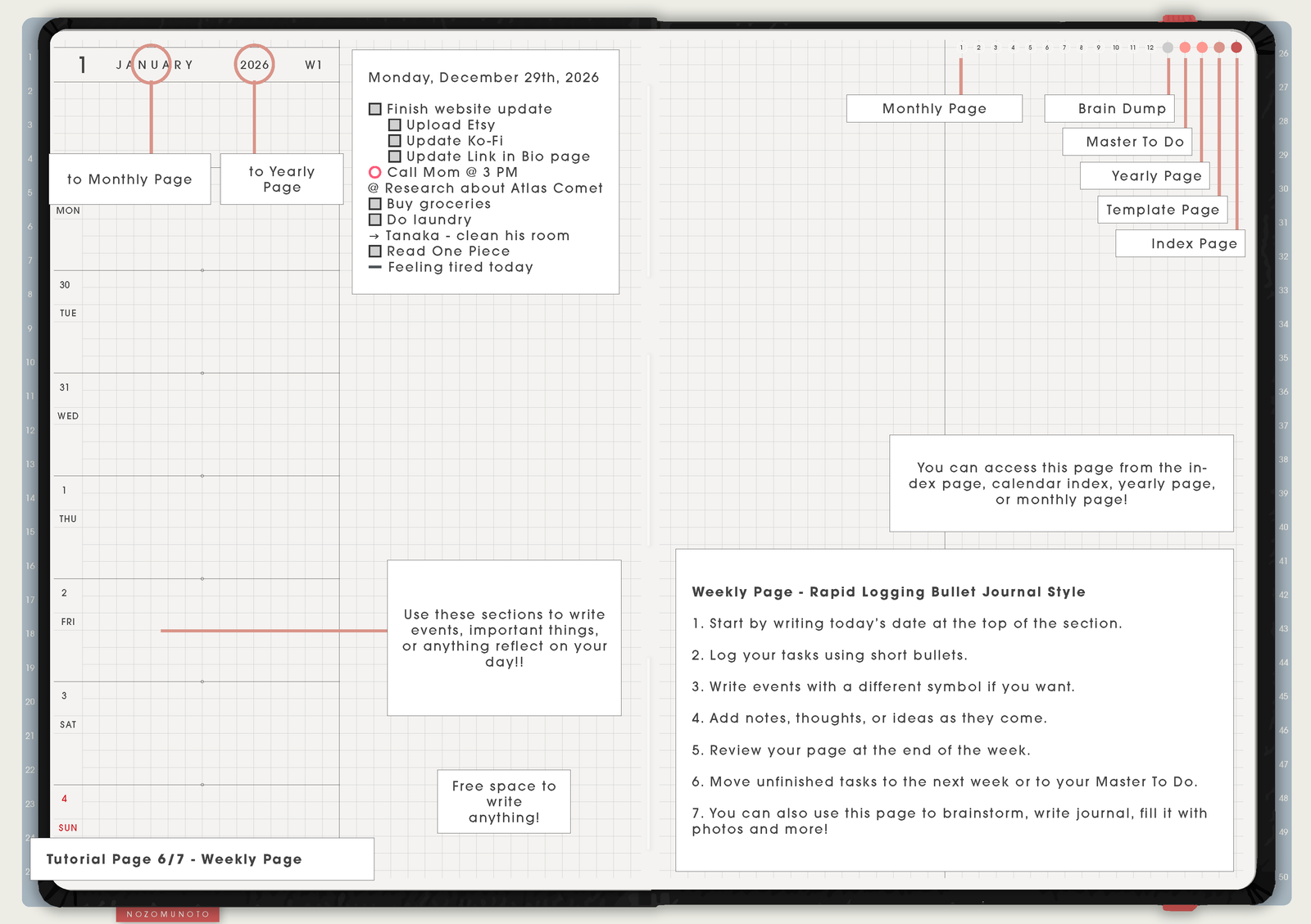
Use Weekly when one month needs a more detailed rhythm: exam week, launch week, travel week, work sprint, family week, or a week with many appointments.
Each weekly page is optional. Use it as extra detail for the month, not as a rule that creates more planning work.
Tutorial Page 7/7 - Daily Extra Page
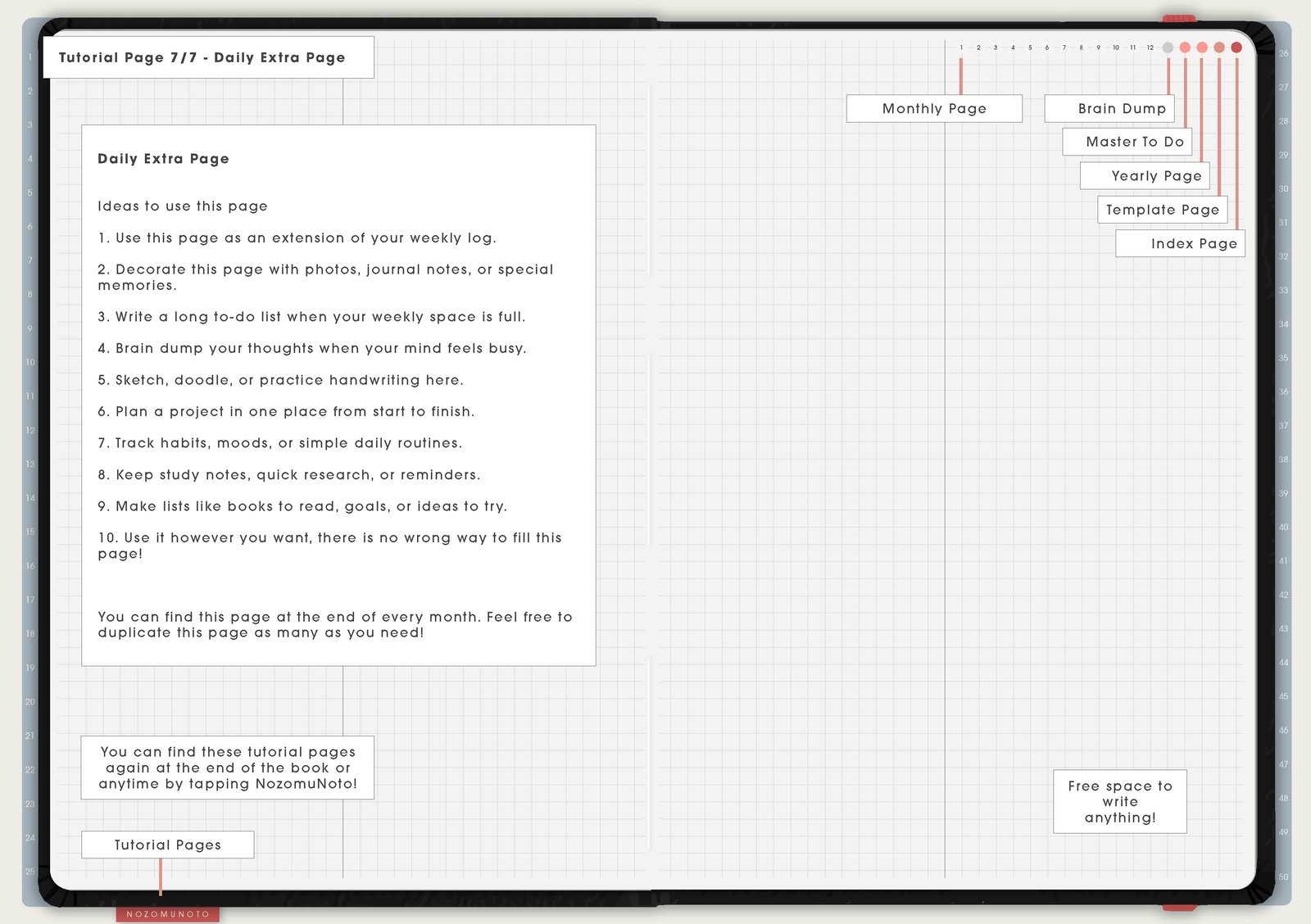
Use Daily Extra for a single busy day that needs room: event day, appointment day, travel day, launch day, exam day, review day, or a day with many loose thoughts.
This page keeps Shibui Months flexible. The planner can stay monthly-first while still giving you a place to write more when one day gets messy.
What Shibui Techo Months is best for
Shibui Techo Months is a monthly-first planner. It is best when you want a clear overview of the year and month, then flexible blank or template pages for everything else. It is lighter than a full daily planner like Yume Techo, and that is the point: fewer fixed pages, more freedom.
Use it for appointments, bills, launches, content planning, school dates, home check-ins, travel dates, project checkpoints, and recurring routines. When a month needs more detail, copy a template page and place the details there instead of forcing everything into the calendar boxes.
Helpful setup links
- New to digital planning? Start here!
- What tools do I need to start digital planning?
- Which apps work with NozomuNoto planners?
- What does hyperlinked PDF planner mean?
- Difference between Shibui Techo and Yume Techo
- Paper planner vs digital planner
How to use Shibui Techo Months first
- Use Yearly before Monthly. Put big dates on the yearly page so the monthly pages are easier to plan.
- Use Monthly as the main view. Add appointments, bills, launches, birthdays, deadlines, trips, school dates, and review days.
- Use Weekly when a month needs a smaller rhythm. This is useful for launch weeks, exam weeks, work sprints, travel weeks, or weeks with many appointments.
- Use Daily Extra only for detailed days. A busy day can have more space without turning the whole product into a daily planner.
- Use copied templates for detail. Put project notes, checklists, trackers, and plans beside the month instead of squeezing everything into calendar boxes.
- Use Index when the planner grows. It helps monthly planning stay findable.
- Review the month once. At the end of the month, mark what moved, what finished, and what should continue.
Best uses for this product
- Big-picture monthly planning: appointments, bills, launches, school events, holidays, and trips.
- Project planning: one monthly overview plus copied project templates.
- Content planning: themes, posting days, product updates, newsletters, campaign deadlines, and launch weeks.
- Home planning: cleaning check-ins, meal themes, budget dates, family events, and maintenance tasks.
- Low-energy planning: one month at a glance without managing every day in detail.
- Occasional detailed days: Daily Extra can hold one busy day, appointment day, travel day, or review day without adding daily pressure.
What the tutorial pages may not explain
- The monthly page is for decisions, not storage. Keep long notes on template or notes pages.
- Weekly and Daily Extra are extra pages. Use them only when the month needs more detail, not because every blank page must be filled.
- Copied templates need their own way back. Use bookmarks, page thumbnails, or a personal index note.
- Keep calendar boxes light. Use short words, icons, or color labels, then put details on another page.
- Monthly planning works best with a review. At the end of the month, move only what still matters.
When the Shibui Techo Months setup gets tricky
1. You expect daily or weekly dated pages
What happens: you open Shibui Months and look for a full dated weekly or daily system like Yume Techo.
What to do: use the monthly pages as the main calendar. For weekly planning, daily logs, routines, meal plans, or project notes, copy a template page and place it near the month or bookmark it.
2. The monthly page gets crowded
What happens: long notes, task lists, and project details make the month hard to read.
What to do: write short labels on Monthly, such as bill, launch, exam, order, appointment, or review. Put the full detail on a copied template, notes page, or collection page.
3. Copied templates are hard to find later
What happens: the copied page is useful, but it gets buried behind calendar or notes pages.
What to do: bookmark it, add the topic to Index, or make one "Month Details" page that links your brain back to the copied templates for that month.
4. The month review feels like another task
What happens: the end-of-month review becomes too big, so the planner gets abandoned.
What to do: keep the review tiny: one thing finished, one thing moved, one thing to stop, and one thing to continue next month.
Where to go next
Shibui Techo Months explains the product pages. For page ideas, use Tips & Ideas. For app buttons, imports, page copying, bookmarks, covers, stickers, or device problems, use the Help Center guide for your app.
Still need help?
Send your order number, product name, device, app, and a screenshot or short screen recording if the issue is visual.