

Browse help topics
Getting Started
Need help choosing?
Need help after purchase?
Download & Import
Using your notebook/planner
- How to change or reuse template pages on planner landing pages
- Why stickers look blurry when enlarged
- What to check if a product does not work on your device
- How to use NozomuNoto index pages
- How to use NozomuNoto template pages
- How to change a digital planner cover
- How to install and use digital stickers
Product Tutorials
- How to use Yume Techo Landscape tutorial pages
- How to use Yume Techo Portrait tutorial pages
- How to use Shibui Techo Weeks tutorial pages
- How to use Shibui Techo Months tutorial pages
- How to use Yume Noto V1 Landscape tutorial pages
- How to use Yume Noto V1 Portrait tutorial pages
- How to use Yume Noto V2 Landscape tutorial pages
- How to use Yume Noto V2 Portrait tutorial pages
- How to use Yume Noto V3 Portrait tutorial pages
- How to use NozomuNoto Ultimate Digital Stickers
- How to use NozomuNoto Digital Covers
- Which NozomuNoto instruction or tutorial file should I open first?
Device & App
iOS / iPadOS
GoodNotes
Notability
Noteshelf
Noteful
StarNote
Flexcil
Kilonotes
Android
StarNote
Samsung Notes
Penly
Flexcil
Noteshelf
Xodo
E-reader Devices
Boox devices
reMarkable
Bigme
Supernote
How to Use NozomuNoto Template Pages in Kilonotes on Android
Learn how to duplicate, move, and reuse NozomuNoto template pages in Kilonotes on Android while keeping your original template pages clean.
On this page
Use these steps to work with NozomuNoto PDF planners, notebooks, stickers, covers, and template pages in Kilonotes. The official links below are for downloads, updates, and current help pages.
Duplicate first
NozomuNoto template pages are reusable source pages. Before writing on a template page in Kilonotes, create a page copy first, then write on the copy.
- Open the clean NozomuNoto template page you want to reuse.
- Open the page thumbnails / Smart navigation panel.
- Use the page menu to copy the clean template page.
- Write, type, decorate, or plan on the copied page.
- Keep the original template page clean so you can reuse it again later.
Reference links
Use these for current app or device help, downloads, updates, vendor help, and manual references.
Use template pages in Kilonotes on Android
- Open the NozomuNoto Template Pages section and find the clean template page you want to reuse.
- Open the page thumbnails / Smart navigation panel from the top-left page button.
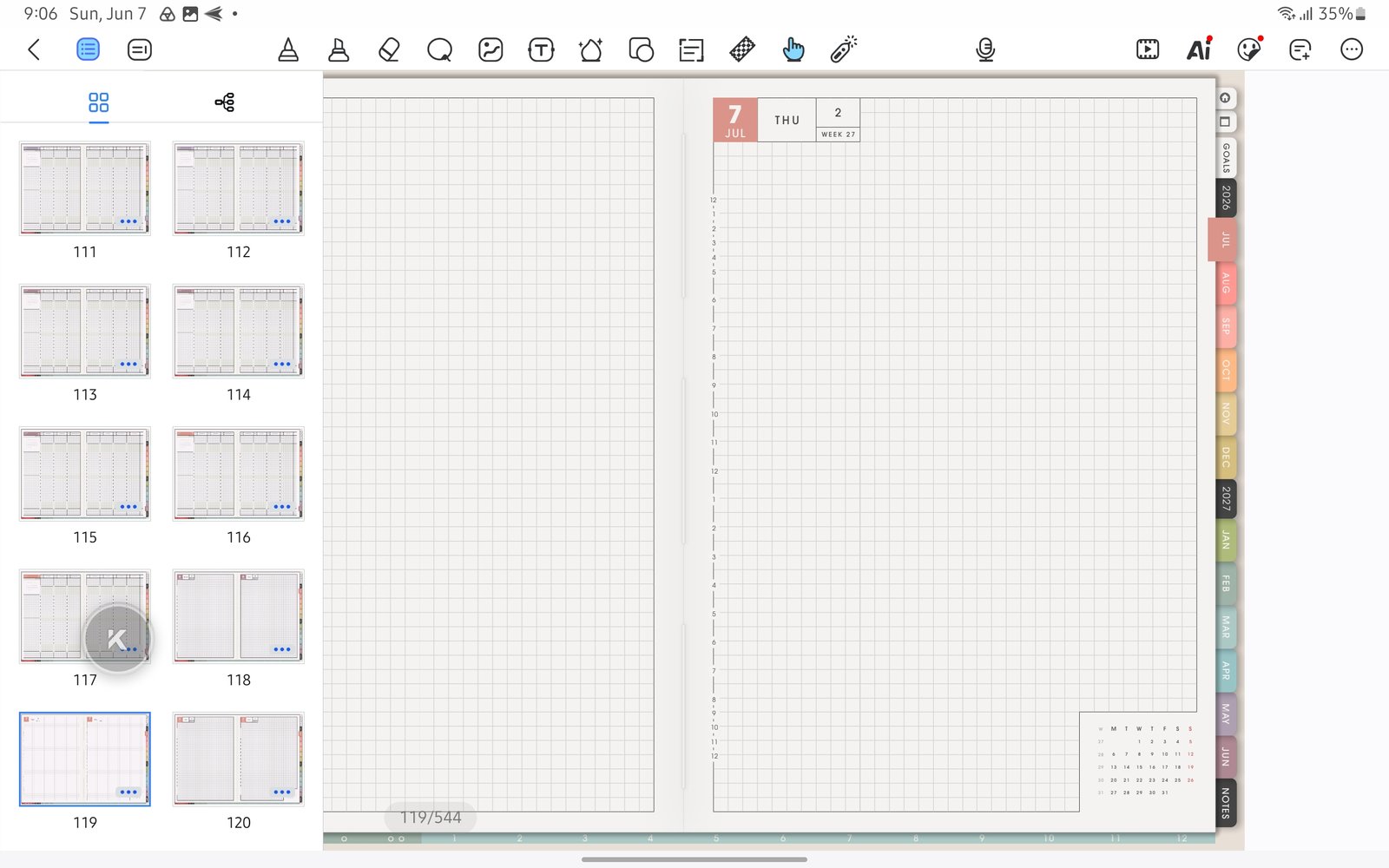
Open page thumbnailsUse page thumbnails to find the clean template page before copying it. Product shown: Yume Techo Academic 26-27 Landscape. - Tap the page thumbnail menu for the clean template page.
- Use the page-copy labels shown in this guide's Kilonotes Android screenshot set: Copy paper, then Paste paper, to create a reusable page copy.
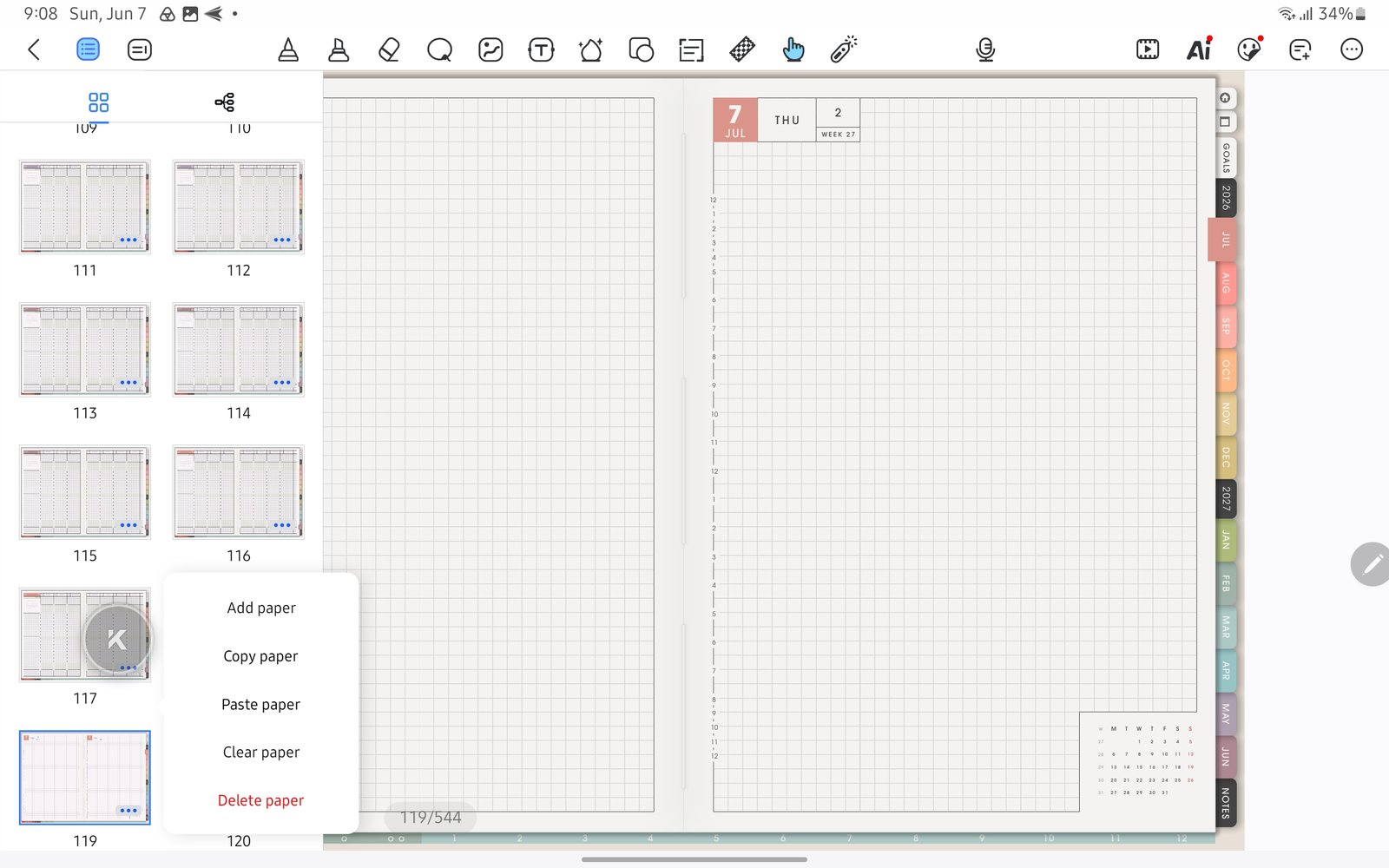
Copy paper / Paste paperThis Kilonotes Android screenshot set shows Copy paper and Paste paper for reusable page copies. Product shown: Yume Techo Academic 26-27 Landscape. - For a new blank or built-in Kilonotes page, the same screenshot set shows Add paper with Before page, After page, and Last page placement choices.
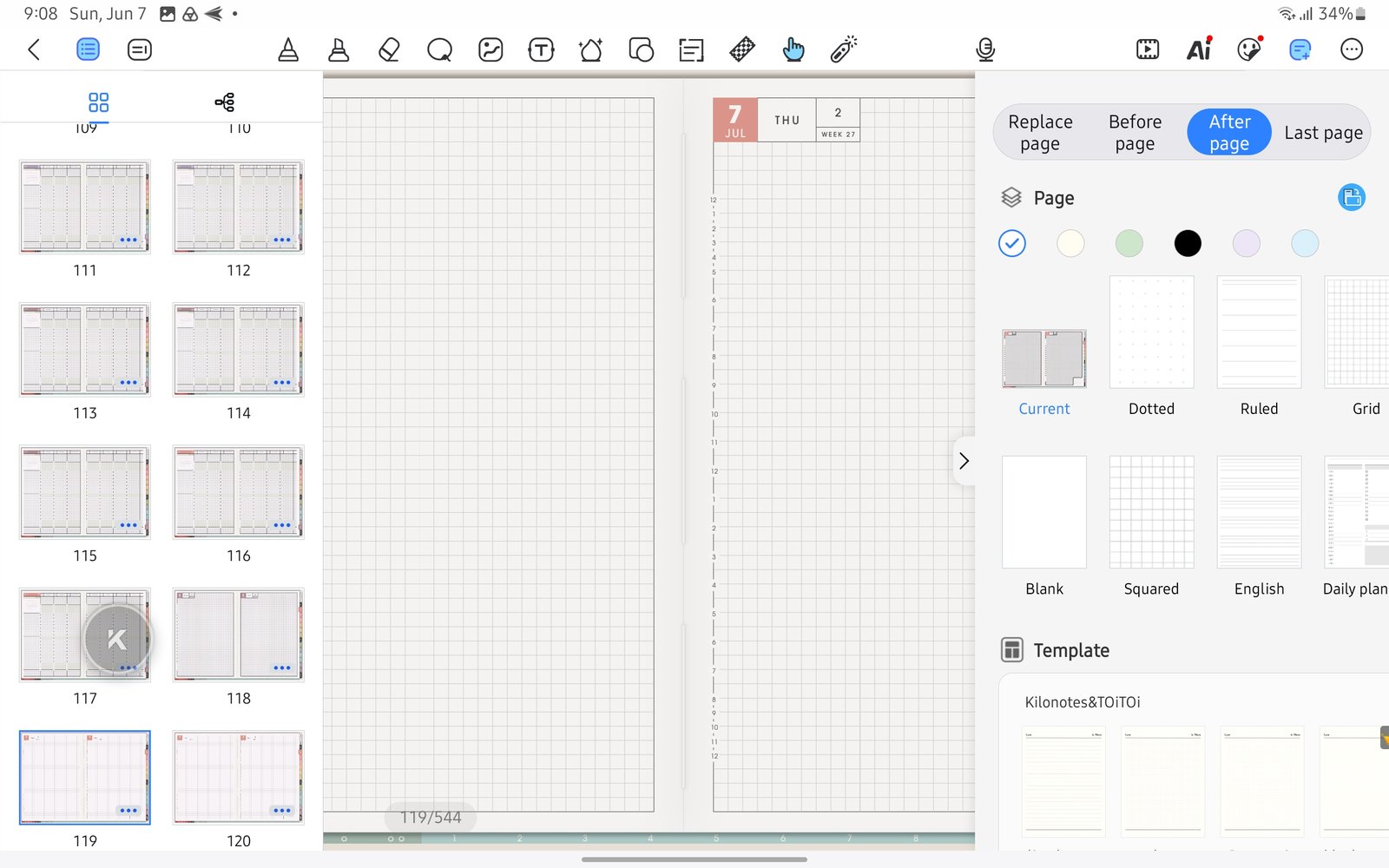
Add paper placementFor a new built-in paper page, choose Before page, After page, or Last page. Product shown: Yume Techo Academic 26-27 Landscape. - Keep one clean original template page unchanged and write on the copied page.
Kilonotes Android template checks
1. Template pages are reusable source pages
NozomuNoto template pages live inside the PDF. Use them as clean starting pages, then copy or duplicate before writing.
2. Copy before writing
Use the Kilonotes Android page-copy workflow shown in this guide: Copy paper, then Paste paper. Write on the copied page and keep the original template clean.
3. Check where the copy lands
After pasting, open page thumbnails and make sure the copied page sits near the section where you plan to use it.
If the template is already filled
Import a clean copy of the original PDF, find the clean template page again, and copy only the pages or notes you still need.
Next Kilonotes Android template links
Still need help?
Send your order number, product name, device, app, and a screenshot or short screen recording if the issue is visual.