

Browse help topics
Getting Started
Need help choosing?
Need help after purchase?
Download & Import
Using your notebook/planner
- How to change or reuse template pages on planner landing pages
- Why stickers look blurry when enlarged
- What to check if a product does not work on your device
- How to use NozomuNoto index pages
- How to use NozomuNoto template pages
- How to change a digital planner cover
- How to install and use digital stickers
Product Tutorials
- How to use Yume Techo Landscape tutorial pages
- How to use Yume Techo Portrait tutorial pages
- How to use Shibui Techo Weeks tutorial pages
- How to use Shibui Techo Months tutorial pages
- How to use Yume Noto V1 Landscape tutorial pages
- How to use Yume Noto V1 Portrait tutorial pages
- How to use Yume Noto V2 Landscape tutorial pages
- How to use Yume Noto V2 Portrait tutorial pages
- How to use Yume Noto V3 Portrait tutorial pages
- How to use NozomuNoto Ultimate Digital Stickers
- How to use NozomuNoto Digital Covers
- Which NozomuNoto instruction or tutorial file should I open first?
Device & App
iOS / iPadOS
GoodNotes
Notability
Noteshelf
Noteful
StarNote
Flexcil
Kilonotes
Android
StarNote
Samsung Notes
Penly
Flexcil
Noteshelf
Xodo
E-reader Devices
Boox devices
reMarkable
Bigme
Supernote
Boox devices known problems
Known issues and practical checks for using NozomuNoto files in Boox devices.
On this page
Reference links
Use these for current app or device help, downloads, updates, vendor help, and manual references.
Fix common Boox planner problems
- If links try not to move, open the NeoReader menu and switch away from pen, annotation, selection, or handwriting tools before tapping again.
- If the page is hard to find, use Contents, bookmarks, page jump, thumbnails, or the printed NozomuNoto Index page instead of scrolling through the whole planner.
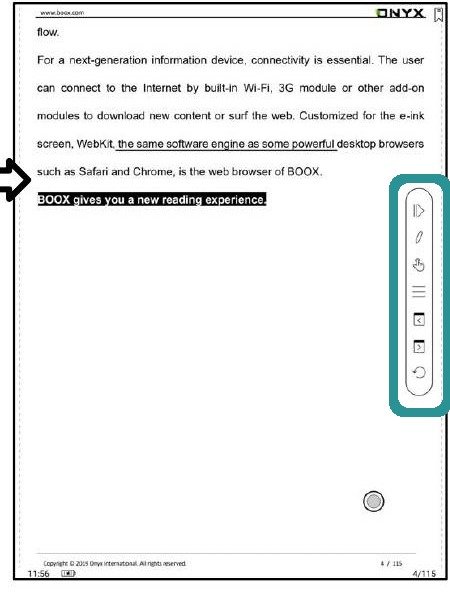
BOOX reader toolsIf tapping or writing feels wrong, check the BOOX reader tool mode before blaming the PDF. - If handwriting disappears, test one mark on a fresh copy of the PDF, close it, reopen it, and check whether NeoReader saved the annotation.
- If page edits create confusion, stop using that edited copy and transfer the unchanged backup PDF again.
- If the article menu names try not to match your Boox, send the Boox model, firmware version, NeoReader version if visible, and a screenshot of the menu before trying random tools.
Notes
- Before asking for help: Send the NozomuNoto product name, Boox model, firmware version, NeoReader version if visible, and the exact step that failed. A short screen recording helps a lot.
- If the same issue happens in a fresh copy, note the product name, device, app version, and exact step before asking for help.
Still need help?
Send your order number, product name, device, app, and a screenshot or short screen recording if the issue is visual.