

Browse help topics
Getting Started
- Does my NozomuNoto purchase include an app or an app subscription?
- New to digital planning? Start here!
- What is a digital notebook?
- What is a digital planner?
- What tools do I need to start digital planning?
- Which apps work with NozomuNoto planners?
- What does “hyperlinked PDF planner” mean?
- Paper planner vs digital planner
Need help choosing?
Need help after purchase?
Download & Import
Using your notebook/planner
- Can I use my NozomuNoto planner offline?
- How do I back up, export, or move my NozomuNoto planner to a new device?
- How to change or reuse template pages on planner landing pages
- Why stickers look blurry when enlarged
- What to check if a product does not work on your device
- How to use NozomuNoto index pages
- How to use NozomuNoto template pages
- How to change a digital planner cover
- How to install and use digital stickers
Product Tutorials
- How to use Shibui Noto V1 Landscape
- How to use the Ikigai Noto Hiragana and Katakana workbook
- How to use Yume Techo Landscape tutorial pages
- How to use Yume Techo Portrait tutorial pages
- How to use Shibui Techo Weeks tutorial pages
- How to use Shibui Techo Months tutorial pages
- How to use Yume Noto V1 Landscape tutorial pages
- How to use Yume Noto V1 Portrait tutorial pages
- How to use Yume Noto V2 Landscape tutorial pages
- How to use Yume Noto V2 Portrait tutorial pages
- How to use Yume Noto V3 Portrait tutorial pages
- How to use NozomuNoto Ultimate Digital Stickers
- How to use NozomuNoto Digital Covers
- Which NozomuNoto instruction or tutorial file should I open first?
Device & App
iOS / iPadOS
GoodNotes
Notability
Noteshelf
Noteful
StarNote
Flexcil
Kilonotes
Android
StarNote
Samsung Notes
Penly
Flexcil
Noteshelf
Xodo
E-reader Devices
Boox devices
reMarkable
Bigme
Supernote
Paper planner vs digital planner
Compare paper planners and digital planners so you can choose the best fit for your writing style, device, page needs, routine, and planning habits.
On this page
- Quick answer
- Fast decision
- Paper planner strengths
- Digital planner strengths
- Choose paper if
- Choose digital if
- Use both if
- Try a one-week test
- When this choice gets tricky
- 1. You try to recreate your whole paper system at once
- 2. You compare the writing feel instead of the whole workflow
- 3. You keep both systems but give them the same job
- Go next
Applies to: Paper vs digital planning · App-independent comparison · Your preferred device or paper.
Files: Paper, digital planner PDF. Compare the workflow you need; digital features depend on the app/device.
Paper planner vs digital planner: both can be useful. This is not about proving one is better forever. It is about choosing the setup that fits how you write, how much you move around, how often plans change, and whether you want one simple book or a flexible system inside a device.
For a digital planner vs paper planner choice, look at the job first: thinking, writing, changing plans, copying pages, carrying notes, and returning tomorrow.
If you love paper, you can keep it. If you are asking "should I switch to a digital planner?", compare the digital planner pros and cons with the parts of paper planning you already love.
Start with the parts of your current setup that you want to improve: changing plans, reusing pages, adding images, or carrying notes in one place.
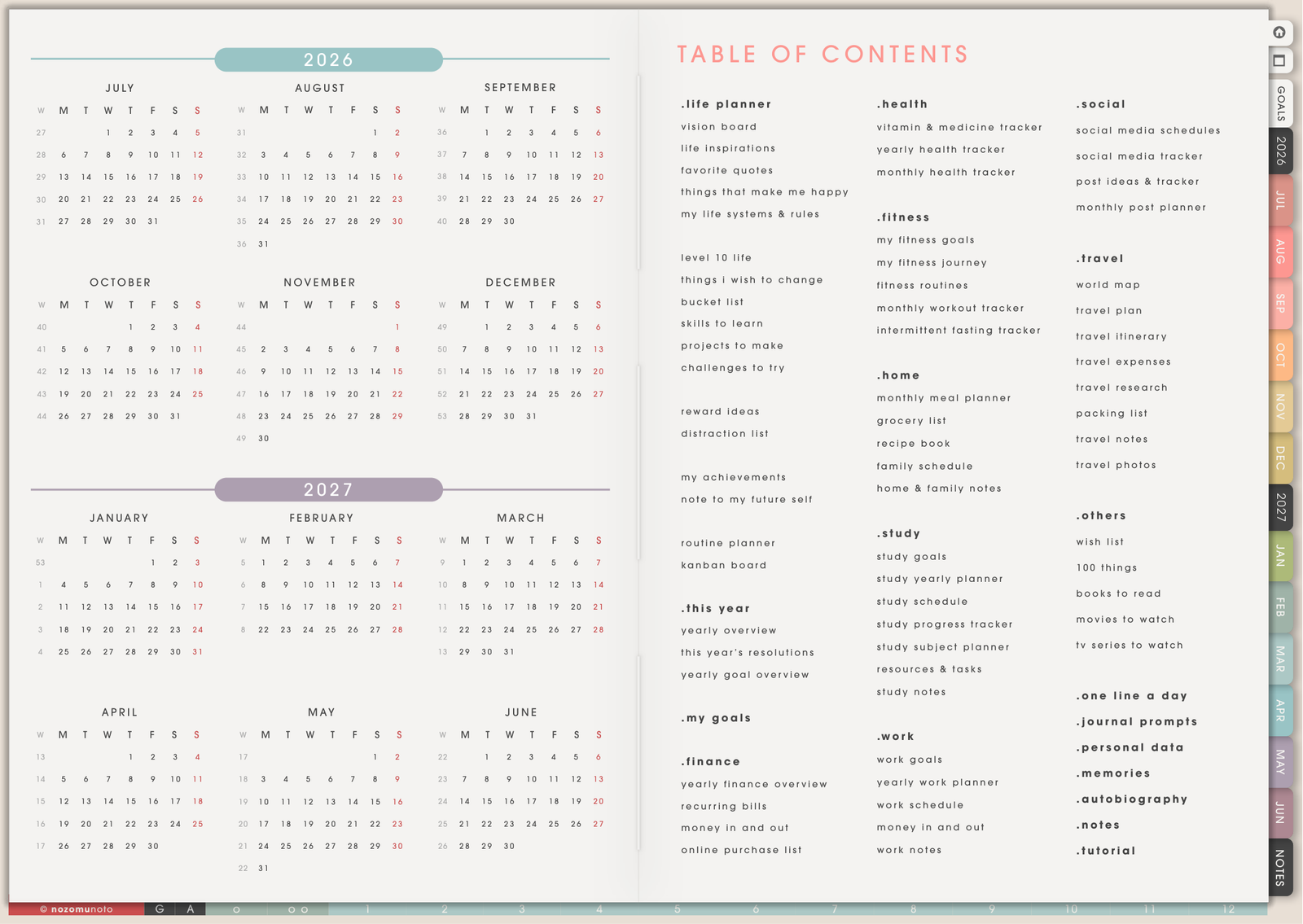
Quick answer
- Choose paper if you want no app setup, no battery, a simple writing feel, and a planner that works even when your device is off.
- Choose digital if you want reusable pages, easy editing, hyperlinks, stickers, backups, and many planners or notebooks in one device.
- Use both if paper helps you think and digital helps you store, copy, organize, or carry the final plan.
Fast decision
Choose paper if you want the simplest writing experience: open the planner, write, close it, and move on.
Choose digital if your plans change often, you want reusable pages, you like links and indexes, or you want planners, notebooks, stickers, covers, and notes inside one device.
Use both if paper helps you think and digital helps you organize what you want to keep. A paper and digital planning system works best when each one has a clear job.
The best planner is not the fanciest one. The best planner is the one you can return to tomorrow.
Paper planner strengths
- It is instantly familiar. Open the planner, write, close it. No import steps, app modes, file storage, or toolbar learning first.
- It has less screen friction. Paper is lovely when you want quiet planning without notifications, tabs, battery, or another device.
- It can feel more emotionally real. Some people remember better when they physically write on paper and flip the page by hand.
- It is good for simple routines. If your planning system rarely changes and one book is enough, paper can be beautifully simple.
Digital planner strengths
- You can erase and move things cleanly. Changed appointments, messy handwriting, rearranged priorities, and rescheduled plans are easier to fix.
- You can reuse pages. Duplicate weekly pages, tracker pages, template pages, notes pages, lists, or project layouts without buying another book.
- You can carry more in one device. Planner, notebook, stickers, covers, study PDFs, work notes, reading notes, and personal pages can live together.
- You can use links and indexes. Hyperlinked tabs, date links, and index pages help you jump around a large planner faster.
- You can add visuals easily. Use PNG stickers, screenshots, photos, inspiration images, habit icons, and covers without printing or cutting.
- You can back up and export. Many apps let you keep a clean copy, export a marked-up PDF, or save an archive when a project or year is done.
Choose paper if
- You want the lowest possible learning curve.
- You dislike managing files, apps, backups, or storage folders.
- You mostly plan at one desk or in one bag.
- Template duplication is rarely part of your planning.
- You feel better away from screens.
Choose digital if
- Your plans change often and you want clean edits.
- You want monthly, weekly, daily, notes, templates, stickers, and PDFs together.
- You like having one tablet instead of several notebooks.
- You want linked navigation instead of flipping through many pages.
- You want to reuse the same planner page layout many times.
- You want to keep backup copies or archive old planners.
Use both if
A mixed setup can be the most realistic. Use paper for messy thinking, brain dumps, quick sketches, or emotional journaling. Use digital for the pages you return to, copy, organize, search, decorate, or carry with you.
For example, you might brainstorm a project on paper, then put the final deadlines into a digital monthly page. Or you might write a rough grocery list on paper, then keep recurring meal ideas in a digital notebook.
For an iPad planner vs paper planner choice, try paper for the rough thinking and the iPad planner for the final dates, reusable templates, images, and notes you want to keep.
Try a one-week test
- Pick one real week. Keep your whole life out of day one.
- Use only the current monthly page, current weekly page, and one notes page. Keep the test small enough to finish.
- Write the same type of plans you would write on paper. Appointments, errands, deadlines, meals, study blocks, work tasks, or family reminders.
- Test one digital advantage. Duplicate a page, move a task, add a sticker, use a link, insert a photo, or export a copy.
- Review at the end of the week. Ask what felt easier, what felt annoying, and whether the digital parts solved a real problem.
When this choice gets tricky
1. You try to recreate your whole paper system at once
What happens: the digital planner turns into a giant setup project before it becomes useful.
Example: you try to move every paper list, every sticky note, every tracker, every journal page, and every old routine into the app on the first day.
What to do: move only the pages you already understand first: current Monthly, current Weekly, and one Notes page. Add templates, stickers, covers, and extra sections only when they make planning easier.
2. You compare the writing feel instead of the whole workflow
What happens: paper feels nicer for handwriting, so digital seems worse before you test what digital is good at.
Example: handwriting on glass may feel different, but duplicating a template, erasing cleanly, adding a screenshot, or carrying many notebooks in one device may solve a bigger problem.
What to do: judge the whole workflow, not only the pen feel. Try one real week and compare setup time, changes, portability, page finding, and how easy it is to return tomorrow.
3. You keep both systems but give them the same job
What happens: paper and digital both hold tasks, appointments, notes, and reminders, so nothing feels trustworthy.
Example: one appointment is in paper, one deadline is digital, and one task is in a phone note. Now the planner problem is duplication, not paper or digital.
What to do: give each system a clear role. Paper can be for messy thinking and quick capture. Digital can be for the final calendar, reusable pages, organized notes, and anything you need to carry or copy.
Go next
Still need help?
Send your order number, product name, device, app, and a screenshot or short screen recording if the issue is visual.