

Browse help topics
Getting Started
Need help choosing?
Need help after purchase?
Download & Import
Using your notebook/planner
- How to change or reuse template pages on planner landing pages
- Why stickers look blurry when enlarged
- What to check if a product does not work on your device
- How to use NozomuNoto index pages
- How to use NozomuNoto template pages
- How to change a digital planner cover
- How to install and use digital stickers
Product Tutorials
- How to use Yume Techo Landscape tutorial pages
- How to use Yume Techo Portrait tutorial pages
- How to use Shibui Techo Weeks tutorial pages
- How to use Shibui Techo Months tutorial pages
- How to use Yume Noto V1 Landscape tutorial pages
- How to use Yume Noto V1 Portrait tutorial pages
- How to use Yume Noto V2 Landscape tutorial pages
- How to use Yume Noto V2 Portrait tutorial pages
- How to use Yume Noto V3 Portrait tutorial pages
- How to use NozomuNoto Ultimate Digital Stickers
- How to use NozomuNoto Digital Covers
- Which NozomuNoto instruction or tutorial file should I open first?
Device & App
iOS / iPadOS
GoodNotes
Notability
Noteshelf
Noteful
StarNote
Flexcil
Kilonotes
Android
StarNote
Samsung Notes
Penly
Flexcil
Noteshelf
Xodo
E-reader Devices
Boox devices
reMarkable
Bigme
Supernote
What is a digital planner?
Learn what a digital planner is, how it works, what pages it includes, what app you need, and how to choose between a digital planner and a digital notebook.
On this page
- Quick answer
- Choose a digital planner if
- How does a digital planner work?
- What a digital planner usually includes
- Digital planner vs digital notebook
- What you need to use one
- How to start after purchase
- Good ways to use a digital planner
- When a digital planner gets tricky
- 1. You try to fill every page immediately
- 2. You decorate before testing the planner
- 3. You forget where the original download is
- 4. Daily pages feel like a rule
- 5. The planner still needs a return habit
- NozomuNoto planner examples
- Go next
What is a digital planner? A digital planner is a planner file you use on a tablet, phone, computer, or compatible e-reader instead of a paper planner. Most NozomuNoto digital planners are PDF-based files opened inside a note-taking or PDF annotation app, so you can handwrite, type, highlight, add stickers, duplicate pages, and move through the planner with built-in links.
This page explains what a digital planner is, what pages it usually includes, how it is different from a digital notebook, and how to set up the first month and week without needing a perfect planning system first.
Quick answer
A digital planner is best when dates, deadlines, appointments, routines, and schedules are the main thing you need to manage. It gives you calendar pages and planning pages in one file, then uses links so you can move between yearly, monthly, weekly, daily, notes, and template areas.
The easiest way to understand it: a digital planner is built around time. A planner asks, "what is happening when?" A digital notebook asks, "where should this information live?"
Start light first. Set up the current month, the current week, and one notes page before opening every tracker, template, and extra section.
Choose a digital planner if
- You need one place for dates, routines, schedules, deadlines, appointments, bills, and recurring planning.
- You want monthly, weekly, or daily pages for school schedules, work deadlines, home tasks, habits, projects, launches, and life admin.
- You want a planner for what happens when, a digital notebook for flexible notes by topic, or both when planning and extra notes need separate spaces.
How does a digital planner work?
A PDF digital planner opens inside an app that can write on PDFs. In a hyperlinked PDF planner, the built-in links help you jump between index, yearly, monthly, weekly, daily, notes, and template areas without scrolling through every page.
If you are choosing a digital planner for beginners, start with one device, one app, one clean backup, and one working copy inside the app.
What a digital planner usually includes
- Yearly pages: big dates, school terms, launches, holidays, trips, yearly goals, and long projects.
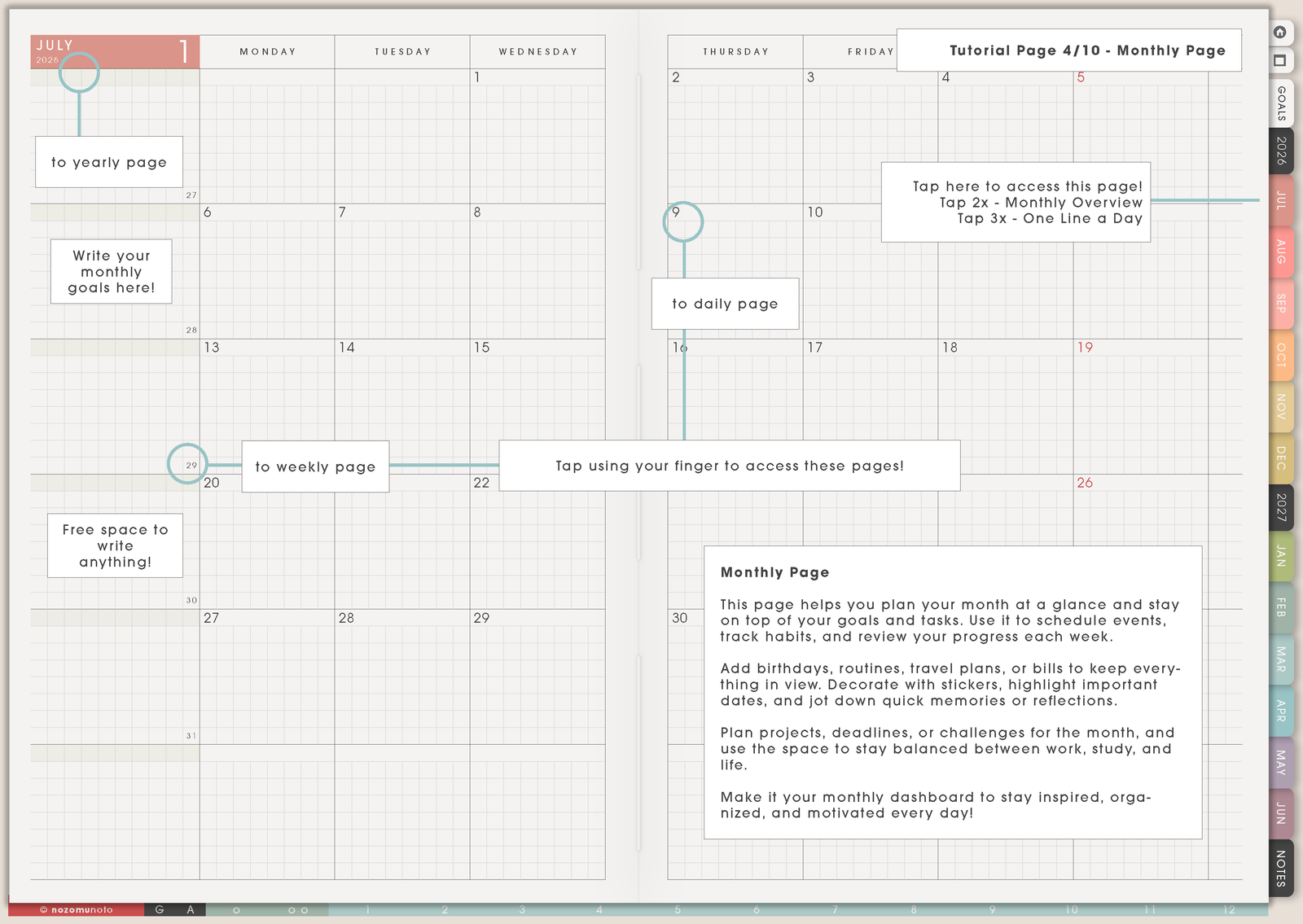
- Monthly pages: appointments, birthdays, bills, deadlines, events, themes, and reset days.
- Weekly pages: the working plan for classes, shifts, errands, meals, study blocks, project actions, and routines.
- Daily pages: extra room for busy days, detailed notes, schedules, priorities, or reflection.
- Index pages and tabs: a map for moving through the planner without scrolling page by page.
- Template or notes pages: reusable pages for lists, trackers, projects, collections, and overflow thoughts.
- Optional extras: stickers, covers, widgets, color index files, tutorial pages, or bonus pages depending on the product.
Digital planner vs digital notebook
- Choose a digital planner when the main job is managing dates, routines, deadlines, schedules, or recurring life admin.
- Choose a digital notebook when the main job is writing notes, collecting ideas, studying, journaling, or organizing information by topic.
- Use both together when your planner holds what happens when, and your notebook holds the details, notes, research, and ideas behind it.
What you need to use one
- A device: iPad, Android tablet, phone, computer, or compatible e-reader that can open PDF files.
- An app: a note-taking or PDF annotation app that works with writing, typing, PDF links, page thumbnails, and page management.
- A stylus if you want handwriting: Apple Pencil, Samsung S Pen, or another stylus compatible with your device.
- The planner file: usually a PDF, sometimes with extra sticker, cover, instruction, or app-specific files.
How to start after purchase
- Save the original download. Keep one clean backup copy somewhere you can find again.
- Import one working copy into your app. Write in the app copy, not the backup file.
- Open the Index or tutorial page first. Learn where yearly, monthly, weekly, daily, notes, and template pages live.
- Test the main links before decorating. Try a few tabs, index links, or date links before adding lots of writing and stickers.
- Set up one month and one week first. Add only real dates, appointments, deadlines, and tasks you already know.
- Add extras slowly. Stickers, covers, widgets, trackers, and template pages are easier after the main planner works.
Good ways to use a digital planner
- Students: class schedules, assignment deadlines, exam weeks, reading blocks, and study plans.
- Work: meetings, launches, client work, admin days, project deadlines, and follow-ups.
- Home: bills, appointments, school events, meal planning, errands, cleaning resets, and family logistics.
- Personal planning: routines, habits, health notes, goals, journaling, self-care, and reflection.
- Creative planning: content calendars, product launches, craft projects, shop tasks, and idea capture.
When a digital planner gets tricky
1. You try to fill every page immediately
What happens: the planner has yearly pages, monthly pages, weekly pages, daily pages, goals, templates, notes, and extras, so setup starts to feel bigger than the actual planning.
Example: you spend the first hour deciding what to do with every tracker and template, then still have not written this week's appointments.
What to do: start with Index, current Monthly, current Weekly, and one Notes or Template page. Add daily pages, goals, trackers, and extras only when they solve a real problem.
2. You decorate before testing the planner
What happens: stickers, images, and handwriting are already on the page before you know whether links, page thumbnails, copying, or backup work correctly in the app.
Example: you decorate the monthly page beautifully, then realize links are not working because the app is still in writing mode.
What to do: test the index, tabs, month links, page thumbnails, writing tool, and one page copy first. Once the planner moves correctly, decorate as much as you like.
3. You forget where the original download is
What happens: the working copy gets messy, damaged, too heavy, or accidentally deleted, but the clean download is hard to find.
Example: the planner in the app has test writing, wrong stickers, or a mistaken page order, and restarting feels scary because the download folder is missing.
What to do: keep one clean backup in a folder called something simple, such as NozomuNoto Downloads. Write only on the app copy. If needed, import a fresh copy from the backup.
4. Daily pages feel like a rule
What happens: you feel behind because not every day has a filled daily page.
Example: Monday has a full daily page, Tuesday is blank, Wednesday has three tasks, and then the planner starts feeling like a scorecard.
What to do: use daily pages only when the day needs more room. A weekly page can be the home base. Daily pages can be for busy days, meeting days, study days, travel days, or days that need extra detail.
5. The planner still needs a return habit
What happens: the file has structure, but the habit of returning to it is still new.
Example: everything is set up nicely, but tasks still stay in messages, receipts, school emails, sticky notes, and your head.
What to do: choose one tiny return habit. Open the planner once in the morning or once at night, write the next useful thing, and close it. A small repeated check-in is better than a perfect setup that feels too heavy to open.
NozomuNoto planner examples
If you are choosing a NozomuNoto planner, choose by how much dated structure you want and how you prefer to see the page on your device.
- Yume Techo: choose this if you want the fuller dated planner with yearly, monthly, weekly, daily, Life Planner, goals, notes, and template areas. See Yume Techo Landscape or Yume Techo Portrait.
- Shibui Techo Weeks: choose this if you want a lighter weekly planner setup and most of your planning happens week by week. See Shibui Techo Weeks tutorial pages.
- Shibui Techo Months: choose this if you want month-at-a-glance planning without daily detail. See Shibui Techo Months tutorial pages.
Go next
- What is a digital notebook?
- What tools do I need to start digital planning?
- Which apps work with NozomuNoto planners?
- What does "hyperlinked PDF planner" mean?
- Should I get a digital notebook or a digital planner?
- Portrait vs landscape planner: which should I choose?
- Yume Techo Landscape tutorial pages
Still need help?
Send your order number, product name, device, app, and a screenshot or short screen recording if the issue is visual.