

Browse help topics
Getting Started
Need help choosing?
Need help after purchase?
Download & Import
Using your notebook/planner
- How to change or reuse template pages on planner landing pages
- Why stickers look blurry when enlarged
- What to check if a product does not work on your device
- How to use NozomuNoto index pages
- How to use NozomuNoto template pages
- How to change a digital planner cover
- How to install and use digital stickers
Product Tutorials
- How to use Yume Techo Landscape tutorial pages
- How to use Yume Techo Portrait tutorial pages
- How to use Shibui Techo Weeks tutorial pages
- How to use Shibui Techo Months tutorial pages
- How to use Yume Noto V1 Landscape tutorial pages
- How to use Yume Noto V1 Portrait tutorial pages
- How to use Yume Noto V2 Landscape tutorial pages
- How to use Yume Noto V2 Portrait tutorial pages
- How to use Yume Noto V3 Portrait tutorial pages
- How to use NozomuNoto Ultimate Digital Stickers
- How to use NozomuNoto Digital Covers
- Which NozomuNoto instruction or tutorial file should I open first?
Device & App
iOS / iPadOS
GoodNotes
Notability
Noteshelf
Noteful
StarNote
Flexcil
Kilonotes
Android
StarNote
Samsung Notes
Penly
Flexcil
Noteshelf
Xodo
E-reader Devices
Boox devices
reMarkable
Bigme
Supernote
How to use NozomuNoto Library and Builder
Use NozomuNoto Library and Builder to verify your purchase, access product files, customize eligible planners, generate your file, and download safely.
On this page
Quick start
Use NozomuNoto Library first if your product uses Library or Builder access.
- Library: access eligible NozomuNoto product files and download links.
- Builder: customize eligible planners before downloading the finished file.
- Fastest new-purchase path: use your Etsy order number first. Email access may take longer to sync right after purchase.
- Open NozomuNoto Library.
- Enter your Etsy order number or synced email.
- Open the product card.
- If Builder is available, choose the options shown for that product.
- Wait until the file-ready screen appears.
- Download the finished file.
- Save the original download before importing it into your app.
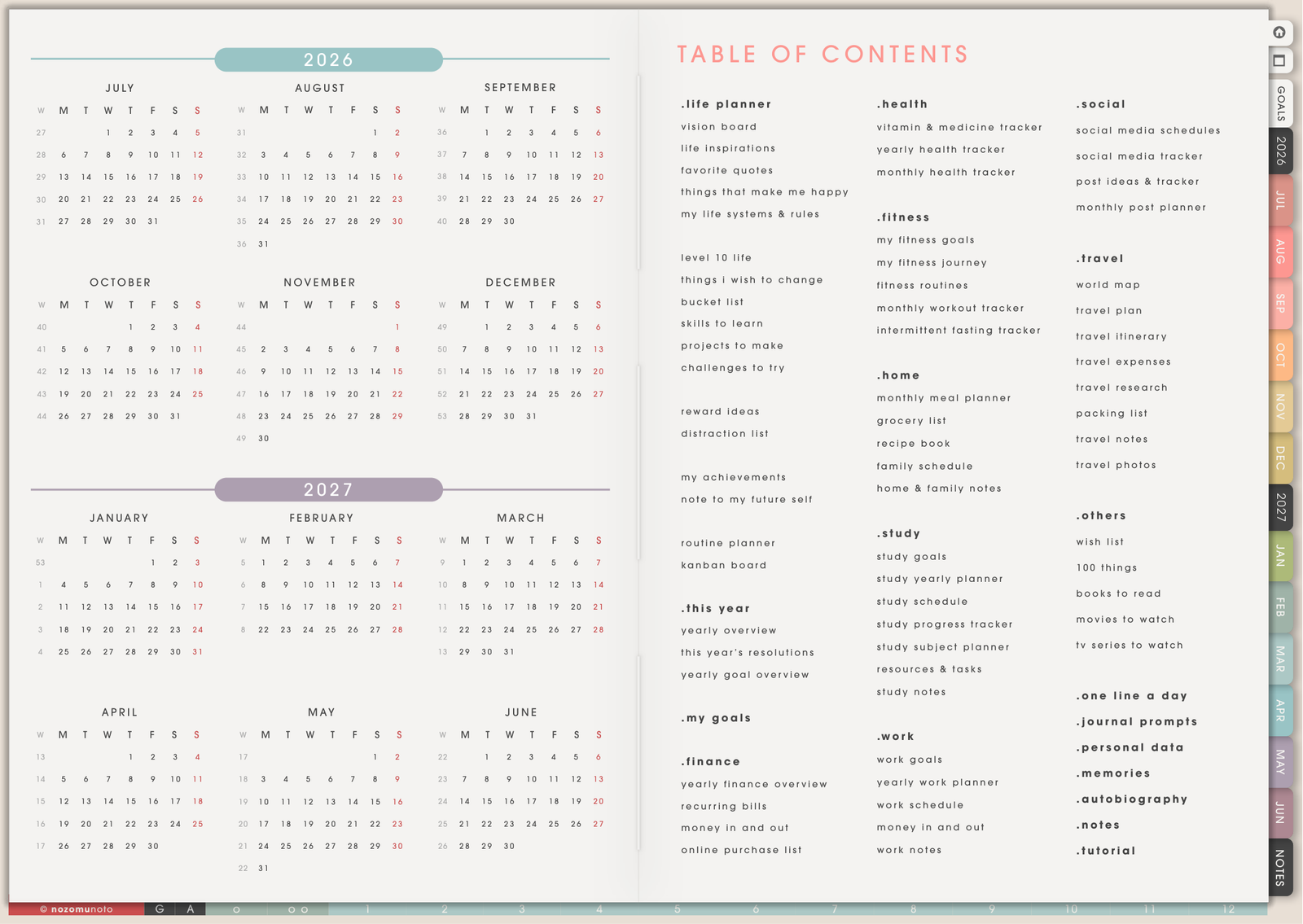
NozomuNoto Library and Builder help you open eligible purchased files, verify your order, customize eligible planners, and download the finished planner when a product needs to be generated first. This guide uses Yume Techo Academic 26-27 Landscape Monday - Garden as the light example.
This guide covers NozomuNoto Library access, NozomuNoto Planner Builder steps, NozomuNoto order verification, Etsy order number access, custom digital planner builder files, the NozomuNoto Builder download path, and how to download a built planner file safely.
Quick access path
- Open NozomuNoto Library or the Builder link from your download instructions.
- Enter your Etsy order number or synced email. Use the Etsy order number first if the purchase is new.
- Open the product from your library. If the product uses Builder, follow the Builder page until the planner is ready.
- Download the finished PDF. When the file-ready page appears, tap Download file.
- Save the PDF before importing. Keep one clean backup, then import a copy into your note app.
Open NozomuNoto Library
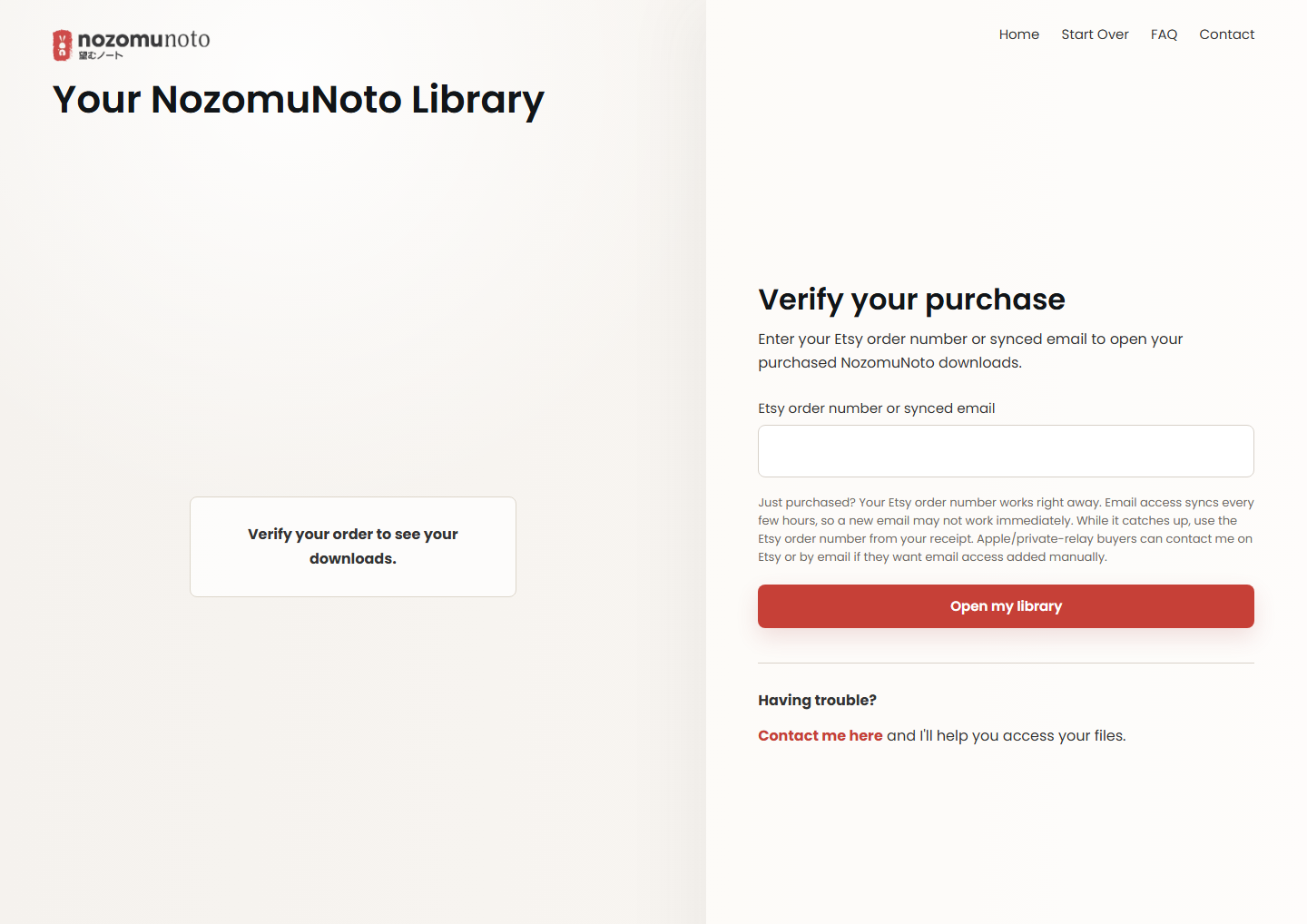
- Go to NozomuNoto Library. The page title should say Your NozomuNoto Library.
- Find Verify your purchase. The form asks for Etsy order number or synced email.
- Use the Etsy order number for new purchases. You can find it on the Etsy receipt or in Etsy Purchases and Reviews. This usually works before email access finishes syncing.
- Tap Open my library. After the order is verified, open the product you want to download, set up, or generate.
- If email lookup fails, use the order number. Apple/private-relay email, a typo, or a brand-new purchase can make email lookup fail even when the order is valid.
Open a Builder product
- Open the Builder link from your library or product instructions. In this guide, the example is Yume Techo Academic 26-27 Landscape Monday - Garden.
- Use Verify your purchase if the builder asks again. Enter the same Etsy order number or synced email.
- Check the product options before building. Some links already choose the correct product. Others may ask you to choose from the options shown on that Builder page. Pause here so you build the version you meant to download.
- Start the build and wait for the file-ready screen. Keep the tab open until the page says Your file is ready!. Large planners can take a moment because the PDF is being prepared.
- Tap Download file. Browser settings, VPN, mobile prompts, or a weak connection can interrupt a download, so use the red Download file button on the file-ready screen.
After the PDF downloads
- Save the PDF somewhere easy to find. On iPad, use Files. On Android, use Downloads or a folder you can find again.
- Keep one clean backup. Work from a duplicate or app copy when your app gives that option.
- Import the PDF into your planner app. Use GoodNotes, Notability, Noteshelf, Noteful, Flexcil, or CollaNote on iPad; Penly, Samsung Notes, StarNote, Flexcil, Noteshelf, Xodo, or Kilonotes on Android; or the app/device you chose.
- Test one index link and one writing mark. Make sure the PDF opens, links work in navigation mode, and writing saves before moving your full setup in.
If Library or Builder gets stuck
- Email is not accepted: use the Etsy order number instead. Email syncing can take a few hours, and Apple/private-relay email can hide the address used at checkout.
- The order number is not accepted: check the number from the Etsy receipt, remove extra spaces, and make sure you are using the NozomuNoto order.
- The Builder asks for verification again: enter the same Etsy order number. This can happen when opening a Builder link directly instead of from the Library.
- The page says the file is ready, but the PDF is missing: tap Download file again. On mobile, also check the browser download icon or the Files/Downloads folder.
- The browser says the site is not available: turn off VPN if you are using one, refresh the Builder page, and tap Download file again.
- The file downloads but will not open: check that the download finished completely. Then try opening the PDF in Files, Adobe Reader, or another PDF viewer before importing it into a note app.
- The product looks wrong: start over from the correct Builder link and check the product name plus the options shown before downloading again.
What to send if you need help
Send the purchase platform, Etsy order number or website order number, product name, Builder link, device, browser, app you plan to use, and the exact step where it stopped. If there is an error message, wrong product, or stuck download prompt, include a screenshot so I can check the exact place where it went wrong. Please hide payment details if they are visible.
Related help
Still need help?
Send your order number, product name, device, app, and a screenshot or short screen recording if the issue is visual.