

Browse help topics
Getting Started
Need help choosing?
Need help after purchase?
Download & Import
Using your notebook/planner
- How to change or reuse template pages on planner landing pages
- Why stickers look blurry when enlarged
- What to check if a product does not work on your device
- How to use NozomuNoto index pages
- How to use NozomuNoto template pages
- How to change a digital planner cover
- How to install and use digital stickers
Product Tutorials
- How to use Yume Techo Landscape tutorial pages
- How to use Yume Techo Portrait tutorial pages
- How to use Shibui Techo Weeks tutorial pages
- How to use Shibui Techo Months tutorial pages
- How to use Yume Noto V1 Landscape tutorial pages
- How to use Yume Noto V1 Portrait tutorial pages
- How to use Yume Noto V2 Landscape tutorial pages
- How to use Yume Noto V2 Portrait tutorial pages
- How to use Yume Noto V3 Portrait tutorial pages
- How to use NozomuNoto Ultimate Digital Stickers
- How to use NozomuNoto Digital Covers
- Which NozomuNoto instruction or tutorial file should I open first?
Device & App
iOS / iPadOS
GoodNotes
Notability
Noteshelf
Noteful
StarNote
Flexcil
Kilonotes
Android
StarNote
Samsung Notes
Penly
Flexcil
Noteshelf
Xodo
E-reader Devices
Boox devices
reMarkable
Bigme
Supernote
What does “hyperlinked PDF planner” mean?
Learn what a hyperlinked PDF planner is, how tabs, dates, indexes, and buttons move between pages, and what to check when planner links are not working.
On this page
- If links are not working, try this first
- Where links usually appear
- What links can do
- What links are limited to
- How to test links
- When links get tricky
- 1. Tapping writes instead of moving
- 2. The file is only open in a preview
- 3. The PDF is still inside a ZIP
- 4. The app is weak with PDF links
- 5. A heavily edited copy behaves strangely
- Go next
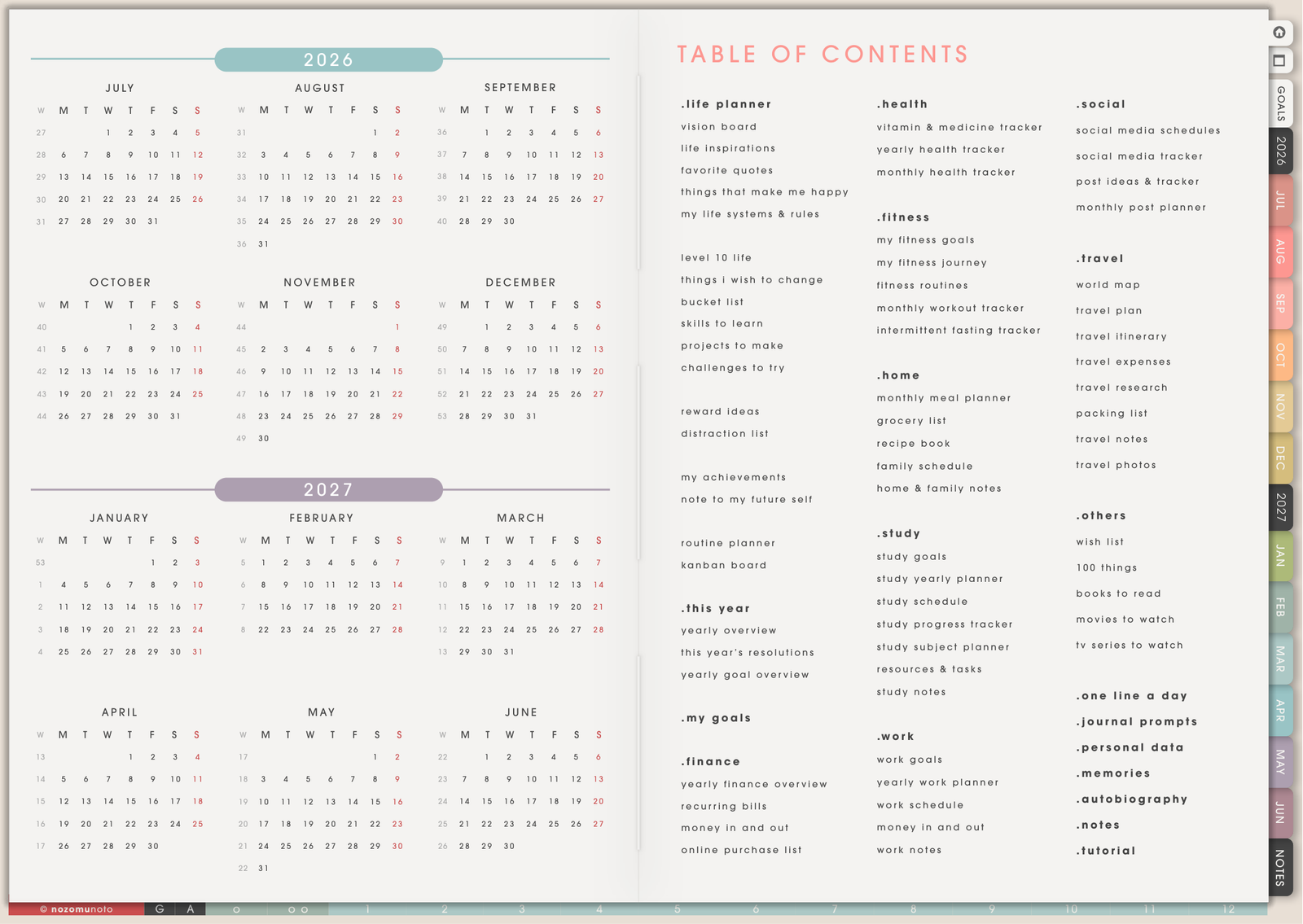
What is a hyperlinked planner? A hyperlinked PDF planner is a PDF file with built-in tappable areas. When you tap a linked tab, month, date, button, or index item, the app jumps to another page inside the same planner.
This page explains digital planner links, PDF planner hyperlinks, PDF planner navigation, where NozomuNoto hyperlinks usually appear, what links can do, where the limits are, and how to test links on a clean planner copy.
Think of it like a paper planner with tabs, but the tabs are digital. Instead of flipping through hundreds of pages, you can tap the index, month tab, weekly link, daily link, or template button and move there faster.
If links are not working, try this first
If tapping a planner tab, button, month, or date writes on the page instead of moving, the planner is usually okay. Most of the time, the app is still in writing mode.
- Switch to read, view, hand, gesture, link, or navigation mode in your app.
- Open the Index page.
- Tap one obvious section link.
- Test one month tab or date link.
- If it still stays on the same page, import a fresh clean copy of the PDF and test again.
Also make sure the file is imported into a PDF planner app, not only open in a browser preview, and that the PDF has been extracted from any ZIP folder.
These checks match common searches like planner links not working, PDF planner hyperlinks not working, digital planner tabs not working, and GoodNotes links not working.
Where links usually appear
- Index pages: jump to sections, template pages, planner pages, notes, Life Planner pages, or tutorial pages.
- Side tabs: jump to months, years, notes, goals, or main planner sections.
- Monthly pages: jump to weekly or daily pages when the planner includes dated links.
- Weekly pages: jump to daily pages, notes, or related planning pages depending on the product design.
- Buttons: jump to downloads, tutorial pages, color index pages, freebie pages, or product-specific sections when included.
What links can do
- Move you around the planner quickly. This is the main point of a hyperlinked PDF planner.
- Keep big planners easier to use. Links help you reach the current month, week, day, index, notes, or template page without scrolling page by page.
- Make sections easier to find. If the product has Life Planner, Study, Work, Finance, Health, or Notes areas, index links can act like a map.
- Help you return to important pages. Many people use the Index, current Monthly, current Weekly, and Today page as their main return path.
What links are limited to
- They are not page makers. To add a fresh template or notes page, use your app page copy, duplicate, insert, or template tools.
- They are not calendar sync. Apple Calendar, Google Calendar, and reminders need separate app features.
- They behave differently across apps. Some apps let you tap links while writing. Others need read-only, view, or navigation mode first.
- They are not a fix for a limited app. If the app is weak with PDF links, the same planner may work better in another app.
How to test links
- Import a clean copy of the PDF into your app. Skip browser preview for testing if you plan to write in an app.
- Open the Index page first. Tap one obvious section name, month tab, or button.
- Try the app navigation mode. If tapping only draws or selects text, switch to read-only, view, link, hand, or navigation mode depending on the app.
- Test several link types. Try a side tab, an index item, a month, a week, and a daily link if your planner includes them.
- Then start writing. Once links work, you can decorate, add stickers, duplicate pages, and set up your real planner copy.
When links get tricky
1. Tapping writes instead of moving
What happens: you tap a tab or date, but the app draws a mark, selects text, or places the cursor.
Example: the PDF link is there, but the app is still in pen mode, edit mode, or text mode.
What to do: switch to read-only, view, hand, gesture, link, or navigation mode depending on the app. Then test the Index page again.
2. The file is only open in a preview
What happens: the planner opens in Safari, Chrome, Google Drive, Dropbox, email, or another preview screen, but writing and links feel limited.
Example: you can see the PDF, but app tools, page duplication, stickers, and saved handwriting may be missing.
What to do: download the file first, then import the saved PDF into a note-taking or PDF annotation app.
3. The PDF is still inside a ZIP
What happens: the app refuses to import the download or opens the wrong file.
Example: a marketplace download may be a ZIP folder that contains the planner PDF, stickers, covers, and instructions.
What to do: extract the ZIP first, then import the PDF file inside. Keep the original ZIP as a backup.
4. The app is weak with PDF links
What happens: the clean PDF opens, but links still behave incorrectly after you switch modes.
Example: a basic PDF viewer may show the page but not follow links the way a planner app does.
What to do: test the same clean PDF in another compatible app. If links work there, the file is okay and the first app is the limitation.
5. A heavily edited copy behaves strangely
What happens: links worked before, but after moving pages, exporting, flattening, or editing the PDF in another tool, navigation feels wrong.
Example: a copy that has been exported from one app and imported into another may behave differently from the original download.
What to do: test a fresh clean copy from your saved download before assuming the product is broken.
Go next
Still need help?
Send your order number, product name, device, app, and a screenshot or short screen recording if the issue is visual.