

Browse help topics
Getting Started
Need help choosing?
Need help after purchase?
Download & Import
Using your notebook/planner
- How to change or reuse template pages on planner landing pages
- Why stickers look blurry when enlarged
- What to check if a product does not work on your device
- How to use NozomuNoto index pages
- How to use NozomuNoto template pages
- How to change a digital planner cover
- How to install and use digital stickers
Product Tutorials
- How to use Yume Techo Landscape tutorial pages
- How to use Yume Techo Portrait tutorial pages
- How to use Shibui Techo Weeks tutorial pages
- How to use Shibui Techo Months tutorial pages
- How to use Yume Noto V1 Landscape tutorial pages
- How to use Yume Noto V1 Portrait tutorial pages
- How to use Yume Noto V2 Landscape tutorial pages
- How to use Yume Noto V2 Portrait tutorial pages
- How to use Yume Noto V3 Portrait tutorial pages
- How to use NozomuNoto Ultimate Digital Stickers
- How to use NozomuNoto Digital Covers
- Which NozomuNoto instruction or tutorial file should I open first?
Device & App
iOS / iPadOS
GoodNotes
Notability
Noteshelf
Noteful
StarNote
Flexcil
Kilonotes
Android
StarNote
Samsung Notes
Penly
Flexcil
Noteshelf
Xodo
E-reader Devices
Boox devices
reMarkable
Bigme
Supernote
What tools do I need to start digital planning?
Learn the simple tools you need to start digital planning, including a device, PDF app, stylus or typing setup, download folder, backup copy, and planner or notebook file.
On this page
- Minimum setup
- The simple starter kit
- 1. Choose the device first
- 2. Choose one app
- 3. Decide how you want to write
- 4. Make a clean download folder
- 5. Keep one backup and one working copy
- Nice to have later
- Best first setup
- When the starter kit gets tricky
- 1. The file is downloaded, but not saved
- 2. You write on the only copy
- 3. The app is popular, but not right for your device
- 4. Links are tested too late
- 5. Accessories come before the habit
- Go next
What tools do I need for digital planning? Start with a small digital planning starter kit: a compatible device, one PDF planner app, your NozomuNoto planner or notebook file, one way to write or type, and one folder for the original download.
For a digital planner setup for beginners, think in basics, not a shopping list. The only digital planner supplies you need at first are the file, the app, the device, and a clean digital planner backup plan.
If you are asking "what do I need for a digital planner?", this is the simple answer: choose digital planning tools that let you open, write, save, and back up the file. Your digital planner device can be the tablet or e-reader you already use.
Minimum setup
You can begin without a perfect digital planning setup.
- A device that can open PDF files.
- One app that lets you write, type, and tap PDF links.
- Your NozomuNoto planner or notebook file.
- One safe folder for the original download.
- One working copy inside your app.
Everything else can wait: stickers, covers, keyboards, extra accessories, extra apps, and a perfect routine. Open the file first, test one link, write one real thing, and make sure you know where your clean backup is.
This page explains the simple digital planning starter kit, what each tool is for, what can wait until later, and how to avoid buying or installing extras before the basics work.
The goal is not to build a complicated system on the first day. The goal is to open the file, write something useful, move around the planner without getting lost, and know where the clean backup is if you ever want to restart.
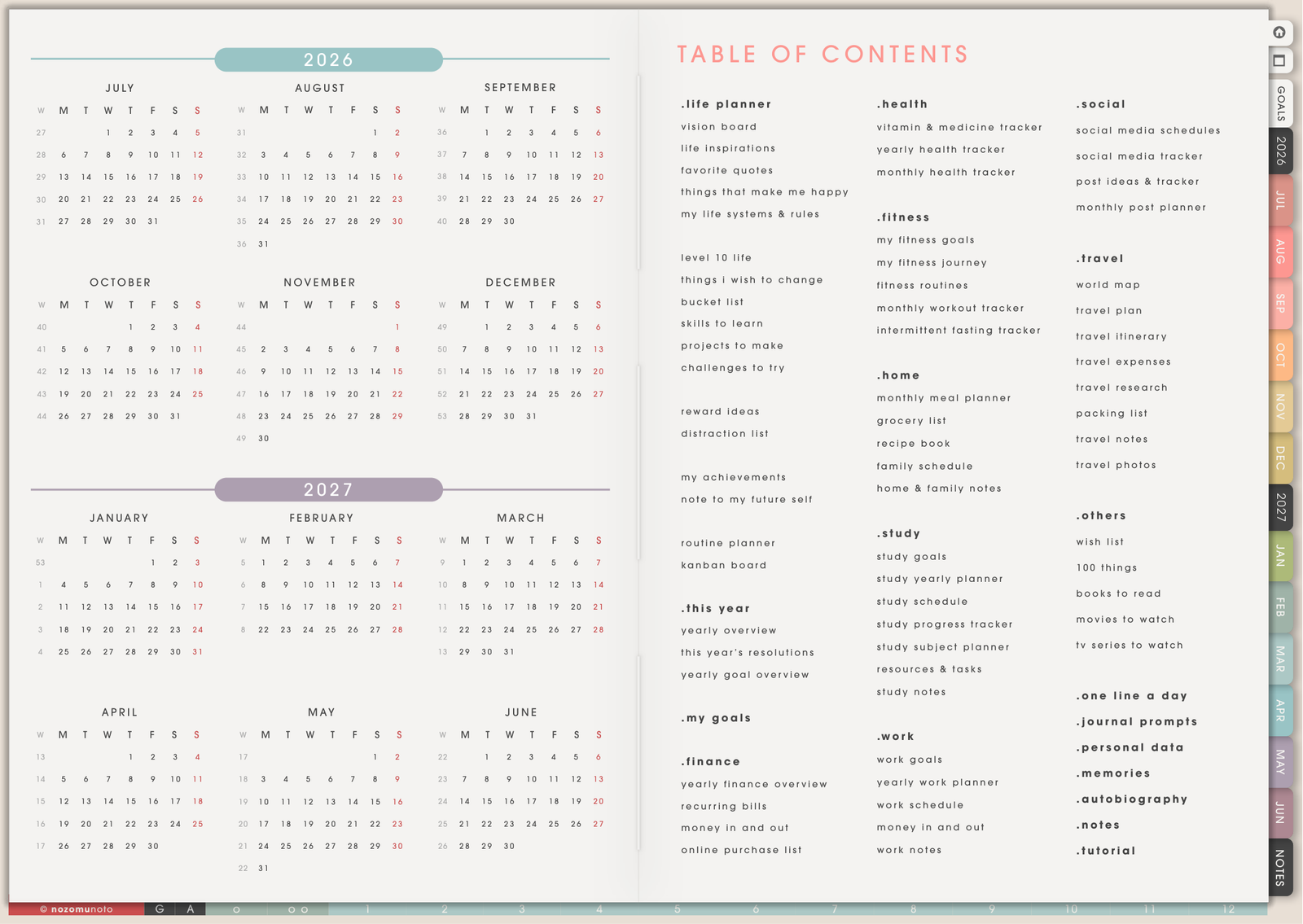
The simple starter kit
- A compatible device. Most people use an iPad, Android tablet, or compatible e-reader. A phone or computer can open many PDF files too, but a tablet is usually easier for handwriting and daily planning.
- A PDF note-taking or annotation app. The app should be able to import PDF files, let you write or type on pages, use PDF links, show page thumbnails, and manage pages.
- A stylus, keyboard, or your finger. A stylus feels closest to paper. Typing works well for clean lists and long notes. Your finger is enough for tapping links, moving pages, and quick checks.
- A download folder you can find again. Keep one folder for NozomuNoto files in Files, Google Drive, Dropbox, OneDrive, or your device storage.
- The product files. This may include PDF planners or notebooks, PNG sticker files, cover images, instruction files, app-specific GoodNotes files, or extra download links depending on the product.
1. Choose the device first
Pick the device you will actually reach for. If you already use an iPad every day, start there. If your Android tablet is the device beside your bed or work desk, use that. If you prefer a quiet reading device, an e-reader can work for simpler PDF planning, but app features are more limited than tablet apps.
Screen size matters too. A larger tablet is easier for landscape planners, two-page spreads, handwriting, stickers, and split-screen reference. Smaller screens can still work, but portrait planners, notebooks, or simple monthly/weekly setups may feel easier to use.
2. Choose one app
Use one app first so your planner stays in one place. The best app for you is the one that opens the PDF clearly, keeps links working, saves your writing, and lets you manage pages without stress.
Before adding a full planner, test a few basics: import the PDF, write on one page, tap a link, open thumbnails or page overview, duplicate one page if the app has that feature, and close then reopen the file to make sure your notes stayed there.
3. Decide how you want to write
- Handwriting: use a compatible stylus such as Apple Pencil, Samsung S Pen, Boox stylus, Supernote pen, or another stylus made for your device.
- Typing: use the app text tool for neat lists, study notes, work notes, captions, or anything you want to edit later.
- Finger use: use your finger for tapping links, opening menus, moving between pages, and quick highlighting if the app allows it.
4. Make a clean download folder
This part feels boring, but it saves so much trouble later. Make one folder called something like NozomuNoto Downloads. Inside it, keep the original ZIP, extracted files, instructions, sticker folders, and any backup copies.
Save the file to your chosen folder before importing from a browser download screen. If an app copy gets messy, slow, or accidentally deleted, the clean download folder lets you start again without panic.
5. Keep one backup and one working copy
- Backup copy: the clean original file you keep as-is.
- Working copy: the copy imported into your app where you write, decorate, duplicate pages, and plan your real life.
- Optional archive copy: a saved copy at the end of a school term, month, year, project, or planner season.
Nice to have later
- Extra stickers: useful after you know what pages you actually use.
- Digital covers: nice for organizing several planners or notebooks in one app.
- Cloud sync: helpful if you use more than one device, but test it carefully before relying on it.
- Keyboard: useful for long notes, study summaries, work planning, or typed journaling.
- Screen protector: optional if you want a more paper-like writing feel.
Best first setup
If you feel unsure, start with this: one tablet, one PDF app, one NozomuNoto planner or notebook, one stylus if you want handwriting, and one download folder. Open the index page first, test a few links, then set up only the current month and current week.
Everything else can wait. A simple setup that you use for ten minutes is better than a beautiful setup that takes all afternoon and feels too heavy to open tomorrow.
When the starter kit gets tricky
1. The file is downloaded, but not saved
What happens: the file opens from a browser tab, email preview, Etsy page, or Drive preview, but later the actual saved download is hard to find.
Example: the planner looked like it opened correctly once, then the app asks you to import again and the file is nowhere in Files, Downloads, or My Files.
What to do: save the file to a real folder before importing. A folder named NozomuNoto Downloads is simple and easy to search later.
2. You write on the only copy
What happens: the planner or notebook gets test writing, wrong stickers, or accidental page changes, and there is no clean copy left.
Example: you test pens, stickers, and templates in the original file, then want to restart cleanly.
What to do: keep one original backup as a clean file. Import a separate working copy into the app and write there.
3. The app is popular, but not right for your device
What happens: an app has great reviews or tutorials, but the version on your device is missing the features you need.
Example: the iPad version of an app may feel smooth, while the Android version may behave differently with large planners, page management, or links.
What to do: test the exact app on the exact device you will use. Import a PDF, write, tap a link, open thumbnails or page manager, use the app's duplicate/copy page command when it has one, and reopen the file to check that your notes stayed.
4. Links are tested too late
What happens: the planner is decorated before you know whether the index, tabs, date links, or page thumbnails work in the app.
Example: you add stickers to the monthly page, then discover tapping tabs only writes marks because the app is still in pen mode.
What to do: test navigation first. Find the app's read, view, hand, gesture, or link mode before decorating.
5. Accessories come before the habit
What happens: the setup becomes about buying the perfect stylus, screen protector, keyboard, app, stickers, and cloud storage before the planner is useful.
Example: everything is ready except the habit of opening the planner and writing the next real thing.
What to do: start with what you already have when possible. Upgrade only after you know the problem, such as handwriting feels slippery, typing is slow, or storage is hard to manage.
Go next
Still need help?
Send your order number, product name, device, app, and a screenshot or short screen recording if the issue is visual.