

Browse help topics
Getting Started
Need help choosing?
Need help after purchase?
Download & Import
Using your notebook/planner
- How to change or reuse template pages on planner landing pages
- Why stickers look blurry when enlarged
- What to check if a product does not work on your device
- How to use NozomuNoto index pages
- How to use NozomuNoto template pages
- How to change a digital planner cover
- How to install and use digital stickers
Product Tutorials
- How to use Yume Techo Landscape tutorial pages
- How to use Yume Techo Portrait tutorial pages
- How to use Shibui Techo Weeks tutorial pages
- How to use Shibui Techo Months tutorial pages
- How to use Yume Noto V1 Landscape tutorial pages
- How to use Yume Noto V1 Portrait tutorial pages
- How to use Yume Noto V2 Landscape tutorial pages
- How to use Yume Noto V2 Portrait tutorial pages
- How to use Yume Noto V3 Portrait tutorial pages
- How to use NozomuNoto Ultimate Digital Stickers
- How to use NozomuNoto Digital Covers
- Which NozomuNoto instruction or tutorial file should I open first?
Device & App
iOS / iPadOS
GoodNotes
Notability
Noteshelf
Noteful
StarNote
Flexcil
Kilonotes
Android
StarNote
Samsung Notes
Penly
Flexcil
Noteshelf
Xodo
E-reader Devices
Boox devices
reMarkable
Bigme
Supernote
Tips for Using NozomuNoto Digital Planners on Other E-Reader Devices
Use these tips for NozomuNoto PDF planners on other e-reader devices, including backups, link testing, writing checks, sync, stickers, and page limits.
On this page
Best habits for other e-readers
Use e-reader planners simply at first. Test one action at a time before changing pages, stickers, covers, or sync workflows.
- Keep one clean backup copy of the original NozomuNoto PDF.
- Test one Index link before setting up the whole planner.
- Write one small note when your device can write on PDFs.
- Close and reopen the file to confirm your writing saved.
- Use bookmarks or favorites for pages you open often.
- Let cloud or sync transfers finish before opening or editing the file again.
- Keep sticker use simple unless your device can place PNG images well.
- Use another compatible PDF app when the e-reader cannot do the editing workflow you want.
Reference links
Use these for current app or device help, downloads, updates, vendor help, and manual references.
Use NozomuNoto well on another e-reader
- Keep one clean backup copy of the original NozomuNoto PDF outside the device.
- Use the actual planner or notebook PDF, not the ZIP, receipt, preview, sticker, cover, or instruction-only file.
- Test one Index link before setting up the whole planner.
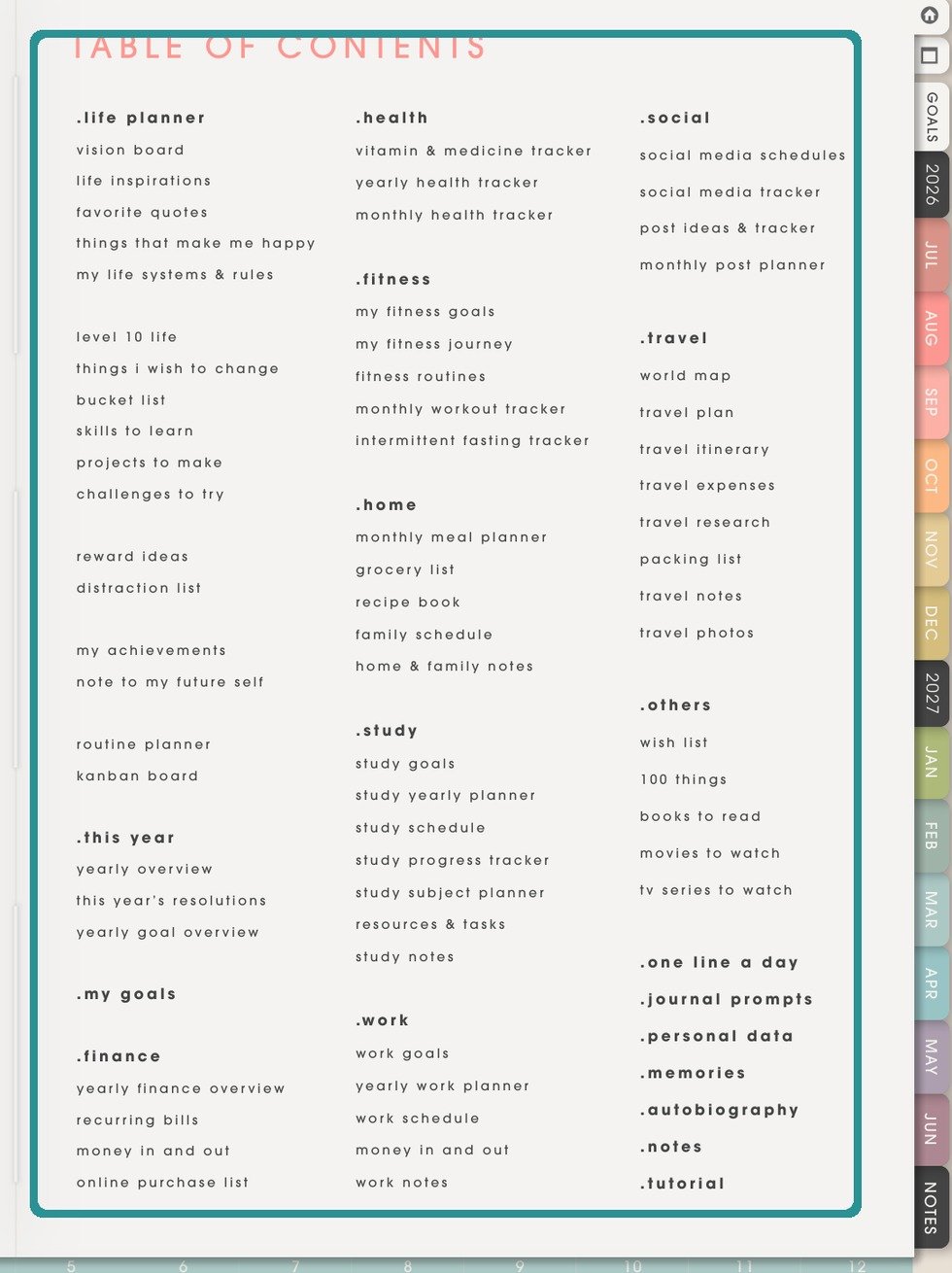
NozomuNoto Index pageUse the planner Index plus page numbers, contents, bookmarks, or page overview your device provides. - Write one small test note when your device can write on PDFs.
- Close and reopen the file to confirm your writing saved.
- Use bookmarks, favorites, recent pages, contents, or page numbers for pages you open often.
- Avoid many page changes until you know which page tools your device or PDF app can handle.
- Let cloud sync, USB transfer, desktop sync, email-to-device, or app sync finish before opening or editing the file again.
- Keep sticker use simple unless your device can place PNG images well.
- Update your device software or PDF app when links, writing, or file behavior seems inconsistent.
- Use another compatible PDF app when your e-reader cannot do the editing workflow you want.
Other e-reader habit checks
- Start simple: test one action first, then customize more only after the planner works correctly on your device.
- Links: test the Index and one date or notes link before daily planning.
- Writing: write one small note, close the file, reopen it, and confirm the note stayed.
- Bookmarks: use a short bookmark or favorite list for pages you open often.
- Page tools: use a copied file before testing page changes.
- Stickers: keep sticker use simple unless PNG image placement works well on your device.
- Sync: let cloud, desktop, USB, email-to-device, or app transfer finish before editing again.
When your e-reader feels limited
- Use the planner as-is for reading, writing, bookmarks, and navigation.
- Prepare page, sticker, or cover changes in another compatible PDF app.
- Transfer the edited PDF back to the e-reader as a new working copy.
- Open the new copy, test one Index link, and write one small note.
Next e-reader tips links
Still need help?
Send your order number, product name, device, app, and a screenshot or short screen recording if the issue is visual.