

Browse help topics
Getting Started
Need help choosing?
Need help after purchase?
Download & Import
Using your notebook/planner
- How to change or reuse template pages on planner landing pages
- Why stickers look blurry when enlarged
- What to check if a product does not work on your device
- How to use NozomuNoto index pages
- How to use NozomuNoto template pages
- How to change a digital planner cover
- How to install and use digital stickers
Product Tutorials
- How to use Yume Techo Landscape tutorial pages
- How to use Yume Techo Portrait tutorial pages
- How to use Shibui Techo Weeks tutorial pages
- How to use Shibui Techo Months tutorial pages
- How to use Yume Noto V1 Landscape tutorial pages
- How to use Yume Noto V1 Portrait tutorial pages
- How to use Yume Noto V2 Landscape tutorial pages
- How to use Yume Noto V2 Portrait tutorial pages
- How to use Yume Noto V3 Portrait tutorial pages
- How to use NozomuNoto Ultimate Digital Stickers
- How to use NozomuNoto Digital Covers
- Which NozomuNoto instruction or tutorial file should I open first?
Device & App
iOS / iPadOS
GoodNotes
Notability
Noteshelf
Noteful
StarNote
Flexcil
Kilonotes
Android
StarNote
Samsung Notes
Penly
Flexcil
Noteshelf
Xodo
E-reader Devices
Boox devices
reMarkable
Bigme
Supernote
Noteshelf Android Known Problems with NozomuNoto Planners
Troubleshoot Noteshelf Android problems with NozomuNoto planners, including PDF import, links, stickers, covers, slow files, and missing pages.
On this page
Use these steps to work with NozomuNoto PDF planners, notebooks, stickers, covers, and template pages in Noteshelf. The official links below are for downloads, updates, and current help pages.
Choose your problem first
If something is not working in Noteshelf on Android, start with the issue that matches what you see.
- Links stay on the page: switch to Read-Only / link mode, then test one Index link with your finger.
- Planner import looks wrong: choose the actual planner or notebook PDF instead of the ZIP, receipt, preview page, cover file, sticker file, or instruction-only PDF.
- Stickers look blurry: insert the original PNG again and keep it closer to its original size.
- Pages feel hard to manage: use the Pages panel carefully and keep a clean backup before deleting or moving pages.
- Cover looks wrong: check cover file type, page position, and thumbnail before replacing another page.
- File feels slow: close other apps, check storage, update Noteshelf if needed, and test with a clean copy.
- Need a closer check: send your product name, device, Noteshelf version if known, exact issue, and a screenshot or short screen recording.
Reference links
Use these for current app or device help, downloads, updates, vendor help, and manual references.
Noteshelf Android problems to check first
- The planner is missing: open Noteshelf All Notes and import the extracted PDF again with Import File.
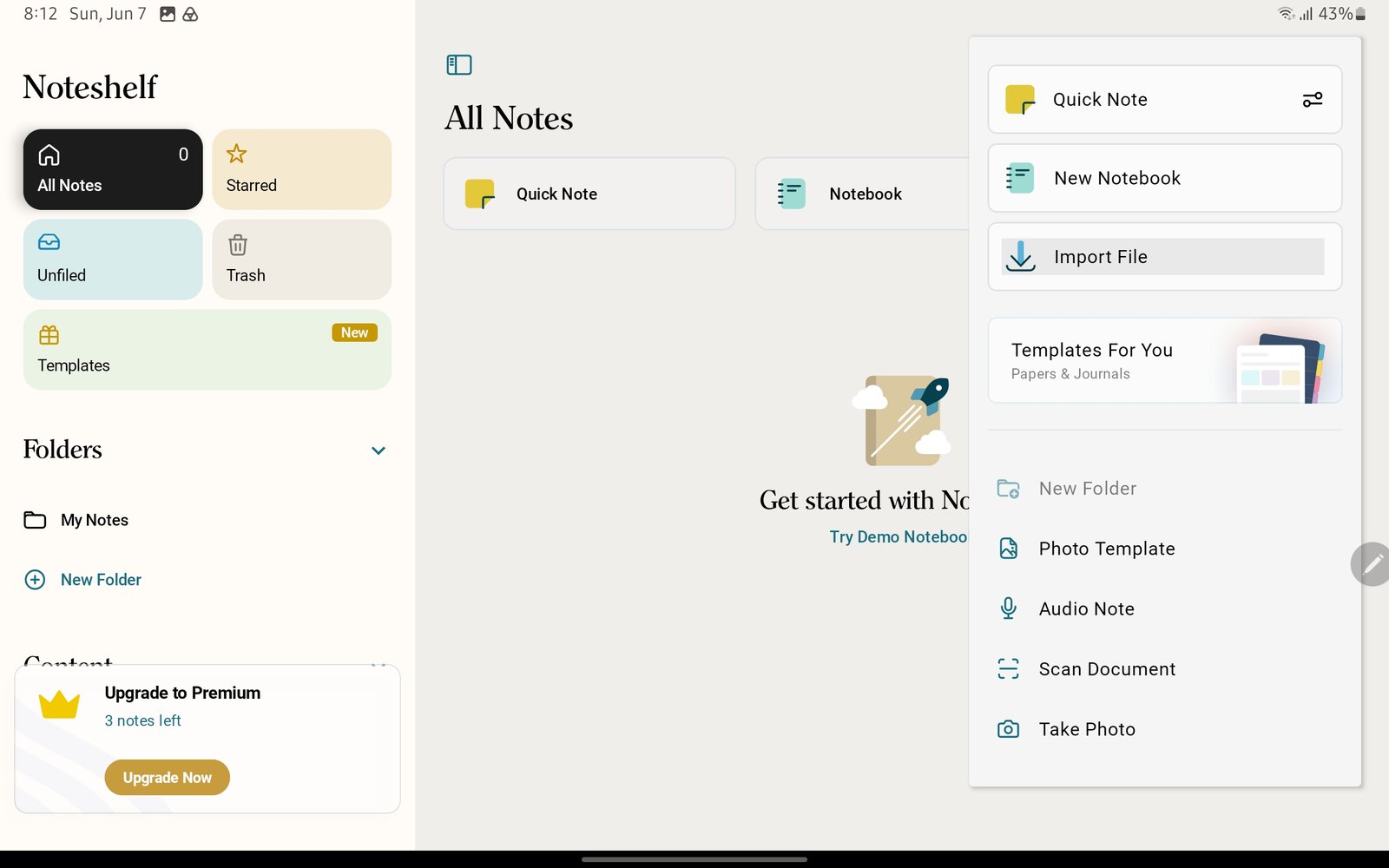
Import FileIf the planner is missing, import it again from Import File. Product shown: Yume Techo Academic 26-27 Landscape. - Planner links stay on the page: switch to Read-Only / link mode and test the same link again before writing more.
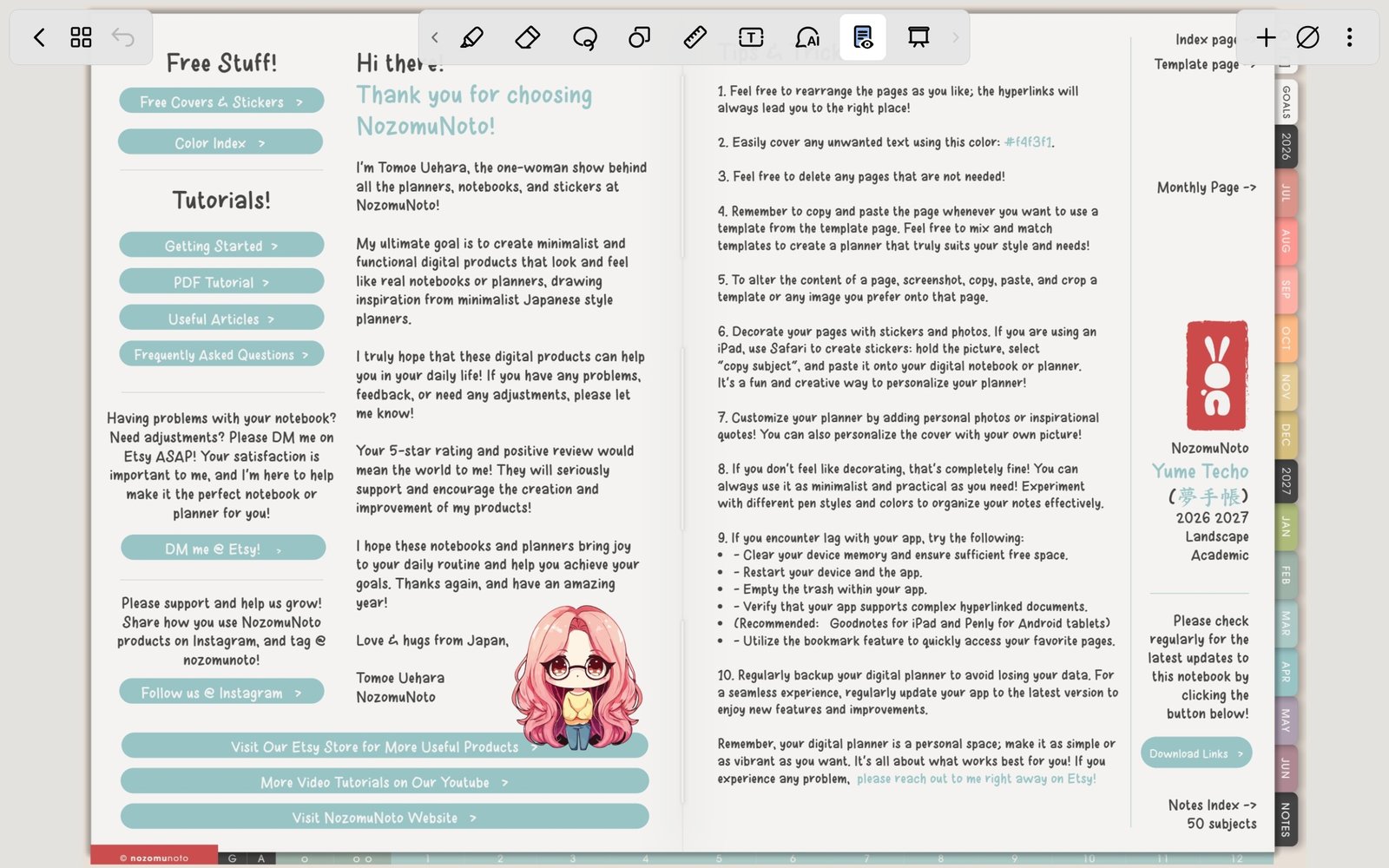
Read-Only / link modeIf planner links try not to move, switch to Read-Only / link mode. Product shown: Yume Techo Academic 26-27 Landscape. - Page tools feel hidden: tap the Pages icon and use the thumbnail menu for Duplicate, Copy, Add Page Before/After, Bookmark, Move, Share, or Delete.
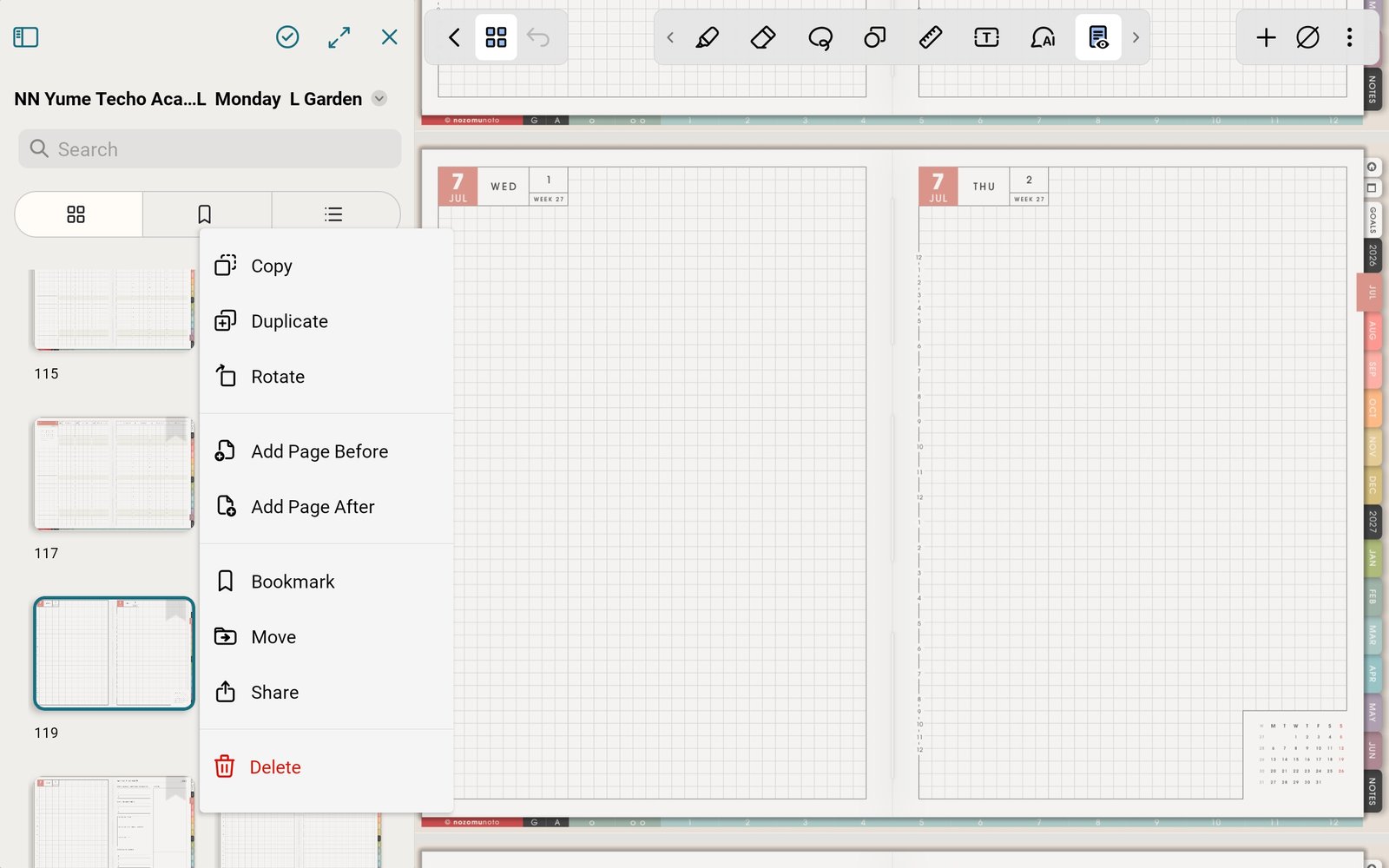
Duplicate page menuIf template tools feel hidden, open Pages and use the page thumbnail menu. Product shown: Yume Techo Academic 26-27 Landscape. - A template was filled by accident: find the clean template again, use Duplicate, and write on the duplicated page.
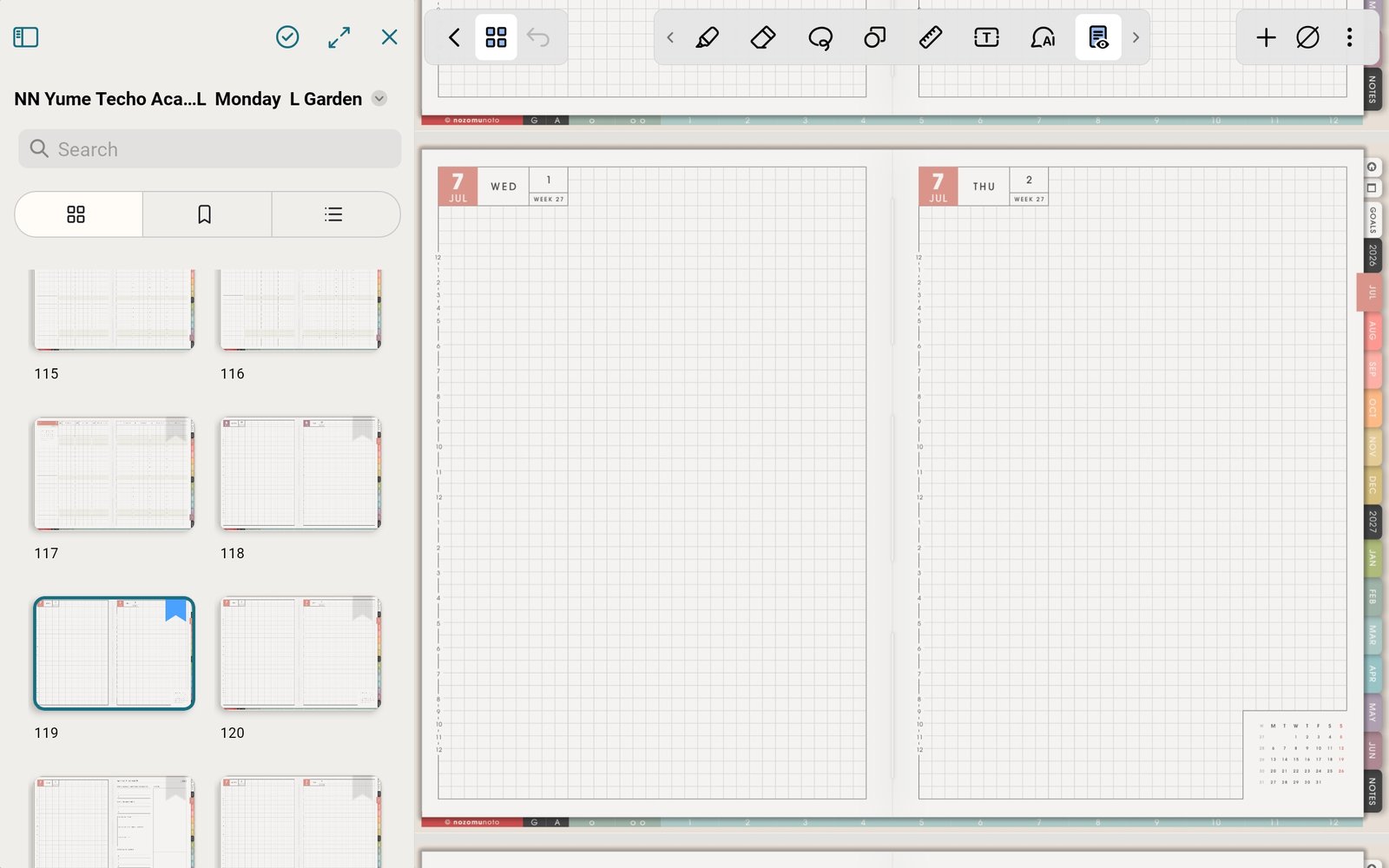
Bookmark dialogIf bookmarks are unclear, add a useful name and color before saving. Product shown: Yume Techo Academic 26-27 Landscape. - Stickers or images are confusing: tap +, open the image tab, choose Image, and test one PNG first.
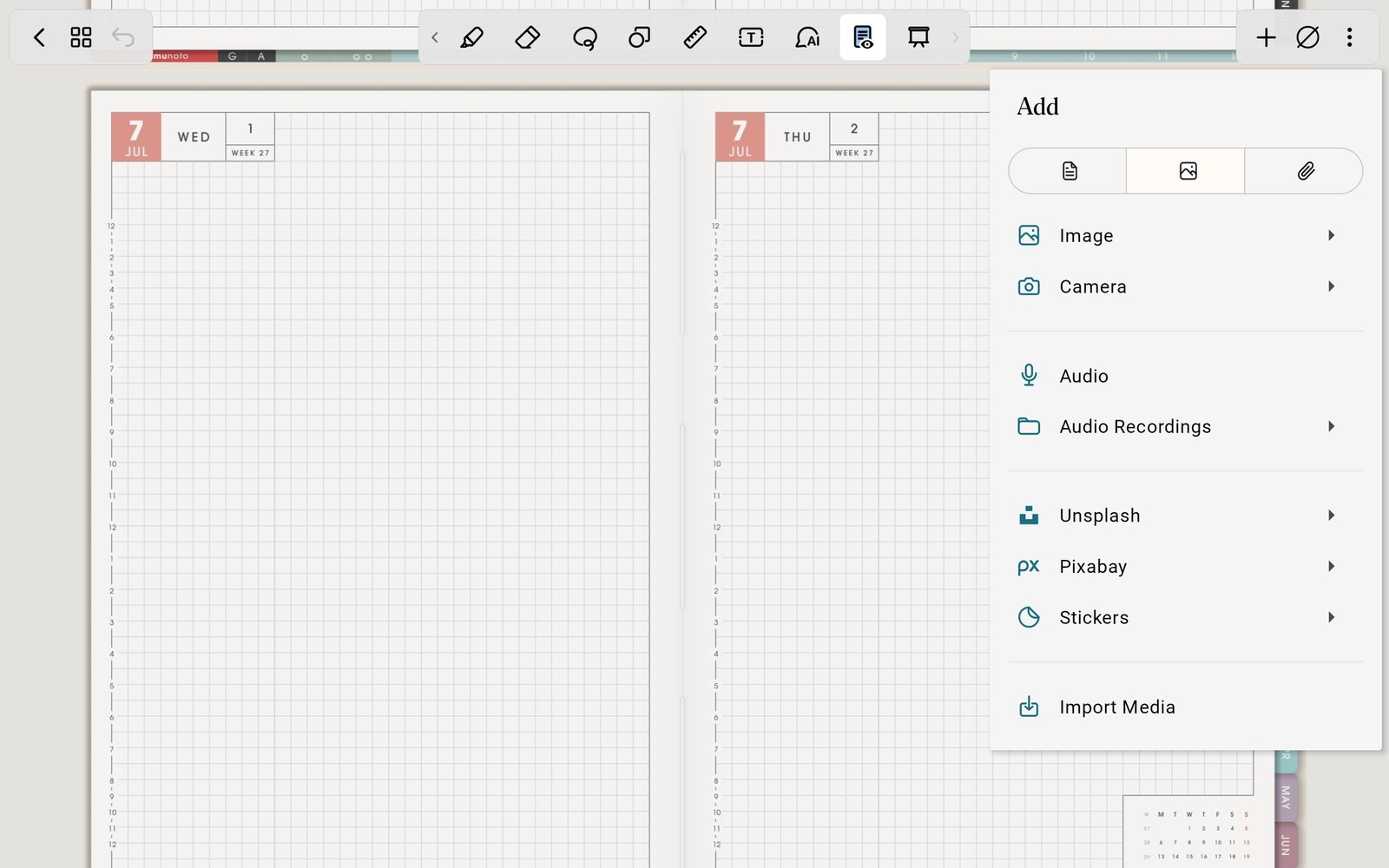
Image tabIf sticker insertion is confusing, use + > image tab > Image and test one PNG. Product shown: Yume Techo Academic 26-27 Landscape. - Duplicate planners make the library confusing: keep one working copy in Noteshelf and one clean backup outside the app. If your Noteshelf 3 plan limits notebooks or premium features, remove test imports before adding more.
Common Noteshelf Android problem paths
1. Import and missing planner
Use the extracted NozomuNoto PDF for planners and notebooks. Receipts, previews, ZIP files, cover files, sticker files, and instruction-only PDFs are not the planner file.
2. Links and writing mode
If a tab, date, button, or Index link stays on the page, switch to Read-Only / link mode and test one clear Index link with your finger.
3. Pages, covers, and stickers
Use Pages for thumbnails and page actions, test one sticker or cover change first, and keep one clean backup outside Noteshelf before larger edits.
4. Slow or messy files
If the working planner becomes slow or confusing after many edits, import a clean copy, test one link, and move only the notes or pages you still need.
Next Noteshelf Android problem links
Still need help?
Send your order number, product name, device, app, and a screenshot or short screen recording if the issue is visual.