

Browse help topics
Getting Started
- Does my NozomuNoto purchase include an app or an app subscription?
- New to digital planning? Start here!
- What is a digital notebook?
- What is a digital planner?
- What tools do I need to start digital planning?
- Which apps work with NozomuNoto planners?
- What does “hyperlinked PDF planner” mean?
- Paper planner vs digital planner
Need help choosing?
Need help after purchase?
Download & Import
Using your notebook/planner
- Can I use my NozomuNoto planner offline?
- How do I back up, export, or move my NozomuNoto planner to a new device?
- How to change or reuse template pages on planner landing pages
- Why stickers look blurry when enlarged
- What to check if a product does not work on your device
- How to use NozomuNoto index pages
- How to use NozomuNoto template pages
- How to change a digital planner cover
- How to install and use digital stickers
Product Tutorials
- How to use Shibui Noto V1 Landscape
- How to use the Ikigai Noto Hiragana and Katakana workbook
- How to use Yume Techo Landscape tutorial pages
- How to use Yume Techo Portrait tutorial pages
- How to use Shibui Techo Weeks tutorial pages
- How to use Shibui Techo Months tutorial pages
- How to use Yume Noto V1 Landscape tutorial pages
- How to use Yume Noto V1 Portrait tutorial pages
- How to use Yume Noto V2 Landscape tutorial pages
- How to use Yume Noto V2 Portrait tutorial pages
- How to use Yume Noto V3 Portrait tutorial pages
- How to use NozomuNoto Ultimate Digital Stickers
- How to use NozomuNoto Digital Covers
- Which NozomuNoto instruction or tutorial file should I open first?
Device & App
iOS / iPadOS
GoodNotes
Notability
Noteshelf
Noteful
StarNote
Flexcil
Kilonotes
Android
StarNote
Samsung Notes
Penly
Flexcil
Noteshelf
Xodo
E-reader Devices
Boox devices
reMarkable
Bigme
Supernote
How to use Shibui Noto V1 Landscape
Set up Shibui Noto V1 Landscape with its Index, subject sections and reusable templates. Learn where to put working copies and how to find them again.
On this page
Applies to: Shibui Noto V1 Landscape digital notebook. Examples use the blank-paper layout. Paper styles, covers and ring options can look different.
Files and app: Start with the notebook PDF from your purchase, rather than the download instruction PDF. If the files are confusing, see which instruction or tutorial file to open first. The exact import, copy and bookmark controls depend on your app and version.
Shibui Noto V1 Landscape gives you a notebook Index, tabbed areas, subject sections and reusable templates. I suggest starting with one subject and one useful page. You can add more when you need them!
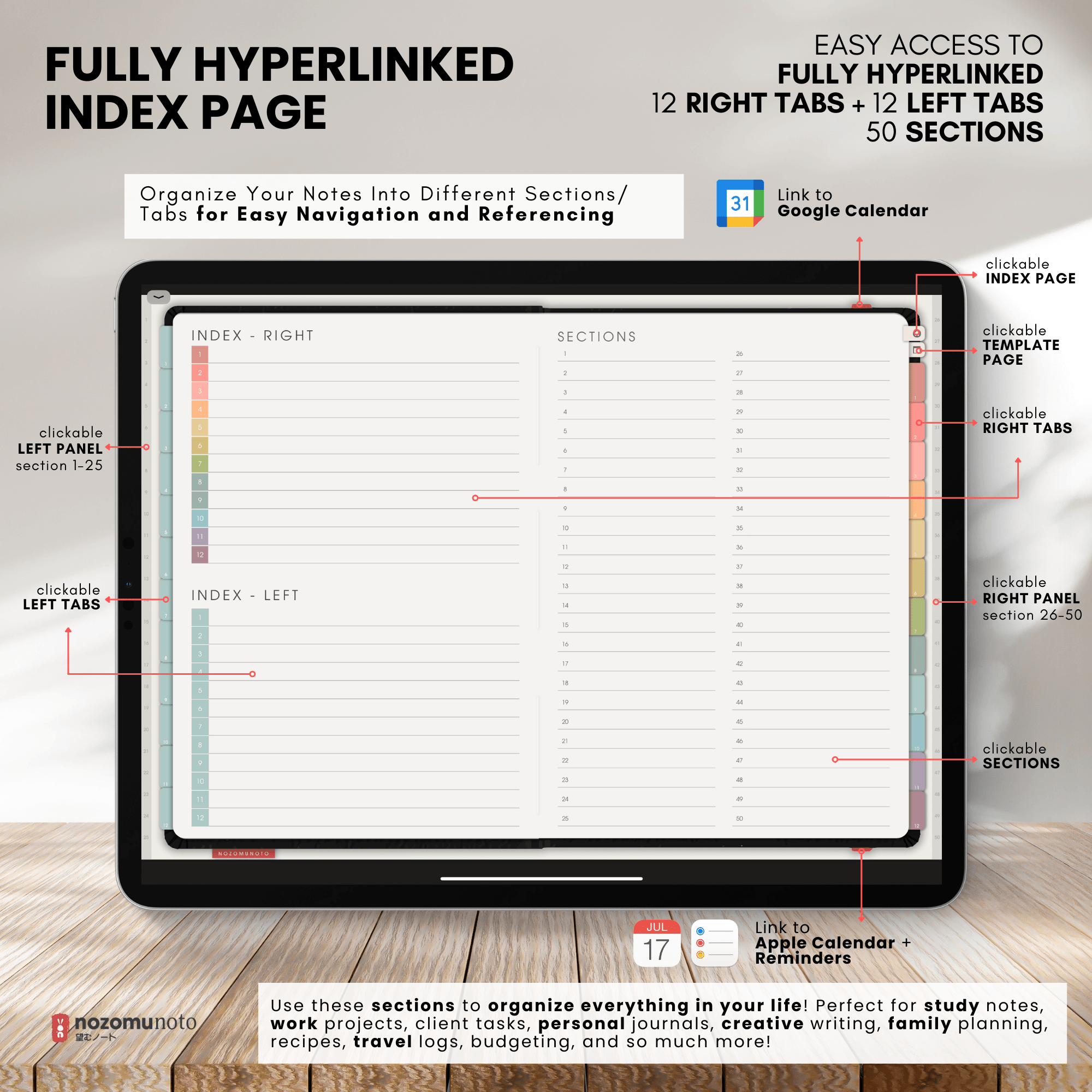
First, download and save your purchase files, then import the notebook PDF into your annotation app. For example, follow the written import guide for GoodNotes on iPad or Penly on Android if that is the app you use.
Start using your notebook in six steps
- Open the notebook Index. Use your app's link or navigation mode to follow the notebook's Index icon. The example has Index - Right, Index - Left and Sections areas. If tapping only draws on the page, check your app's hyperlink instructions, such as using links in GoodNotes or checking links in Penly.
- Choose one section and give it a subject. Write a name beside an existing Index entry, then follow its numbered link or matching tab. You could start with Study, Home, Work or one project. Writing a name labels the existing destination; it does not change where the link goes.
- Open the Template page. Use the notebook's Template icon to browse paper and task layouts. The example includes blank, dotted, lined, grid and Cornell layouts, along with trackers, lists and project pages. Choose the layout that fits the job.
- Make a working copy when your app supports it. Select the whole template page in the page overview and use the app's copy or duplicate action. Insert the copy in your chosen area, then write on that copy. Keep the original template clean. If your app does not offer page duplication, use an existing notebook page. See how to use NozomuNoto template pages for the method and app-specific steps.
- Mark the pages you reopen. If your app offers page bookmarks or favorites, use them for extra working copies. You can also use the existing Index and tabs. The built-in Index does not automatically add an entry when you duplicate a page. For a GoodNotes example, see how to bookmark pages.
- Save a backup before larger changes. Keep an original copy of the purchased PDF and use your app's backup or export options for the notebook containing your notes. Before moving or deleting pages, make a backup and check the links you rely on. Avoid deleting a built-in link destination just because its page is still empty.
A simple study notebook example
Write Biology beside an existing subject entry in Index and open that section. Copy a Cornell template for lesson notes and a grid template for diagrams, inserting the working pages in that area. Add the lesson date to each copy and bookmark the page you are studying this week. Next lesson, copy another clean template rather than clearing your previous notes.
Copying pages and using the Index
A whole PDF page copy and a screenshot are different. A screenshot is a flat picture of the layout. It does not copy the original page's clickable links. Use the app's page-copy method when you need a working PDF page, and check the copied links in your app.
Adding a copied page also does not replace the page reached by an existing tab. Use bookmarks to find extra pages, or follow your app's instructions if you want to create your own links. You can keep using the original numbered sections without changing their destinations.
What do the calendar and reminder icons do?
These icons are shortcuts to external tools. They do not synchronize handwriting or notes from your PDF. What opens depends on your device and shortcut setup.
For the product details and available files, see Shibui Noto V1 Landscape - Garden. If your notebook's layout differs from this example, check the edition and paper style in your purchase before following a page-specific direction.
Still need help?
Send your order number, product name, device, app, and a screenshot or short screen recording if the issue is visual.