
YUME NOTO 夢ノートV2 LANDSCAPEDIGITAL NOTEBOOK
Twelve notebooks in one, for every part of your life.
Best seller · Versatile minimalist Japanese digital notebook
Garden Edition · Grid preview
A beginner-friendly hyperlinked notebook with realistic paper texture and minimalist Japanese design. 12 right sections, each with 2 main sub-sections and 12 subjects: 168 sections you can name yourself.
- 12 notebooks in one · 168 sections
- 12 right, 6 top & 12 left linked tabs
- 266 pages per PDF · 4 notebook covers
- Grid, lines, dotted & blank formats
- Google Calendar & Apple Calendar + Reminders
Digital PDF download for tablets and computers. Annotation app required. No physical item; not for phones or printing.
- 266
- Pages per PDF
- 12
- Notebooks in one
- 168
- Sections
- 55+
- Template pages
- 4
- Paper formats
SIMPLE ENOUGH TO START. FLEXIBLE ENOUGH TO GROW.
Your notes, plans and projects, together in a notebook you can make your own.
A familiar paper feel
Realistic scanned paper textures and book binding give you the feel of a Japanese notebook, with space for writing and drawing. Light editions also come in a no-texture version.
A place for every role
12 side tabs, each with 2 main sub-sections and 12 subjects: 168 sections in total. Keep home, study, work, clients and creative projects in one place.
Room to keep going
Copy a template into your chosen section whenever you need another page. Add only the layouts you use, and keep the original template clear.
12 DIGITAL NOTEBOOKS IN ONE
Perfect to organize every aspect of your life. One example below: your own subjects, your own system.
Start with the parts of your life you want to organize.
The original example shows how one index can bring together important notes, finance, home, health, projects and social media, plus 12 numbered notes such as a habit tracker, books to read, grocery list, diet plan, bills to pay and challenges.
- Name your subjects. Write titles beside the numbers in the index.
- Choose your pages. Duplicate a basic paper or essential template into a section.
- Keep it together. Use the linked tabs to return to your notes.
This filled-in index is an example of use. Your notebook gives you blank spaces to write your own titles.
See how the links workMy Life Planner
- New year’s resolutions
- Bucket List
- January
- February
- March
- April
- May
- June
- July
- August
- September
- October
- November
- December
Business Planner
- Business Planner
- Annual Overview
- Client List
- Expense tracker
- Income tracker
- Bill tracker
- Meeting Notes
- Supplier list
- Endorsement
- Monthly review
- Product planner
- Supplier list
- Ads Tracker
- Social Media
Study Planner
- Study plan
- Annual Overview
- Figure & Gesture
- Anatomy
- Character design
- Composition
- Dynamic Sketching
- Props & Vehicles
- Style & Brushwork
- Architecture
- Environment
- Color
- Light & Shadow
- Digital Painting
FULLY HYPERLINKED INDEX PAGE
Organize your notes into different sections and subjects for easy navigation and referencing.
Swipe to follow the pages · Select a preview to enlarge
Clickable subject pages
Write a title beside each number. Tap an entry in the index to open its linked subject page. The 12 numbered tabs on the right take you to the same subjects.
Clickable index page
Tap the home icon on a subject page to return to the index. The circles show where to tap in your PDF app. Select any preview here to enlarge it.
- I · Important Notes
- II · Finance
- III · Home
- IV · Health & Fitness
- V · Projects & Hobbies
- VI · Social Media
- 1 · Habit Tracker
- 2 · Books to Read
- 3 · Brainstorm
- 4 · Games to Play
- 5 · Movies to Watch
- 6 · TV Series to Watch
- 7 · Grocery List
- 8 · Diet Plan
- 9 · Bills to Pay
- 10 · Period Tracker
- 11 · 30 Days Challenges
- 12 · 100 Days Challenges
Example titles shown on the artwork above. Your notebook arrives blank so you can write your own.
12 SIDE SECTIONS, YOUR OWN SECTIONS
Name your sections · Tap to open · Each has 2 main sub-sections and 12 subjects
Swipe to follow the pages · Select a preview to enlarge
Open a section from the index or from its matching numbered side tab.
6 TOP SECTIONS & 12 LEFT SECTIONS
Two extra layers of links for anything that does not belong in a numbered subject.
Swipe to follow the pages · Select a preview to enlarge
6 top sections
The roman-numbered tabs along the top of every page open their own divider pages (I–VI). Easily access notes, goals, and important items.
12 left sections
The thin tabs along the left edge open 12 more linked pages. Ideal for brainstorming, random doodles, note-taking, and journaling.
Handy for receipts, photos and gratitude logs.
USEFUL & ESSENTIAL PAPER TEMPLATES
Easy access to all essential papers & templates. All hyperlinked.
Swipe to follow the pages · Select a preview to enlarge
Copy first. Make it yours.
The template index links to every template page in the notebook. Copy or duplicate the page you need, then paste it after your target page.
Turn on read-only or navigation mode in your PDF app to follow the hyperlinks.
Basic templates (25)
Scroll to browse · Select a page to enlarge
- Blank
- Blank 1×2
- Blank 2×2
- Blank Left Margin
- Dotted
- Dotted 1×2
- Dotted 2×2
- Dotted Left Margin
- Lines
- Lines 1×2
- Lines 2×2
- Lines Left Margin
- Grid
- Grid 1×2
- Grid 2×2
- Grid 2×1
- Grid Left Margin
- Cornell Blank
- Cornell Lines
- Cornell Grid
- Cornell Dotted
- Todo 1×2
- Todo 2×2
- Todo 3×2
- Music Sheet
Essential templates (26)
Scroll to browse · Select a page to enlarge
- Yearly Spread
- Yearly Grid
- Yearly – Day Month Tracker
- Monthly – Day Tracker
- Monthly Grid
- Monthly Overview
- Weekly Review
- Monthly Spread
- Weekly – Horizontal
- Weekly – Vertical
- Routines
- 30 Day Challenges
- 100 Day Challenges
- Vision Board
- 100 Things
- Multi Purpose Table
- Level 10 Life
- 31 Things
- Daily Page – Type 1
- Daily Page – Type 2
- Gantt Chart – Universal
- Gantt Chart – Weekly
- Photo Page
- World Map
- Multi Purpose Wheel
- Kanban 4 / 6 / 8 columns
EVERYTHING IN YOUR GARDEN DOWNLOAD
Four paper formats, plus instructions and extras to help you get started.
Your notebook files
- 4 PDF notebooksGrid, Lines, Dotted and Blank. 266 pages in each Garden file.
- Linked organization12 right sections with 2 main sub-sections and 12 subjects each (168 sections), 6 top sections, 12 left sections, an index and a template index.
- Reusable template library25 basic + 26 essential template pages, including Monday/Sunday variants.
- 4 cover pagesGarden artwork, red, charcoal and kraft covers inside the notebook.
- Bonus months4 bonus months included: November–December 2025 and January–February 2027.
Help and bonuses included
- Welcome & guide pagesTips and tricks, plus a guide to links, left panels and template pages.
- Download instructions & tutorialsGetting started, PDF tutorials, useful articles and FAQ pages inside the notebook.
- NozomuNoto shortcut fileFor iPad users, with Apple Calendar & Reminders shortcuts.
- Free covers & stickersBonus covers and stickers to personalize your pages.
- 120+ insert pagesExtra insert pages to extend your notebook, plus regular updates from customer feedback.
Choose the paper format you prefer. All four formats are included with Garden; you do not need to buy each format separately.
VARIOUS FORMAT INCLUDED
Grid · Lines · Dotted · Blank
Cornell, todo and music layouts are also part of the basic templates.
EXTRA COVERS
One illustrated Garden cover drawn by Tomoe Uehara, plus three minimalist kraft-colored covers.
Each cover carries the 夢ノート YUME NOTO label and the NozomuNoto seal. You can also place your own picture on the cover.
FLEXIBLE & ADAPTABLE FOR ALL NEEDS
12 right sections, 6 top sections and 12 left sections: 30 sections in total.
- Bullet Journaling
- Note-taking
- Brainstorming
- Life Planner
- Work Notebook
- Study Notebook
- Teaching Notebook
- Novel Writing
- Bible Study
- ADHD Planner
- Homeschooling
- Home Management
- Recipe Book
- Travel Planner
- Projects Planner
- Journaling
- Rapid logging
- Brain dump
- Meal planning
- Music writing
Example section names from the artwork
- My Life Planner · 2025 Plan, Bucket List
- Work Planner · Office works, Meeting Notes
- Study Planner · Class schedules, Study notes
- Practice Notes · Practice goals, Improvement notes
- Project Planner · Projects lists, Crochet notes
- Family Planner · Meal planner, Kids schedules
- Weekly Planner · This week goals, Someday List
- Travel Planner · Packing Lists, Ideas & resources
- Life Tracker · Daily Routines, Challenges
- Daily Journal · Important quotes, Visual Goals
- Craft Projects · Craft Notes, Idea bank
- Music & Lyrics · Piano Practice, Lyric book
考えも記録も、すべてをひとつに
このノートが あなたの心を整える場所になりますように
Thoughts and records, all in one place. May this notebook become a place that settles your heart.
WRITE AND ORGANIZE YOUR STUDY, WORK, HOME AND LIFE in one digital notebook.
Created, designed and used by Tomoe Uehara, a single mom with ADHD.
Works with PDF annotation apps such as GoodNotes, Notability, Samsung Notes, Noteshelf, Xodo, Notes+, CollaNote, Penly, Kilonotes and ZoomNotes.
Recommended apps for iPad: Goodnotes (Free & Paid), Notability (Free & Paid), KiloNotes (Free). Recommended apps for Android tablets: Penly (Paid), Samsung Notes (Free), Noteshelf (Paid).
WHICH YUME NOTO IS RIGHT FOR YOU?
Choose the amount of structure that suits how you organize your notes.
V1
A simple starting point
12 side tabs and 50 subjects in Landscape. Start with your own titles and add pages as you need them.
A beginner-friendly choice.
V2
More detailed organization
12 side tabs, each with 2 main sub-sections and 12 subjects: 168 sections in total, plus 6 top sections and 12 left sections.
You are viewing V2 Landscape. For people who want to divide their notebook into more areas.
V3
A middle level of structure
12 side tabs, each with 5 subsections. 60 sections in total.
For people who want more built-in organization than V1.
Landscape or Portrait?
Landscape gives you a wider canvas for study notes, planning and split layouts. Portrait gives you a vertical page for handwriting, reading and journaling, with the same hyperlinked system.
Explore Yume Noto V2 PortraitALSO COMES IN PORTRAIT
The same hyperlinked notebook, in a vertical page.
Portrait gives you a focused vertical page for handwriting, reading and journaling. It keeps the same side tabs, indexes, reusable templates and realistic paper texture as this Landscape notebook.
- 12 side tabs · 168 sections
- 6 top sections · 12 left sections
- Grid, lines, dotted and blank PDF files
- Same 55+ basic & essential templates
- Google Calendar & Apple Calendar + Reminders links
A FEW THINGS BEFORE YOU START
Choose the right setup for your notebook.
Is this a physical notebook or an app?
This is a digital PDF download. No physical item is shipped. Use it inside a compatible PDF annotation app on your tablet or computer.
Can I use it on my phone, print it, or use an e-reader?
This color edition is designed for tablets and computers. It is not suitable for mobile phones or printing. If you use an e-reader, choose an e-reader edition with pages made for e-ink screens.
How do I download and start?
Your files are available after payment is confirmed. Follow the included download instructions and tutorials, then import your chosen paper format into your app.
Why aren’t the links opening?
Switch your app to read-only or navigation mode. Some Android apps use a long press to follow links.
Can I keep adding pages?
Yes. Copy or duplicate the template first, then paste it after your chosen linked page. Keep the original template clear so you can use it again.
Can I rearrange the pages?
Feel free to rearrange the pages as you like; the hyperlinks will always lead you to the right place. You can also delete pages that are not needed.
What if the app feels slow?
Clear your device memory, restart the device and the app, empty the trash inside your app, and check that the app supports complex hyperlinked documents. Goodnotes for iPad and Penly for Android tablets are recommended. Regularly back up your planner and keep your app updated.
Can I share or resell the files?
The notebook is for your personal use only. Do not share, redistribute or resell the files.
CHOOSE YOUR LANDSCAPE EDITION
Yume Noto V2 Landscape · Garden Edition shown on this page
Use code 50OFFWEB for 50% off at checkout on NozomuNoto.com.
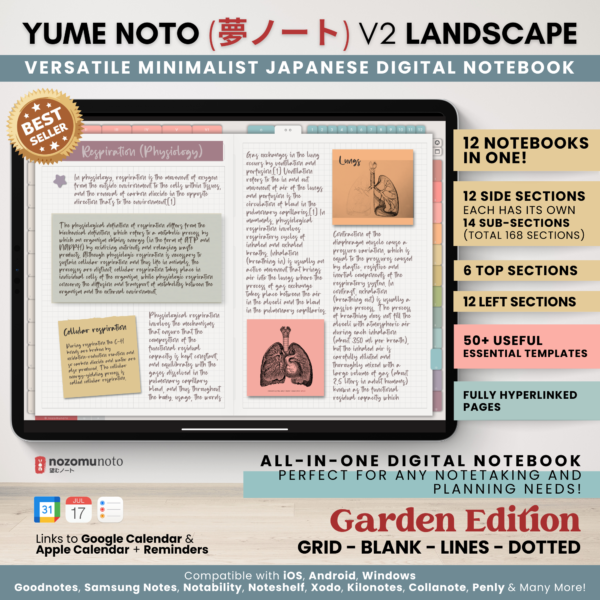 GardenLight edition · Shown on this page
View price & details
GardenLight edition · Shown on this page
View price & details
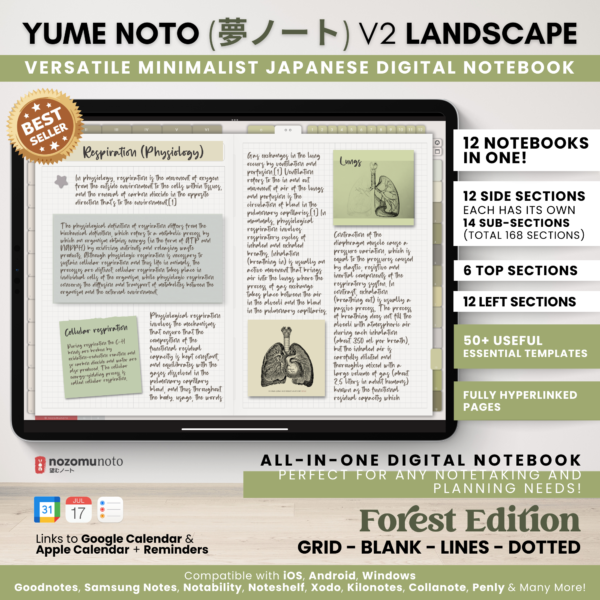 ForestLight edition
View price & details
ForestLight edition
View price & details
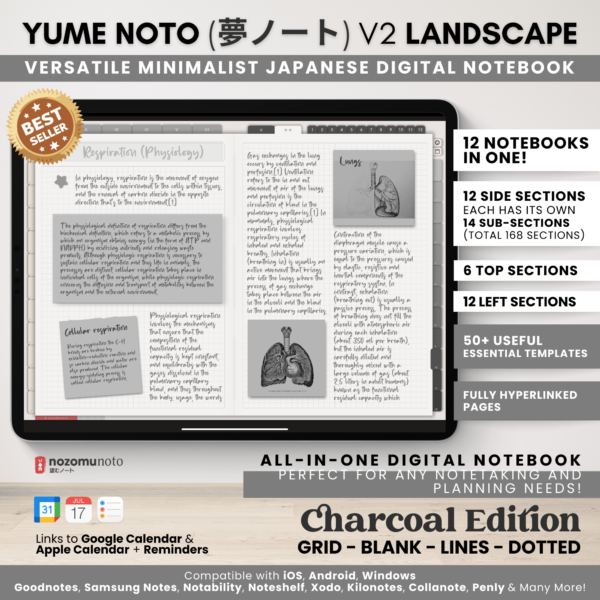 CharcoalLight edition
View price & details
CharcoalLight edition
View price & details
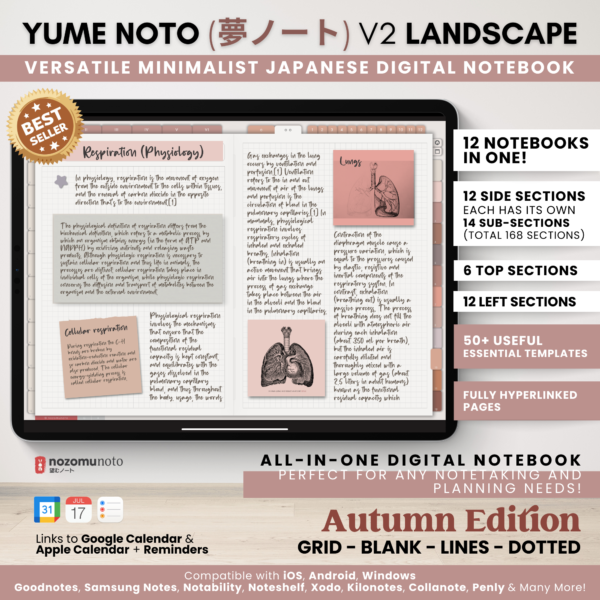 AutumnLight edition
View price & details
AutumnLight edition
View price & details
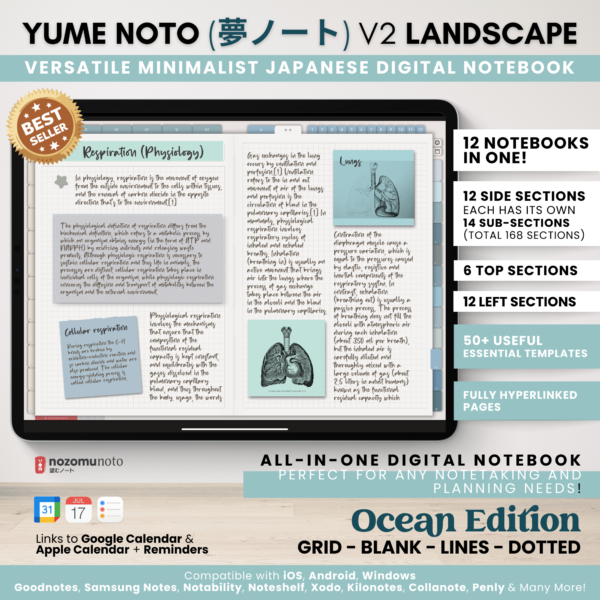 OceanLight edition
View price & details
OceanLight edition
View price & details
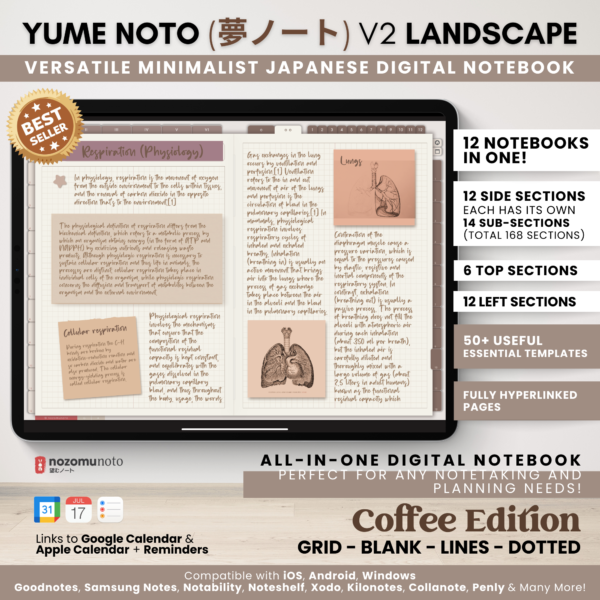 CoffeeLight edition
View price & details
CoffeeLight edition
View price & details
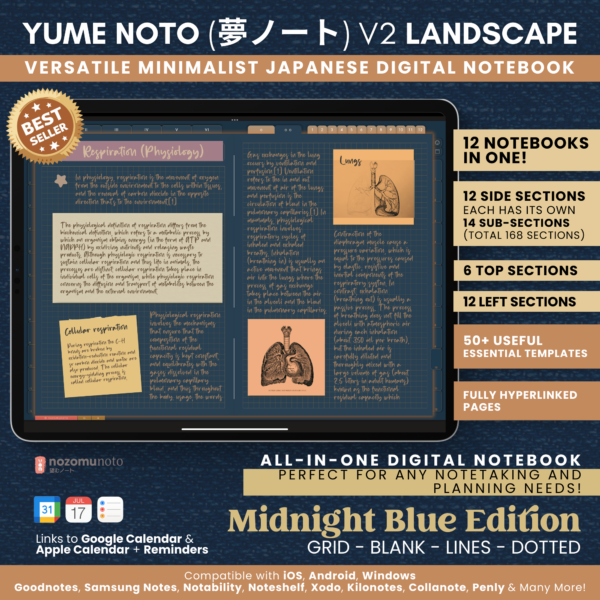 Midnight BlueDark edition
View price & details
Midnight BlueDark edition
View price & details
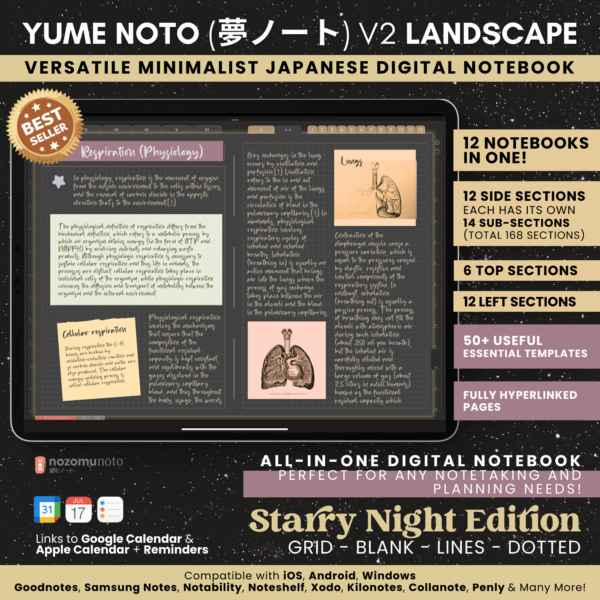 Starry NightDark edition
View price & details
Starry NightDark edition
View price & details
Prefer a vertical notebook? Explore Yume Noto V2 Portrait.