

Browse help topics
Getting Started
Need help choosing?
Need help after purchase?
Download & Import
Using your notebook/planner
- How to change or reuse template pages on planner landing pages
- Why stickers look blurry when enlarged
- What to check if a product does not work on your device
- How to use NozomuNoto index pages
- How to use NozomuNoto template pages
- How to change a digital planner cover
- How to install and use digital stickers
Product Tutorials
- How to use Yume Techo Landscape tutorial pages
- How to use Yume Techo Portrait tutorial pages
- How to use Shibui Techo Weeks tutorial pages
- How to use Shibui Techo Months tutorial pages
- How to use Yume Noto V1 Landscape tutorial pages
- How to use Yume Noto V1 Portrait tutorial pages
- How to use Yume Noto V2 Landscape tutorial pages
- How to use Yume Noto V2 Portrait tutorial pages
- How to use Yume Noto V3 Portrait tutorial pages
- How to use NozomuNoto Ultimate Digital Stickers
- How to use NozomuNoto Digital Covers
- Which NozomuNoto instruction or tutorial file should I open first?
Device & App
iOS / iPadOS
GoodNotes
Notability
Noteshelf
Noteful
StarNote
Flexcil
Kilonotes
Android
StarNote
Samsung Notes
Penly
Flexcil
Noteshelf
Xodo
E-reader Devices
Boox devices
reMarkable
Bigme
Supernote
New to digital planning? Start here!
New to digital planning? Learn what to download, which file to open first, what app you need, and how to set up your NozomuNoto planner or notebook without feeling lost.
On this page
- Quick answer: how to start digital planning
- What digital planning means
- What you need before you begin
- Which NozomuNoto file should you open first?
- Your first-day setup
- A simple first-week setup
- Beginner problems that are very normal
- 1. The planner feels too big
- 2. Links stay on the same page when you tap them
- 3. The file will not open because it is still inside a ZIP
- 4. You accidentally write on a clean template page
- 5. The orientation feels wrong
- 6. You want to set up everything perfectly before using it
- When to read the other beginner pages
- Go next
- Official NozomuNoto links
Start here first
If you are new to digital planning, keep your setup small. You only need one device you will actually use, one app that can open and write on PDF files, one saved original NozomuNoto file as your clean backup, and one working copy inside your app.
After that, test only the basics first: open the Index page, tap one link, write one small note, and use just a few pages for your first week. There is no need to set up every page today. Start light first!
This digital planning for beginners guide is the first stop for everybody who wants to learn how to start digital planning with a NozomuNoto planner, notebook, sticker set, or cover file without feeling lost. It explains what digital planning is, what you need before you begin, which file to open first, and how to make a simple first-week setup without filling every page at once.
The best beginner setup is small: one device, one app, one saved original file, and one working copy inside the app. There is no need to understand every page before starting. By the end of this page, you should know what to download, what to import, what to test, and what to ignore until you actually need it. Start light first!
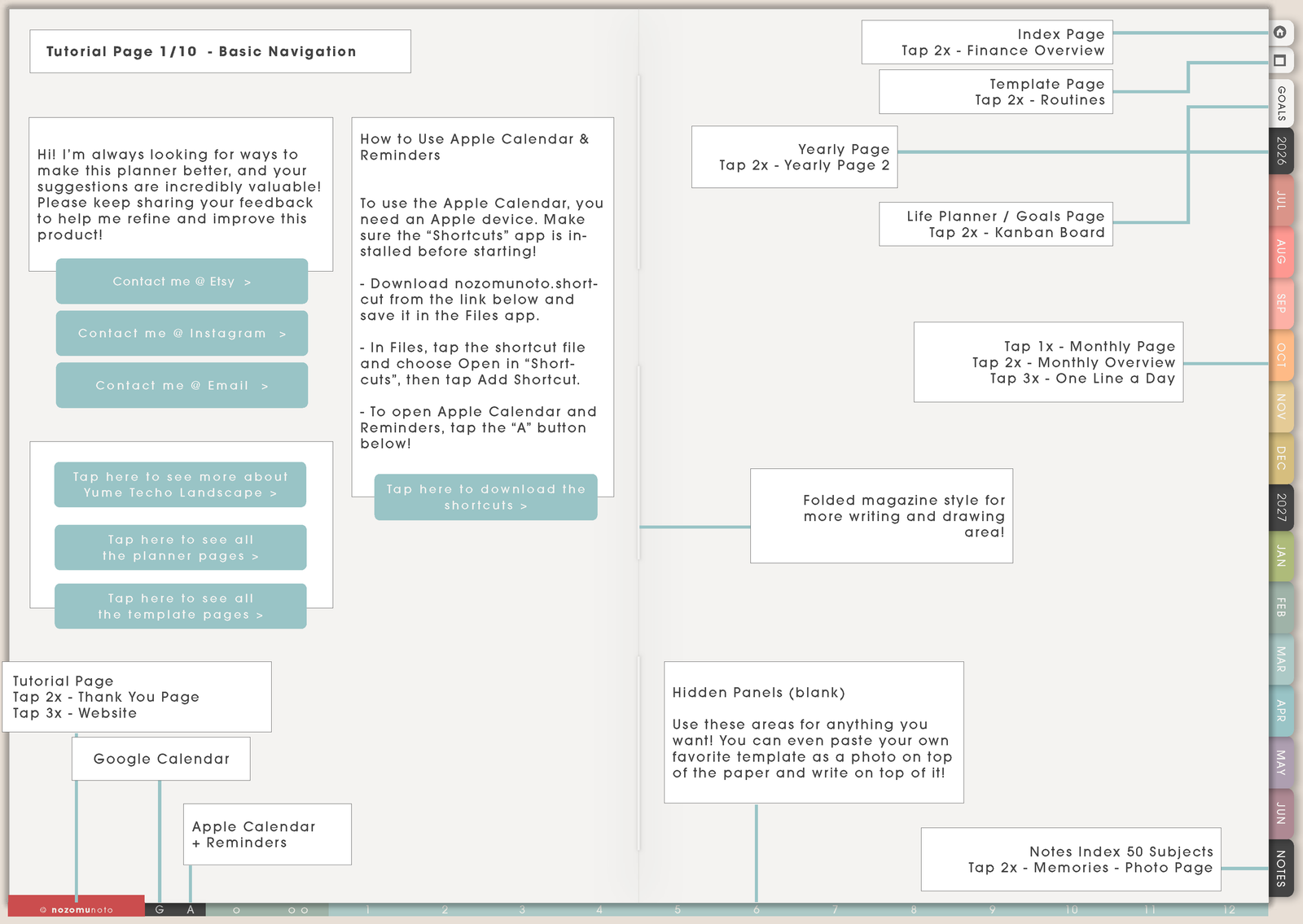
Quick answer: how to start digital planning
- Pick the device you will actually reach for. iPad is common, but Android tablets, computers, phones, and some e-readers can also work depending on the app and file.
- Install one PDF note-taking app. Choose an app that can import PDF files, write or type on pages, use PDF links, show page thumbnails, and manage pages.
- Save the original NozomuNoto download. Keep the clean file in Files, Google Drive, iCloud Drive, OneDrive, Downloads, My Files, or another folder you can find again.
- Import a working copy into the app. Write on the app copy, not the clean backup.
- Test the basics before decorating. Tap the index, try a tab, write one small note, open page thumbnails, and insert one image or sticker if you plan to use stickers.
- Use only a few pages first. For a planner, begin with Index, current Monthly, current Weekly, and one Notes or Template page. For a notebook, begin with Index, one writing page, and one section.
What digital planning means
Digital planning means using a planner, notebook, sticker book, or cover file on a device instead of using only paper. Most NozomuNoto planners and notebooks are PDF-based, so they open inside apps that can write on PDFs.
The biggest difference from paper is that the file can include built-in links. You can tap tabs, index items, months, dates, and section buttons to jump around the planner instead of flipping page by page.
- Digital planner: best for calendars, yearly pages, monthly pages, weekly pages, daily pages, routines, deadlines, and dated planning.
- Digital notebook: best for notes, study pages, journaling, work notes, client notes, collections, Bible study, recipes, reading notes, and flexible pages.
- Digital stickers: PNG images or sticker files you add after your main planner or notebook is working.
- Digital covers: cover pages or cover images that help you recognize your planner or notebook inside the app library.
What you need before you begin
- A device: iPad, Android tablet, phone, computer, or compatible e-reader that can open PDF files.
- An app: a note-taking or PDF annotation app that fits the device. Good app features include PDF import, handwriting, typing, hyperlinks, thumbnails, page management, image import, and backup/export.
- Your NozomuNoto file: planner PDF, notebook PDF, sticker files, cover file, instruction PDF, or access file depending on what you purchased.
- A way to write: stylus for handwriting, keyboard for typed lists and notes, or finger for tapping links and quick navigation.
- A safe storage folder: one place for original downloads, extracted ZIP folders, instructions, and backup copies.
Which NozomuNoto file should you open first?
- Open a digital planner first if you want calendars, yearly pages, monthly pages, weekly pages, daily pages, life planning, goals, routines, or dated planning.
- Open a digital notebook first if you mostly want notes, study pages, journal pages, client notes, project pages, reading notes, Bible study, recipes, or collections.
- Open stickers after the main planner or notebook works. Stickers are easier when you already know how to write, move around, and find pages in your app.
- Open instruction or access PDFs when the download is small. Some marketplace downloads contain an access file that points to the full product folder.
Your first-day setup
- Make a NozomuNoto download folder. Put the original download, extracted ZIP folder, instruction file, and final PDF in one place. This is your clean backup area.
- Import only the main PDF first. Open the planner or notebook in your app before importing stickers, covers, or extra folders.
- Find the Index page. The index is the map. If you can return to the index, the planner feels much less huge.
- Test one link. Tap one tab, date, button, or index item. If nothing moves, switch to the app's read, view, hand, gesture, or link mode.
- Write one real thing. Add one appointment, one task, one note, or one reminder. The first useful mark matters more than a perfect full setup.
A simple first-week setup
- Day 1: import the planner or notebook and test that you can write on one page.
- Day 2: bookmark or favorite the Index page, current month, current week, or first notebook section.
- Day 3: write only the dates, appointments, tasks, or notes you already know.
- Day 4: try one reusable Template Page, but keep the clean original unchanged.
- Day 5: add one sticker or image if you plan to decorate your pages.
- End of week: keep the pages that helped and skip the pages you left unused.
Beginner problems that are very normal
1. The planner feels too big
What happens: you open the planner, see hundreds of pages, tabs, templates, goals, life planner pages, and extras, then suddenly it feels like homework.
Example: instead of planning the week, you spend twenty minutes scrolling through pages and wondering which one is the "right" place to start.
What to do: use only four pages for the first week: Index, current Monthly, current Weekly, and one Notes or Template page. Leave every optional tracker, goal page, and extra page closed until it has a real job.
2. Links stay on the same page when you tap them
What happens: you tap a tab or date, but the app writes, selects, zooms, or does nothing.
Example: in many apps, writing mode and link mode are different. The planner is fine, but the app is waiting for you to switch tools before links can work.
What to do: look for read mode, view mode, hand tool, gesture mode, link mode, or a pencil toggle. Then test the Index page again. For exact app buttons, open Which apps work with NozomuNoto planners? and choose the guide for your device.
3. The file will not open because it is still inside a ZIP
What happens: the app refuses the download, or the file looks like a folder package instead of a planner.
Example: Etsy, Google Drive, or the website may give you a ZIP folder because the product includes PDFs, stickers, covers, and instructions together.
What to do: save the ZIP first, extract it, then import the planner PDF, notebook PDF, PNG sticker folder, cover file, app-specific file, or instruction file inside. If the final file is hard to find, use Download and access your NozomuNoto files.
4. You accidentally write on a clean template page
What happens: you fill the original template page, then later you want another clean copy and it is no longer clean.
Example: you write directly on a habit tracker, project page, or notes template before duplicating it.
What to do: duplicate or copy the template first, then write on the copy. If the clean original is already messy, import a fresh planner copy from your saved download. Then read How to use NozomuNoto template pages.
5. The orientation feels wrong
What happens: the planner is beautiful, but the writing space feels wrong for how you hold your device.
Example: landscape feels roomy on a desk but awkward on a small tablet, while portrait feels natural for notebook-style writing but narrower for weekly spreads.
What to do: choose based on your real device habit. Portrait feels closer to a paper notebook. Landscape gives more horizontal room. If you are unsure, read Portrait vs landscape planner: which should I choose?.
6. You want to set up everything perfectly before using it
What happens: the planner becomes a decorating project or a system-building project before it becomes useful.
Example: you spend the whole first day choosing covers, fonts, stickers, tabs, and trackers, but no actual dates or tasks get written.
What to do: write the real life information first: appointments, deadlines, school dates, bills, shifts, reminders, or one next task. Decoration is easier when the planner already knows what it is helping with.
When to read the other beginner pages
- If you are still choosing a product: read What is a digital planner?, What is a digital notebook?, and Should I get a digital notebook or a digital planner?.
- If you are choosing a device or app: read What tools do I need to start digital planning? and Which apps work with NozomuNoto planners?.
- If links are confusing: read What does "hyperlinked PDF planner" mean?.
- If you already purchased something: read Download and access your NozomuNoto files and How to use NozomuNoto Library and Builder.
Go next
- What is a digital planner?
- What is a digital notebook?
- What does "hyperlinked PDF planner" mean?
- Paper planner vs digital planner
- Which apps work with NozomuNoto planners?
- Download and access your NozomuNoto files
- How to use NozomuNoto Library and Builder
- How to use NozomuNoto index pages
- How to use NozomuNoto template pages
Official NozomuNoto links
Still need help?
Send your order number, product name, device, app, and a screenshot or short screen recording if the issue is visual.