

Browse help topics
Getting Started
- Does my NozomuNoto purchase include an app or an app subscription?
- New to digital planning? Start here!
- What is a digital notebook?
- What is a digital planner?
- What tools do I need to start digital planning?
- Which apps work with NozomuNoto planners?
- What does “hyperlinked PDF planner” mean?
- Paper planner vs digital planner
Need help choosing?
Need help after purchase?
Download & Import
Using your notebook/planner
- Can I use my NozomuNoto planner offline?
- How do I back up, export, or move my NozomuNoto planner to a new device?
- How to change or reuse template pages on planner landing pages
- Why stickers look blurry when enlarged
- What to check if a product does not work on your device
- How to use NozomuNoto index pages
- How to use NozomuNoto template pages
- How to change a digital planner cover
- How to install and use digital stickers
Product Tutorials
- How to use Shibui Noto V1 Landscape
- How to use the Ikigai Noto Hiragana and Katakana workbook
- How to use Yume Techo Landscape tutorial pages
- How to use Yume Techo Portrait tutorial pages
- How to use Shibui Techo Weeks tutorial pages
- How to use Shibui Techo Months tutorial pages
- How to use Yume Noto V1 Landscape tutorial pages
- How to use Yume Noto V1 Portrait tutorial pages
- How to use Yume Noto V2 Landscape tutorial pages
- How to use Yume Noto V2 Portrait tutorial pages
- How to use Yume Noto V3 Portrait tutorial pages
- How to use NozomuNoto Ultimate Digital Stickers
- How to use NozomuNoto Digital Covers
- Which NozomuNoto instruction or tutorial file should I open first?
Device & App
iOS / iPadOS
GoodNotes
Notability
Noteshelf
Noteful
StarNote
Flexcil
Kilonotes
Android
StarNote
Samsung Notes
Penly
Flexcil
Noteshelf
Xodo
E-reader Devices
Boox devices
reMarkable
Bigme
Supernote
How to use planner hyperlinks in GoodNotes
Use built-in PDF links, tabs, and buttons in GoodNotes.
On this page
Applies to: PDF planners & notebooks · Goodnotes · iPad (iPadOS).
Files: Planner/notebook PDF. Use the app navigation/link method; test the specific destination.
Use these steps to work with NozomuNoto PDF planners, notebooks, stickers, covers, and template pages in GoodNotes. The official links below are for downloads, updates, and current help pages.
If links fail to move
If tapping a tab, date, Index item, or button writes on the page instead of moving, the planner is usually okay. GoodNotes is probably still in writing mode.
- Tap Read Only before testing planner links.
- Try tapping the link with your finger instead of Apple Pencil.
- Test one obvious link from the Index page.
- Make sure the PDF is imported into GoodNotes rather than only open in Files, Safari, or a preview screen.
- If links still fail, import a fresh clean copy of the PDF and test again before setting up the planner.
Reference links
Use these for current app or device help, downloads, updates, vendor help, and manual references.
- GoodNotes: Import files into Goodnotes
- GoodNotes: Navigate PDF Hyperlinks
- GoodNotes: PDF hyperlink issue guide
- GoodNotes: Use Favorites and Bookmarks
- GoodNotes: Copy or move pages from one document to another
- GoodNotes: Elements Tool
- GoodNotes: Change a notebook cover
- GoodNotes: Export documents or pages
- GoodNotes: Templates & Notebook Covers
Use planner links in GoodNotes
- Open the imported NozomuNoto planner or notebook in GoodNotes.
- Tap Read Only in the top toolbar so GoodNotes follows links instead of writing on the page.
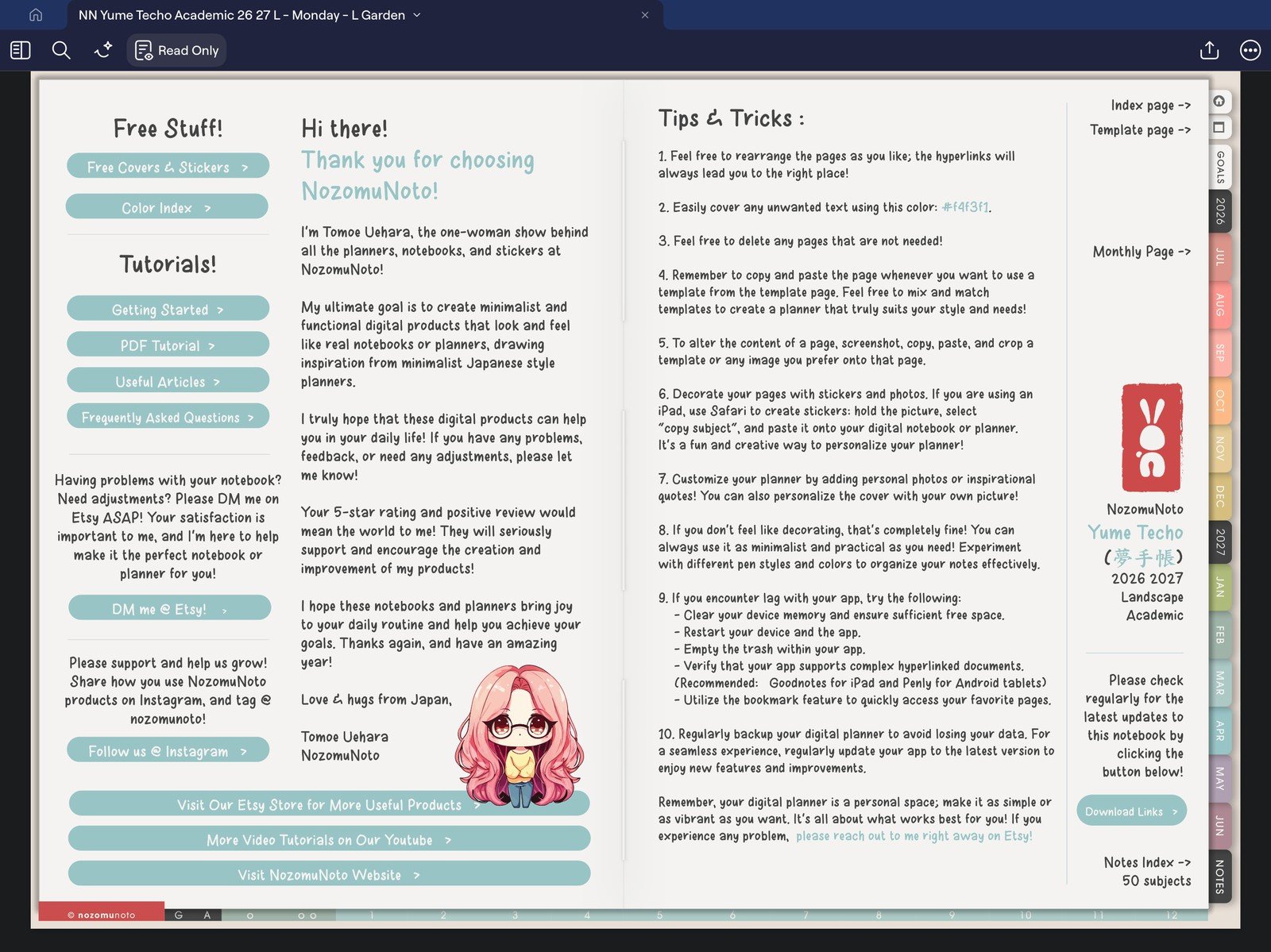
Full GoodNotes toolbar screenFull screen view first, then use the cropped highlight below to see the exact area. 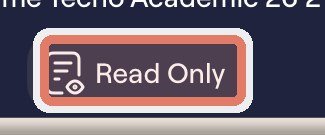
Read Only modeTap Read Only in the top toolbar so taps follow planner links instead of writing. - Tap the Monthly Page link, a month button, or a month tab first. Use your finger if Apple Pencil keeps writing or selecting.
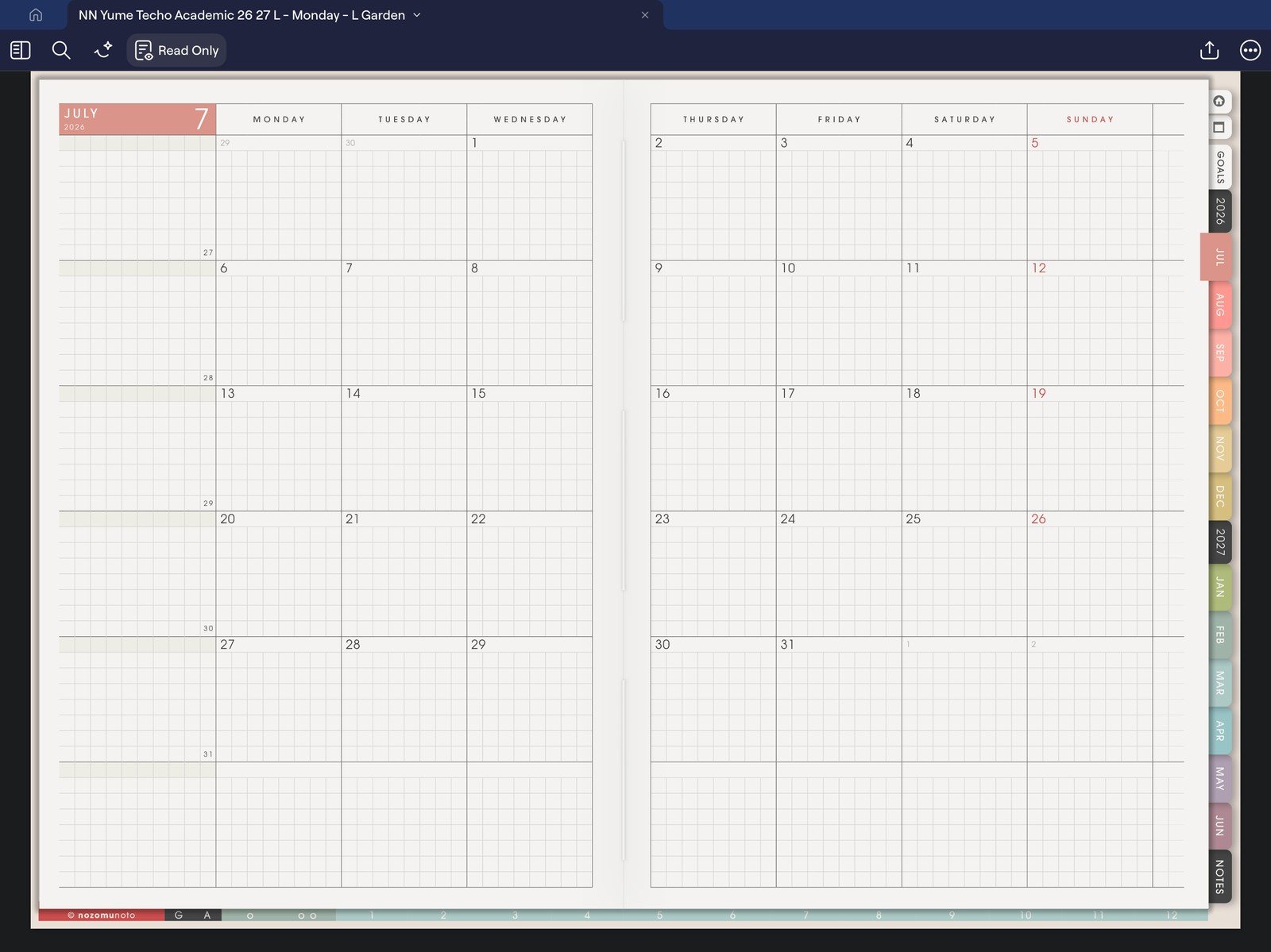
Full monthly link screenFull screen view first, then use the cropped highlight below to see the exact area. 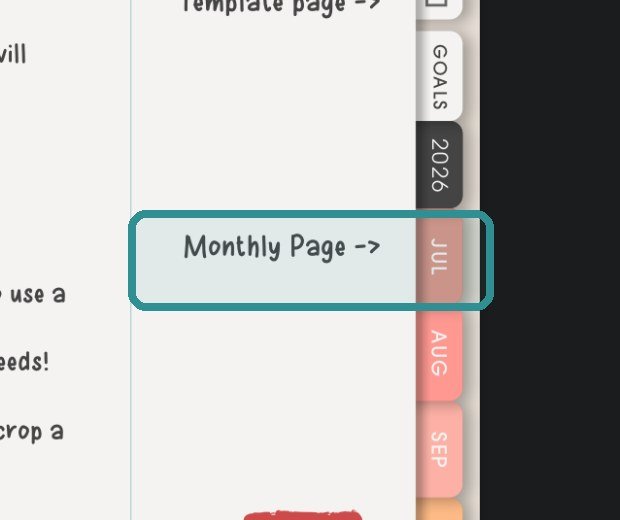
Monthly Page linkTap the highlighted Monthly Page link or month tab from the planner navigation area. - Tap one weekly link or dated area from the monthly page. Check that GoodNotes opens the matching weekly page.
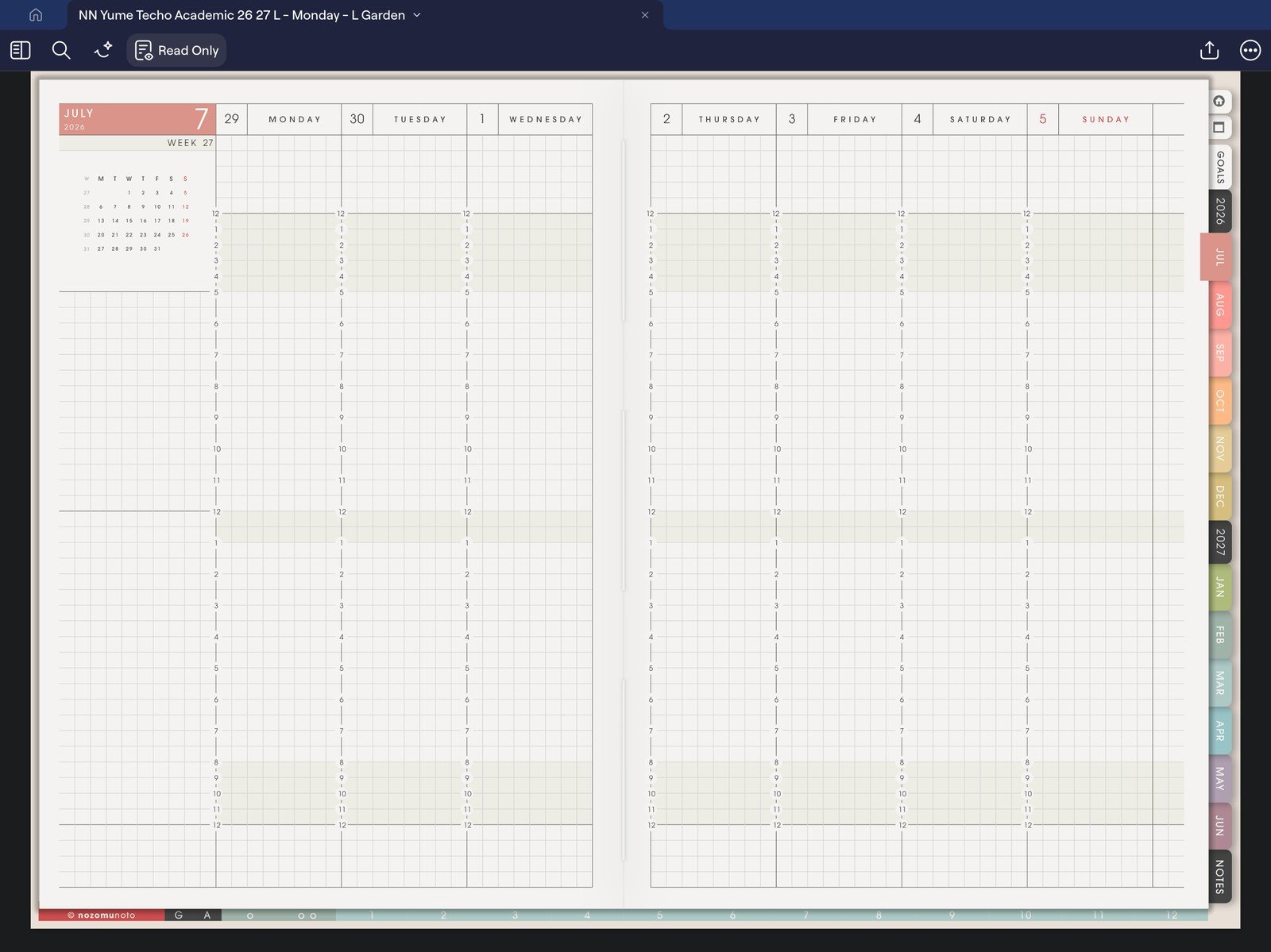
Full weekly link screenFull screen view first, then use the cropped highlight below to see the exact area. 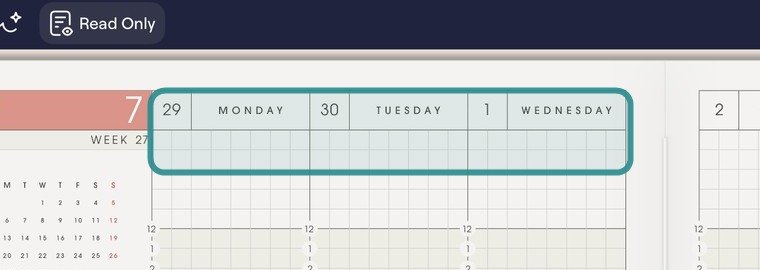
Weekly page datesThe highlighted area contains day and date headers on the weekly page. Check that your monthly-page link opens the intended week. - Tap one day or date header from the weekly page. Check that GoodNotes opens the matching daily page.
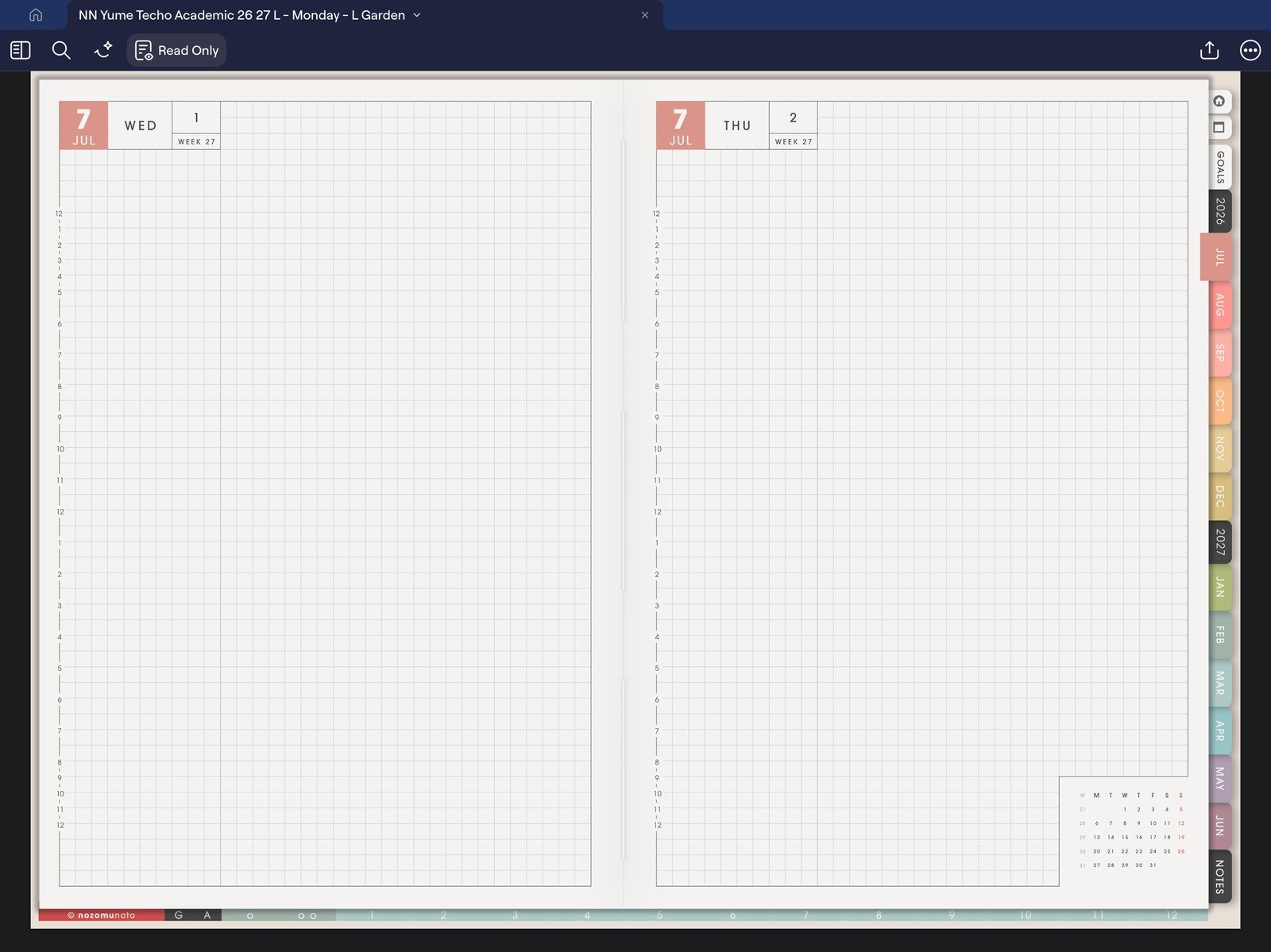
Full daily link screenFull screen view first, then use the cropped highlight below to see the exact area. 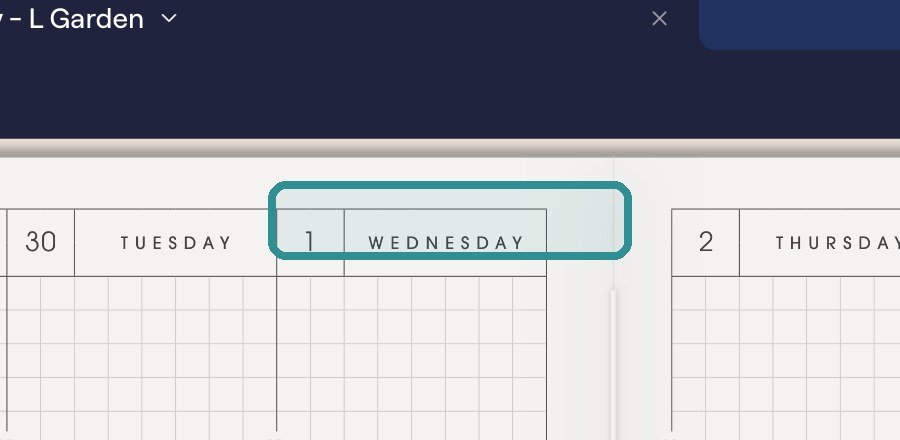
Day linkTap a highlighted day or date header so you know daily navigation is working. - If tapping writes, highlights, selects, or stays on the same page, return to Read Only. In editing mode, you can also long-press the linked area and choose Open Link.
GoodNotes link checks
1. Test before writing on many pages
Try one month tab, one weekly link, and one daily link. If those three move correctly, the planner links are usually fine and you can start writing.
2. Use the first imported PDF for testing
If links stop moving after export, flattening, page movement, page deletion, or another app edit, compare it with a fresh imported copy of the original NozomuNoto PDF.
3. Test links while Read Only is active
If tapping the page makes ink, highlights, or selections instead of moving, GoodNotes is treating the tap as editing. Tap Read Only, then test the same link again with your finger.
If links still fail
Open the same PDF in Apple Files and test the same month tab or Index link. If that link works in Apple Files, the tested link is present and works in that viewer. Next check the GoodNotes mode, app version, and imported copy. This comparison does not verify every link or rule out an app-specific PDF compatibility issue. If the same link fails in every PDF viewer, contact NozomuNoto with the product name, device, app version, and the exact link you tested.
Next GoodNotes link checks
- What does hyperlinked PDF planner mean?
- Import a NozomuNoto PDF in GoodNotes
- Use NozomuNoto index pages
- Which apps work with NozomuNoto planners?
- What to check if a product does not work on your device
- GoodNotes official hyperlink guide
Video walkthrough
Watch: GoodNotes notebook basics (2:48, 2022)
Published in November 2022 with older GoodNotes controls. It also includes a screenshot-overlay method; for linked PDF template pages, use the written Copy Page/Paste Page steps.
Written version: Use reading/navigation mode to follow a printed tab or planner link. To reuse a clean PDF template, copy the page, go to the intended insertion point and paste a working copy. Add a bookmark for pages you reopen, and keep the original template clean.
Still need help?
Send your order number, product name, device, app, and a screenshot or short screen recording if the issue is visual.