

Browse help topics
Getting Started
Need help choosing?
Need help after purchase?
Download & Import
Using your notebook/planner
- How to change or reuse template pages on planner landing pages
- Why stickers look blurry when enlarged
- What to check if a product does not work on your device
- How to use NozomuNoto index pages
- How to use NozomuNoto template pages
- How to change a digital planner cover
- How to install and use digital stickers
Product Tutorials
- How to use Yume Techo Landscape tutorial pages
- How to use Yume Techo Portrait tutorial pages
- How to use Shibui Techo Weeks tutorial pages
- How to use Shibui Techo Months tutorial pages
- How to use Yume Noto V1 Landscape tutorial pages
- How to use Yume Noto V1 Portrait tutorial pages
- How to use Yume Noto V2 Landscape tutorial pages
- How to use Yume Noto V2 Portrait tutorial pages
- How to use Yume Noto V3 Portrait tutorial pages
- How to use NozomuNoto Ultimate Digital Stickers
- How to use NozomuNoto Digital Covers
- Which NozomuNoto instruction or tutorial file should I open first?
Device & App
iOS / iPadOS
GoodNotes
Notability
Noteshelf
Noteful
StarNote
Flexcil
Kilonotes
Android
StarNote
Samsung Notes
Penly
Flexcil
Noteshelf
Xodo
E-reader Devices
Boox devices
reMarkable
Bigme
Supernote
Penly Known Problems with NozomuNoto Planners
Troubleshoot Penly problems with NozomuNoto planners, including PDF import, hyperlinks, stickers, covers, templates, slow files, and missing pages.
On this page
Use these steps to work with NozomuNoto PDF planners, notebooks, stickers, covers, and template pages in Penly. The official links below are for downloads, updates, and current help pages.
Choose your problem first
If something is not working in Penly, start with the issue that matches what you see.
- Links stay on the page: switch away from writing, image, text, shape, or selection tools, then test one Index link.
- Planner import looks wrong: choose the actual planner or notebook PDF instead of the ZIP, receipt, preview page, cover file, sticker file, or instruction-only PDF.
- Stickers look blurry: use the original PNG closer to its original size.
- Pages feel hard to manage: use Penly page tools carefully and keep a clean backup before deleting or moving pages.
- Cover looks wrong: check whether the file is a PDF cover, PNG or JPG cover, or Penly-specific cover file.
- File feels slow: close other apps, check storage, update Penly if needed, and test with a clean copy.
Reference links
Use these for current app or device help, downloads, updates, vendor help, and manual references.
Fix common Penly problems with NozomuNoto planners
- Choose the symptom that matches what you see before changing the planner file.
- If links stay on the page, switch away from writing, image, text, shape, or selection tools, then test one Index link.
- If the planner imported incorrectly, choose the actual planner or notebook PDF instead of the ZIP, receipt, preview page, cover file, sticker file, or instruction-only PDF.
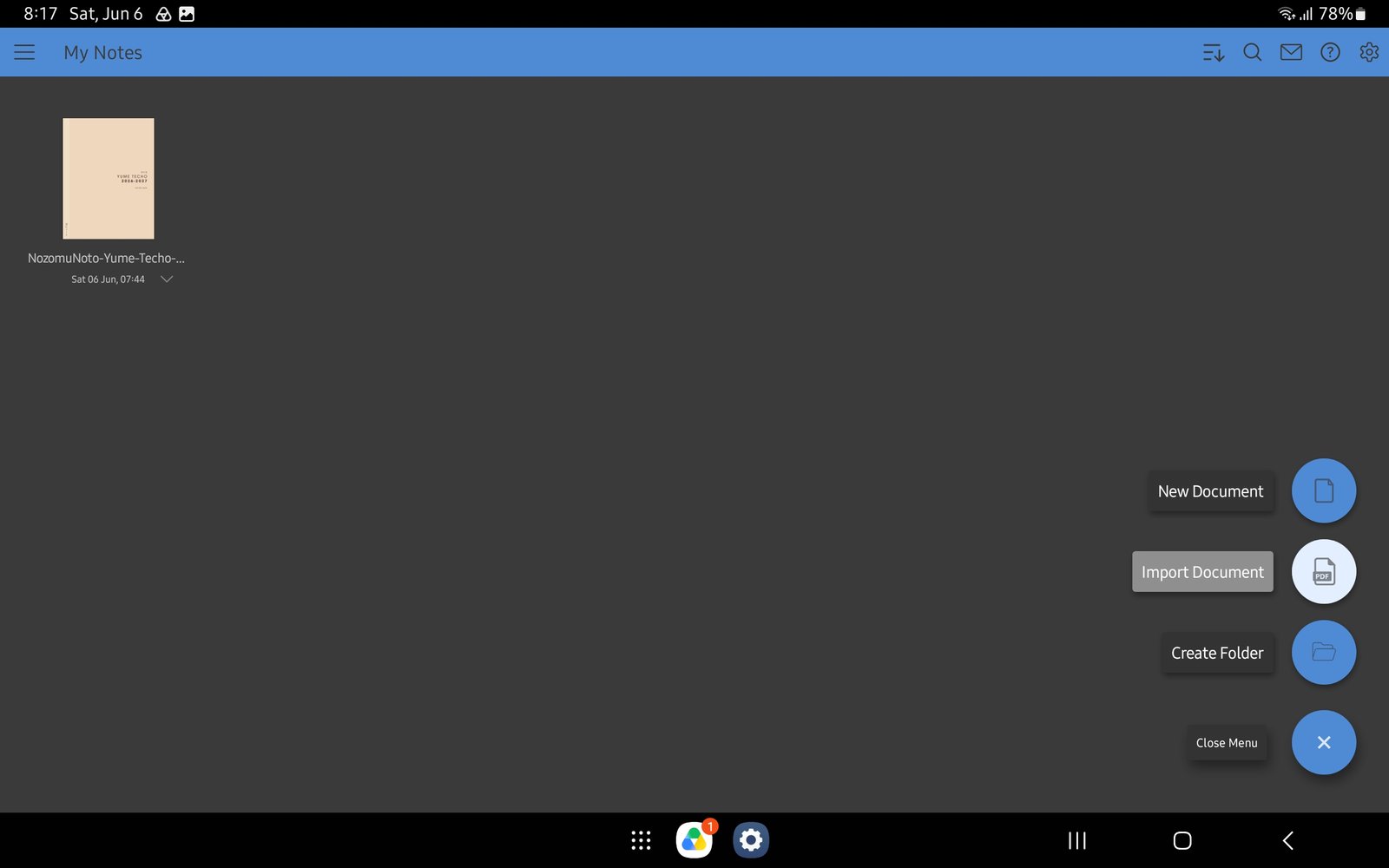
Full Penly import screenFull screen view first, then use the cropped highlight below to see the exact area. 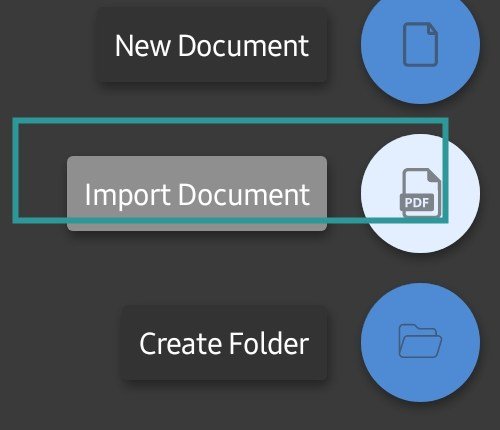
Import DocumentIf the planner imported incorrectly, import the extracted PDF again from Import Document. 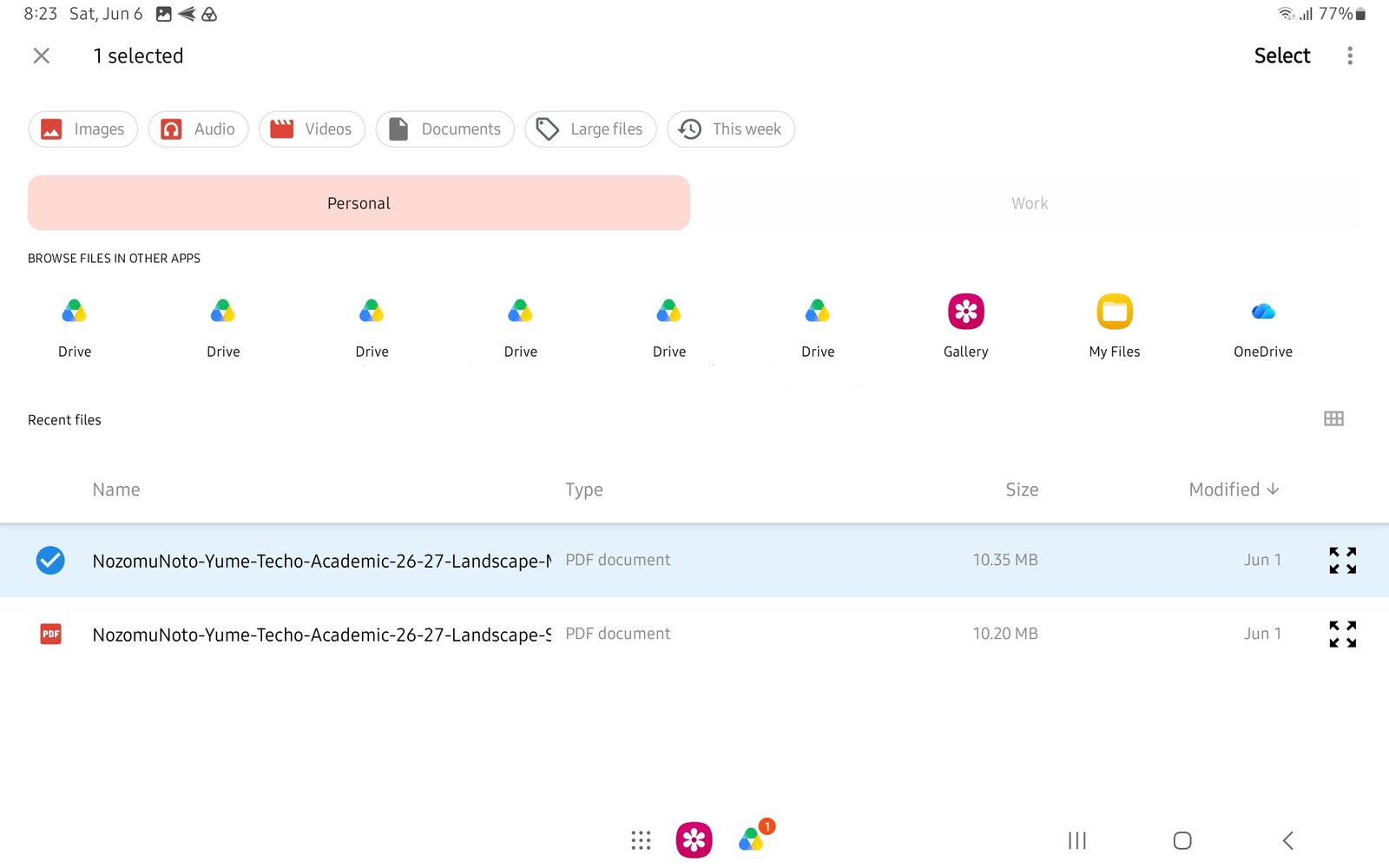
Full selected file screenFull screen view first, then use the cropped highlight below to see the exact area. 
Android file pickerChoose the actual planner or notebook PDF from the extracted product folder. - If stickers look blurry, insert the original PNG again and keep it closer to its original size.
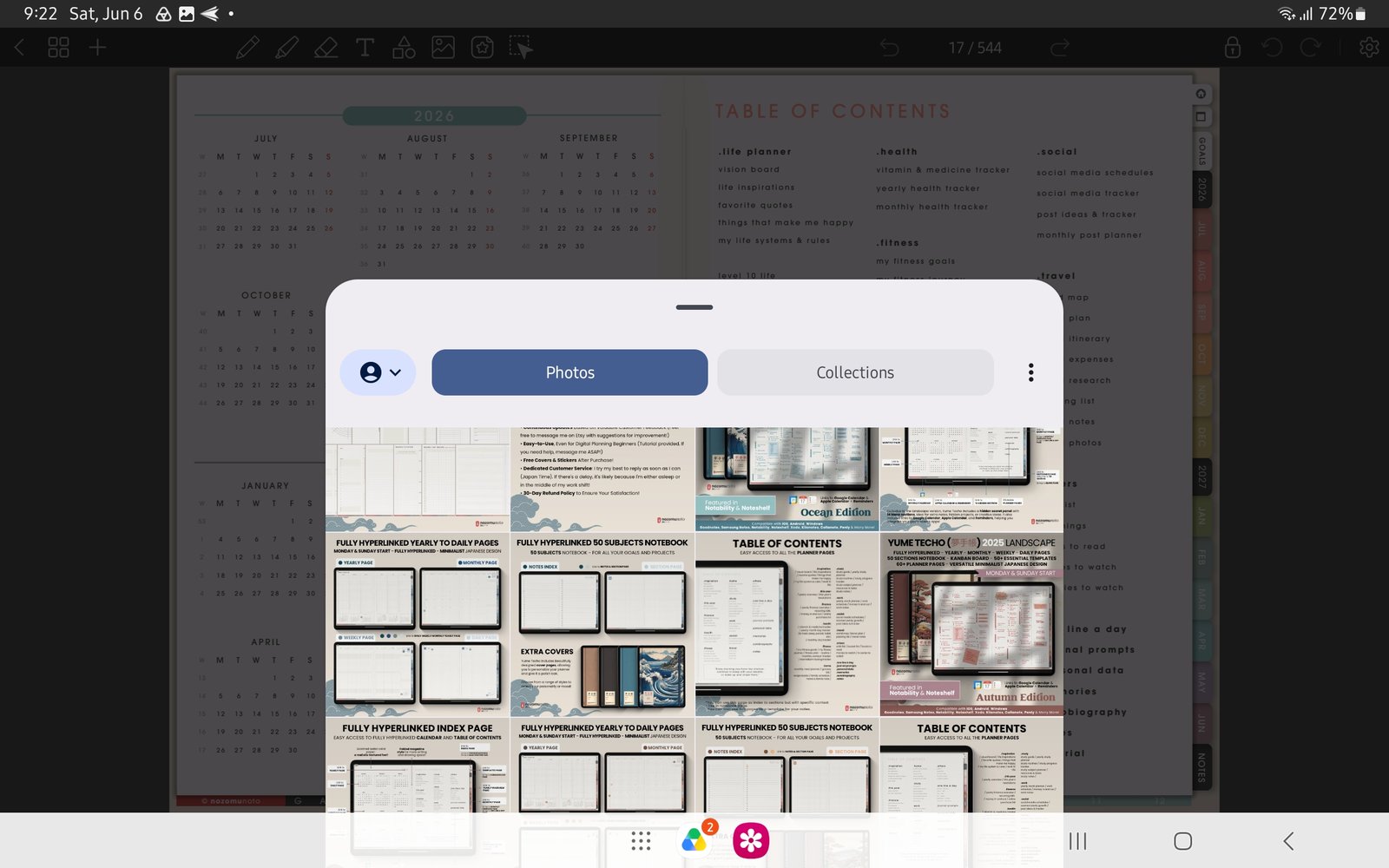
Full image import screenFull screen view first, then use the cropped highlight below to see the exact area. 
Sticker/image panelIf stickers look blurry, insert the original PNG again at a smaller size. - If pages feel hard to manage, open page overview first and keep a clean backup before deleting or moving pages.
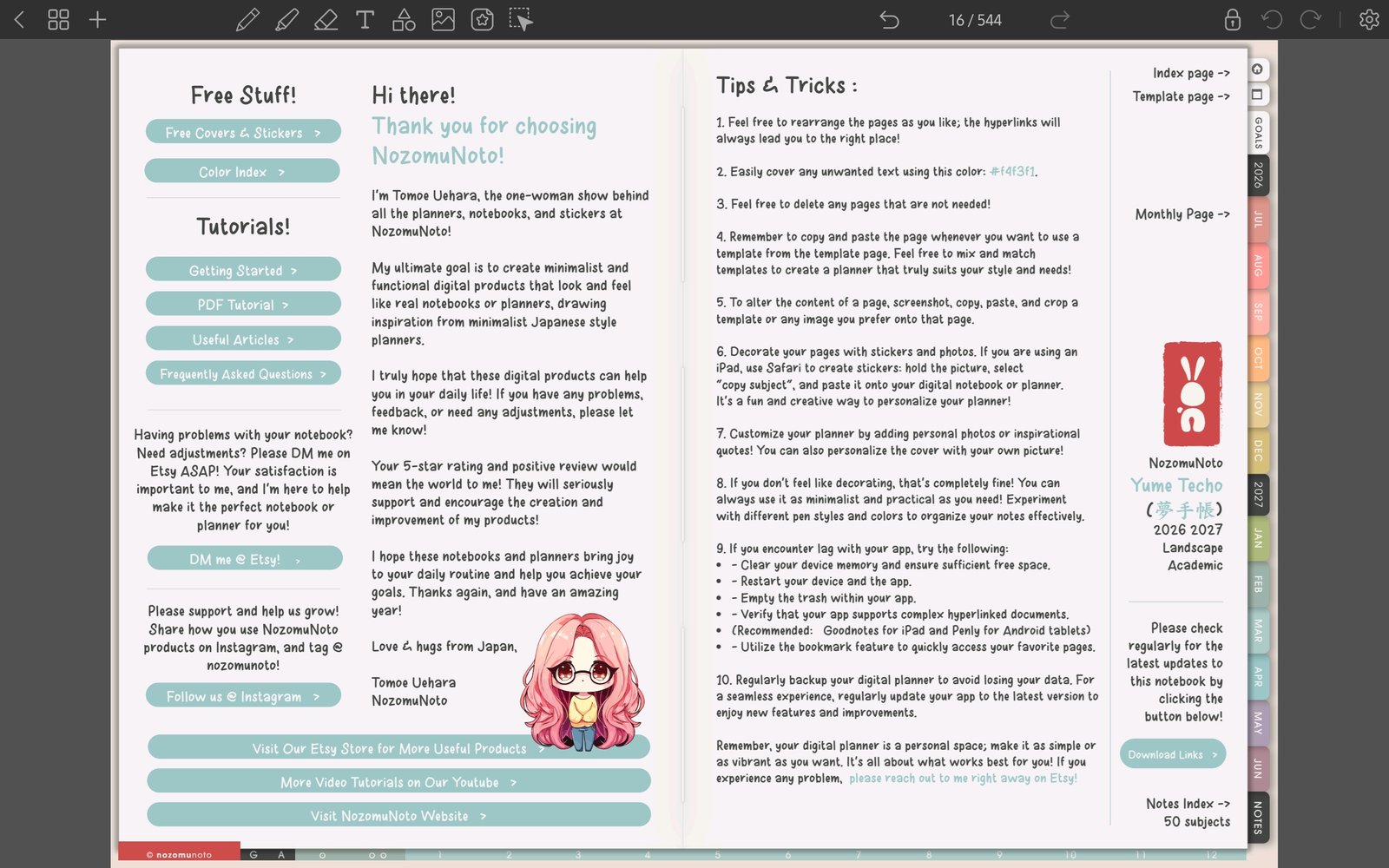
Full Penly toolbar screenFull screen view first, then use the cropped highlight below to see the exact area. 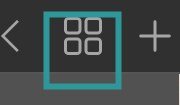
Page overview recoveryUse page overview before deleting, moving, copying, or replacing pages. - If the cover looks wrong, confirm whether the file is a PDF cover, PNG or JPG cover, or Penly-specific cover file before replacing pages.
- If the file feels slow, close other apps, check storage, update Penly if needed, and test with a clean copy.
- If the problem continues, write down the product name, device, Penly version if known, exact issue, and add a screenshot or short screen recording.
Penly problem checks
1. File and import checks
Most Penly planner problems begin with the wrong file. Open the extracted product folder and choose the main planner or notebook PDF. Use PNG files for stickers, image covers, or image extras later.
2. Link and mode checks
Penly links work from the page view. If tapping a tab, date, button, or Index item stays on the page, leave writing, image, text, shape, or selection tools and test the same Index link again.
3. Page, cover, and sticker checks
Use page overview before moving pages. Keep clean template pages and important linked pages in place, and use the original PNG when a sticker looks blurry.
Details to send
- Product: product name, year, orientation, week start, and color.
- Device: Android tablet model if known and Android version.
- App: Penly version if known.
- Issue: exact page, link, file, sticker, cover, or page action that failed.
- Visual proof: screenshot or short screen recording showing the selected tool and what happens after tapping.
Next Penly problem links
Still need help?
Send your order number, product name, device, app, and a screenshot or short screen recording if the issue is visual.