
Browse help topics
Getting Started
Need help choosing?
Need help after purchase?
Download & Import
Using your notebook/planner
- How to change or reuse template pages on planner landing pages
- Why stickers look blurry when enlarged
- What to check if a product does not work on your device
- How to use NozomuNoto index pages
- How to use NozomuNoto template pages
- How to change a digital planner cover
- How to install and use digital stickers
Product Tutorials
- How to use Yume Techo Landscape tutorial pages
- How to use Yume Techo Portrait tutorial pages
- How to use Shibui Techo Weeks tutorial pages
- How to use Shibui Techo Months tutorial pages
- How to use Yume Noto V1 Landscape tutorial pages
- How to use Yume Noto V1 Portrait tutorial pages
- How to use Yume Noto V2 Landscape tutorial pages
- How to use Yume Noto V2 Portrait tutorial pages
- How to use Yume Noto V3 Portrait tutorial pages
- How to use NozomuNoto Ultimate Digital Stickers
- How to use NozomuNoto Digital Covers
- Which NozomuNoto instruction or tutorial file should I open first?
Device & App
iOS / iPadOS
GoodNotes
Notability
Noteshelf
Noteful
StarNote
Flexcil
Kilonotes
Android
StarNote
Samsung Notes
Penly
Flexcil
Noteshelf
Xodo
E-reader Devices
Boox devices
reMarkable
Bigme
Supernote
How to use NozomuNoto Ultimate Digital Stickers
Learn how to use NozomuNoto Ultimate Digital Stickers, choose the right file, import PNG stickers or sticker books, and organize them in your planner app.
On this page
- Choose your sticker file first
- Built-in tutorial pages and visual guide
- Blank and Basic To Do sticker pages
- Categories and icon pages
- Calendar sticker widgets
- How to use the stickers first
- What each sticker format is for
- Good ways to use stickers
- Common sticker problems
- 1. The ZIP will not import into the app
- 2. The sticker looks blurry
- 3. The sticker has a white box behind it
- 4. The sticker is hard to select
- 5. The page feels crowded
- Related sticker help
- Where to go next
Before importing anything, open the instruction file first if your download includes one. Then choose the sticker file that matches your app and workflow.
Choose your sticker file first
- Download the sticker files.
- Save the original download as your backup.
- Extract the ZIP if needed.
- Open the instruction file if one is included.
- Choose the sticker file that matches your app.
- Import or copy one sticker into your planner page.
- Resize a little at a time so the sticker stays clear.
Built-in tutorial pages and visual guide
Use the images below as visual checkpoints. The extra notes explain what to do with the page after you understand what it shows.
Blank and Basic To Do sticker pages
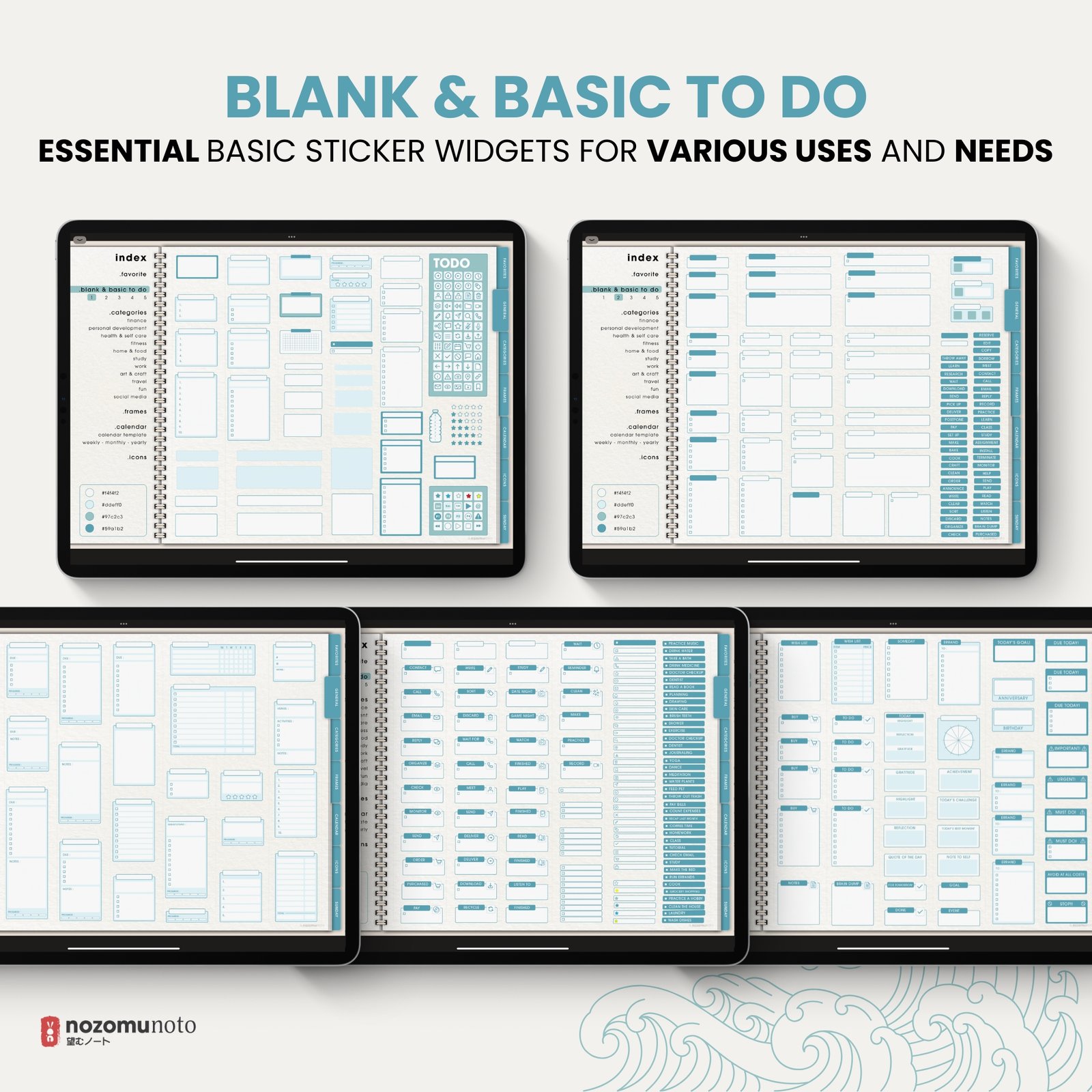
Start with the basic stickers if you want practical planning pieces: to-do boxes, priority labels, reminder tags, progress bars, checklist blocks, tiny icons, and reusable labels. These are the easiest stickers to use on weekly pages, daily pages, project notes, and template pages because they help the page stay clear.
Categories and icon pages
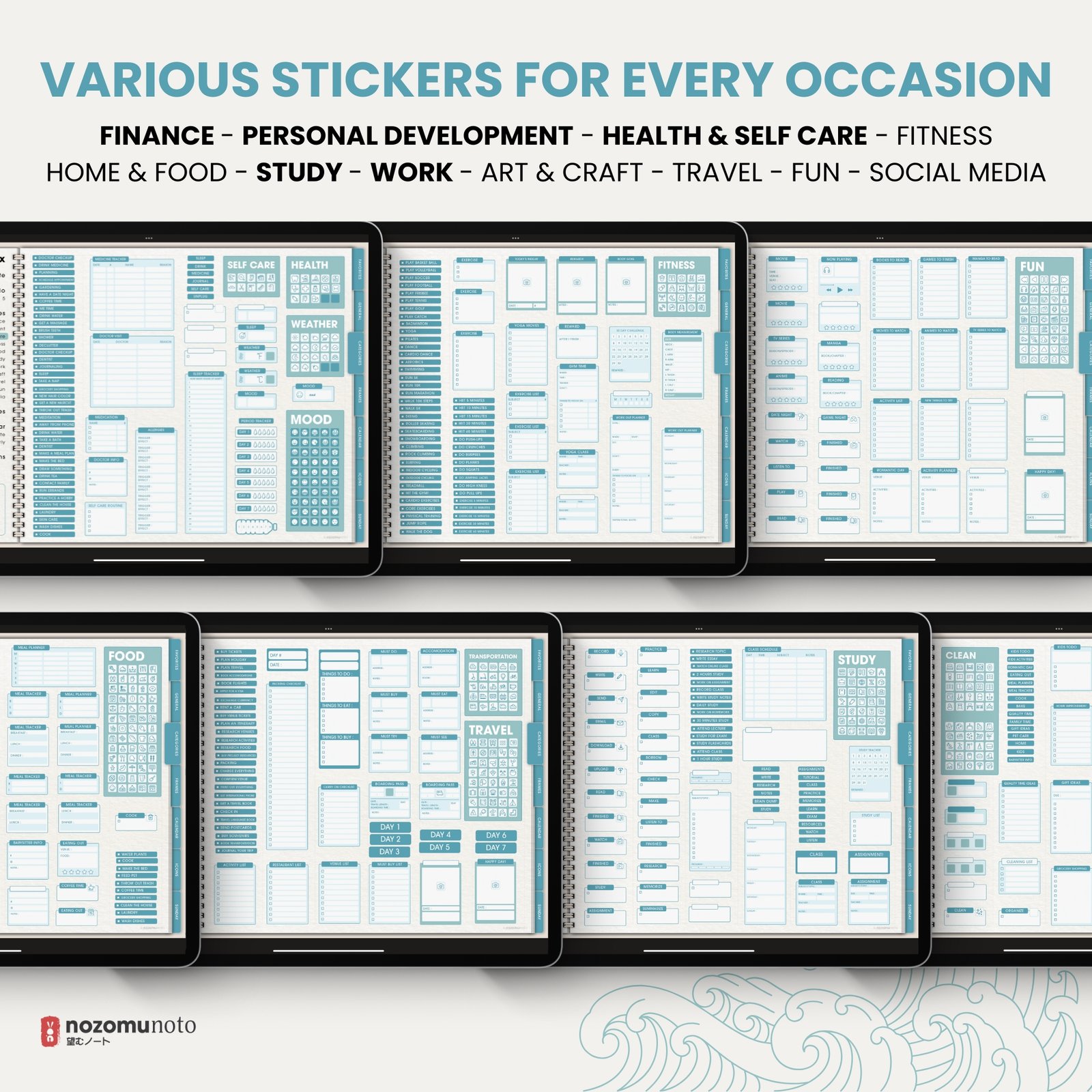
Use category stickers when you want a page to be easier to scan. For example, use health and self care stickers on a tracker, study stickers on assignment pages, work stickers on project notes, travel stickers on itinerary pages, and food stickers on meal planning pages. Use icons when one tiny symbol says enough.
Calendar sticker widgets
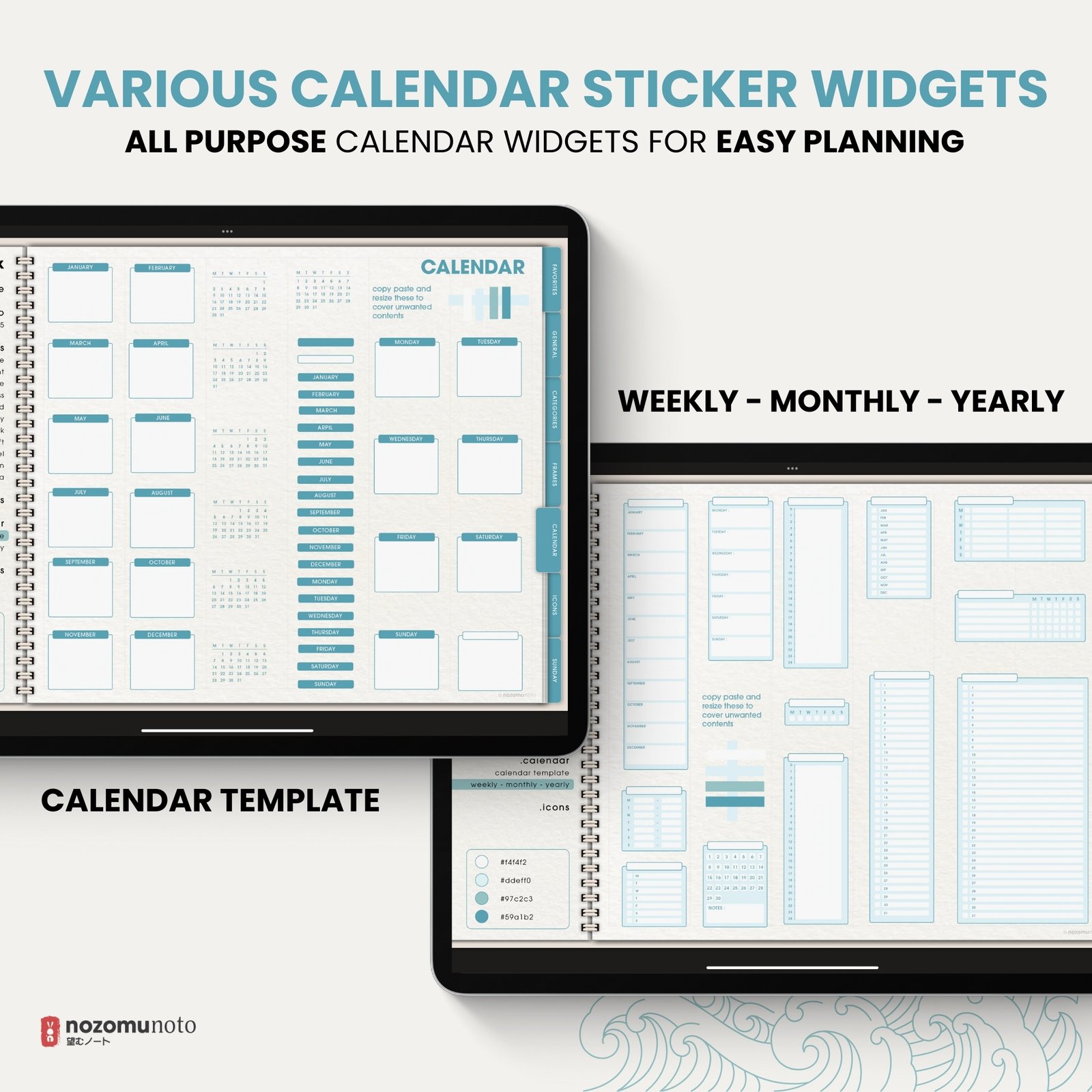
Calendar stickers are helpful when the page you are using does not already have the date layout you need. Add a small month, week, date strip, or calendar block to a notes page, project page, study plan, content plan, or memory page. Keep the calendar sticker small enough that the writing area still matters most.
How to use the stickers first
- Extract the files before importing. If the download is a ZIP, open the ZIP first and use the files inside.
- Choose the format your app understands. Most PDF planner apps can use PNG stickers as images. Some apps also work with sticker books, app-specific GoodNotes files, Elements, Collections, or app-specific sticker tools.
- Test one sticker on a blank area. Move it, resize it, close the document, reopen it, and check that it still looks clear.
- Save only your favorites first. A small favorite set is easier than importing every sticker on day one.
- Use stickers after the page has a job. Write the real task, date, routine, or note first. Then add a sticker if it helps you see the page faster.
- Keep the original sticker folder. If a sticker gets blurry or lost, reinsert the original file instead of reusing a screenshot.
What each sticker format is for
- PNG stickers: best for most apps. Insert them as images, then resize and move them on the page.
- Sticker book PDF: useful when you want to browse stickers visually and copy one into your planner.
- Sticker sheets: useful when your app can select, crop, or copy from a full sheet.
- App sticker libraries: useful for repeated stickers. GoodNotes Elements, Penly Collections, and similar tools can make favorites faster.
- Color versions: choose the color set that matches your planner or the mood of the page. Start with one color family so the page does not become noisy.
Good ways to use stickers
- Use task labels for the few things that matter. Mark deadline, bill, meeting, study, call, email, appointment, order, urgent, or waiting-for items so they stand out quickly.
- Use routine cues for repeat habits. Add water, sleep, medicine, walk, meal plan, workout, reading, prayer, cleaning, or shutdown cues to weekly and daily pages.
- Use category stickers to separate page areas. A study icon, food label, finance label, or work tag can make a mixed page easier to scan.
- Use calendar stickers on flexible pages. Add a mini month, weekly block, or date strip to a notes page when you need time context without moving to a full planner page.
- Use memory stickers after the event. Travel, photos, gratitude, highlights, favorite moments, and small celebration stickers work beautifully on memory pages.
- Repeat one sticker as a visual anchor. One flower for weekly review, one checklist for errands, one heart for self care, or one label for important notes can make pages easier to recognize later.
Common sticker problems
1. The ZIP will not import into the app
What happens: the app says the file type is not accepted, or nothing appears after you choose the ZIP.
What to do: extract the ZIP first. Then import the PNGs, sticker book PDF, app-specific GoodNotes file, or other app-ready file from the extracted folder.
2. The sticker looks blurry
What happens: the sticker becomes soft or pixelated after resizing.
Example: a small checklist sticker is enlarged until it fills half the monthly page.
What to do: reinsert the original PNG and resize less. Avoid screenshots, listing previews, or compressed copies for planner stickers.
3. The sticker has a white box behind it
What happens: the sticker appears with a white rectangle instead of a transparent background.
What to do: use the original transparent PNG file when available. If you copied from a preview, sheet, or screenshot, switch back to the individual PNG.
4. The sticker is hard to select
What happens: tapping the sticker writes on the page, selects handwriting, or moves the wrong object.
What to do: zoom in, switch to the image, object, lasso, or selection tool, then select the sticker. Lock it only when you are finished moving it.
5. The page feels crowded
What happens: stickers cover the time block, checklist, tracker, or notes area you needed for real planning.
What to do: put stickers near headings, margins, empty corners, or section labels. Use them as cues, not wallpaper.
Related sticker help
- How to install and use digital stickers
- Why stickers look blurry when enlarged
- Which apps work with NozomuNoto planners?
- Download and access your NozomuNoto files
- GoodNotes sticker guide
- Notability sticker guide
- Penly sticker guide
- Samsung Notes sticker guide
Where to go next
Ultimate Digital Stickers explains the product pages. For page ideas, use Tips & Ideas. For app buttons, imports, page copying, bookmarks, covers, stickers, or device problems, use the Help Center guide for your app.
Still need help?
Send your order number, product name, device, app, and a screenshot or short screen recording if the issue is visual.