

Browse help topics
Getting Started
Need help choosing?
Need help after purchase?
Download & Import
Using your notebook/planner
- How to change or reuse template pages on planner landing pages
- Why stickers look blurry when enlarged
- What to check if a product does not work on your device
- How to use NozomuNoto index pages
- How to use NozomuNoto template pages
- How to change a digital planner cover
- How to install and use digital stickers
Product Tutorials
- How to use Yume Techo Landscape tutorial pages
- How to use Yume Techo Portrait tutorial pages
- How to use Shibui Techo Weeks tutorial pages
- How to use Shibui Techo Months tutorial pages
- How to use Yume Noto V1 Landscape tutorial pages
- How to use Yume Noto V1 Portrait tutorial pages
- How to use Yume Noto V2 Landscape tutorial pages
- How to use Yume Noto V2 Portrait tutorial pages
- How to use Yume Noto V3 Portrait tutorial pages
- How to use NozomuNoto Ultimate Digital Stickers
- How to use NozomuNoto Digital Covers
- Which NozomuNoto instruction or tutorial file should I open first?
Device & App
iOS / iPadOS
GoodNotes
Notability
Noteshelf
Noteful
StarNote
Flexcil
Kilonotes
Android
StarNote
Samsung Notes
Penly
Flexcil
Noteshelf
Xodo
E-reader Devices
Boox devices
reMarkable
Bigme
Supernote
How to change or reuse template pages on planner landing pages
Learn how to copy, reuse, and organize NozomuNoto template pages safely while keeping your original template page clean.
On this page
- Safety rule first
- Quick answer
- Before changing pages
- Best workflow
- Common app names for this tool
- Useful ways to reuse template pages
- 1. Add a project page beside the current month
- 2. Add a weekly reset page after a busy week
- 3. Add a class, subject, or meeting page near notes
- 4. Add a tracker only when it has a job
- 5. Make a small custom section
- When this gets tricky
- 1. The landing-page button still opens the original page
- 2. You accidentally wrote on the clean template
- 3. The copied page lands in the wrong place
- 4. Links stop working after exporting or rebuilding the planner
- 5. Custom pages become hard to find
- What to check before asking for help
- Related help
This guide is for everyone who wants to use a NozomuNoto template page more than once. It explains how to copy a clean template page from the planner, place the copy near the month, week, project, class, or notes section where you need it, and keep the original page safe for later.
The most important idea is simple: in a hyperlinked PDF planner, the built-in buttons usually stay linked to the original page. To make your own working page, duplicate or copy the template page first, then use bookmarks, favorites, page thumbnails, or a personal index to return to the copy.
Safety rule first
Keep the original template page clean. When you want to use a template, copy or duplicate the page first, then write on the copy.
Think of the original template page as your master page. The copied page is your working page.
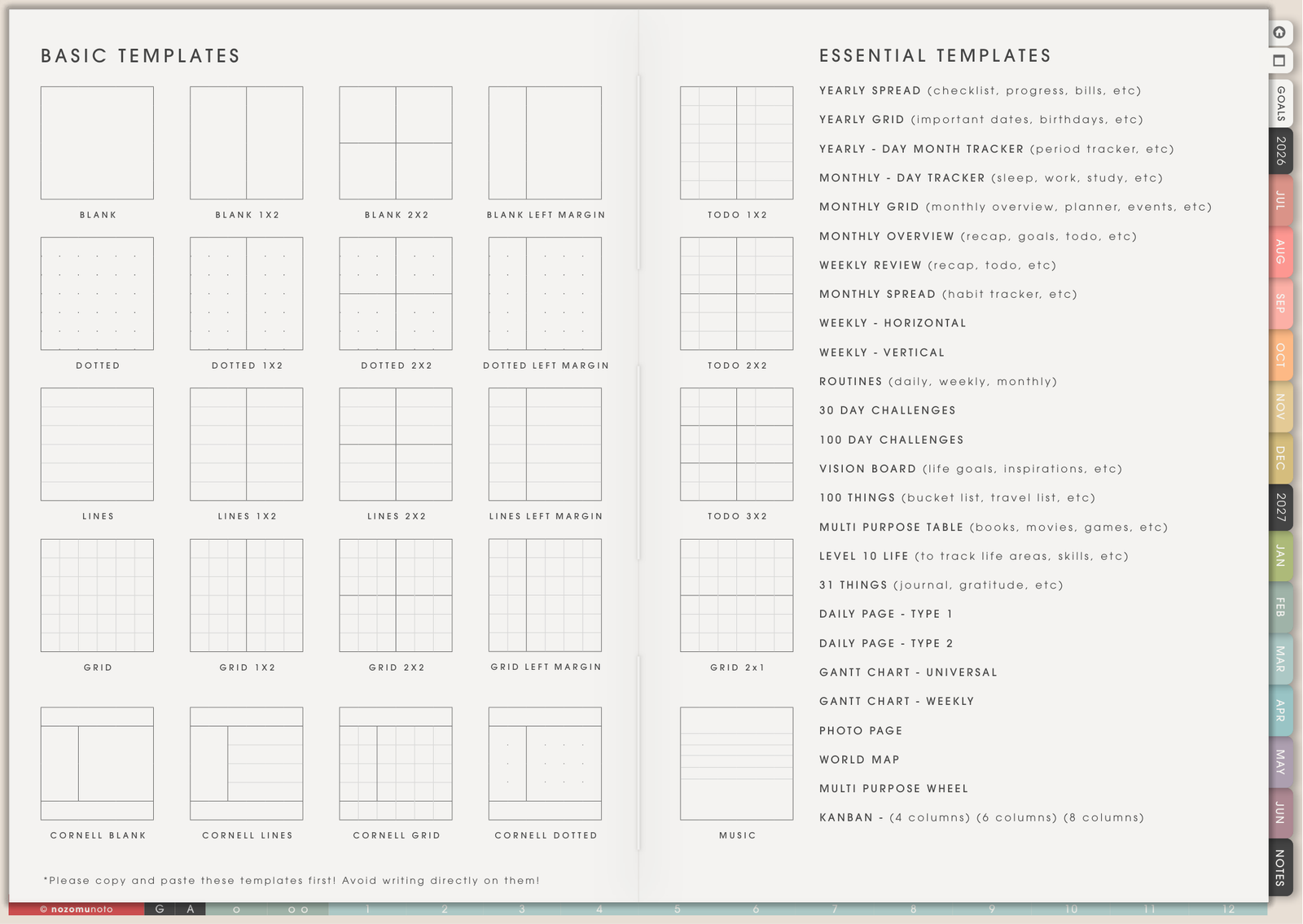
- Go to the planner landing page or template index. Use Index, Template Pages, thumbnails, or the product tutorial page.
- Open the template you want to use. Check that it is still blank before copying.
- Duplicate or copy the template page in your app. Use the app page manager, thumbnails, page sorter, or page actions menu.
- Move the copied page to the section where you want to use it. Put it near the month, week, project, class, notes, or goal area where it belongs.
- Write, decorate, or edit the copied page. Keep the original template page clean so you can reuse it later.
- If you already wrote on the original template, recover from a clean file. Use undo if it just happened, or copy a clean template from your saved original planner file.
Quick answer
- Write on the copied page. Duplicate or copy the clean master template first.
- Original landing-page buttons usually stay fixed. PDF links usually point to the original template page.
- Use your app page manager. Look for the exact page-management name used by your app: Thumbnail View, Pages, Page Sorter, Page Manager, page overview, or Smart navigation.
- Create a return path for the copy. Use bookmark, outline, favorite, page thumbnail, or your own index note.
Before changing pages
- Keep one clean backup. Save the original downloaded PDF somewhere safe before editing pages heavily. If anything becomes messy, you can import a fresh copy.
- Find the clean template page. Use Index, Template Pages, page thumbnails, or the product tutorial page to find the original template.
- Choose where the copy belongs. Decide whether it should live near a Monthly Page, Weekly Page, Daily Page, Notes, a class section, or a project section.
- Make one test copy first. Duplicate only one page, move it, write one small test word, and close/reopen the planner before making many custom pages.
Best workflow
- Open the app's page manager. Look for the page overview area, not the pen toolbar. In many apps this is where duplicate, copy, add page, move, or delete tools live.
- Select the clean template page. Choose the page itself, not only the writing area on the page. If the app selects handwriting instead, switch to the page thumbnail or page sorter view.
- Use duplicate or copy. Duplicate usually creates a copy beside the original. Copy may let you paste the page somewhere else. Either is fine as long as the original stays clean.
- Move the copy to its working home. Put a project template near the project section, a class template near class notes, a tracker near the current month, or an extra notes page near the section where it will be used.
- Name or mark the page. Add a small title on the copied page, then bookmark it or add it to your app outline if your app has that option.
- Test navigation after the copy. Tap the planner tabs, Index, month links, and one date link. The original planner navigation should still work.
Common app names for this tool
Each app names page tools differently, so look for the idea, not only the exact word.
- GoodNotes: Thumbnail View, page actions menu, Duplicate, Copy, Move to, Add Page to Outline.
- Notability: page manager or page thumbnail tools for duplicating and moving pages.
- Noteful: page thumbnails, pages panel, and page actions.
- Penly: page overview / thumbnails, selected page actions, duplicate or copy page tools.
- Samsung Notes: page sorter / thumbnail panel. Set the PDF to split pages before import if the page tools are missing.
- Flexcil, Kilonotes, StarNote, Xodo, Noteshelf: use the page manager, thumbnails, or page organizer, then choose duplicate, copy, insert, or move.
Useful ways to reuse template pages
1. Add a project page beside the current month
Example: duplicate a project or notes template and move it after the current Monthly Page. Use it for a product launch, school assignment, birthday plan, moving checklist, or client project. The month shows the deadlines, and the copied page holds the details.
2. Add a weekly reset page after a busy week
Example: copy a checklist, blank grid, or notes template after the Weekly Page. Use it to catch loose tasks, meal ideas, errands, appointments, and things that were forgotten. This is helpful when the week was chaotic and the normal weekly page is already full.
3. Add a class, subject, or meeting page near notes
Example: duplicate a structured notes page for one class, lesson, Bible study session, meeting, or client call. Put the copied page near Notes or the subject section so related information stays together.
4. Add a tracker only when it has a job
Example: copy a tracker template for medication, reading, sleep, spending, workouts, chores, or study hours. Keep it near the month if you check it often. If the tracker becomes guilt, delete the copy and keep the clean original for another season.
5. Make a small custom section
Example: duplicate 3 to 5 pages for a trip, craft project, semester, home reset, or work sprint. Put the copied pages together, bookmark the first one, and write a tiny table of contents at the top.
When this gets tricky
1. The landing-page button still opens the original page
What happens: the copied page exists, but tapping the built-in template button still jumps to the original template page.
Why it happens: the planner is a PDF. Built-in links usually point to fixed pages and will not automatically follow new copies.
What to do: keep using the copied page, but create your own shortcut with bookmark, favorite, outline, page thumbnail, or a written personal index.
2. You accidentally wrote on the clean template
What happens: the master template is no longer blank, so every future copy starts with old writing.
Example: a habit tracker template now has last month written on it, or a notes template has meeting notes on the clean original.
What to do: undo if you noticed immediately. If not, import a fresh planner copy from your saved download, or copy the clean template from the fresh file into your working planner if your app can move pages between documents.
3. The copied page lands in the wrong place
What happens: the app duplicates the page beside the original, but you wanted it inside the current month, week, subject, or project section.
Example: the copied page appears near Template Pages, so you keep losing it when planning.
What to do: use page thumbnails or page manager to move the copy. If moving is confusing in your app, bookmark the page first so you can find it again.
4. Links stop working after exporting or rebuilding the planner
What happens: tabs, Index links, or date links stop jumping after pages were exported, merged, flattened, or rebuilt in another app.
Example: the page looks correct, but the clickable planner tabs no longer move.
What to do: duplicate or copy pages inside the original planner file whenever possible. Avoid exporting pages out and rebuilding the whole planner unless you already tested that links survive in your app.
5. Custom pages become hard to find
What happens: you made many useful pages, but now the planner has too many copies and no clear return path.
Example: there are extra trackers, project pages, and notes pages, but you keep scrolling because their locations are hard to remember.
What to do: make one simple My Pages note or index page. Write the page names there, then bookmark that page. You can also use app outlines or favorites for pages you open every day.
What to check before asking for help
- Check whether you are selecting the page or the writing. Page tools are usually in thumbnails/page manager, not the pen selection tool.
- Check whether your app has page duplication. Some simple PDF readers can annotate but have limited planner page tools.
- Check whether the original PDF links still work. If links fail even before copying pages, use the app's read/view/hand/link mode first.
- Send the exact app and device. Page tools are different on iPad, Android tablet, phone, e-reader, and each app version.
Related help
Still need help?
Send your order number, product name, device, app, and a screenshot or short screen recording if the issue is visual.