

Browse help topics
Getting Started
Need help choosing?
Need help after purchase?
Download & Import
Using your notebook/planner
- How to change or reuse template pages on planner landing pages
- Why stickers look blurry when enlarged
- What to check if a product does not work on your device
- How to use NozomuNoto index pages
- How to use NozomuNoto template pages
- How to change a digital planner cover
- How to install and use digital stickers
Product Tutorials
- How to use Yume Techo Landscape tutorial pages
- How to use Yume Techo Portrait tutorial pages
- How to use Shibui Techo Weeks tutorial pages
- How to use Shibui Techo Months tutorial pages
- How to use Yume Noto V1 Landscape tutorial pages
- How to use Yume Noto V1 Portrait tutorial pages
- How to use Yume Noto V2 Landscape tutorial pages
- How to use Yume Noto V2 Portrait tutorial pages
- How to use Yume Noto V3 Portrait tutorial pages
- How to use NozomuNoto Ultimate Digital Stickers
- How to use NozomuNoto Digital Covers
- Which NozomuNoto instruction or tutorial file should I open first?
Device & App
iOS / iPadOS
GoodNotes
Notability
Noteshelf
Noteful
StarNote
Flexcil
Kilonotes
Android
StarNote
Samsung Notes
Penly
Flexcil
Noteshelf
Xodo
E-reader Devices
Boox devices
reMarkable
Bigme
Supernote
How to Import a NozomuNoto PDF into Other E-Reader Devices
Import a NozomuNoto PDF planner into another e-reader: choose the correct file, transfer it safely, and test it first.
On this page
Before importing into another e-reader
Start with the file, not the device menu. The correct NozomuNoto PDF matters more than the transfer route.
- Save the original NozomuNoto download as your clean backup.
- Extract the ZIP first when your download is a ZIP file.
- Open the extracted folder.
- Choose the actual planner or notebook PDF.
- Skip the receipt, preview file, ZIP file, sticker file, cover file, and instruction-only PDF for the planner import.
- Transfer the PDF using your e-reader device route, such as cloud sync, USB, desktop software, mobile sharing, email-to-device, or another device-approved method.
- Open the PDF on the device.
- Test one Index link and write one small note before setting up the whole planner.
Reference links
Use these for current app or device help, downloads, updates, vendor help, and manual references.
Import a NozomuNoto PDF into another e-reader
- Save the original NozomuNoto download as your clean backup.
- If your download is a ZIP file, extract it first and open the extracted folder.
- Choose the actual planner or notebook PDF.
- Skip the receipt, preview file, ZIP file, sticker file, cover file, and instruction-only PDF for the planner import.
- Transfer the PDF using your e-reader device route, such as cloud sync, USB, desktop software, mobile sharing, email-to-device, or another device-approved method.
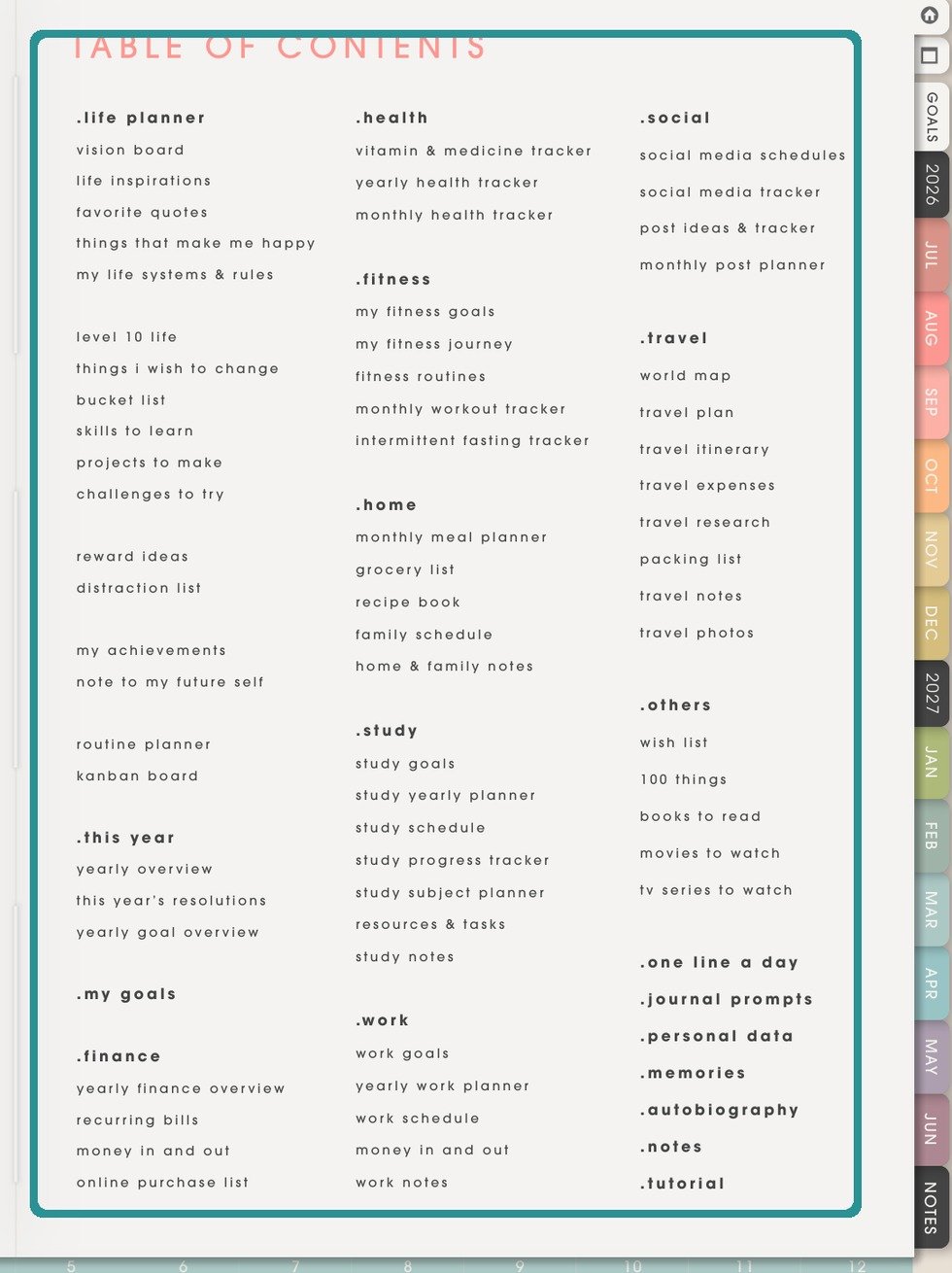
Test the transferred PDFAfter transfer, open the NozomuNoto PDF and confirm the Index page, page turning, writing or annotation, and saving behavior. - Open the PDF on the device and confirm the planner cover, Index page, and one normal page appear.
- Test one Index link and write one small note before setting up the whole planner.
Other e-reader import checks
- Correct file: use the actual NozomuNoto planner or notebook PDF, not the ZIP, receipt, preview, sticker, cover, or instruction-only file.
- Transfer route: your e-reader may use cloud sync, USB transfer, desktop software, mobile sharing, email-to-device, or another device-approved method.
- First test: open the PDF, test one Index link, and write one small note before setting up every section.
- Clean copy: when the planner opens strangely, try a fresh PDF copy before editing the main file.
- PDF handling: device PDF behavior can vary by brand, model, operating system, and reading app settings.
Next e-reader setup links
Still need help?
Send your order number, product name, device, app, and a screenshot or short screen recording if the issue is visual.