

Browse help topics
Getting Started
Need help choosing?
Need help after purchase?
Download & Import
Using your notebook/planner
- How to change or reuse template pages on planner landing pages
- Why stickers look blurry when enlarged
- What to check if a product does not work on your device
- How to use NozomuNoto index pages
- How to use NozomuNoto template pages
- How to change a digital planner cover
- How to install and use digital stickers
Product Tutorials
- How to use Yume Techo Landscape tutorial pages
- How to use Yume Techo Portrait tutorial pages
- How to use Shibui Techo Weeks tutorial pages
- How to use Shibui Techo Months tutorial pages
- How to use Yume Noto V1 Landscape tutorial pages
- How to use Yume Noto V1 Portrait tutorial pages
- How to use Yume Noto V2 Landscape tutorial pages
- How to use Yume Noto V2 Portrait tutorial pages
- How to use Yume Noto V3 Portrait tutorial pages
- How to use NozomuNoto Ultimate Digital Stickers
- How to use NozomuNoto Digital Covers
- Which NozomuNoto instruction or tutorial file should I open first?
Device & App
iOS / iPadOS
GoodNotes
Notability
Noteshelf
Noteful
StarNote
Flexcil
Kilonotes
Android
StarNote
Samsung Notes
Penly
Flexcil
Noteshelf
Xodo
E-reader Devices
Boox devices
reMarkable
Bigme
Supernote
How to use NozomuNoto index pages
Learn how NozomuNoto index pages work, how to use them as your planner map, where they can link, and what to check if tapping does not move.
On this page
- Use the index as your home base
- Quick answer
- What the index page can help with
- How to use the index page
- Good ways to use it every day
- 1. Make Index the page you open first
- 2. Keep a tiny route for your current season
- 3. Use Index to choose storage or action
- 4. Use Index before duplicating templates
- 5. Use Index as a reset button
- When this gets tricky
- 1. Tapping an index link does nothing
- 2. The index feels too full
- 3. A copied page is not listed in the index
- 4. You forget what a section name means
- 5. You keep scrolling even though there is an index
- Related help
A NozomuNoto index page is the map inside the planner or notebook. Use it when you want to jump to months, sections, template pages, planner pages, notes, collections, or notebook dividers without scrolling through every page.
The best way to use an index is to make it your home base. Open the index first, choose the section you need, then return to the index when you feel lost. This keeps the planner easier to use even when the file has many pages.
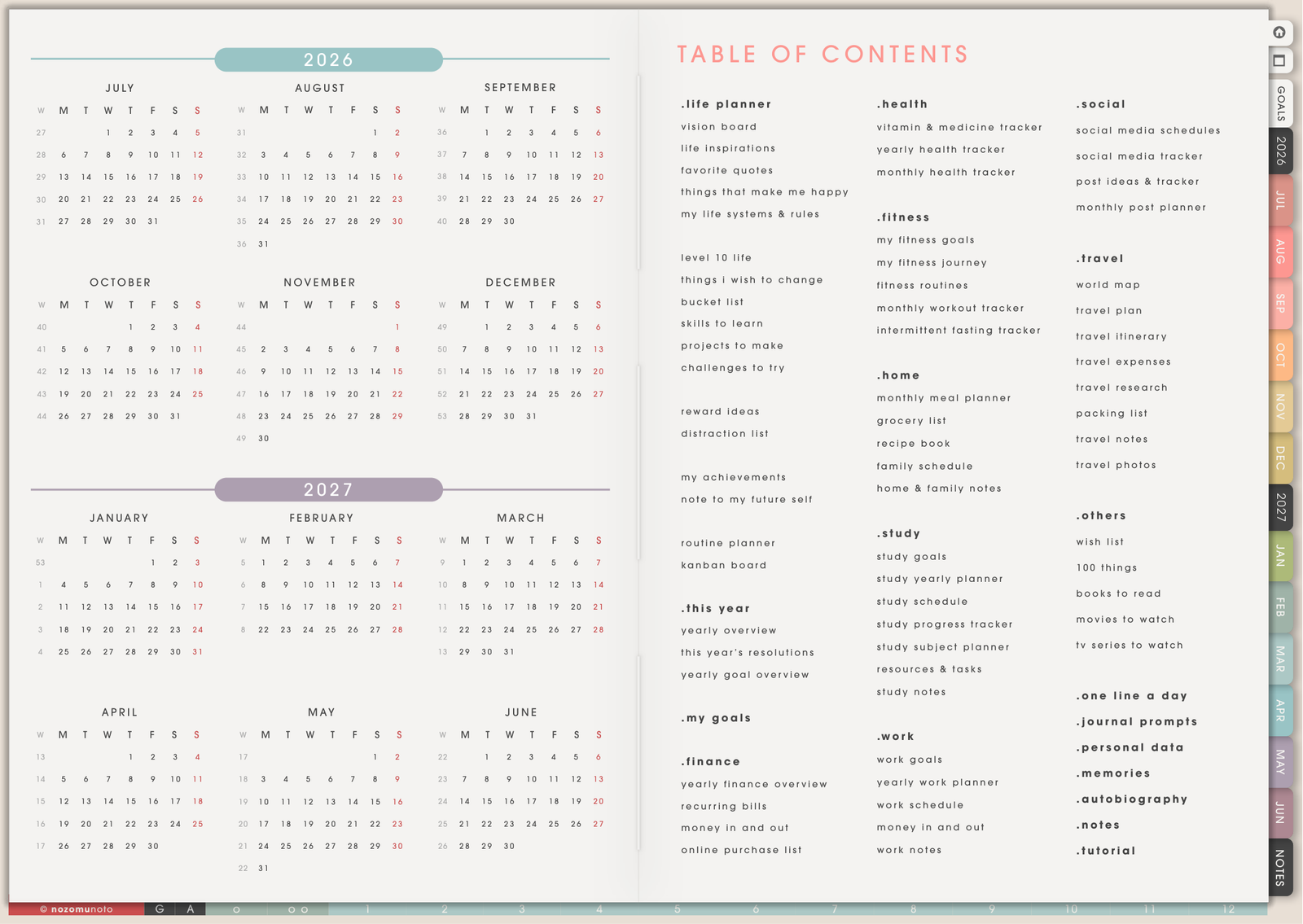
Use the index as your home base
The index page is your planner map. Instead of scrolling through many pages, use the index to jump to important sections, templates, planner pages, notes, tutorials, or product areas.
- Open the Index page.
- Tap one clear section name.
- Check if the app moves to the right page.
- Return to the Index page when you feel lost.
- Use the Index page as your main starting point until you learn the planner layout.
If tapping writes on the page instead of moving, switch your app to read, view, hand, gesture, link, or navigation mode.
Quick answer
- Use the index first. It is the fastest way to understand what the product includes.
- Use the right app mode before tapping. Many apps need read, view, hand, gesture, or link mode for PDF links.
- Bookmark the index. Make it easy to return there from anywhere in the planner.
- Remember that copied pages need their own shortcuts. New custom pages usually stay outside the original PDF index.
What the index page can help with
- Understand the product layout. Check the index before writing so you know where months, life planner pages, template pages, notes, and special sections live.
- Jump to important sections. Tap linked labels, tabs, month names, section names, or buttons to move through the planner faster.
- Choose the right page for the job. Use the index to decide whether a thought belongs in Monthly, Weekly, Daily, Notes, Template Pages, Life Planner, or another section.
- Find clean template pages. Go through the index or table of contents before duplicating a reusable page.
- Build an easier routine. Start from the index when the planner feels too big. One map is easier than swiping through hundreds of pages.
How to use the index page
- Open the planner or notebook. Wait until the PDF is fully loaded before tapping many links.
- Go to Index, Table of Contents, or the main navigation page. Some products use one index page. Larger planners may also have calendar, template, notes, or life planner index pages.
- Switch to link mode if needed. If the app has separate writing and reading modes, use read, view, hand, gesture, or navigation mode before tapping.
- Tap one obvious link first. Test a month tab, Index item, template link, or section label. Confirm it jumps to the right page.
- Bookmark the index. Use the bookmark, favorite, outline, or saved-page feature in your app so you can return quickly.
- Use the index before making custom pages. Decide where copied template pages should live before duplicating several pages.
Good ways to use it every day
1. Make Index the page you open first
Use the index like the front desk of the planner. Open it first, choose where to go, and come back when your brain starts asking, "Where did I put that?" This is especially useful for big planners with monthly, weekly, daily, life planner, notes, and template sections.
2. Keep a tiny route for your current season
Pick 3 to 5 pages you actually use right now. For example: Index, current Monthly Page, current Weekly Page, Today, and one Notes page. Bookmark those pages so the planner has a simple path instead of hundreds of possible paths.
3. Use Index to choose storage or action
If the page is for doing something soon, put it near the current month or week. If the page is for storing information, put it in Notes, Life Planner, a subject section, or a notebook divider. The index helps you decide before the planner becomes a pile of pages that is hard to find again.
4. Use Index before duplicating templates
When you need an extra tracker, project page, class page, or blank notes page, use the index to find the clean Template Pages section first. Duplicate the clean page, then move the copy where it belongs.
5. Use Index as a reset button
When you have not opened the planner for a while, skip catching up every missed page. Open the index, choose only the current month or current week, and restart from there.
When this gets tricky
1. Tapping an index link does nothing
What happens: you tap a month, section, tab, or button, but the planner stays on the same page.
Why it happens: the app may be in writing mode, lasso mode, image mode, or text mode. In many PDF note apps, links only work in read, view, hand, gesture, or navigation mode.
What to do: switch modes first, then tap the link again. If one link does not work, test another obvious tab or button. If no links work, open the same PDF in another PDF viewer to check whether the issue is the app setting.
2. The index feels too full
What happens: the page has many months, sections, templates, and planner categories, so it feels like too much to choose from.
Example: you only need the current week, but the index shows life planner pages, trackers, notes, templates, yearly pages, monthly pages, and more.
What to do: use only your current path. Bookmark only Index, current Monthly Page, current Weekly Page, Today, and one Notes page. You can explore the rest later.
3. A copied page is not listed in the index
What happens: you duplicated a template page, but the original index still links to the clean template, not your new copy.
Why it happens: PDF links are fixed. The planner will keep its built-in links when you create a new page.
What to do: bookmark the copied page, add it to the app outline/bookmark panel, or write it on a personal My Pages list. Use the original index for built-in pages and your own shortcut for custom pages.
4. You forget what a section name means
What happens: the index label looked clear when you started, but later you forget what you planned to put there.
Example: Projects, Notes, or Collections becomes a mixed folder for everything.
What to do: write one tiny rule near the section or on your personal index page. Example: "Projects = anything with a deadline." "Notes = information I may need again." "Weekly = actions for the next 7 days."
5. You keep scrolling even though there is an index
What happens: the planner has links, but muscle memory still makes you swipe page by page.
Example: you spend more time hunting for pages than planning.
What to do: practice one small routine for a week: open Index, tap current month, tap current week, then write. The index becomes useful when it becomes the repeated path.
Related help
- What does "hyperlinked PDF planner" mean?
- Which apps work with NozomuNoto planners?
- How to change or reuse template pages on planner landing pages
- How to use NozomuNoto template pages
- GoodNotes hyperlink guide
- GoodNotes index page guide
- Penly hyperlink guide
- Penly index page guide
- Samsung Notes hyperlink guide
- Samsung Notes index page guide
- Yume Techo Landscape tutorial pages
Still need help?
Send your order number, product name, device, app, and a screenshot or short screen recording if the issue is visual.