
Browse help topics
Getting Started
Need help choosing?
Need help after purchase?
Download & Import
Using your notebook/planner
- How to change or reuse template pages on planner landing pages
- Why stickers look blurry when enlarged
- What to check if a product does not work on your device
- How to use NozomuNoto index pages
- How to use NozomuNoto template pages
- How to change a digital planner cover
- How to install and use digital stickers
Product Tutorials
- How to use Yume Techo Landscape tutorial pages
- How to use Yume Techo Portrait tutorial pages
- How to use Shibui Techo Weeks tutorial pages
- How to use Shibui Techo Months tutorial pages
- How to use Yume Noto V1 Landscape tutorial pages
- How to use Yume Noto V1 Portrait tutorial pages
- How to use Yume Noto V2 Landscape tutorial pages
- How to use Yume Noto V2 Portrait tutorial pages
- How to use Yume Noto V3 Portrait tutorial pages
- How to use NozomuNoto Ultimate Digital Stickers
- How to use NozomuNoto Digital Covers
- Which NozomuNoto instruction or tutorial file should I open first?
Device & App
iOS / iPadOS
GoodNotes
Notability
Noteshelf
Noteful
StarNote
Flexcil
Kilonotes
Android
StarNote
Samsung Notes
Penly
Flexcil
Noteshelf
Xodo
E-reader Devices
Boox devices
reMarkable
Bigme
Supernote
Difference between Yume Noto v1, v2, and v3
Compare Yume Noto V1, V2, and V3 so you can choose the NozomuNoto digital notebook that fits your notes, sections, planning style, and device setup.
On this page
- Quick answer
- Choose by orientation first
- Choose by version
- Main decision points
- Choose by use style
- Before buying
- When this choice gets tricky
- 1. You want V3 Portrait, but landscape feels better
- 2. You want a notebook, but keep needing dates
- 3. You are choosing for many different notes
- 4. You already own one version and wonder if you should switch
- If you are still unsure
- Helpful choosing links
- Related tutorials
Yume Noto products are digital notebooks, not dated planners. This guide compares Yume Noto v1, v2, and v3 so you can choose the notebook version, page orientation, and writing style that fits how you take notes.
Choose Yume Noto when you want flexible notes, sections, collections, study pages, work notes, lists, journaling, book notes, Bible study notes, or project notes without dated calendar pages.
Use this page as a quick Yume Noto V1 vs V2 vs V3 guide. For a wider Yume Noto digital notebook comparison and digital notebook version comparison, use the full Digital Notebook Comparison page too.
The simple difference between Yume Noto V1 V2 V3 is this: V1 is the original simple family, V2 gives more structure, and V3 Portrait is the portrait-focused style. If your real question is "which Yume Noto should I choose?", start with page shape and setup size before color.
Quick answer
| Version | Choose it if | Check first |
|---|---|---|
| Yume Noto V1 | You want the original, simpler notebook family. | Portrait or landscape. |
| Yume Noto V2 | You want a more structured notebook system. | Portrait or landscape. |
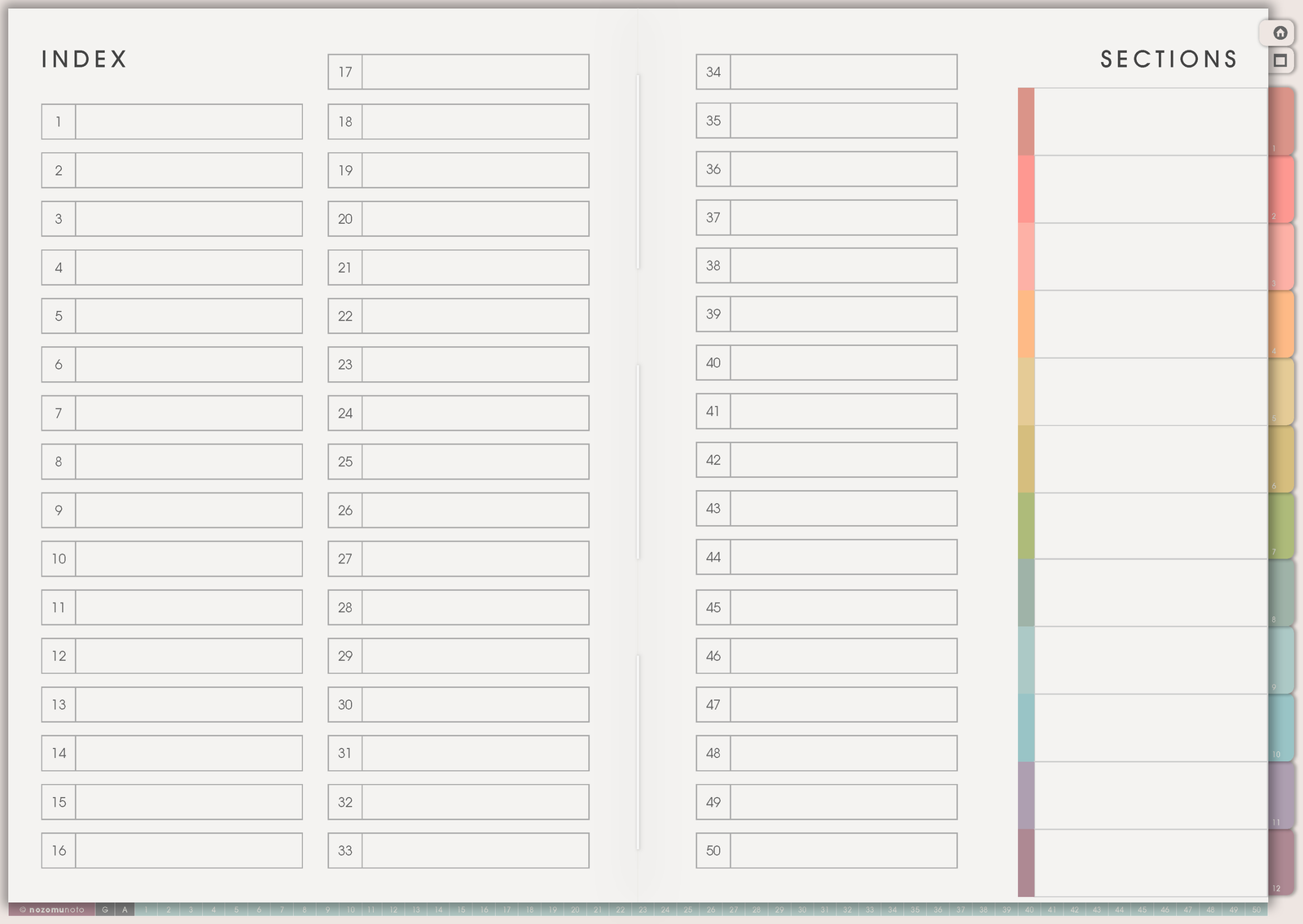
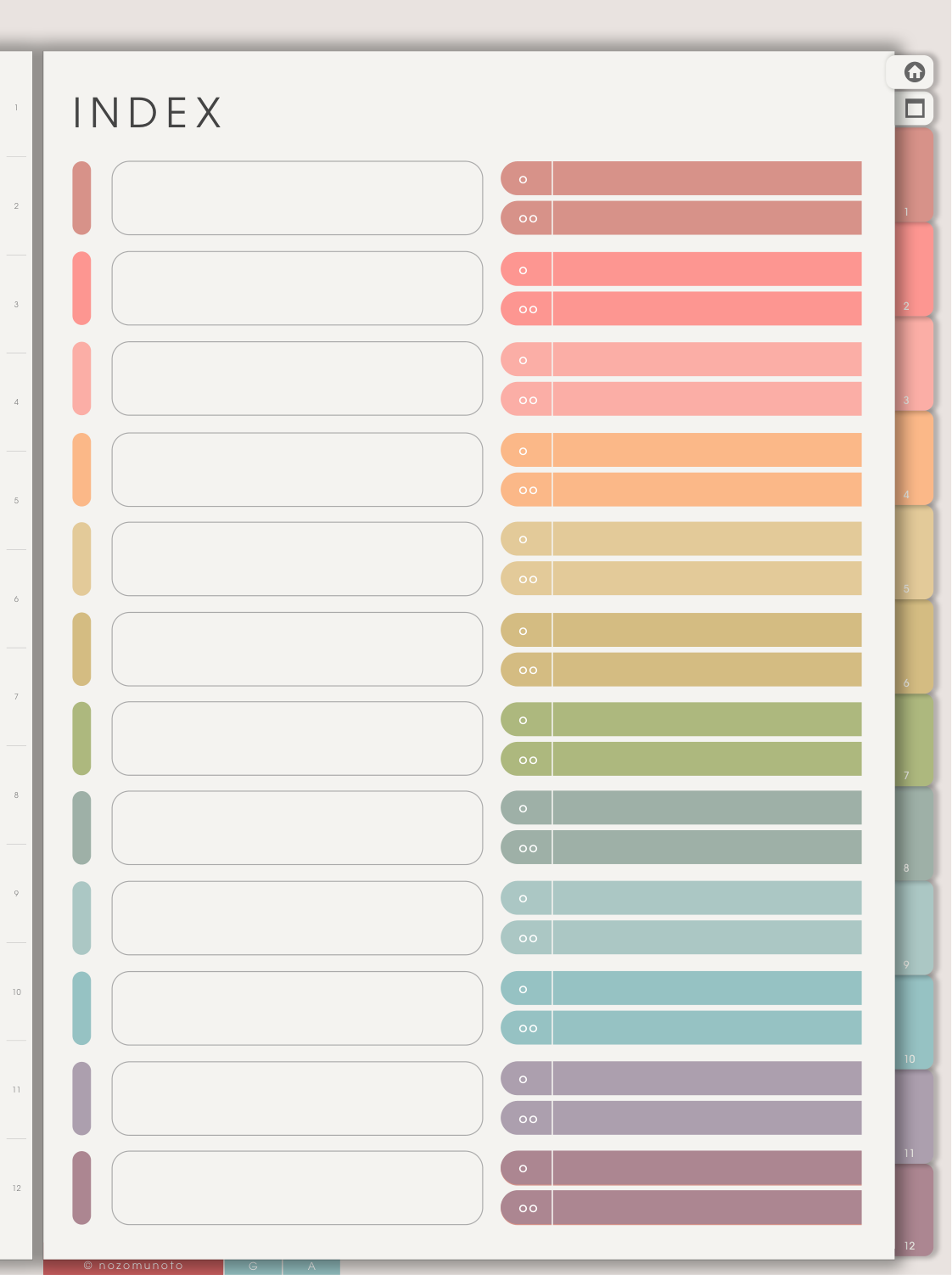
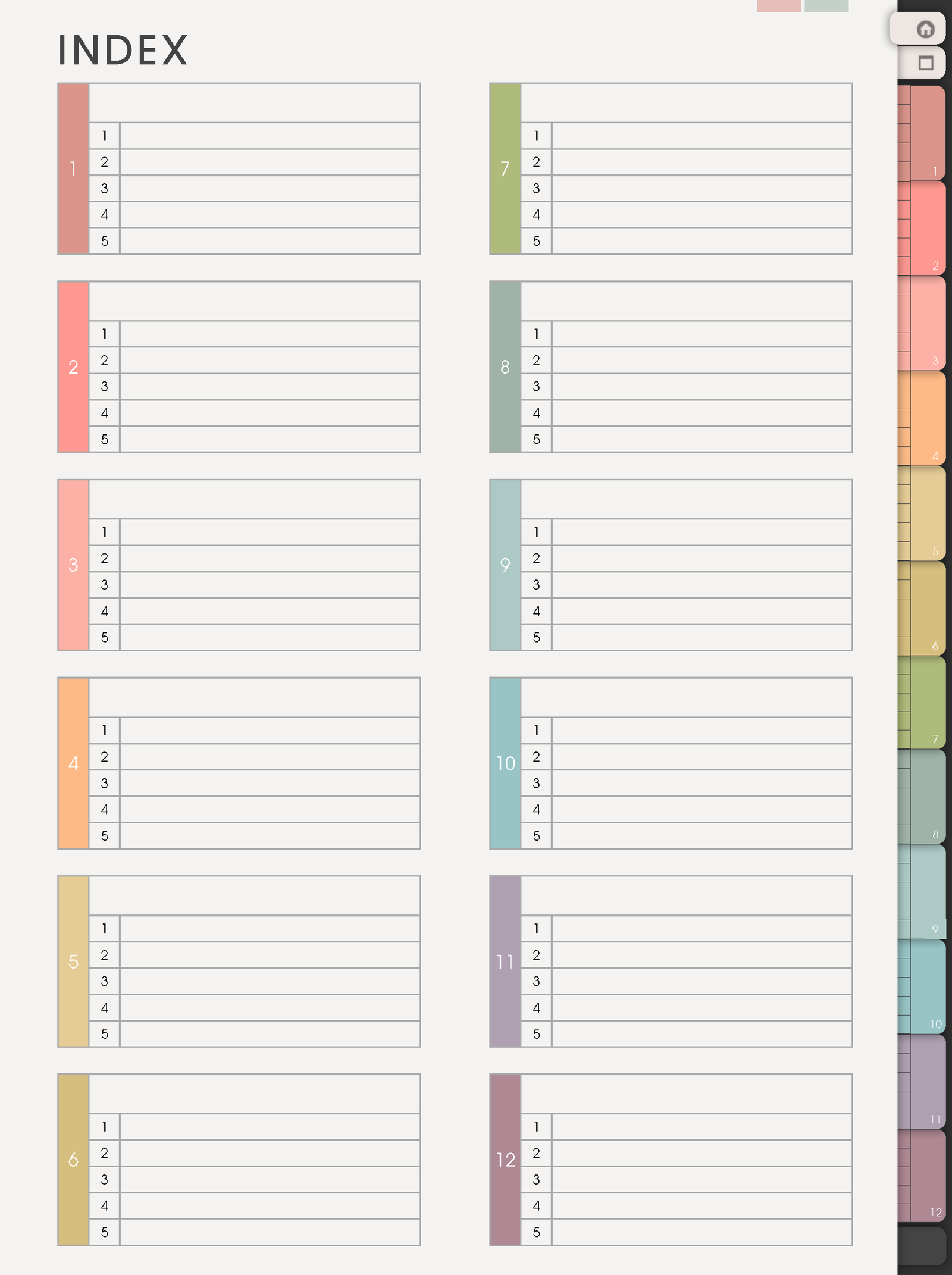
| Yume Noto V3 Portrait | You want a portrait notebook with cover, index, templates, visible sections, and long-term notes. | Portrait page shape. |
If you are unsure, choose the version that feels easiest to open every day. A clear everyday notebook is better than a bigger system you avoid.
Choose by orientation first
If you like wide pages, desk use, split-screen reference, or horizontal writing space, start with a landscape version. If you like a notebook feeling, phone-friendly preview, vertical lists, or writing while holding the tablet upright, start with a portrait version.
Choose by version
- Yume Noto v1: good if you want the original simple notebook style without a larger setup.
- Yume Noto v2: good if you want an updated version with both portrait and landscape options.
- Yume Noto v3 Portrait: good if you want a portrait notebook setup and a clean everyday notebook feel.
Main decision points
- Page shape: landscape gives more horizontal writing room; portrait feels closer to a traditional notebook.
- Portrait focus: v3 Portrait is the portrait notebook style in this group.
- Familiarity: v1 is the original Yume Noto style, useful if you already like that older setup.
- Structured option: v2 is the more structured choice between the simpler V1 family and the portrait-focused V3 family.
- Use case: all Yume Noto versions are for notes, collections, and flexible writing, not dated calendar planning.
Choose by use style
- School notes: choose the page shape you naturally write in for lectures, subject notes, reading notes, vocabulary, formulas, and assignments.
- Work notes: choose landscape if you use meeting notes beside reference material. Choose portrait if you write long lists or journal-style notes.
- Creative collections: choose the version that gives you enough room for sketches, moodboards, research, saved ideas, and project notes.
- Simple daily notes: choose the portrait version if you want a straightforward notebook that feels easy to carry every day.
- Home or personal notes: choose portrait if lists, journaling, recipes, and private records are the main use.
Before buying
Open the listing images and check the included pages, orientation, style, and app/device you want to use. A notebook is best when the page shape fits your real handwriting habits, not when it only looks pretty in a preview.
When this choice gets tricky
1. You want V3 Portrait, but landscape feels better
What happens: the portrait notebook looks appealing, but your real writing style needs more horizontal room.
Example: you use split screen, reference PDFs, mind maps, project boards, or wide study notes more than vertical journaling.
What to do: choose the orientation that fits your writing first. A landscape notebook that matches your real page habits may be more useful than a newer portrait notebook that feels cramped.
2. You want a notebook, but keep needing dates
What happens: you like the idea of flexible sections, but your main problem is appointments, assignments, bills, routines, or deadlines.
Example: you plan to use Yume Noto for everything, then realize you still need monthly and weekly calendar pages.
What to do: choose Yume Techo or Shibui Techo for dated planning. Use Yume Noto beside it for notes, research, study, journaling, or collections.
3. You are choosing for many different notes
What happens: one notebook needs to hold school, work, home, creative ideas, reading notes, and personal notes.
Example: the problem is not the version; the problem is whether your sections will stay easy to find.
What to do: choose the version whose index and page shape feel easiest to return to. Then start with a few sections only, such as Inbox, Study, Work, Home, Ideas, and Archive.
4. You already own one version and wonder if you should switch
What happens: another version looks tempting, but the notebook you already use may already be doing the job.
Example: v1 or v2 is set up and useful, but v3 Portrait looks cleaner in the preview.
What to do: switch only if the new page shape, layout, or workflow solves a real problem. If the older notebook works, you can keep using it and choose V3 Portrait for the next notebook.
If you are still unsure
Choose the version that matches the way you hold your tablet. If you mostly write at a desk, landscape may feel roomy. If you write like a normal notebook, portrait usually feels more natural. If you want the portrait-focused Yume Noto style, choose Yume Noto v3 Portrait.
Helpful choosing links
- What is a digital notebook?
- Should I get a digital notebook or a digital planner?
- What tools do I need to start digital planning?
- Digital Notebook Comparison
For the full NozomuNoto notebook comparison and a broader Japanese digital notebook comparison, open the Digital Notebook Comparison page after this article.
Related tutorials
Still need help?
Send your order number, product name, device, app, and a screenshot or short screen recording if the issue is visual.