
Browse help topics
Getting Started
Need help choosing?
Need help after purchase?
Download & Import
Using your notebook/planner
- How to change or reuse template pages on planner landing pages
- Why stickers look blurry when enlarged
- What to check if a product does not work on your device
- How to use NozomuNoto index pages
- How to use NozomuNoto template pages
- How to change a digital planner cover
- How to install and use digital stickers
Product Tutorials
- How to use Yume Techo Landscape tutorial pages
- How to use Yume Techo Portrait tutorial pages
- How to use Shibui Techo Weeks tutorial pages
- How to use Shibui Techo Months tutorial pages
- How to use Yume Noto V1 Landscape tutorial pages
- How to use Yume Noto V1 Portrait tutorial pages
- How to use Yume Noto V2 Landscape tutorial pages
- How to use Yume Noto V2 Portrait tutorial pages
- How to use Yume Noto V3 Portrait tutorial pages
- How to use NozomuNoto Ultimate Digital Stickers
- How to use NozomuNoto Digital Covers
- Which NozomuNoto instruction or tutorial file should I open first?
Device & App
iOS / iPadOS
GoodNotes
Notability
Noteshelf
Noteful
StarNote
Flexcil
Kilonotes
Android
StarNote
Samsung Notes
Penly
Flexcil
Noteshelf
Xodo
E-reader Devices
Boox devices
reMarkable
Bigme
Supernote
How to use Yume Noto V3 Portrait tutorial pages
Learn how to start using Yume Noto V3 Portrait tutorial pages, confirm your version, test links, use the Index, and begin with one useful notebook section.
On this page
- Use one section first
- Built-in tutorial pages and visual guide
- Cover Page
- Guide Page
- Tips & Tricks Page
- Index Page
- Template Page
- What Yume Noto V3 Portrait is best for
- Version and setup links
- How to use this notebook first
- Good ways to use this notebook
- Helpful expectations before you fill it
- Simple starter setup
- When the Yume Noto V3 Portrait setup gets tricky
- 1. The sections and subsections feel like too much
- 2. Index becomes too detailed
- 3. Cover changes look stretched or cropped
- 4. You decorate before the notebook has a job
- Where to go next
This tutorial is for Yume Noto V3 Portrait. Before following the steps, make sure your product name, version, and orientation match this tutorial.
Use one section first
- Save the original download as your clean backup.
- Import one working copy into your app.
- Open the Index or tutorial page.
- Tap one link to test navigation.
- Choose one notebook section to use today.
- Write one real note, list, idea, project detail, or journal entry.
- Learn templates or extra features after the basics work.
Built-in tutorial pages and visual guide
Use the images below as visual checkpoints. The extra notes explain what to do with the page after you understand what it shows.
Cover Page
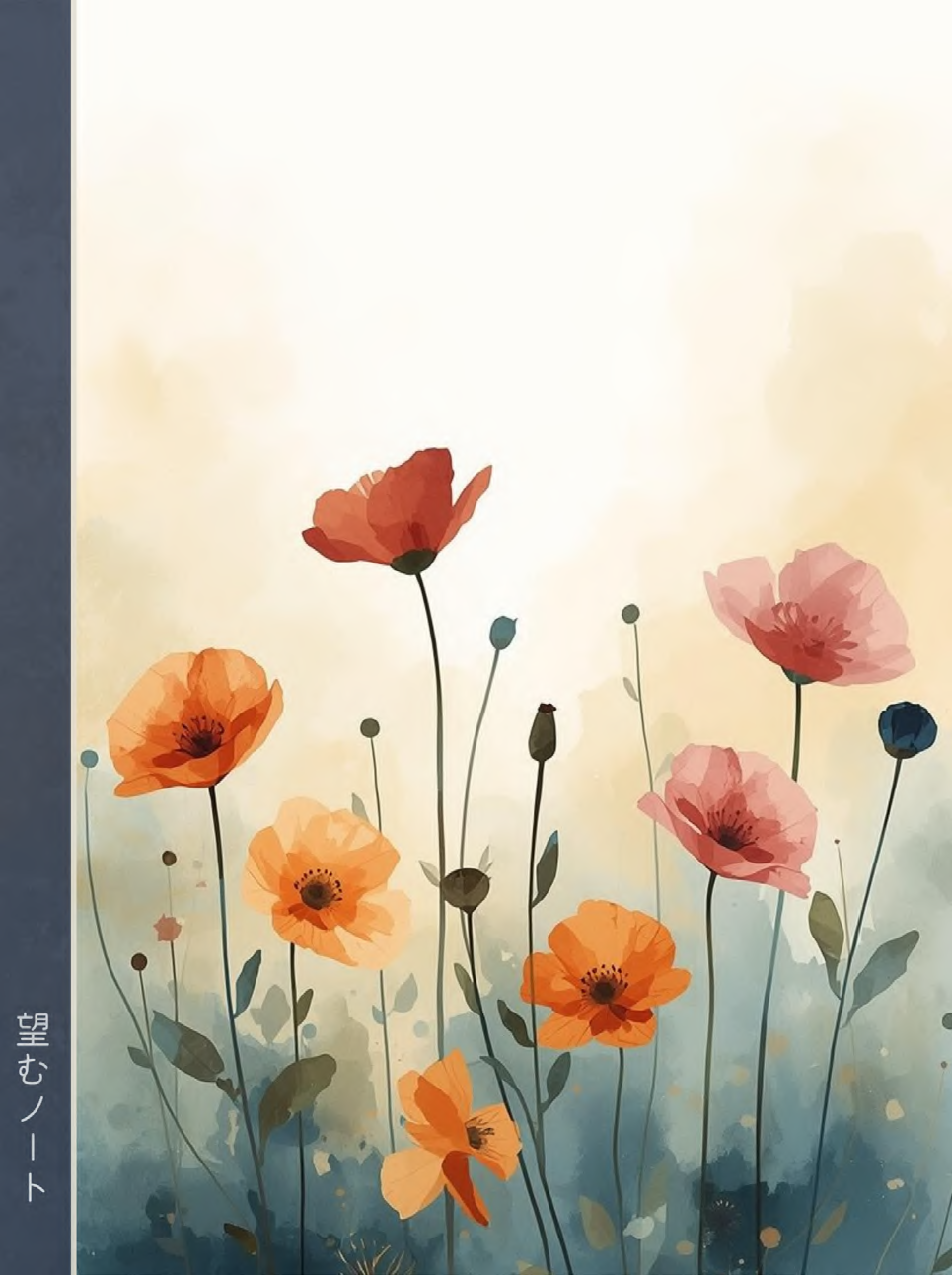
Use the cover page as the visible front of the notebook. If you change the cover in your app, use a portrait cover made for portrait notebooks so the final page stays proportional.
Guide Page
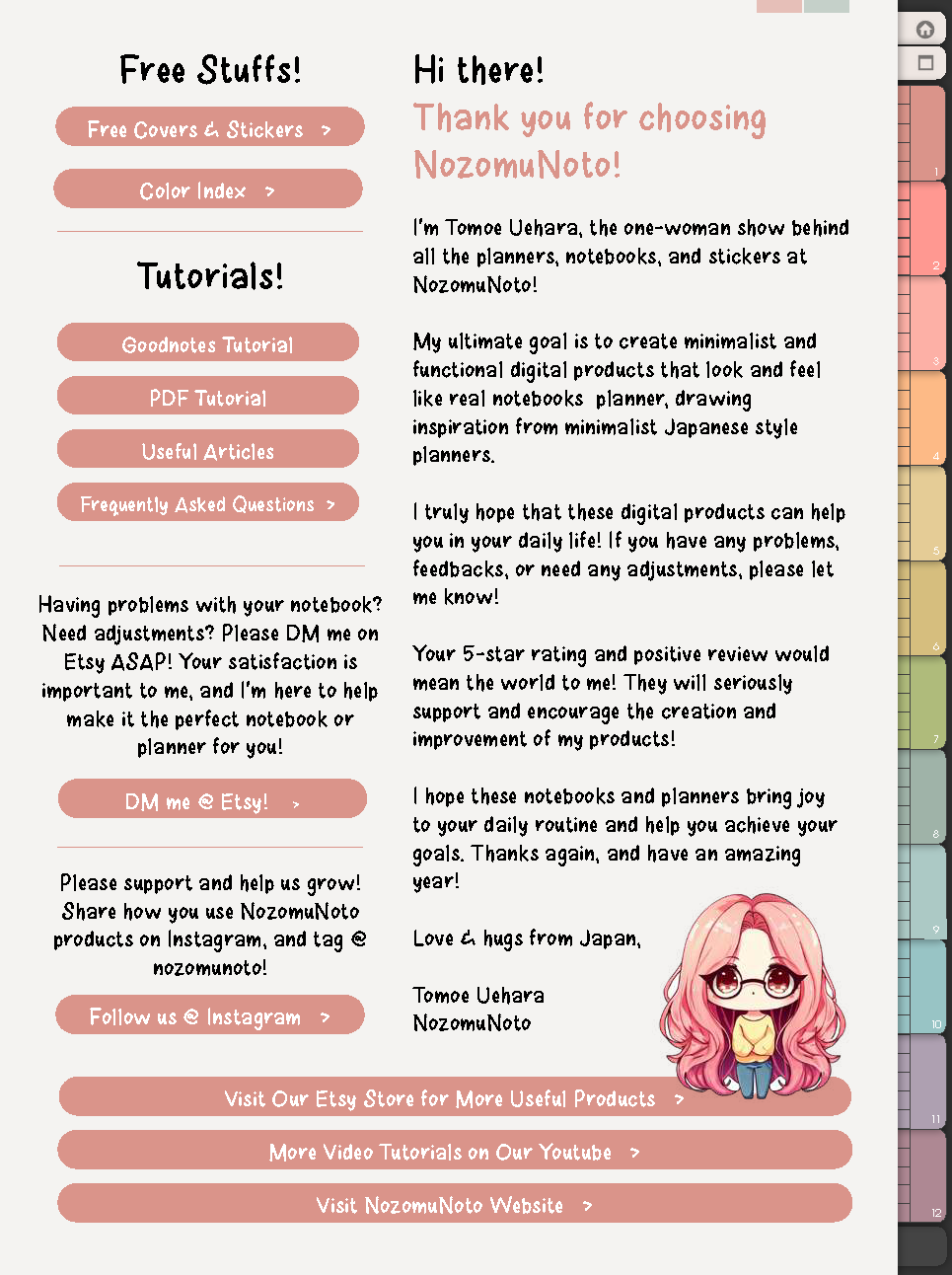
Read the guide page once before customizing heavily. It helps you understand the product structure and keep one clean backup before editing pages.
Tips & Tricks Page

Use Tips & Tricks when you want the quick notebook rules again: keep sections simple, use Index as the map, reuse templates by purpose, and let messy notes begin in an Inbox section.
Index Page
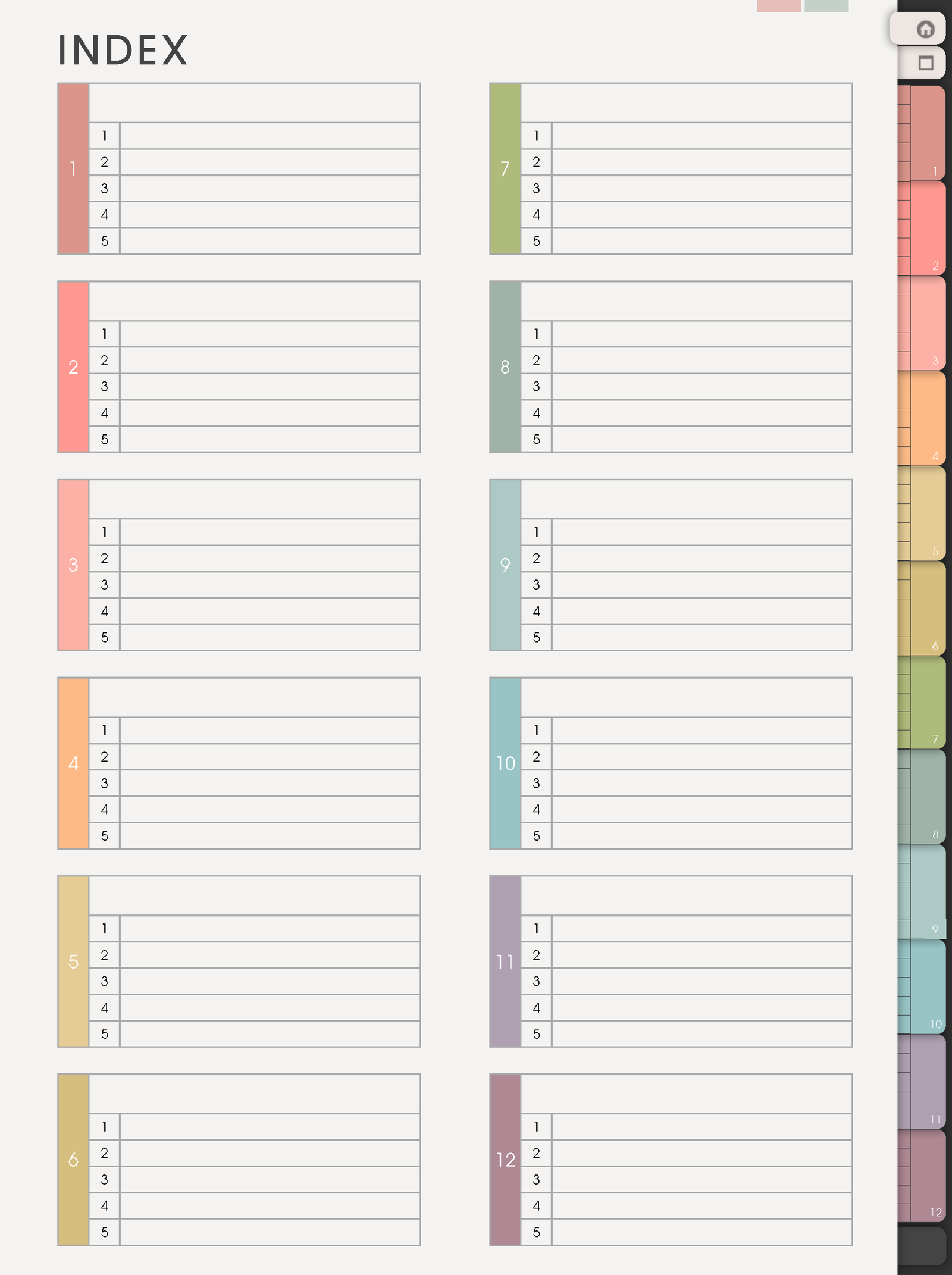
Use Index as the table of contents. For a notebook, the best index is simple: only write the sections you actually use so it stays useful.
Template Page
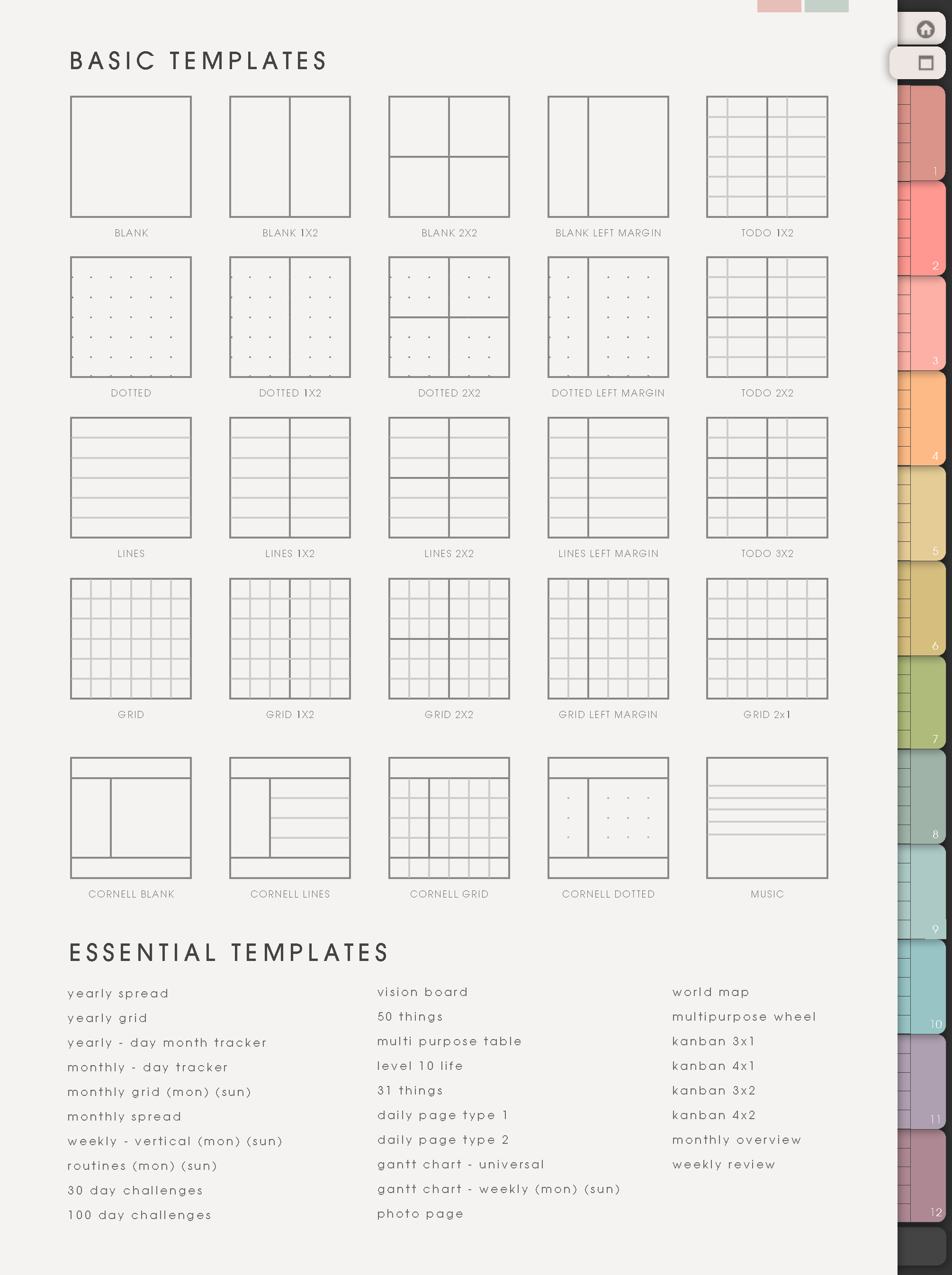
Use Template Page when you need a clean reusable layout. Copy the template first, then use the copy for study notes, lists, project pages, reading notes, journal pages, trackers, or collections.
What Yume Noto V3 Portrait is best for
Yume Noto V3 Portrait is best when you want a more organized portrait notebook with visible sections, subsection movement, an Index, templates, and a cover page. It is helpful for long-term notes that need a home: school subjects, business notes, home projects, reading notes, recipes, journals, client notes, personal records, and creative ideas.
Compared with earlier versions, V3 is stronger when you want a notebook that can grow. Use the side tabs as broad areas, then use smaller subsection buttons for more detailed topics inside each area. Keep it simple at first so the structure helps instead of becoming another task.
Version and setup links
- Difference between Yume Noto v1, v2, and v3
- What is a digital notebook?
- How to use NozomuNoto index pages
- How to use NozomuNoto template pages
- Which apps work with NozomuNoto planners?
- How to download and access your NozomuNoto files
How to use this notebook first
- Name only the sections you need now. Start with three to five sections so the notebook stays easy to use.
- Use Index as the map. Add short section names and return to Index when you need to find notes again.
- Use one Inbox section. Put messy notes there first when the note place is unclear.
- Use templates by job. Choose lined pages for writing, grid pages for planning, blank pages for sketches, and structured templates for repeated lists or projects.
- Archive old notes instead of deleting too soon. Move finished notes to an archive section when you might need them later.
Good ways to use this notebook
- School: subject notes, assignment notes, lecture summaries, reading notes, formulas, and revision pages.
- Work: meeting notes, client notes, project notes, process notes, content ideas, and follow-up lists.
- Home: recipes, routines, budget notes, cleaning lists, family information, and household projects.
- Creative: craft plans, product ideas, moodboards, sketches, quotes, and research pages.
- Personal: journal pages, memory notes, therapy notes, health notes, book notes, and prayer or Bible study notes.
Portrait is helpful for notebook-style writing, lists, study notes, journals, and tablet use that feels closer to paper.
Helpful expectations before you fill it
- Give the notebook one main job first. Decide whether it is mainly for school, work, home, projects, journaling, or mixed notes.
- Leave unused sections blank. Empty sections are normal. Use the notebook slowly and let the structure grow from real notes.
- Use Inbox before sorting. Catch messy notes first, then move the ones worth keeping after you can see what they are becoming.
- Keep dates in a planner or calendar. Use the notebook for the information behind those dates: notes, research, ideas, lists, and references.
Simple starter setup
For the first notebook setup, create sections such as Inbox, Work, Study, Home, Ideas, and Archive. Put messy notes in Inbox first, then move only the notes worth keeping into the right section later. This keeps the notebook useful without forcing you to organize everything immediately.
When the Yume Noto V3 Portrait setup gets tricky
1. The sections and subsections feel like too much
What happens: the notebook has enough structure to hold many topics, but naming everything at once can make it feel heavy.
What to do: name only the broad sections you need first. Leave extra subsection labels blank until a topic repeats.
2. Index becomes too detailed
What happens: every tiny note gets added to Index, and the Index becomes hard to scan.
What to do: use Index for section names and important pages only. Use Notes Index or bookmarks for smaller active pages.
3. Cover changes look stretched or cropped
What happens: a cover image fits the notebook shape poorly.
What to do: use a portrait cover with a portrait notebook. Keep the original cover until the replacement looks correct in your app library.
4. You decorate before the notebook has a job
What happens: the notebook looks cute, but you still have no clear place to write.
What to do: choose the first three active sections, make one Inbox, and write real notes first. Decorate after the notebook is useful.
Where to go next
Yume Noto V3 Portrait explains the product pages. For page ideas, use Tips & Ideas. For app buttons, imports, page copying, bookmarks, covers, stickers, or device problems, use the Help Center guide for your app.
Still need help?
Send your order number, product name, device, app, and a screenshot or short screen recording if the issue is visual.