

Browse help topics
Getting Started
- Does my NozomuNoto purchase include an app or an app subscription?
- New to digital planning? Start here!
- What is a digital notebook?
- What is a digital planner?
- What tools do I need to start digital planning?
- Which apps work with NozomuNoto planners?
- What does “hyperlinked PDF planner” mean?
- Paper planner vs digital planner
Need help choosing?
Need help after purchase?
Download & Import
Using your notebook/planner
- Can I use my NozomuNoto planner offline?
- How do I back up, export, or move my NozomuNoto planner to a new device?
- How to change or reuse template pages on planner landing pages
- Why stickers look blurry when enlarged
- What to check if a product does not work on your device
- How to use NozomuNoto index pages
- How to use NozomuNoto template pages
- How to change a digital planner cover
- How to install and use digital stickers
Product Tutorials
- How to use Shibui Noto V1 Landscape
- How to use the Ikigai Noto Hiragana and Katakana workbook
- How to use Yume Techo Landscape tutorial pages
- How to use Yume Techo Portrait tutorial pages
- How to use Shibui Techo Weeks tutorial pages
- How to use Shibui Techo Months tutorial pages
- How to use Yume Noto V1 Landscape tutorial pages
- How to use Yume Noto V1 Portrait tutorial pages
- How to use Yume Noto V2 Landscape tutorial pages
- How to use Yume Noto V2 Portrait tutorial pages
- How to use Yume Noto V3 Portrait tutorial pages
- How to use NozomuNoto Ultimate Digital Stickers
- How to use NozomuNoto Digital Covers
- Which NozomuNoto instruction or tutorial file should I open first?
Device & App
iOS / iPadOS
GoodNotes
Notability
Noteshelf
Noteful
StarNote
Flexcil
Kilonotes
Android
StarNote
Samsung Notes
Penly
Flexcil
Noteshelf
Xodo
E-reader Devices
Boox devices
reMarkable
Bigme
Supernote
How to import a NozomuNoto PDF in GoodNotes
Import the PDF file into GoodNotes and keep the original download as a backup.
On this page
Applies to: PDF planners & notebooks · Goodnotes · iPad (iPadOS).
Files: Planner/notebook PDF. Import/open the extracted planner PDF, not the ZIP or access instructions.
Use these steps to work with NozomuNoto PDF planners, notebooks, stickers, covers, and template pages in GoodNotes. The official links below are for downloads, updates, and current help pages.
Before importing into GoodNotes
Make sure you are choosing the real planner or notebook PDF, not a receipt, preview, ZIP, or instruction-only PDF.
- Save the original download as your clean backup.
- If the download is a ZIP, extract it first and open the extracted folder.
- Choose the actual NozomuNoto planner or notebook PDF.
- Open it from Files, Safari, Google Drive, or your download folder.
- Use Share or Open in, choose GoodNotes, then import it as a new document.
- Test one link and write one small note before setting up the whole planner.
Reference links
Use these for current app or device help, downloads, updates, vendor help, and manual references.
- GoodNotes: Import files into Goodnotes
- GoodNotes: Navigate PDF Hyperlinks
- GoodNotes: PDF hyperlink issue guide
- GoodNotes: Use Favorites and Bookmarks
- GoodNotes: Copy or move pages from one document to another
- GoodNotes: Elements Tool
- GoodNotes: Change a notebook cover
- GoodNotes: Export documents or pages
- GoodNotes: Templates & Notebook Covers
Import a NozomuNoto PDF into GoodNotes
- Save the NozomuNoto download somewhere easy to find, such as Files, iCloud Drive, Google Drive, or Downloads. Keep this original download as your clean backup.
- If the download is a ZIP file, extract it first, then open the extracted folder.
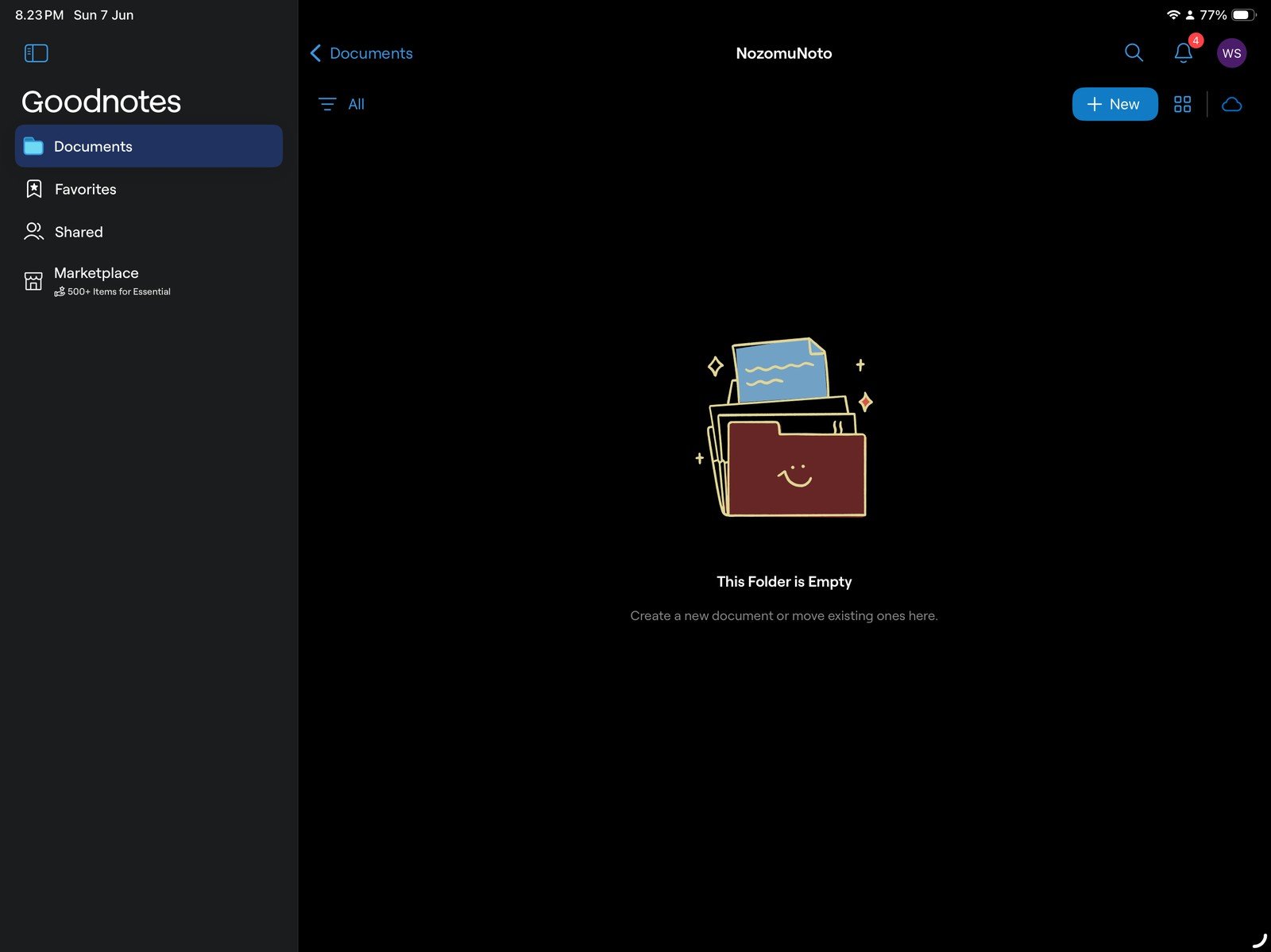
Full GoodNotes library screenFull screen view first, then use the cropped highlight below to see the exact area. 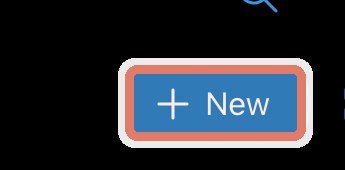
+ New buttonStart from the GoodNotes Documents library and tap the highlighted + New button. - Choose the actual NozomuNoto planner or notebook PDF. Skip receipts, preview pages, ZIP files, and instruction-only PDFs for the planner import.
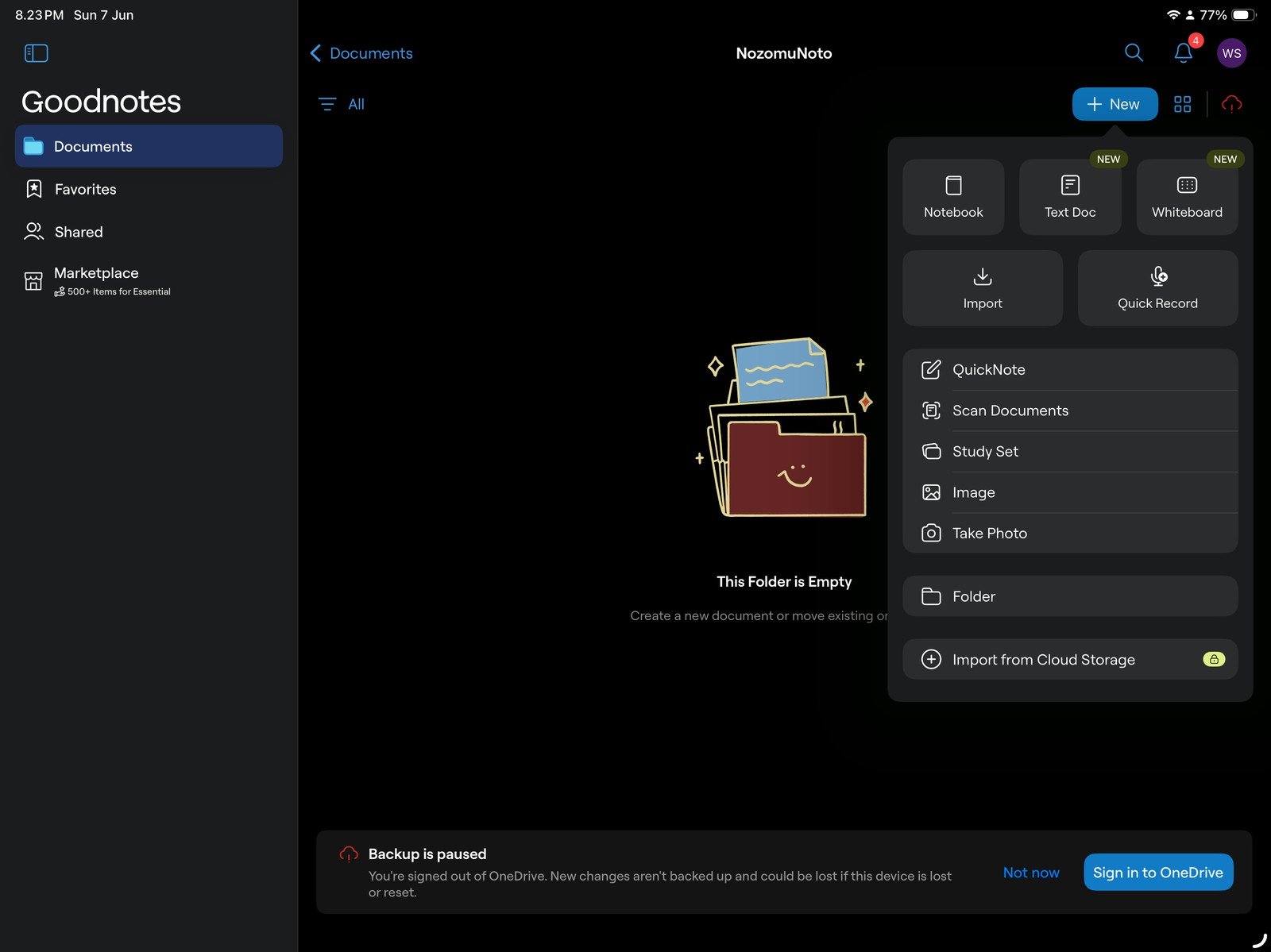
Full GoodNotes import menuFull screen view first, then use the cropped highlight below to see the exact area. 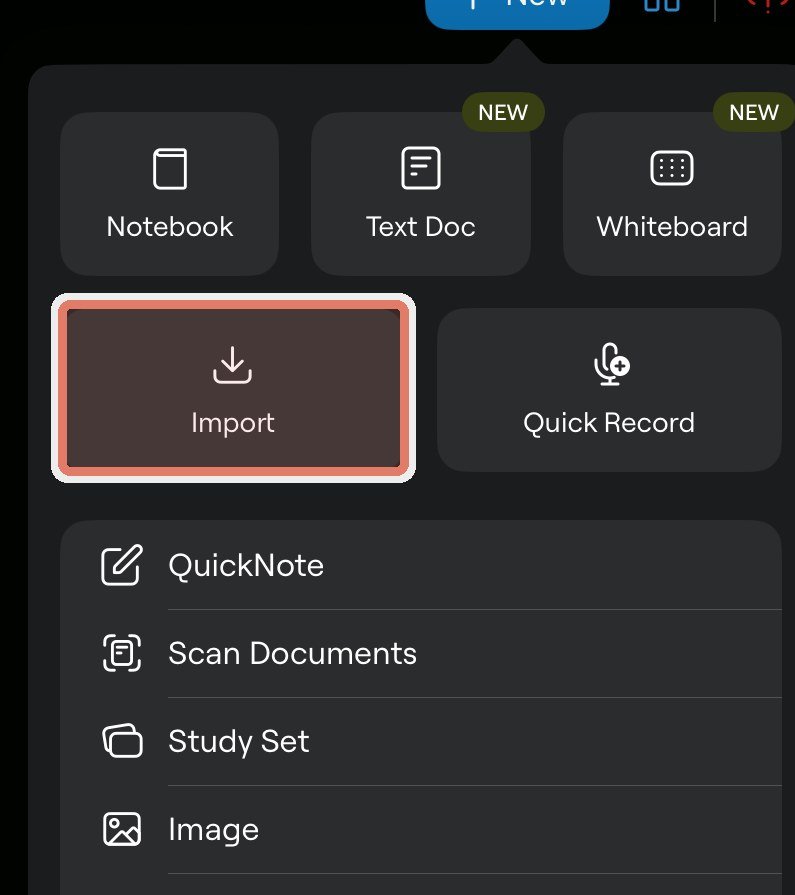
Import optionChoose Import to add the planner or notebook as a clean GoodNotes document. - Open GoodNotes in the Documents library, tap + New, then choose Import. You can also open the PDF from Files, Safari, Google Drive, or Downloads, then use Share or Open in and choose GoodNotes.
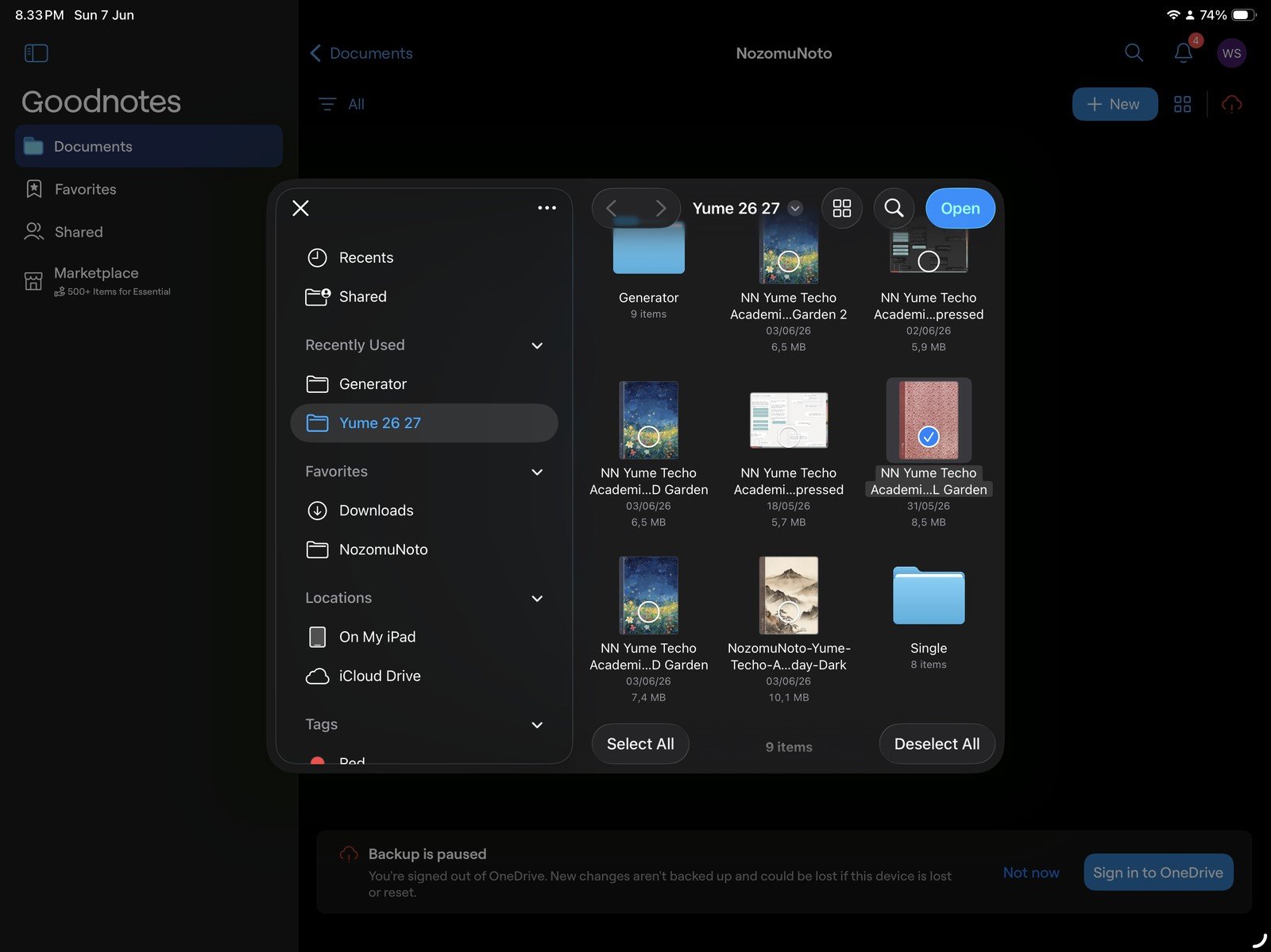
Full file picker screenFull screen view first, then use the cropped highlight below to see the exact area. 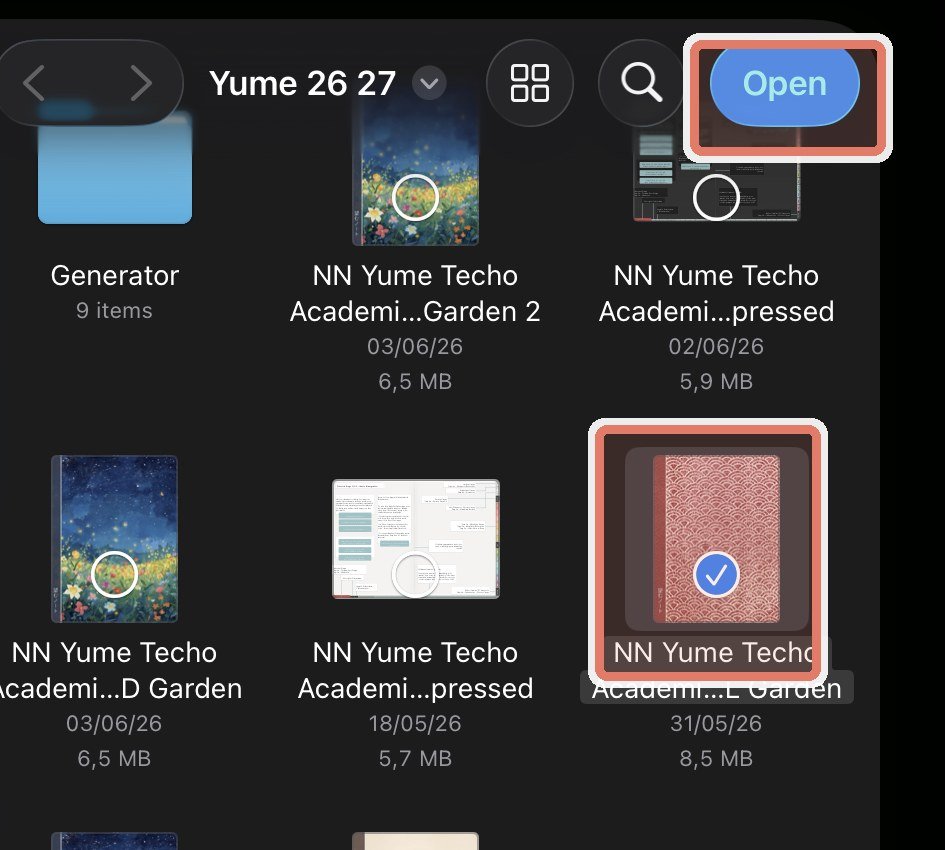
Choose the PDFSelect the extracted NozomuNoto PDF in the file picker, not the ZIP file. - Import the PDF as a new document so the planner or notebook is easy to find.
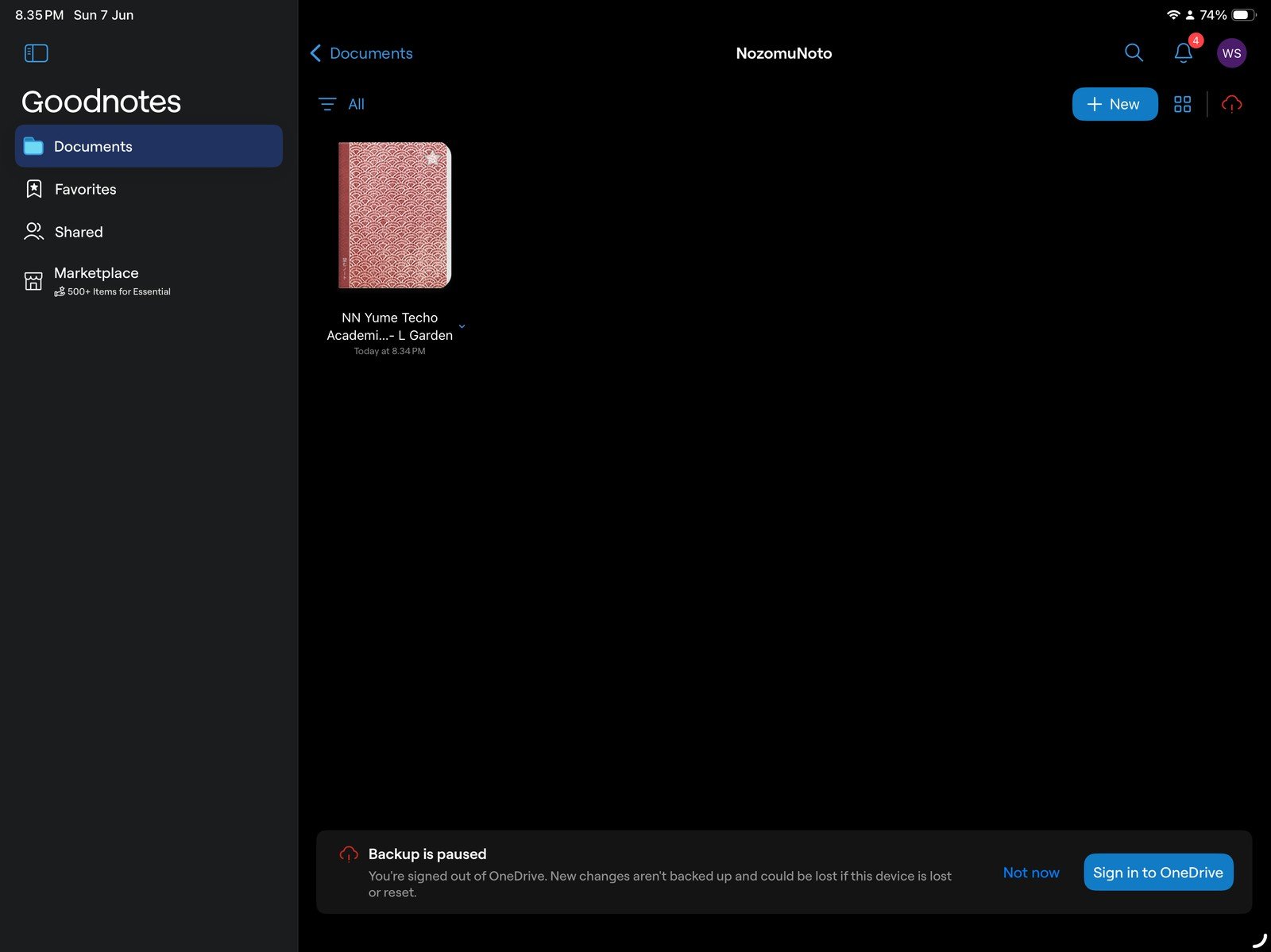
Full imported document screenFull screen view first, then use the cropped highlight below to see the exact area. 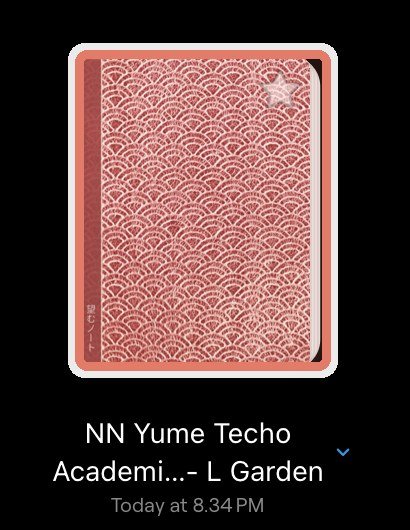
Imported documentAfter import, the planner appears in the GoodNotes library as its own document. - Open the imported planner, test one Index link or month tab, write one small note, and rename the document with the product name, year, orientation, week start, and color.
What to choose in GoodNotes
1. Use PDF for planners and notebooks
NozomuNoto planners and notebooks should be imported as PDF files. PNG files are for stickers, covers, images, or product extras when the download includes them. GoodNotes-specific files should be used only when the product clearly includes one.
2. Start with a new document first
For the first import, make the planner its own GoodNotes document. Adding it inside another notebook can make it harder to find and harder to troubleshoot.
3. Keep one clean backup outside GoodNotes
Keep the original NozomuNoto download in Files or cloud storage. If page moves, exports, stickers, or tests make the working copy confusing, the clean PDF is your fresh-start copy.
If the file will not import
If the PDF is greyed out, missing, or absent after import, check three things first: the ZIP is extracted, the cloud file is fully downloaded to the device, and you selected the actual planner or notebook PDF. If the planner opens but links fail to move, keep this imported copy and go to GoodNotes hyperlink help next.
Next GoodNotes setup links
- Download and access your NozomuNoto files
- Download Etsy digital files on iPad
- Download NozomuNoto files from Google Drive
- Which apps work with NozomuNoto planners?
- Use planner hyperlinks in GoodNotes
- Set up your first NozomuNoto planner in GoodNotes
Video walkthrough
Watch: Etsy download to GoodNotes on iPad (1:33, 2023)
Published in February 2023. Etsy, Safari/Files and GoodNotes screens may look different now; follow the written steps first.
Written version: Open Etsy in an iPad browser, find the purchase and download its files. Save them in Files, extract a ZIP if supplied, then import the actual planner PDF into GoodNotes. Use the individual PNGs or supplied editable sticker file for stickers.
Still need help?
Send your order number, product name, device, app, and a screenshot or short screen recording if the issue is visual.