

Browse help topics
Getting Started
Need help choosing?
Need help after purchase?
Download & Import
Using your notebook/planner
- How to change or reuse template pages on planner landing pages
- Why stickers look blurry when enlarged
- What to check if a product does not work on your device
- How to use NozomuNoto index pages
- How to use NozomuNoto template pages
- How to change a digital planner cover
- How to install and use digital stickers
Product Tutorials
- How to use Yume Techo Landscape tutorial pages
- How to use Yume Techo Portrait tutorial pages
- How to use Shibui Techo Weeks tutorial pages
- How to use Shibui Techo Months tutorial pages
- How to use Yume Noto V1 Landscape tutorial pages
- How to use Yume Noto V1 Portrait tutorial pages
- How to use Yume Noto V2 Landscape tutorial pages
- How to use Yume Noto V2 Portrait tutorial pages
- How to use Yume Noto V3 Portrait tutorial pages
- How to use NozomuNoto Ultimate Digital Stickers
- How to use NozomuNoto Digital Covers
- Which NozomuNoto instruction or tutorial file should I open first?
Device & App
iOS / iPadOS
GoodNotes
Notability
Noteshelf
Noteful
StarNote
Flexcil
Kilonotes
Android
StarNote
Samsung Notes
Penly
Flexcil
Noteshelf
Xodo
E-reader Devices
Boox devices
reMarkable
Bigme
Supernote
How to Set Up Your First NozomuNoto Planner on BOOX Devices
Learn how to set up your first NozomuNoto planner or notebook on BOOX, import the PDF, test links, save a clean backup, and start with one page.
On this page
First-day BOOX setup
Keep the first day small: one PDF, one Index link, one writing test, and one real page.
- Save the original download as your clean backup.
- Transfer the actual planner or notebook PDF to your BOOX device with BOOXDrop, USB, or cloud storage.
- Open the PDF in NeoReader first.
- Go to the Index page.
- Tap one large Index link with your finger to test navigation.
- Write one small note or task.
- Close and reopen the file, then use one real page today.
Decorating, cover changes, template experiments, and full section setup can wait until the first page works.
Reference links
Use these for current app or device help, downloads, updates, vendor help, and manual references.
Set up your first NozomuNoto planner on BOOX
- Keep the original NozomuNoto download outside BOOX as your clean backup.
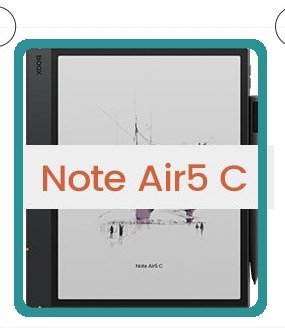
BOOX stylus device contextUse BOOX for focused reading, writing, and review after the PDF opens correctly in NeoReader. - Transfer one working copy to your BOOX device with BOOXDrop, USB, cloud storage, or the transfer method for your model.
- Open the PDF in NeoReader first and check the cover, Index, Contents, bookmarks, page navigation, and one real planner page.
- Go to the Index and tap one large link with your finger to confirm links move before writing more.
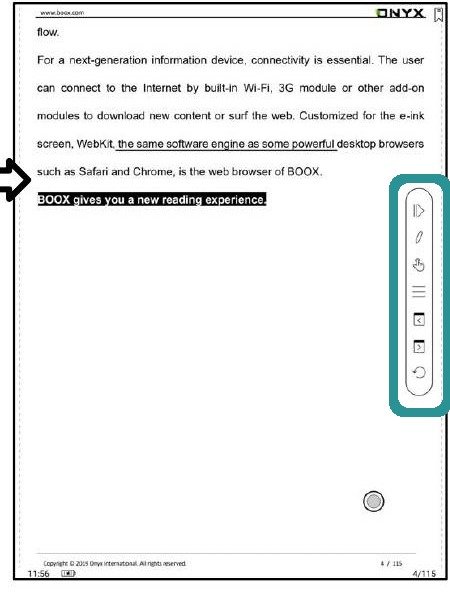
BOOX floating toolbarBOOX manual UI showing reader tools. Check your model toolbar before relying on daily planning. - Tap the center area to show NeoReader tools, then locate Contents, bookmarks, page jump, and pen or annotation tools on your model.
- Write one small mark on the current month, current week, or a notes page. Close the file, reopen it, and confirm the writing stayed.
- Use one current page on day one. Add bookmarks, templates, cover changes, and sticker tests after the basic route works.
BOOX first-day checks
- Correct file: use the actual planner or notebook PDF, not the ZIP, receipt, preview, sticker, cover, or instruction-only PDF.
- First reader test: NeoReader is the clearest first check for reading, writing, Contents, bookmarks, and page navigation.
- Small start: test one Index link, one writing mark, and one real page before building the full planner routine.
- Daily route: use Index, Contents, bookmarks, page jump, and page numbers as return paths.
Next BOOX setup links
Still need help?
Send your order number, product name, device, app, and a screenshot or short screen recording if the issue is visual.