

Browse help topics
Getting Started
Need help choosing?
Need help after purchase?
Download & Import
Using your notebook/planner
- How to change or reuse template pages on planner landing pages
- Why stickers look blurry when enlarged
- What to check if a product does not work on your device
- How to use NozomuNoto index pages
- How to use NozomuNoto template pages
- How to change a digital planner cover
- How to install and use digital stickers
Product Tutorials
- How to use Yume Techo Landscape tutorial pages
- How to use Yume Techo Portrait tutorial pages
- How to use Shibui Techo Weeks tutorial pages
- How to use Shibui Techo Months tutorial pages
- How to use Yume Noto V1 Landscape tutorial pages
- How to use Yume Noto V1 Portrait tutorial pages
- How to use Yume Noto V2 Landscape tutorial pages
- How to use Yume Noto V2 Portrait tutorial pages
- How to use Yume Noto V3 Portrait tutorial pages
- How to use NozomuNoto Ultimate Digital Stickers
- How to use NozomuNoto Digital Covers
- Which NozomuNoto instruction or tutorial file should I open first?
Device & App
iOS / iPadOS
GoodNotes
Notability
Noteshelf
Noteful
StarNote
Flexcil
Kilonotes
Android
StarNote
Samsung Notes
Penly
Flexcil
Noteshelf
Xodo
E-reader Devices
Boox devices
reMarkable
Bigme
Supernote
How to Manage NozomuNoto Planner Pages on BOOX Devices
Manage NozomuNoto planner pages on BOOX devices, keep a clean backup, test page tools by app, and prepare a separate PDF for heavy edits.
On this page
Page tools may vary by app
BOOX can open PDFs in NeoReader or other Android PDF apps, so page tools can look different by app.
- Keep the original NozomuNoto PDF outside BOOX as your clean backup.
- Test copy, move, duplicate, and delete tools inside a copied PDF before changing your main planner.
- Be careful with Index pages, template pages, main section pages, tutorial pages, linked pages, and filled pages.
- For many page edits, prepare a separate PDF first or use an app with stronger page-management tools.
- After any page experiment, reopen the Index and test one main planner path before writing more.
Reference links
Use these for current app or device help, downloads, updates, vendor help, and manual references.
Manage NozomuNoto pages on BOOX
- Open the planner in NeoReader or the BOOX Android PDF app you use.
- Use page jump, thumbnails, Contents, bookmarks, or the Index page to understand where the current page lives before changing it.
- Test page tools in a copied PDF first. Copy, move, duplicate, and delete tools can vary by app and BOOX version.
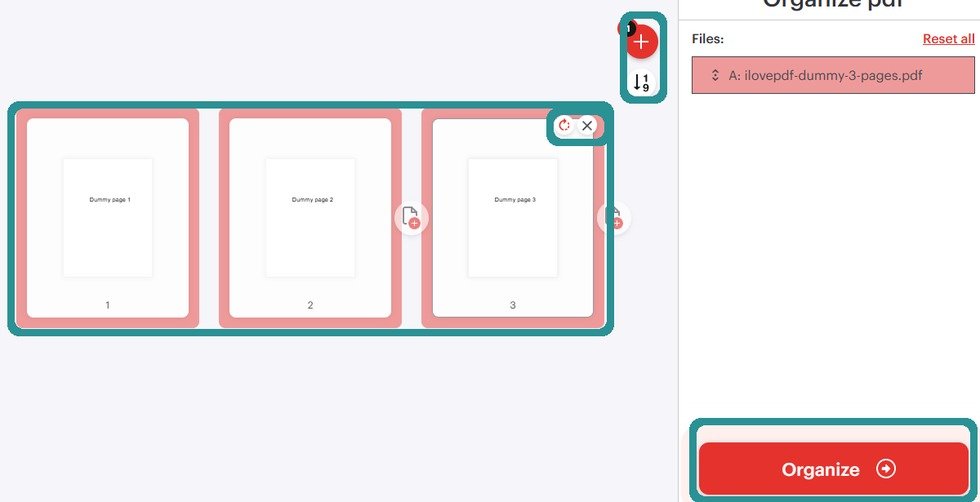
Organize before transferFor page order, extra copies, or deleted pages, prepare the PDF before sending it to the e-reader unless your exact device guide gives a safe native method. - Treat Index pages, template pages, main section pages, tutorial pages, linked pages, and filled pages carefully.
- For extra template copies, removed pages, reordered pages, or cover changes, prepare a separate PDF before transfer. You can use iLovePDF Organize PDF to add, sort, or delete pages for a new working copy.
- After any page experiment, reopen the Index and test the main planner path before writing more.
BOOX page-management checks
- App boundary: BOOX app page tools vary, so test in the exact app you plan to use.
- Backup: keep one clean original outside BOOX and change only a copied PDF.
- Page types: check Index, template, main section, tutorial, linked, and filled pages before removing or moving anything.
Next BOOX page links
Still need help?
Send your order number, product name, device, app, and a screenshot or short screen recording if the issue is visual.