
Browse help topics
Getting Started
Need help choosing?
Need help after purchase?
Download & Import
Using your notebook/planner
- How to change or reuse template pages on planner landing pages
- Why stickers look blurry when enlarged
- What to check if a product does not work on your device
- How to use NozomuNoto index pages
- How to use NozomuNoto template pages
- How to change a digital planner cover
- How to install and use digital stickers
Product Tutorials
- How to use Yume Techo Landscape tutorial pages
- How to use Yume Techo Portrait tutorial pages
- How to use Shibui Techo Weeks tutorial pages
- How to use Shibui Techo Months tutorial pages
- How to use Yume Noto V1 Landscape tutorial pages
- How to use Yume Noto V1 Portrait tutorial pages
- How to use Yume Noto V2 Landscape tutorial pages
- How to use Yume Noto V2 Portrait tutorial pages
- How to use Yume Noto V3 Portrait tutorial pages
- How to use NozomuNoto Ultimate Digital Stickers
- How to use NozomuNoto Digital Covers
- Which NozomuNoto instruction or tutorial file should I open first?
Device & App
iOS / iPadOS
GoodNotes
Notability
Noteshelf
Noteful
StarNote
Flexcil
Kilonotes
Android
StarNote
Samsung Notes
Penly
Flexcil
Noteshelf
Xodo
E-reader Devices
Boox devices
reMarkable
Bigme
Supernote
Why choose a digital notebook or planner over paper?
Why choose digital planners and notebooks over paper: reusable pages, clean edits, hyperlinks, backups, and stickers in one device.
On this page
- Quick answer
- Digital helps when
- Problems digital can solve
- When digital is worth trying
- 1. Plans change often
- 2. You keep running out of the right page
- 3. Your notes and planner live in too many places
- 4. You need visuals inside your planning
- 5. You want a clean restart option
- When paper is still better
- Best first test
- Go next
A digital notebook or planner is useful when you like the feeling of writing and want more room to edit, reuse pages, link sections, add images, and carry notes in one device. This guide explains why you might choose a digital notebook or planner over paper, when digital planning helps most, and when paper may still be the better fit.
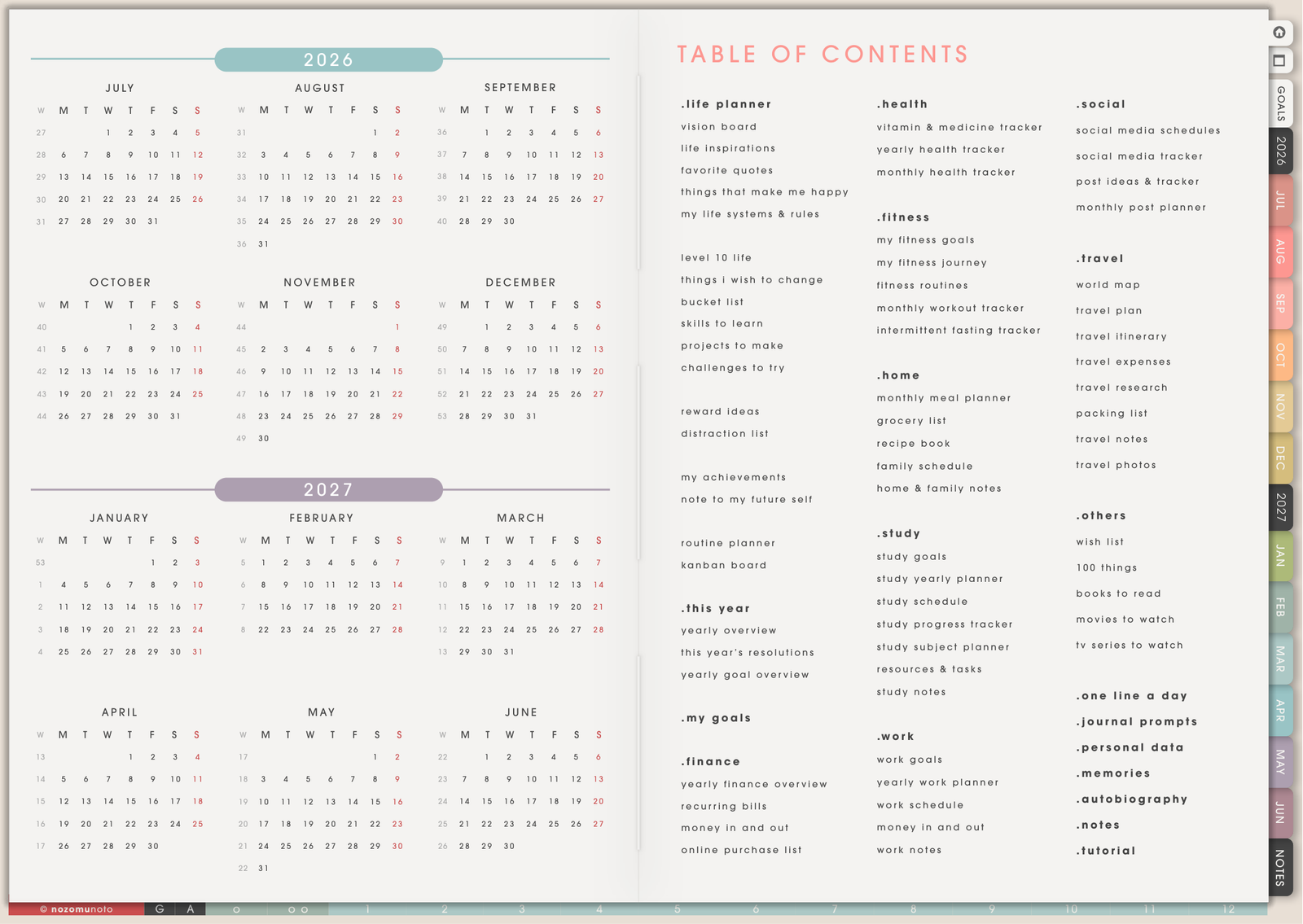
Digital planning keeps the handwriting feeling, then adds reusable pages, hyperlinks, backups, digital stickers, and one device instead of many paper books.
This article is the positive case for digital. If you want a neutral comparison first, read Paper planner vs digital planner.
Quick answer
- Choose digital if you want clean edits, reusable pages, hyperlinks, stickers, images, backups, and one device for many notebooks or planners.
- Stay with paper if you want no app setup, no battery, no file management, and the physical feeling matters most.
- Use both if paper helps you think and digital helps you organize, copy, carry, archive, or decorate the final version.
Digital helps when
A digital notebook or planner is useful when paper starts feeling too limited for your real life.
- Your plans change often. Moved appointments, cancelled tasks, and messy drafts are easier to edit cleanly.
- You run out of paper pages. Duplicate a weekly page, tracker, template, or notes page when you need another copy.
- You want one device instead of many books. Planner pages, notes, templates, stickers, covers, and PDFs can live together.
- You want faster navigation. Hyperlinks, indexes, tabs, and buttons help you move without flipping through every page.
- You want visuals inside your planner. Add screenshots, photos, images, diagrams, covers, and digital stickers directly on the page.
- You want a safer restart option. Many apps let you keep a clean backup, import a fresh working copy, or export a marked PDF.
Paper is still wonderful for quick thinking, messy drafts, and writing away from screens. Digital is helpful when you need more flexibility, more organization, and more room to reuse pages.
The main benefits of digital planners and benefits of digital notebooks are practical. If you are asking why choose a digital planner over paper, the digital planning benefits are reusable planner pages, easy edits, hyperlinks, images, PDF planner benefits, and backup options. The same digital notebook benefits matter when notes, screenshots, templates, and reference pages are scattered across too many places. If you are comparing a digital planner vs paper planner, digital can work as a paper planner alternative when paper feels too heavy or fixed.
Problems digital can solve
- Paper gets messy fast: use erase, lasso, move, duplicate, and clean backup copies.
- You keep buying new notebooks: reuse templates and copy pages when you need more room.
- You forget where notes went: use index pages, bookmarks, thumbnails, app search when available, and section names.
- You carry too much: keep planners, notebooks, stickers, PDFs, and references in one device.
- You want photos or screenshots in your planner: insert images directly instead of printing and cutting.
When digital is worth trying
1. Plans change often
What happens: appointments move, deadlines shift, tasks get cancelled, and paper pages start looking messy.
Example: a class schedule changes, a launch date moves, or a family appointment gets rescheduled three times.
Why digital helps: erase, move, rewrite, or duplicate without covering the page in correction marks.
2. You keep running out of the right page
What happens: the paper planner has one tracker, one project page, or one weekly format, but you need that layout again.
Example: a project template works perfectly, but the printed planner only gives a few copies.
Why digital helps: duplicate templates, notes pages, trackers, and weekly layouts whenever you need another clean page.
3. Your notes and planner live in too many places
What happens: one notebook has work notes, another has study notes, a planner has deadlines, and screenshots live on your phone.
Example: you remember writing something down but forgot which physical notebook held it.
Why digital helps: keep planners, notebooks, PDFs, images, stickers, and reference pages in one app or device.
4. You need visuals inside your planning
What happens: photos, screenshots, inspiration images, diagrams, and sticker labels would help, but printing and cutting is too much work.
Example: you want a screenshot of a receipt, a room idea, a product image, a class diagram, or a moodboard inside the planner.
Why digital helps: insert images directly onto the page and resize them without printing.
5. You want a clean restart option
What happens: a paper planner can feel ruined when the first setup gets messy or the year starts imperfectly.
Example: you test pens, layouts, stickers, and routines, then wish you could start with a clean copy.
Why digital helps: keep a clean original file, import a new working copy, and restart without buying the same planner again.
When paper is still better
Paper can be better if you want no battery, no app learning curve, no screen time, and the simple feeling of flipping a real notebook. Digital planning is not better for everyone. It is better when the reusable, searchable, movable parts make your life easier.
Best first test
Before moving everything, try one month or one week digitally. Test writing, links, page copying, stickers, backup, and export. If those parts feel helpful, then build the full digital setup. If they feel like extra work, keep paper for now and use digital only for the pages that truly benefit from copying, links, or images.
Go next
Still need help?
Send your order number, product name, device, app, and a screenshot or short screen recording if the issue is visual.