

Browse help topics
Getting Started
Need help choosing?
Need help after purchase?
Download & Import
Using your notebook/planner
- How to change or reuse template pages on planner landing pages
- Why stickers look blurry when enlarged
- What to check if a product does not work on your device
- How to use NozomuNoto index pages
- How to use NozomuNoto template pages
- How to change a digital planner cover
- How to install and use digital stickers
Product Tutorials
- How to use Yume Techo Landscape tutorial pages
- How to use Yume Techo Portrait tutorial pages
- How to use Shibui Techo Weeks tutorial pages
- How to use Shibui Techo Months tutorial pages
- How to use Yume Noto V1 Landscape tutorial pages
- How to use Yume Noto V1 Portrait tutorial pages
- How to use Yume Noto V2 Landscape tutorial pages
- How to use Yume Noto V2 Portrait tutorial pages
- How to use Yume Noto V3 Portrait tutorial pages
- How to use NozomuNoto Ultimate Digital Stickers
- How to use NozomuNoto Digital Covers
- Which NozomuNoto instruction or tutorial file should I open first?
Device & App
iOS / iPadOS
GoodNotes
Notability
Noteshelf
Noteful
StarNote
Flexcil
Kilonotes
Android
StarNote
Samsung Notes
Penly
Flexcil
Noteshelf
Xodo
E-reader Devices
Boox devices
reMarkable
Bigme
Supernote
How to Use the NozomuNoto Index Page in Noteshelf on Android
Learn how to use NozomuNoto index pages in Noteshelf on Android as your planner map, including how to test links and return when you feel lost.
On this page
Use these steps to work with NozomuNoto PDF planners, notebooks, stickers, covers, and template pages in Noteshelf. The official links below are for downloads, updates, and current help pages.
Use the index as your home base
The Index page is the NozomuNoto planner map inside the PDF. It is part of the planner or notebook file, not a Noteshelf-only feature. Use it when you want to jump to an important section without scrolling through many pages.
- Open your NozomuNoto planner or notebook in Noteshelf on Android.
- Go to the Index page.
- Switch to Read-Only / link mode so links move instead of turning into writing or selection.
- Tap one section name, month, template, notes area, or button.
- Check that Noteshelf moves to the right page.
- Return to the Index page whenever you feel lost.
Reference links
Use these for current app or device help, downloads, updates, vendor help, and manual references.
Use the Index page in Noteshelf on Android
- Open the planner and switch to Read-Only / link mode.
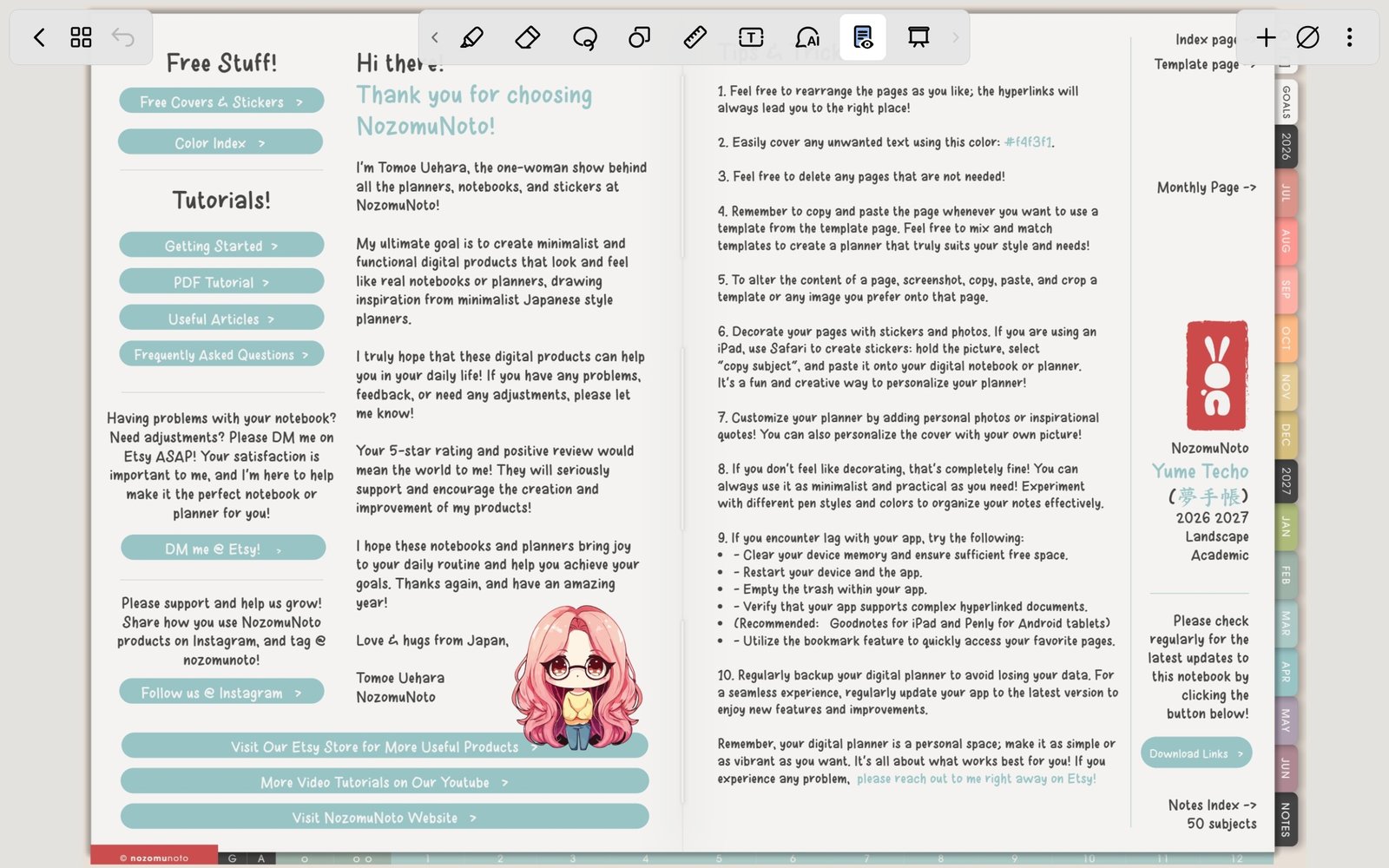
Read-Only / link mode firstSwitch to Read-Only / link mode before using the NozomuNoto Index. Product shown: Yume Techo Academic 26-27 Landscape. - Go to the NozomuNoto Index page or tap the printed Index tab inside the planner.
- Tap the linked section, month, template group, or planner area you want to open.
- Use the Pages panel / thumbnail grid when you want a visual page map.
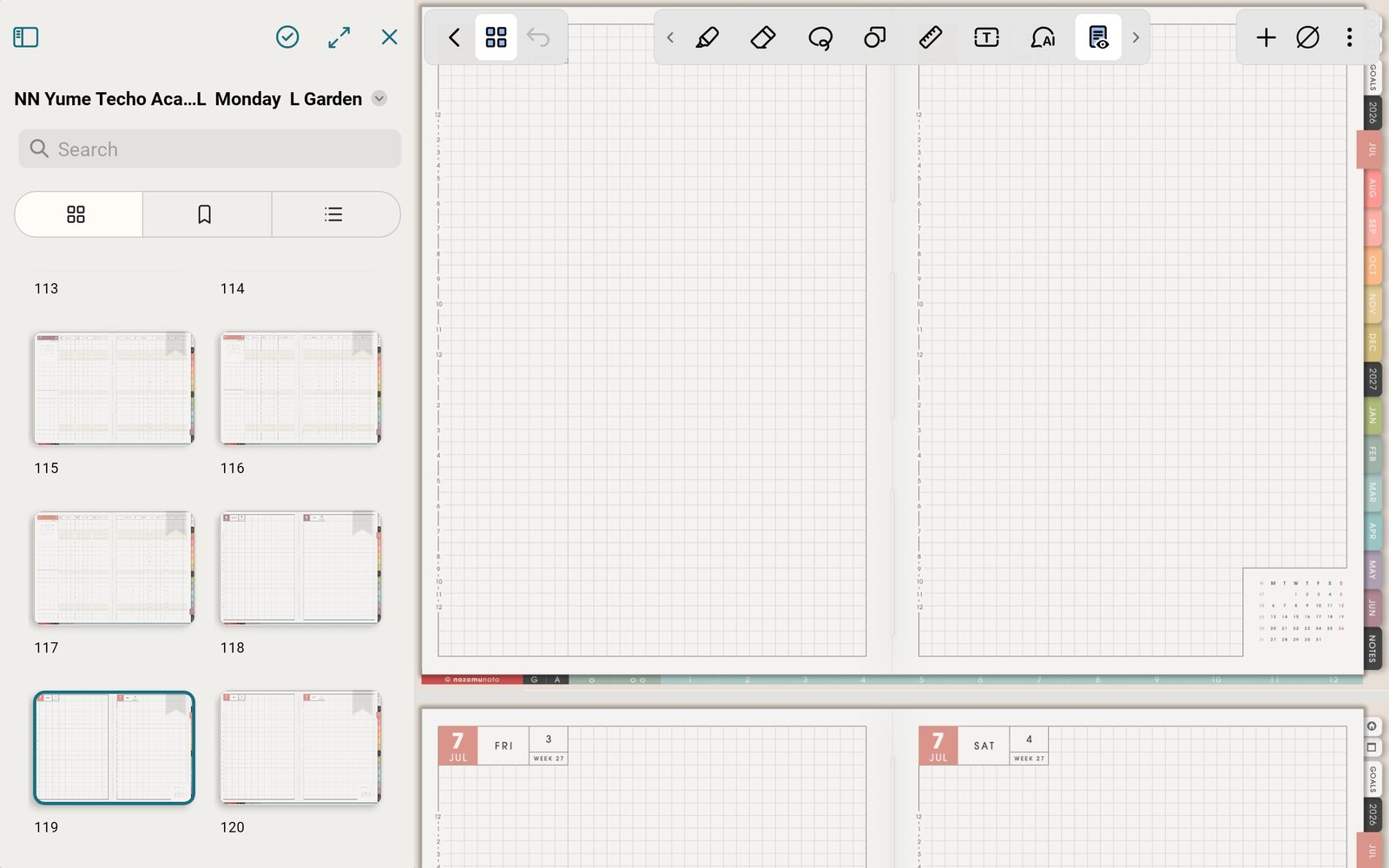
Pages panelUse the Pages panel / thumbnail grid when you want a visual page map. Product shown: Yume Techo Academic 26-27 Landscape. - Bookmark Index, current month, or current week if you return to those pages every day.
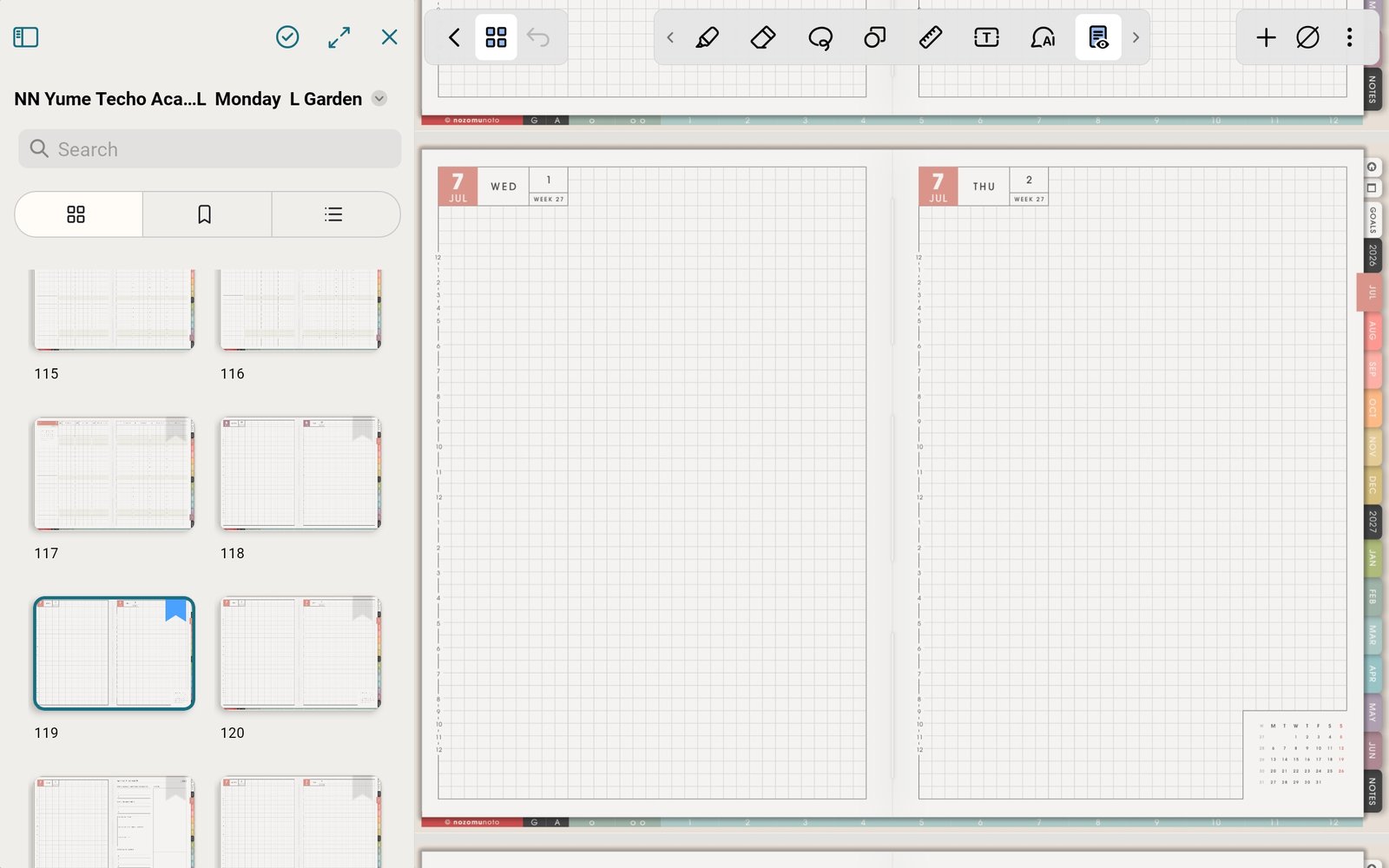
Bookmark a return pointBookmark Index, current month, or current week if you return there often. Product shown: Yume Techo Academic 26-27 Landscape.
Noteshelf Android Index checks
1. Index is the planner map
The NozomuNoto Index belongs to the PDF planner or notebook. Use it for planned jumps to sections, months, templates, notes, and tutorial areas.
2. Run one small Index test
Open Index, switch to Read-Only / link mode, tap one clear section or month, and check where Noteshelf lands before testing more links.
3. Use Pages panel for thumbnails
The Index is the planner map. The Pages panel is the Noteshelf map for thumbnails, bookmarks, and page actions. Use both when the planner feels large.
Next Noteshelf Android Index links
Still need help?
Send your order number, product name, device, app, and a screenshot or short screen recording if the issue is visual.