

Browse help topics
Getting Started
Need help choosing?
Need help after purchase?
Download & Import
Using your notebook/planner
- How to change or reuse template pages on planner landing pages
- Why stickers look blurry when enlarged
- What to check if a product does not work on your device
- How to use NozomuNoto index pages
- How to use NozomuNoto template pages
- How to change a digital planner cover
- How to install and use digital stickers
Product Tutorials
- How to use Yume Techo Landscape tutorial pages
- How to use Yume Techo Portrait tutorial pages
- How to use Shibui Techo Weeks tutorial pages
- How to use Shibui Techo Months tutorial pages
- How to use Yume Noto V1 Landscape tutorial pages
- How to use Yume Noto V1 Portrait tutorial pages
- How to use Yume Noto V2 Landscape tutorial pages
- How to use Yume Noto V2 Portrait tutorial pages
- How to use Yume Noto V3 Portrait tutorial pages
- How to use NozomuNoto Ultimate Digital Stickers
- How to use NozomuNoto Digital Covers
- Which NozomuNoto instruction or tutorial file should I open first?
Device & App
iOS / iPadOS
GoodNotes
Notability
Noteshelf
Noteful
StarNote
Flexcil
Kilonotes
Android
StarNote
Samsung Notes
Penly
Flexcil
Noteshelf
Xodo
E-reader Devices
Boox devices
reMarkable
Bigme
Supernote
StarNote Android Known Problems with NozomuNoto Planners
Troubleshoot StarNote Android problems with NozomuNoto planners, including PDF import, links, stickers, covers, templates, slow files, and missing pages.
On this page
Use these steps to work with NozomuNoto PDF planners, notebooks, stickers, covers, and template pages in StarNote. The official links below are for downloads, updates, and current help pages.
Choose your problem first
If something is not working in StarNote on Android, start with the issue that matches what you see.
- Links fail to move: tap the open book icon, then test one Index link with your finger.
- The planner imported incorrectly: import the actual planner or notebook PDF, not the ZIP, receipt, preview page, cover file, sticker file, or instruction-only PDF.
- Stickers look blurry: insert the original PNG again and keep it closer to its original size.
- Pages feel hard to manage: use Document overview and page actions carefully, and keep a clean backup before deleting or moving pages.
- The cover looks wrong: check cover file type, page position, and thumbnail before replacing another page.
- The file feels slow: close other apps, check storage, update StarNote if needed, and test with a clean copy.
- Need more help: send your product name, device, StarNote version if known, exact issue, and a screenshot or short screen recording.
Reference links
Use these for current app or device help, downloads, updates, vendor help, and manual references.
Fix StarNote Android problems by symptom
- PDF import problem: open the extracted folder and import the actual planner or notebook PDF with Create > Import files.
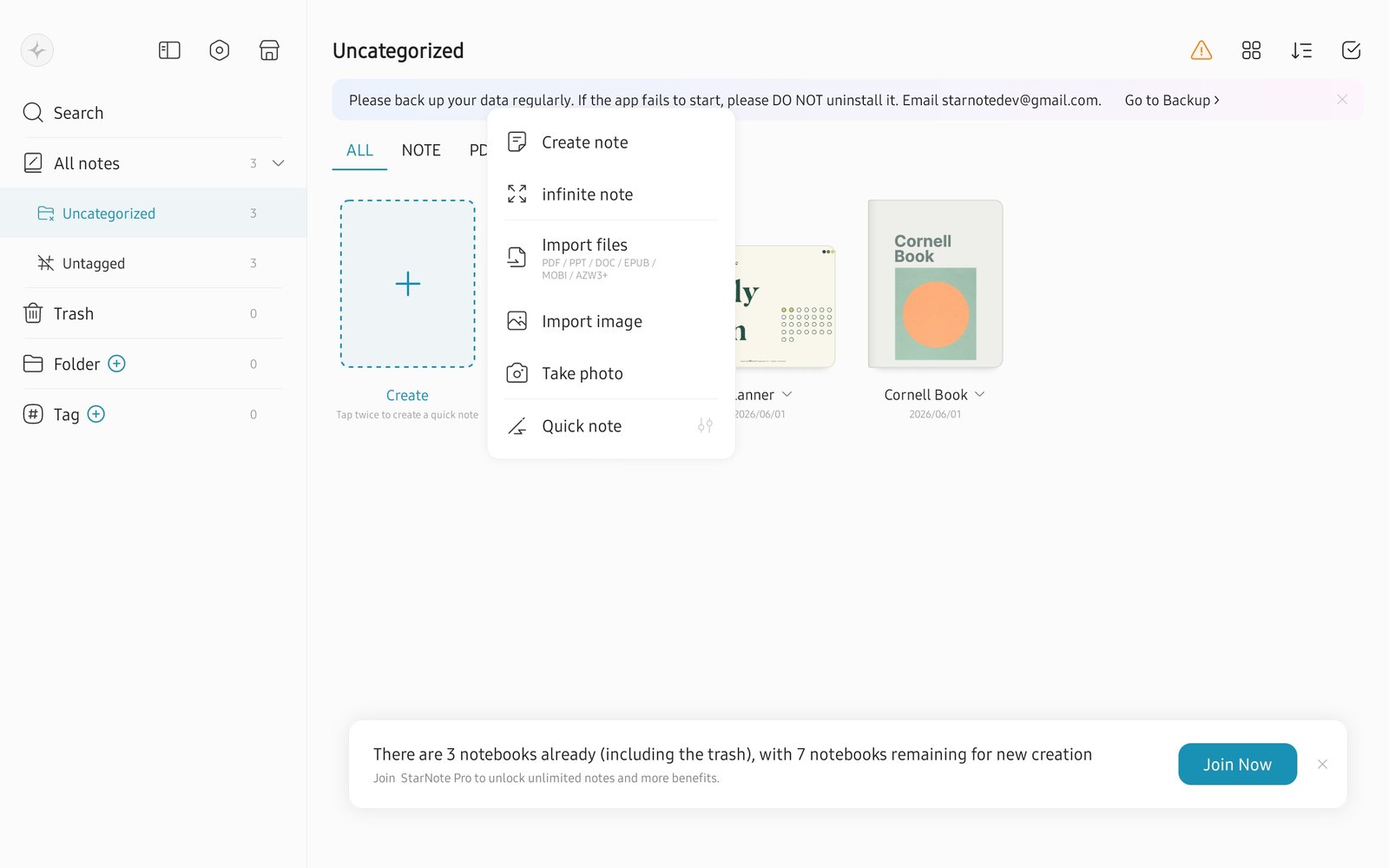
Import filesIf the PDF is missing, import from Create > Import files and check the Android file picker locations. Product shown: Yume Techo Academic 26-27 Landscape. - Links fail to move: tap the open book icon, test one Index link, then return to writing tools after the jump works.
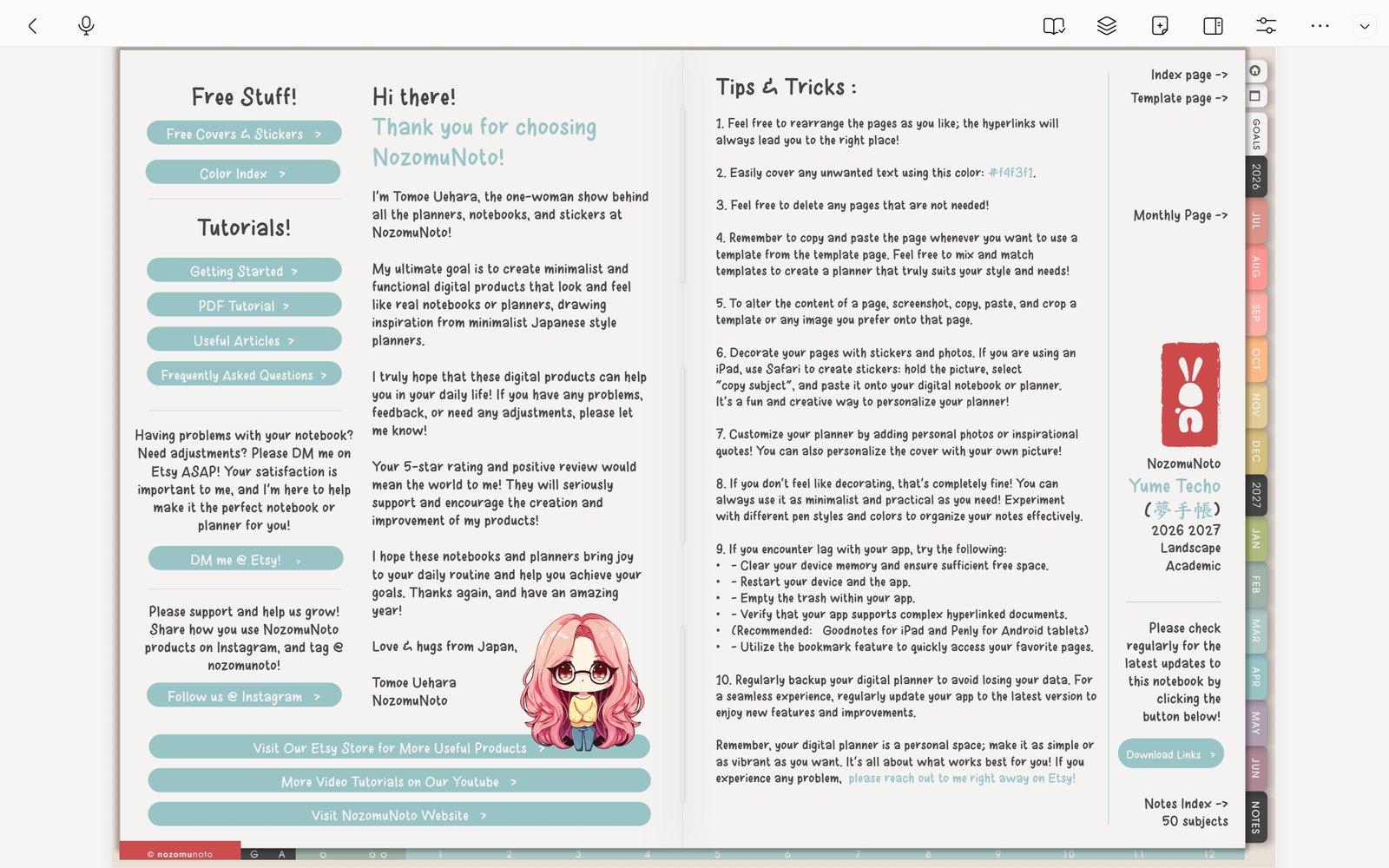
Open book modeIf links try not to move, tap the open book icon and test again. Product shown: Yume Techo Academic 26-27 Landscape. - Index feels hard to find: go back to the NozomuNoto Index page and bookmark it if you return there often.
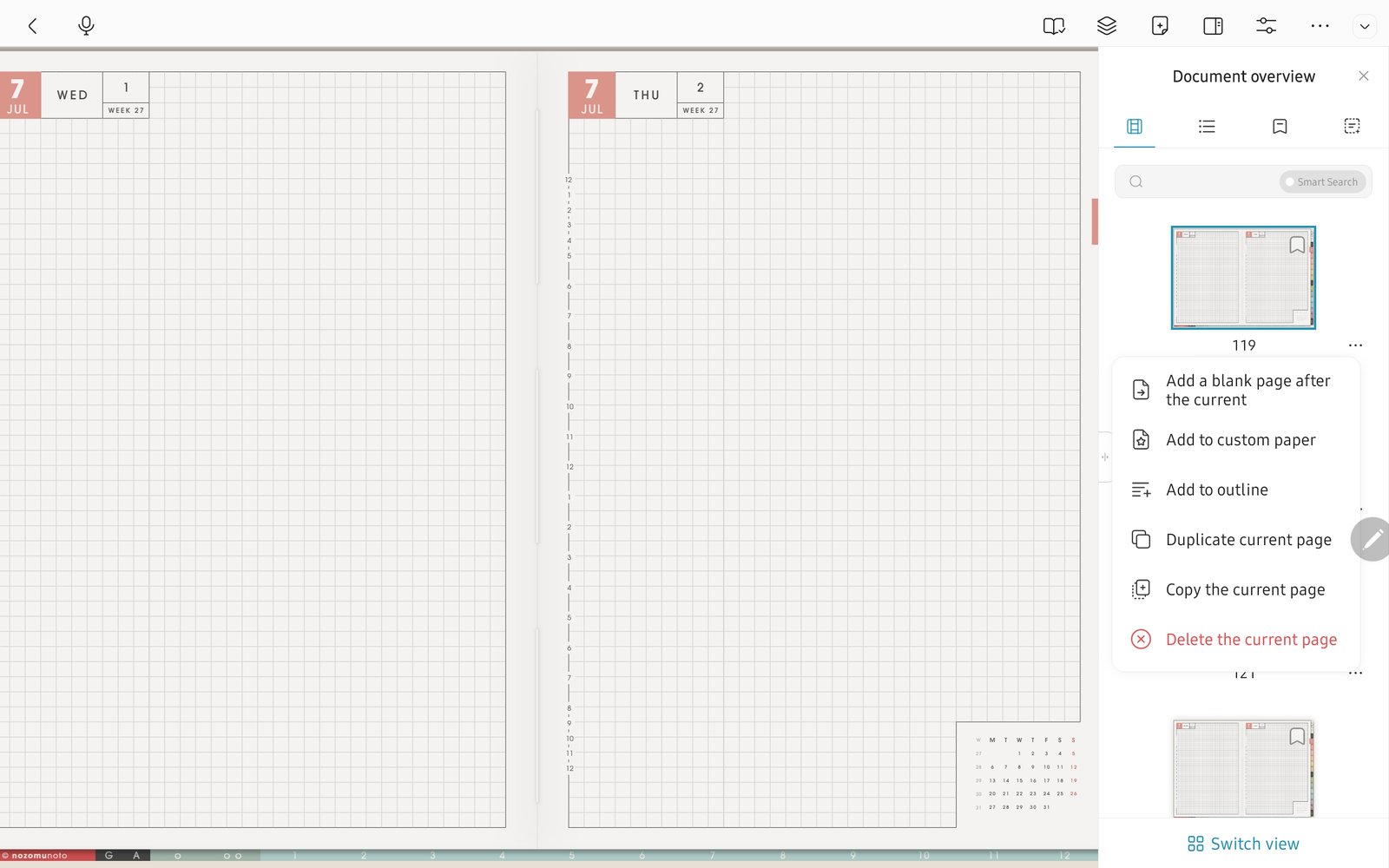
Page actionsIf page tools feel hidden, open Document overview and use the thumbnail menu. Product shown: Yume Techo Academic 26-27 Landscape. - Template page was filled by accident: find a clean template page in the original planner copy and use Duplicate current page before writing.
- Stickers or images look wrong: use the image / picture icon, insert the original PNG again, and resize little by little.
- Cover looks wrong: check whether you are using a PDF cover, PNG/JPG cover, or StarNote-specific cover file before replacing any page.
- Page tools feel hidden: open Document overview, then tap the thumbnail three-dot menu.
- The file feels slow: use fewer large images, close other apps, check storage, and compare with a clean PDF copy.
Common StarNote Android problem paths
1. Import or missing planner
If the planner is missing, recheck the extracted folder. Import the actual PDF, not the ZIP, receipt, preview page, cover file, sticker file, or instruction-only PDF.
2. Links, Index, and writing tools
If tapping a tab writes, selects, or stays on the same page, use the open book icon and test one Index link before writing more.
3. Stickers, covers, and page tools
If stickers look blurry, insert the original PNG again at a smaller size. If a cover or page change looks wrong, keep a clean backup and check Document overview before deleting, moving, or replacing pages.
4. Slow or heavy files
If the working copy feels slow after many images, stickers, copied pages, or page edits, close other apps, check storage, and compare with a clean PDF copy.
Before asking for help
- Test a clean copy. Import the original NozomuNoto PDF again without page moves, exports, or heavy stickers.
- Test one Index link. Use the open book icon and tap with your finger.
- Write down the exact details. Include product name, device, Android version if known, StarNote version if known, exact page, and exact issue.
- Send a screenshot or short screen recording. Show the selected tool, the page, and what happens after tapping or importing.
Next StarNote Android problem links
Still need help?
Send your order number, product name, device, app, and a screenshot or short screen recording if the issue is visual.