

Use these steps to work with NozomuNoto PDF planners and notebooks on Bigme. E-readers are best for calm writing, reading, bookmarks, page review, and light annotation, so this guide keeps the setup simple and points out where a tablet app may still be better.
Before you start
- Use NozomuNoto template pages as existing PDF pages first. Prepare extra template-page copies before transfer; do not expect an e-reader to behave like a tablet PDF app.
- If the product arrives in a ZIP, extract it first, then transfer the PDF file your e-reader can open.
- After transfer, test writing on one existing template page and use the Index, contents, bookmarks, or page navigation to return to it before using that copy.
Reference links
Use these for current app or device help, downloads, updates, vendor support, and manual references.
Use template pages on an e-reader
- Open the NozomuNoto Template Pages section from the Index, table of contents, planner tabs, or page thumbnails.
- Use the clean template page as an existing PDF writing or reference page first.
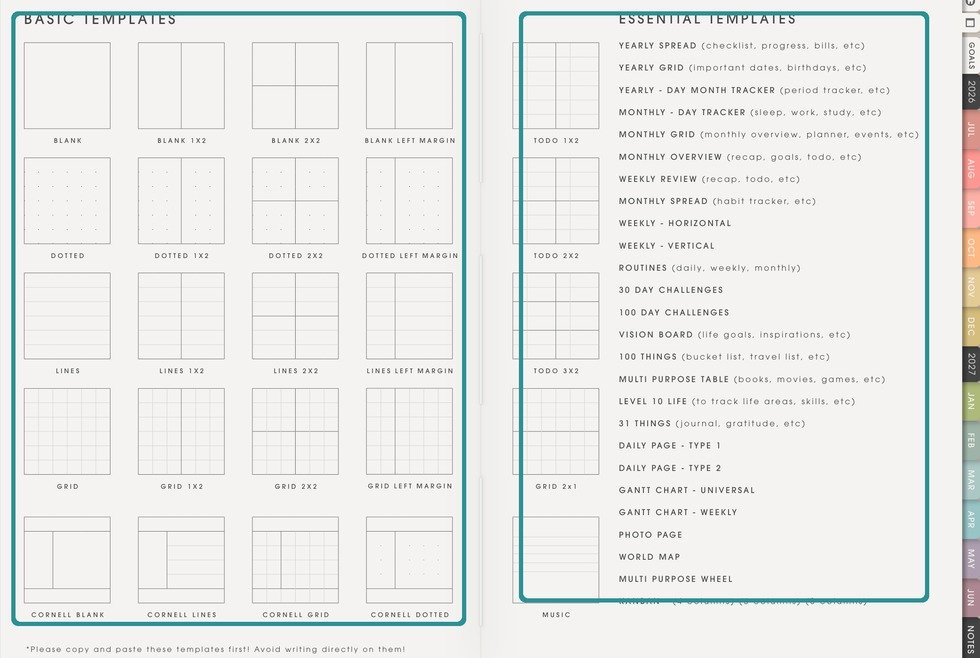
NozomuNoto Template pageTemplate pages are clean pages inside the NozomuNoto PDF. Prepare page copies before transfer when your Bigme workflow cannot duplicate imported PDF pages. - As of June 13, 2026, do not assume your e-reader can duplicate NozomuNoto PDF template pages unless the device-specific section in this article names a verified native workflow.
- For extra reusable template copies, prepare those pages in the PDF before transfer. Use iLovePDF Organize PDF or a tablet app to build the extra copies, then send the edited PDF as a new working copy.
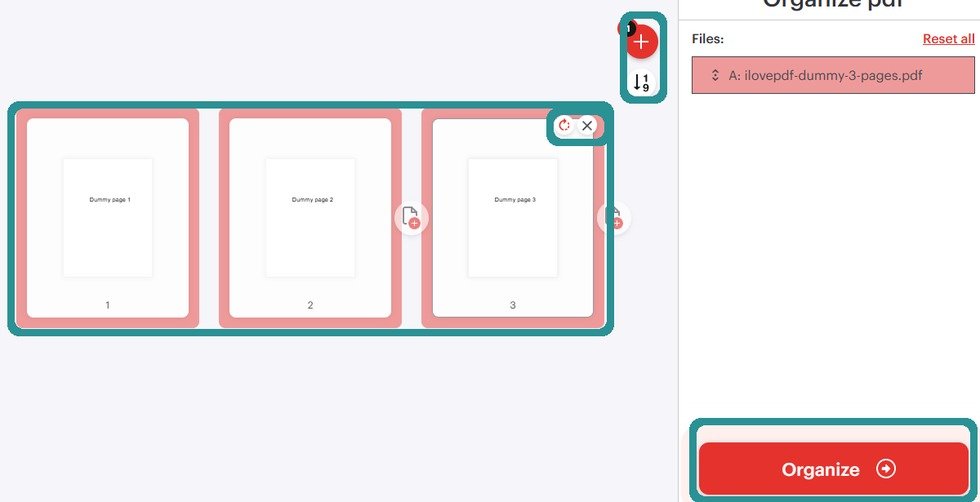
Organize before transferUse an organizer before sending the PDF when you need extra template copies or a different page order. - Use bookmarks, folders, page numbers, contents, or page thumbnails to return to the template pages you use often.
- Use a tablet app when you need frequent template duplication, sticker-heavy layouts, or complex page rearranging.
E-reader template note
E-readers are usually better for focused writing and review than heavy page building. If template copying is important to your routine, prepare the extra PDF pages before transfer or use a tablet planning app for that workflow.