

Use these steps to work with NozomuNoto PDF planners and notebooks on Bigme. E-readers are best for calm writing, reading, bookmarks, page review, and light annotation, so this guide keeps the setup simple and points out where a tablet app may still be better.
Before you start
- Use this as a quick checklist when something feels confusing but nothing looks broken yet.
- If the product arrives in a ZIP, extract it first, then transfer the PDF file your e-reader can open.
- After the first step, test one Index link, one writing mark, and one page action before setting up the whole planner.
Reference links
Use these for current app or device help, downloads, updates, vendor support, and manual references.
Tips that prevent most e-reader setup problems
- Keep the original NozomuNoto download unchanged as your backup.
- Open the reference links at the top of the article for Bigme transfer, writing, bookmark, and navigation instructions.
- Test import, writing, Index navigation, the return tool named in this device guide, and page overview before using the planner daily.
- Name your planner files clearly, especially if you keep multiple dated or undated versions.
- Use a tablet note-taking app for sticker-heavy layouts, frequent page duplication, or cover-heavy customization.
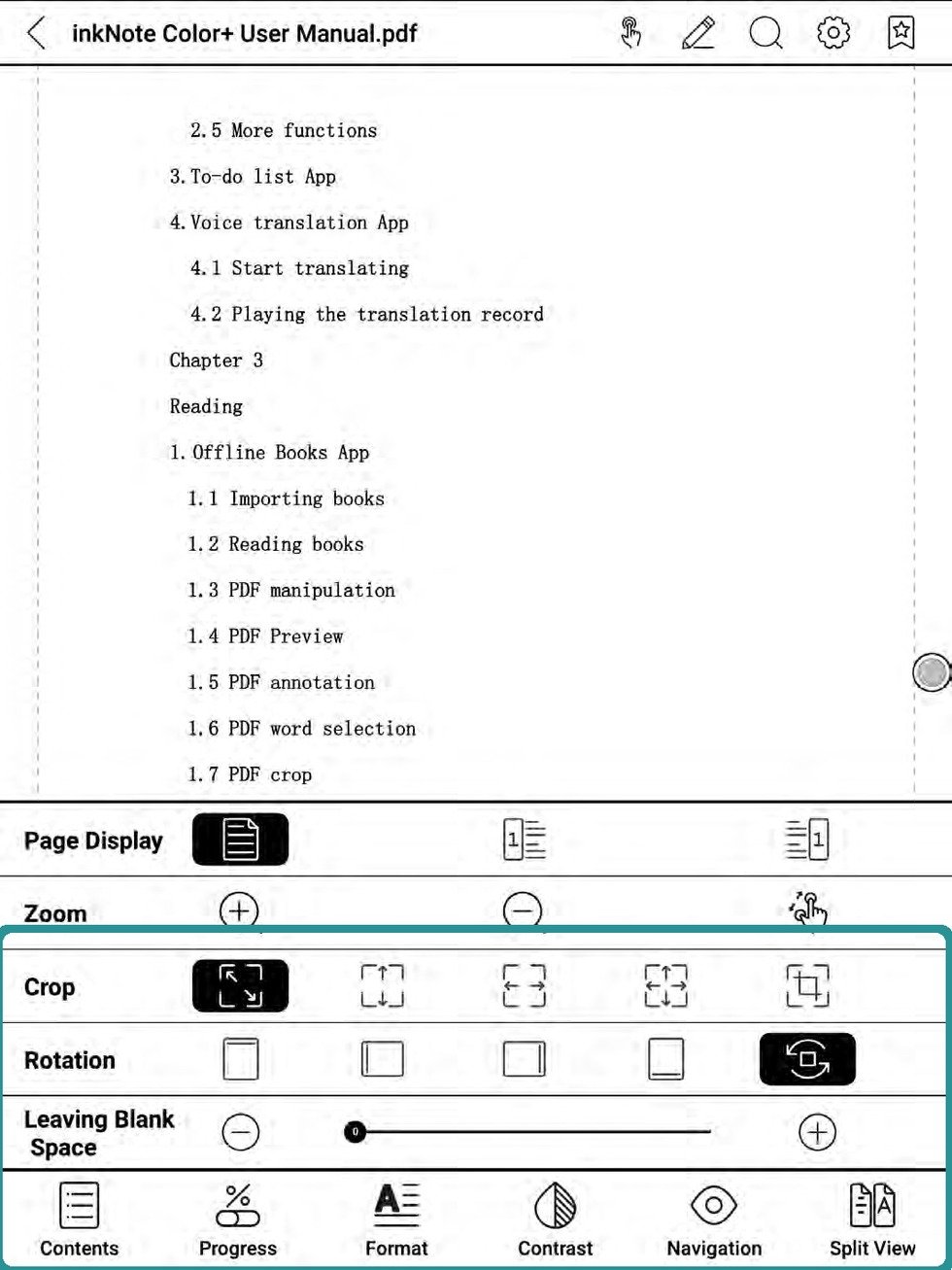
Best first e-reader workflow
- Transfer the original PDF. Keep a clean backup outside the e-reader.
- Open the file as a document. Check the cover, Index, and one dated or notes page.
- Test navigation. Use the return path named for this device: contents, bookmarks, page overview, folders, page numbers, or the printed NozomuNoto Index.
- Write one small test note. Check that handwriting saves and reopens correctly.
- Start small. Use the current month, current week, Index, and one notes page before building a full routine.