

Use these steps to work with NozomuNoto PDF planners and notebooks on Bigme. E-readers are best for calm writing, reading, bookmarks, page review, and light annotation, so this guide keeps the setup simple and points out where a tablet app may still be better.
Before you start
- Test a fresh copy first so the problem is not caused by an edited, flattened, or exported file.
- If the product arrives in a ZIP, extract it first, then transfer the PDF file your e-reader can open.
- After the first step, test one Index link, one writing mark, and one page action before setting up the whole planner.
Reference links
Use these for current app or device help, downloads, updates, vendor support, and manual references.
Fix common Bigme planner problems
- If the file is missing, return to Bookshelf/Library and check WiFi Import, Local Import, Downloads, or the folder where the PDF was saved.
- If links do not move, show the reader toolbar and leave pen/handwriting mode before tapping the planner link again.
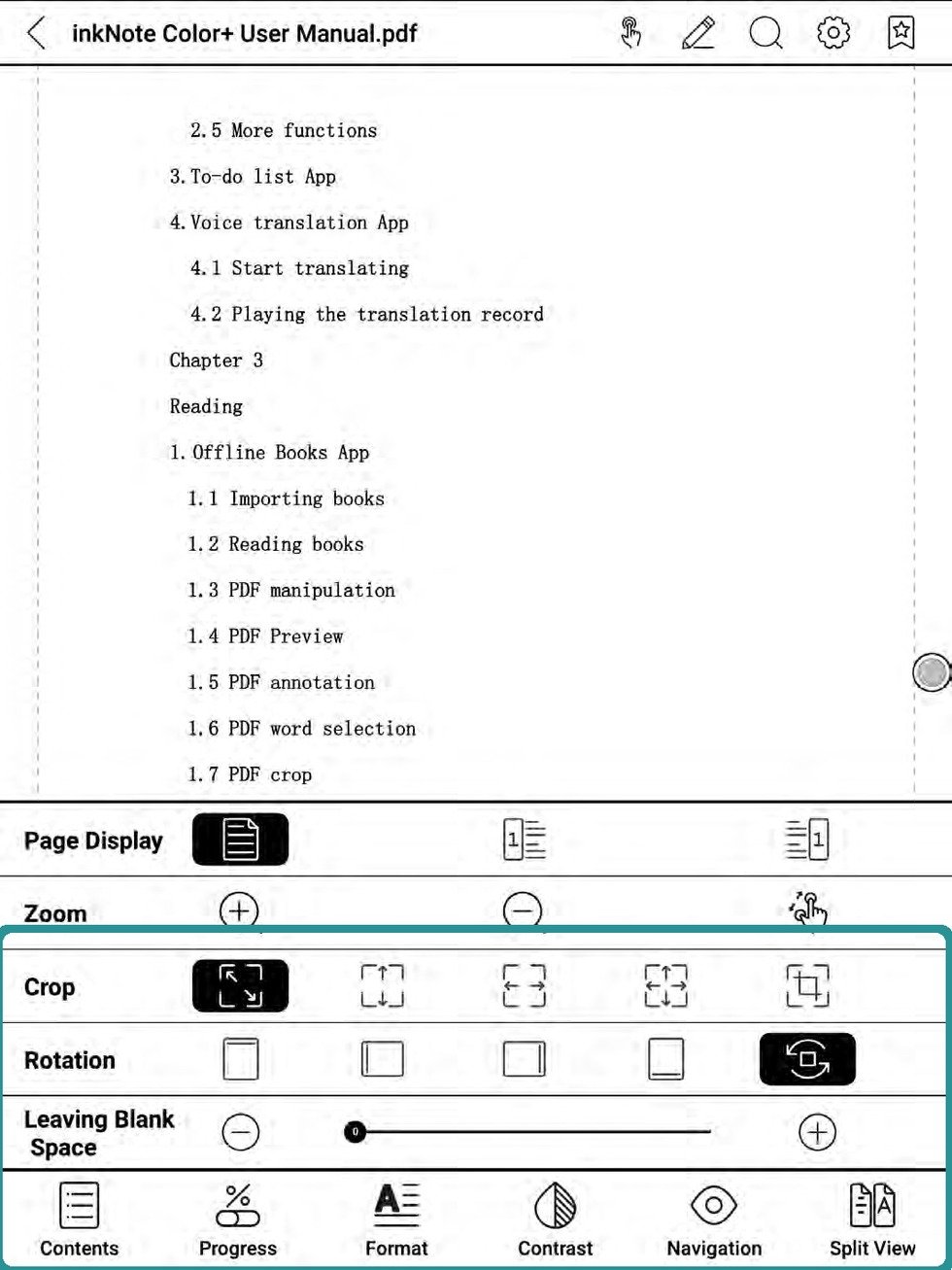
Bigme display optionsIf a page looks wrong, check reader display, crop, rotation, and navigation settings before editing the PDF. - If bookmarks are hard to find, open Contents/TOC and check the Bookmarks tab instead of scrolling page by page.
- If handwriting does not save, test one mark on a fresh imported PDF, close it, reopen it, and check whether the annotation stayed.
- If the page feels slow or blurry, start with Bigme reading settings such as refresh mode, page display, crop, contrast, navigation, or split view, then use page numbers or Contents/TOC as the return path.
- If page edits cause confusion, stop using that edited copy and import the untouched backup PDF again.
Before asking for help
Send the NozomuNoto product name, Bigme model, firmware version, reader app name if visible, and the exact step that failed. A short screen recording is the clearest way to show mode or toolbar problems.