

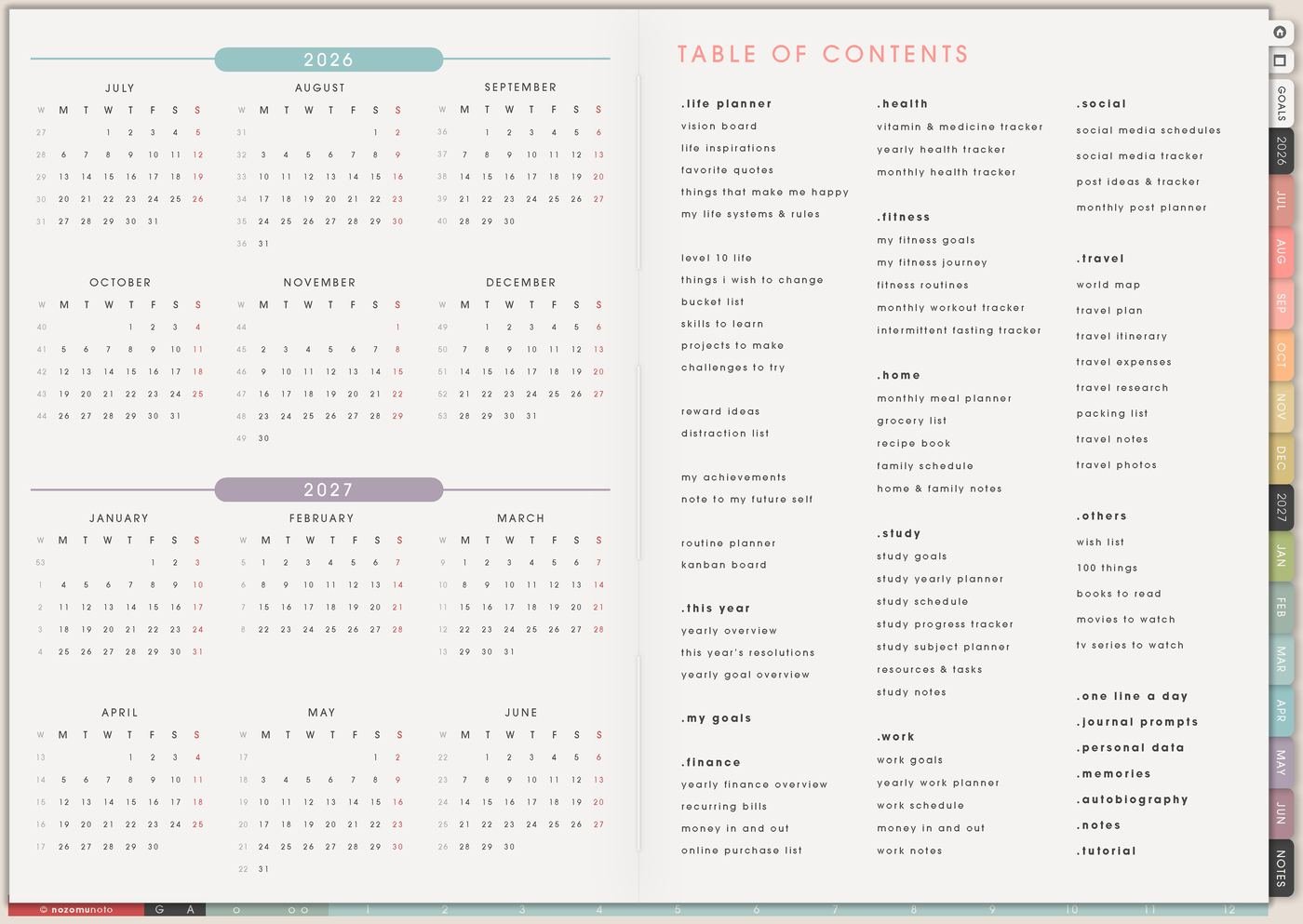
This starter guide is for everyone opening Yume Techo for the first time and wondering where to begin. Use one tiny working loop first: Index, current Monthly, current Weekly, and Today. Once those pages feel familiar, the extra trackers, Template Pages, and Life Planner pages can join naturally.
A big planner becomes easier when the first job is simple: find the map, write real dates, choose this week, and make today visible. Everything else can wait until it has a job!
Use case ideas for starting Yume Techo
1. Use Index as the first page you trust
Index is the map. If the planner feels big, return there first instead of swiping through pages. From Index, choose only the page you need: Monthly for fixed dates, Weekly for this week, Daily for today, Template Pages for reusable copies, or a specific Life Planner page when you need deeper planning.
For the first week, bookmark Index in your app. This gives everyone one safe return point when the planner starts feeling like too much.
2. Put real dates on the current Monthly page
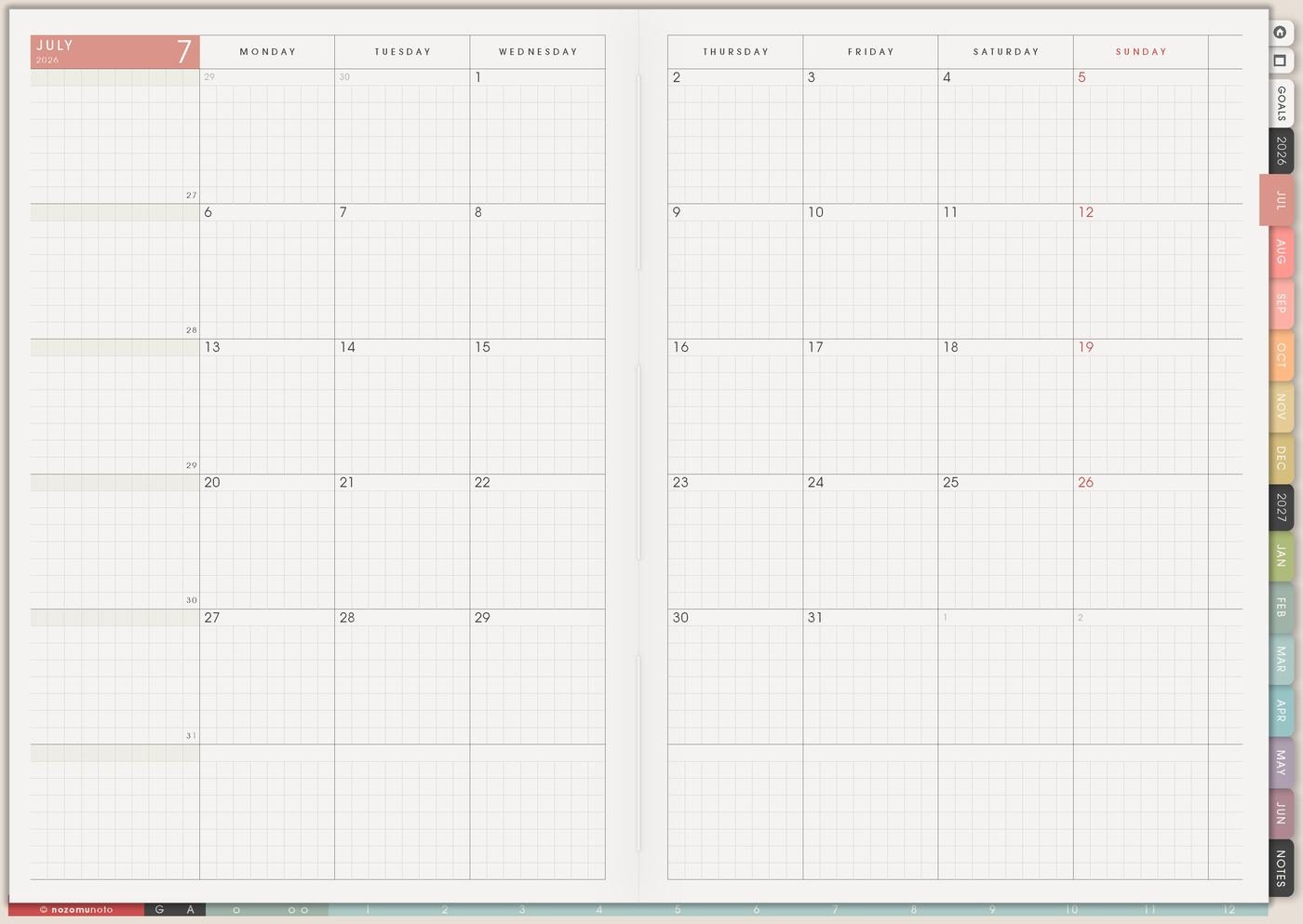
Before covers, stickers, colors, or trackers, write three real dates on Monthly: an appointment, a bill, a deadline, a class day, a trip, a family event, or a renewal date. Real dates teach the planner what belongs there.
Example: Monthly says dentist Friday. Weekly says confirm appointment time. Daily says bring insurance card. That small chain makes the planner useful immediately.
3. Use Weekly as the first control panel
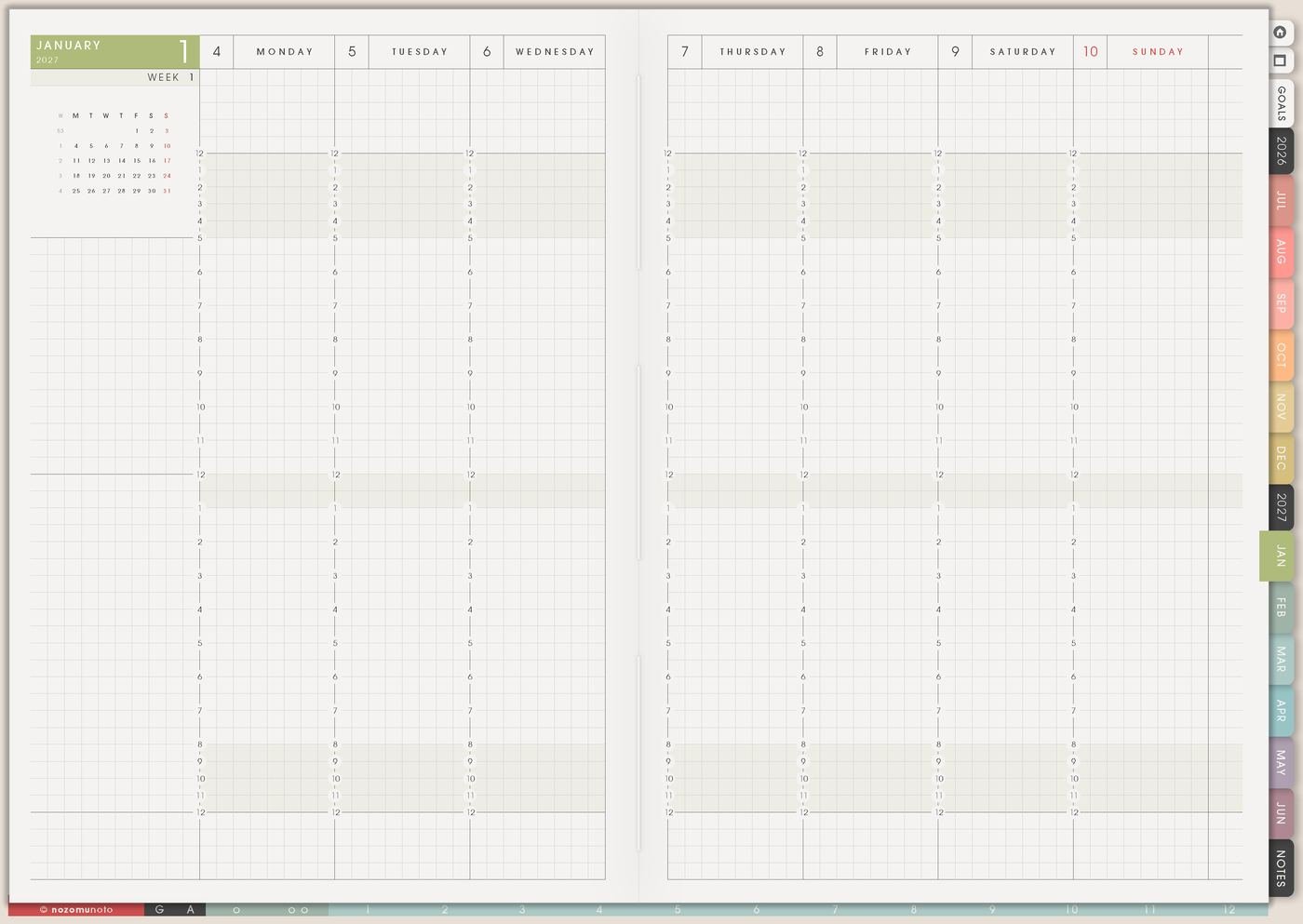
Weekly is where you choose what matters now. Write one to three things that actually belong to this week, then rewrite them as actions you can start. Instead of study, write open chapter 3 notes. Instead of kitchen, write wash five cups.
Keep Weekly lighter than your full brain dump. Weekly should show the next few moves, not everything your life contains.
4. Use Daily for today only
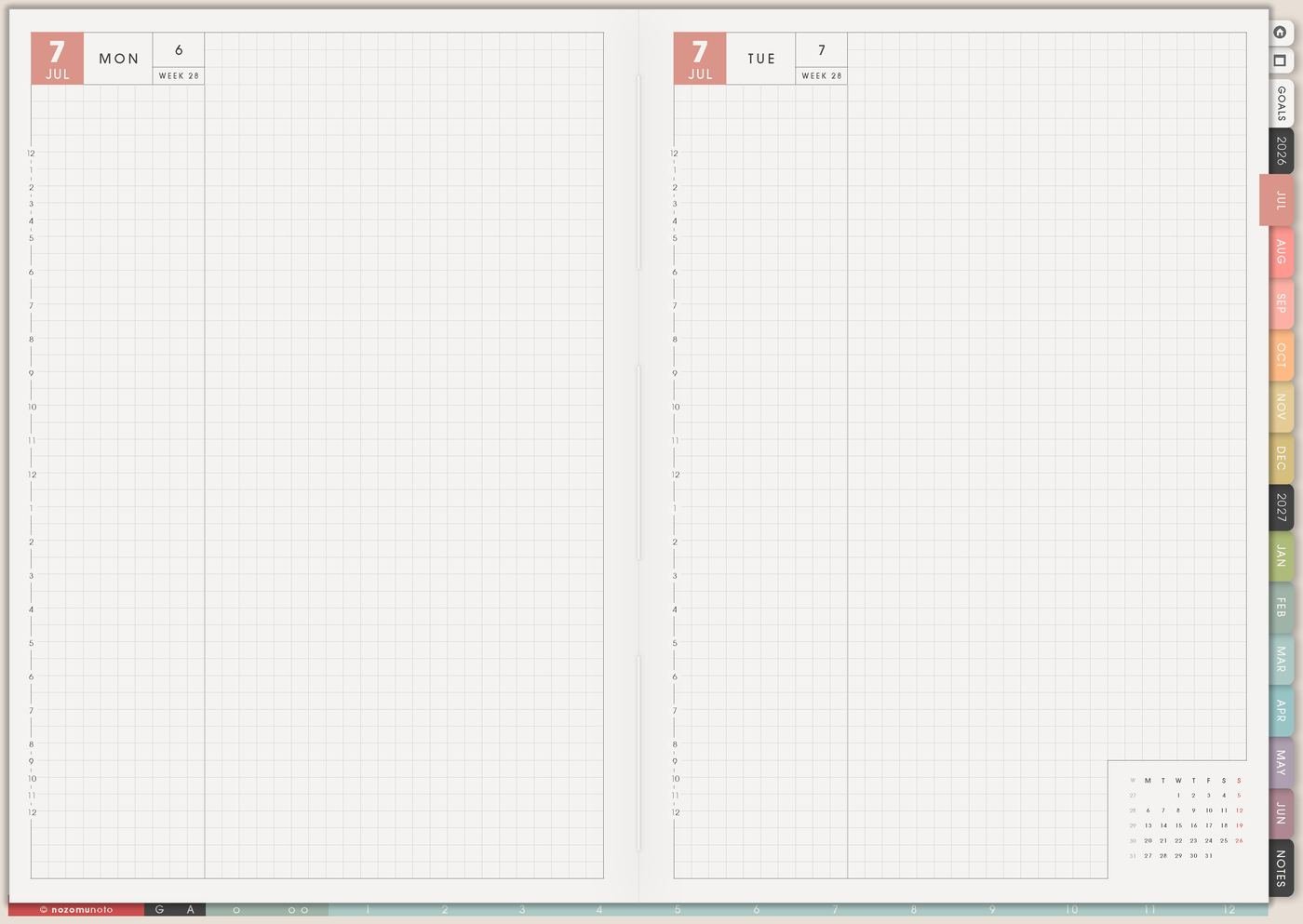
Daily should feel like today. Add appointments, three realistic actions, one note, and one body-care cue if helpful. If the day changes, adjust the page and keep going.
Good first daily entries are simple: pay invoice, email one question, bring water bottle, order medicine, write grocery list, read two pages, or open the planner again after lunch.
5. Use Notes or Template Pages for overflow thoughts
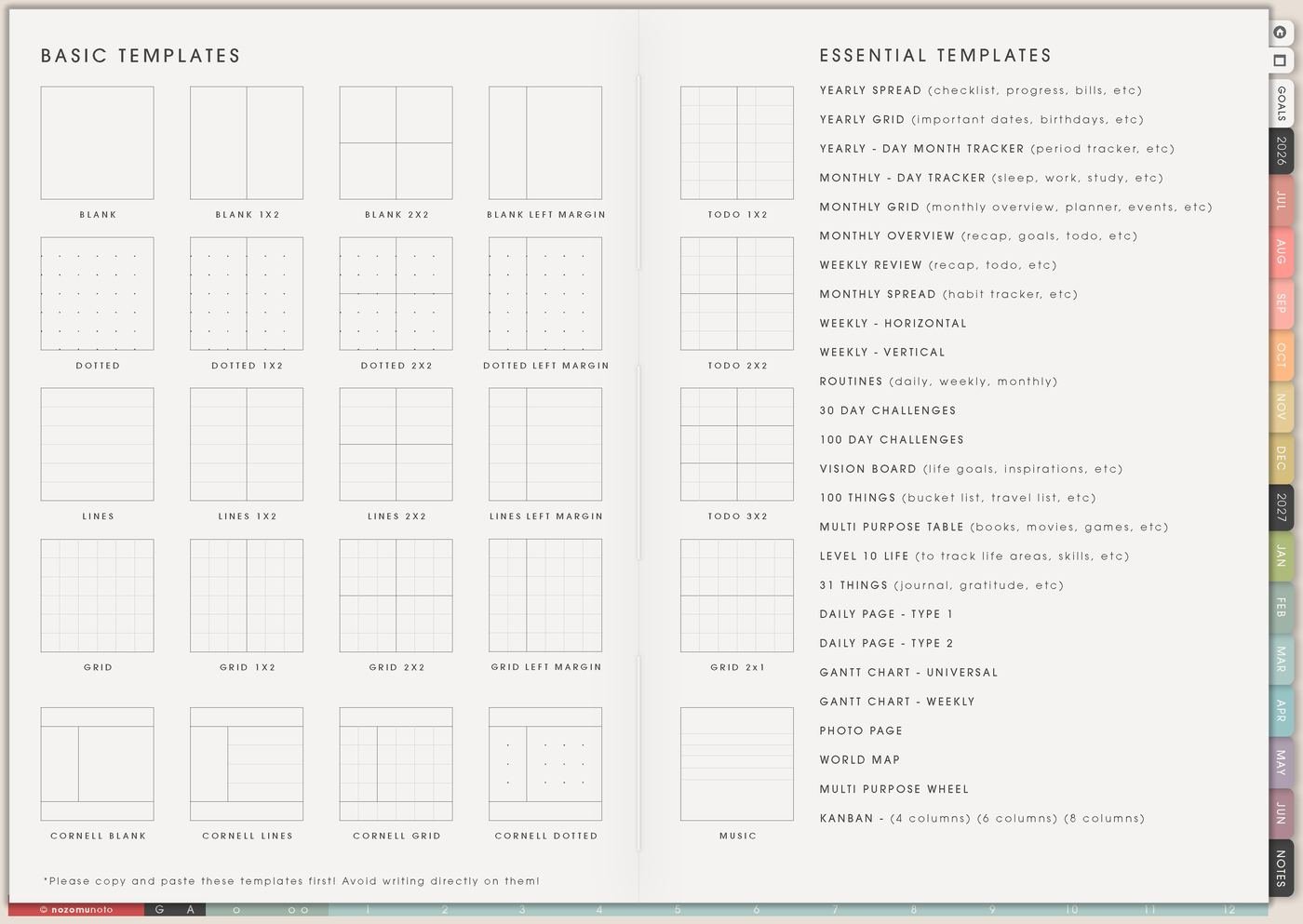
If your brain has twenty tasks, park the full list on Notes or a copied template page. Then move only the current actions to Weekly. The big list stays safe, and the current week stays readable.
This is especially helpful for ADHD planning because nothing feels lost, but the active page stays small enough to use.
6. Add extra pages only when they solve a real problem
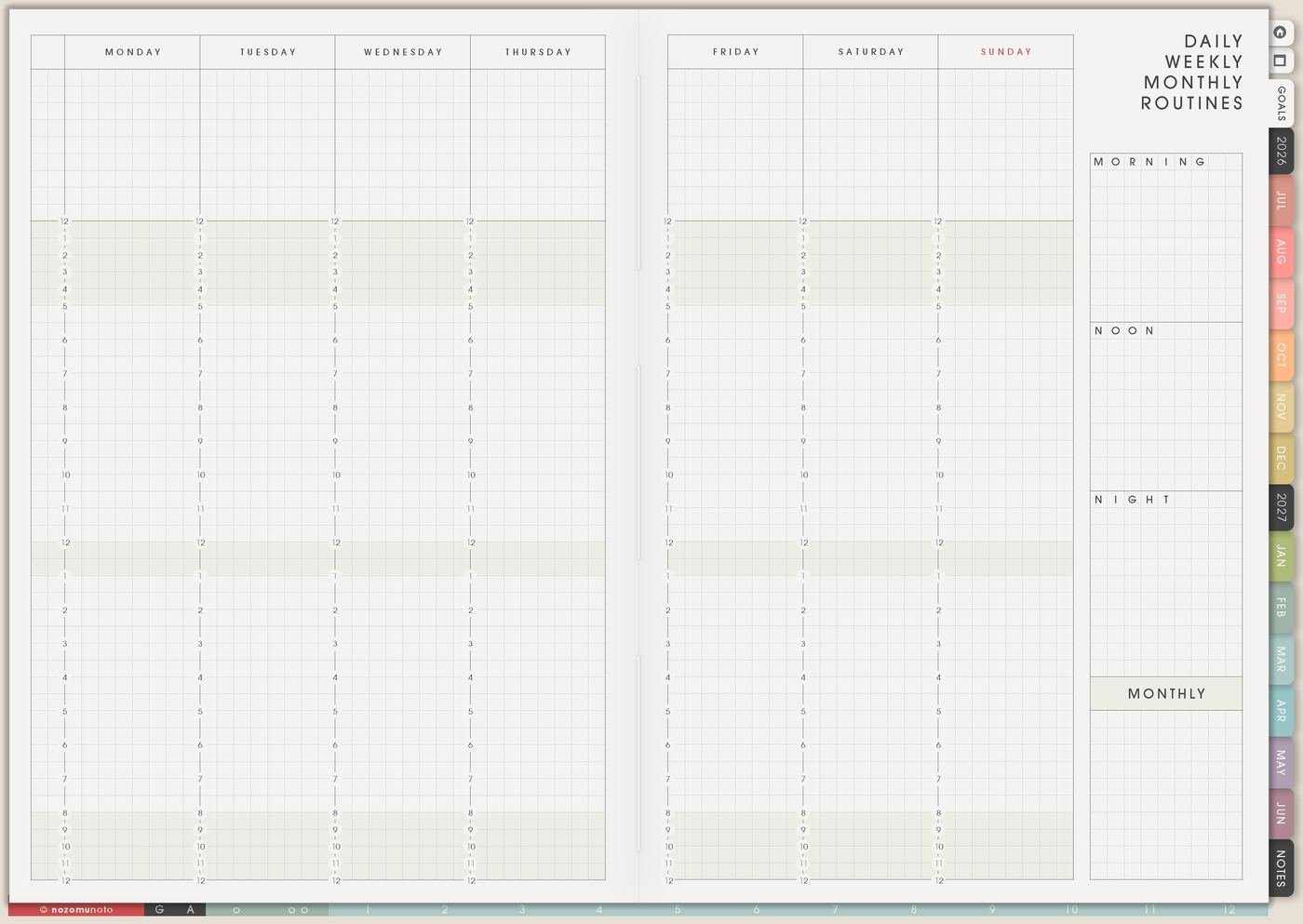
Add Goal Planner when a goal is too big for Weekly. Add Kanban when a project has stages. Add Routines when repeat tasks keep disappearing. Add a tracker when you need to notice a pattern. Pages are easiest to love when each one has a real job.
If app buttons, hyperlinks, import steps, or download steps feel confusing, use the Help Center for the exact app guide. Tips & Ideas helps everyone decide what to plan; the Help Center helps everyone tap the correct buttons.
7. Restart from today if you already missed pages
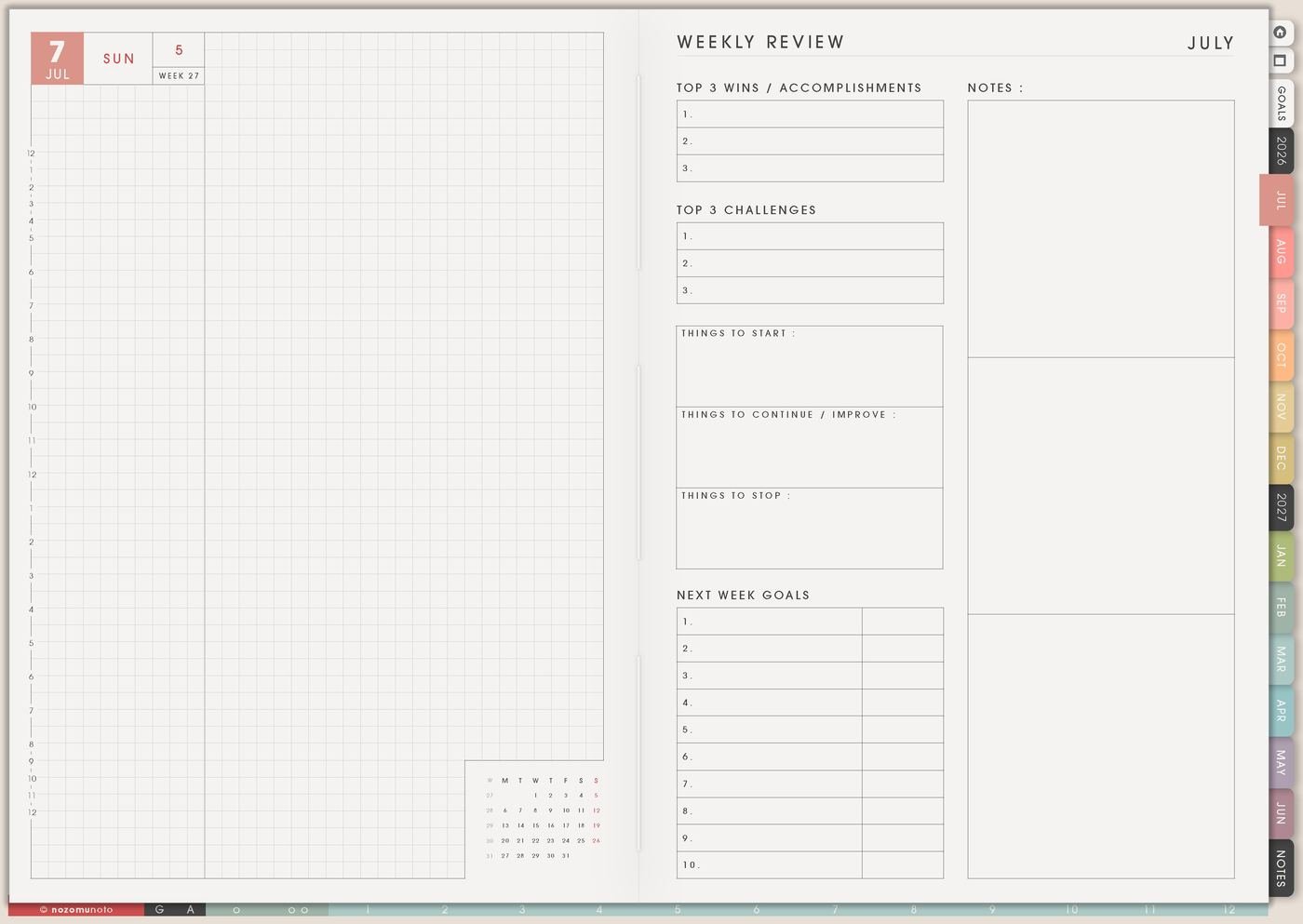
If you are starting late, begin with today, this week, and the next real deadline. Blank past pages are simply pages from before this setup existed.
A good restart line is: start from today. Write it on the current Weekly page, move only what still matters, and let old pages stay quiet. That is how a planner stays useful!
Set it up in ten minutes
- Bookmark Index. Make it the page you return to when you feel lost.
- Open the current Monthly page. Write three real dates or deadlines.
- Open the current Weekly page. Choose one weekly focus and three realistic actions.
- Open Today or a Daily page. Write one appointment, one must-do, one note, and one small care cue.
- Create one overflow Notes page. Put the long list there instead of stuffing Weekly.
- Leave optional pages closed. Add trackers, Life Planner, Kanban, and Template Pages when they solve a real problem.
- Choose tomorrow’s opening page. Before closing the app, decide where you will start next time.
What I usually use it for and how I use it
Problems you may have when starting Yume Techo
1. The planner feels huge
A dated digital planner can have many useful pages, but the first day gets overwhelming if everyone tours all of them at once.
You open Index, Life Planner, Template Pages, trackers, monthly pages, weekly pages, and notes, then forget why you opened the planner.
Use the four-page loop first: Index, Monthly, Weekly, Daily. Add extra pages only after the loop feels familiar.
2. Decorating happens before planning
Stickers and covers are fun, but the planner becomes useful faster when real dates and actions go in first.
The page looks beautiful, but tomorrow still has no appointment, deadline, or first action written down.
Write three real dates and one daily action before decorating. Then make it pretty if that helps you want to return.
3. Backfilling turns into homework
Trying to fill old pages can make a fresh planner feel late before it starts.
You bought the planner in August and feel like July pages need to be completed first.
Start from today. Use the current month and current week. Past blank pages can stay blank.
4. Weekly becomes a full brain dump
Weekly gets hard to use when it carries every idea, someday task, project note, and worry.
Weekly has errands, long-term dreams, home repairs, study notes, customer questions, and random reminders all together.
Move the long list to Notes. Put only current actions on Weekly.
5. Links or tabs need the right mode
Most PDF apps have a writing mode and a link or navigation mode, so hyperlinks may need the right tool selected.
You tap a month tab but draw a mark instead of moving to that month.
Open the Help Center and choose your app guide. Follow the exact button names for reading mode, navigation mode, or hyperlink mode.
6. Too many trackers start at once
Trackers are useful when they answer a question, but too many new trackers can feel like extra homework.
You start habit, mood, sleep, fitness, finance, reading, and meal trackers on the first day, then avoid all of them.
Choose one tracker only when a real question appears. Use Monthly or Weekly first.
7. The planner disappears for a few days
A new routine can disappear when life gets busy, especially during work, school, parenting, health, or low-energy seasons.
You forget the planner for three days and feel tempted to restart the whole setup.
Return to Index, open the current Weekly page, move only the still-relevant tasks, and write one tiny action for today.
When you need setup help
This starter setup works well with Index, Monthly, Weekly, Daily, Notes, Template Pages, Routines, Weekly Review, and the NozomuNoto Help Center. If you need exact download steps, app import steps, hyperlink mode, page duplicate steps, or sticker/image import steps, open the NozomuNoto Help Center and choose your app or device.
Final thought
I hope this helps you choose one small next step! Start Yume Techo by making one small loop that works in real life. Find the map, write real dates, choose this week, use today, and let every extra page earn its place later!