
This digital student planner setup is for classes, assignments, exams, readings, group projects, study blocks, and catch-up weeks. I use Yume Techo as a school map: big dates stay visible, class details get their own home, and this week’s real next action goes on Weekly or Daily.
The main goal is to stop school from living in five places at once: syllabus, email, class portal, chat, notebook, and memory. A good student planner should show what is due, what stage each assignment is in, and what tiny step needs attention next.
Digital student planner setup
1. Map the semester before planning the week
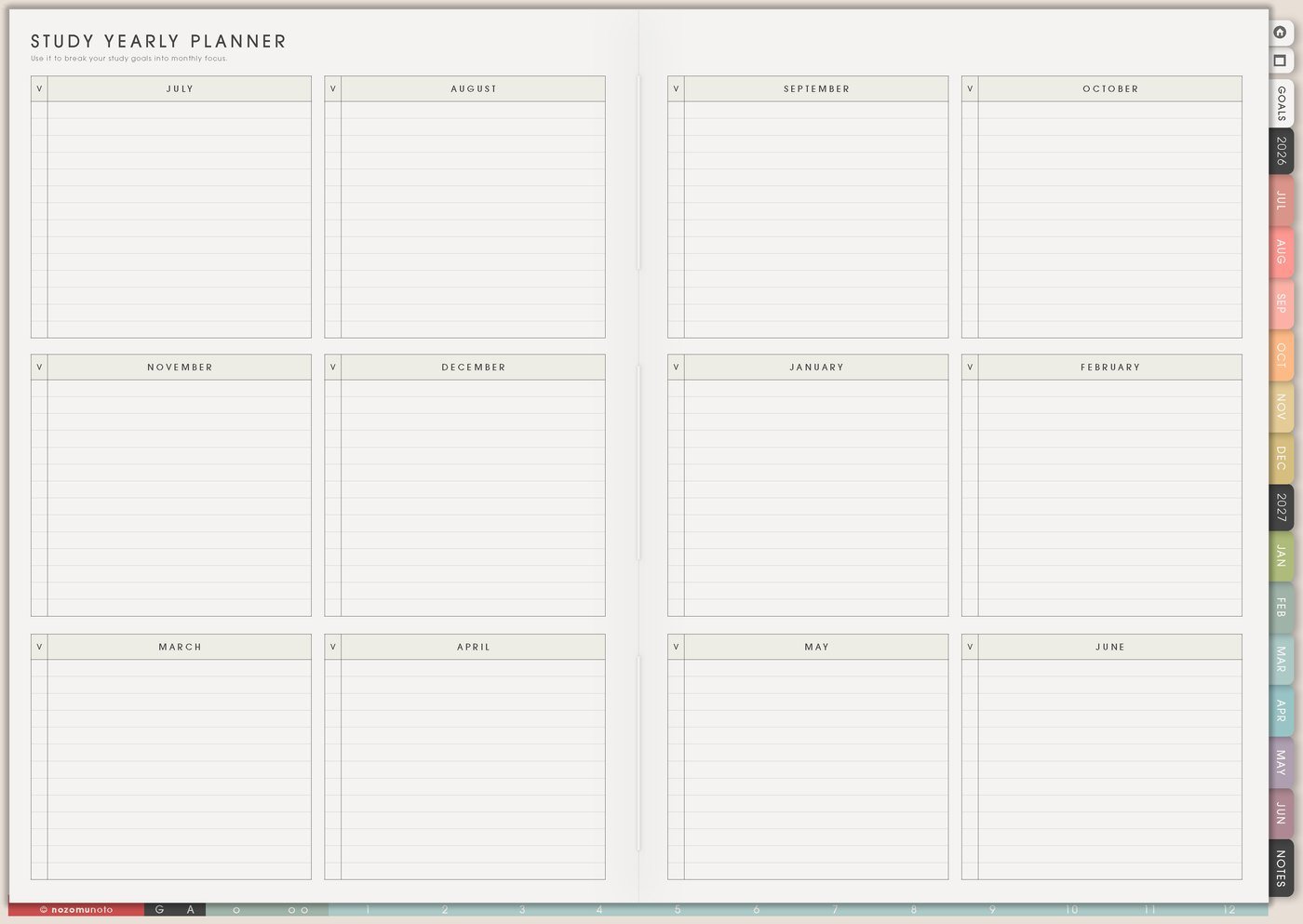
Start with Study Yearly Planner because school has seasons. Add term starts, school breaks, exam weeks, registration dates, scholarship dates, internship applications, presentation weeks, and big project deadlines.
For example, if finals are in the second week of December and a research paper is due the week before, I mark both early. Then November can hold reading, source collecting, outline time, and draft time instead of pretending December can carry everything.
2. Build a weekly study rhythm
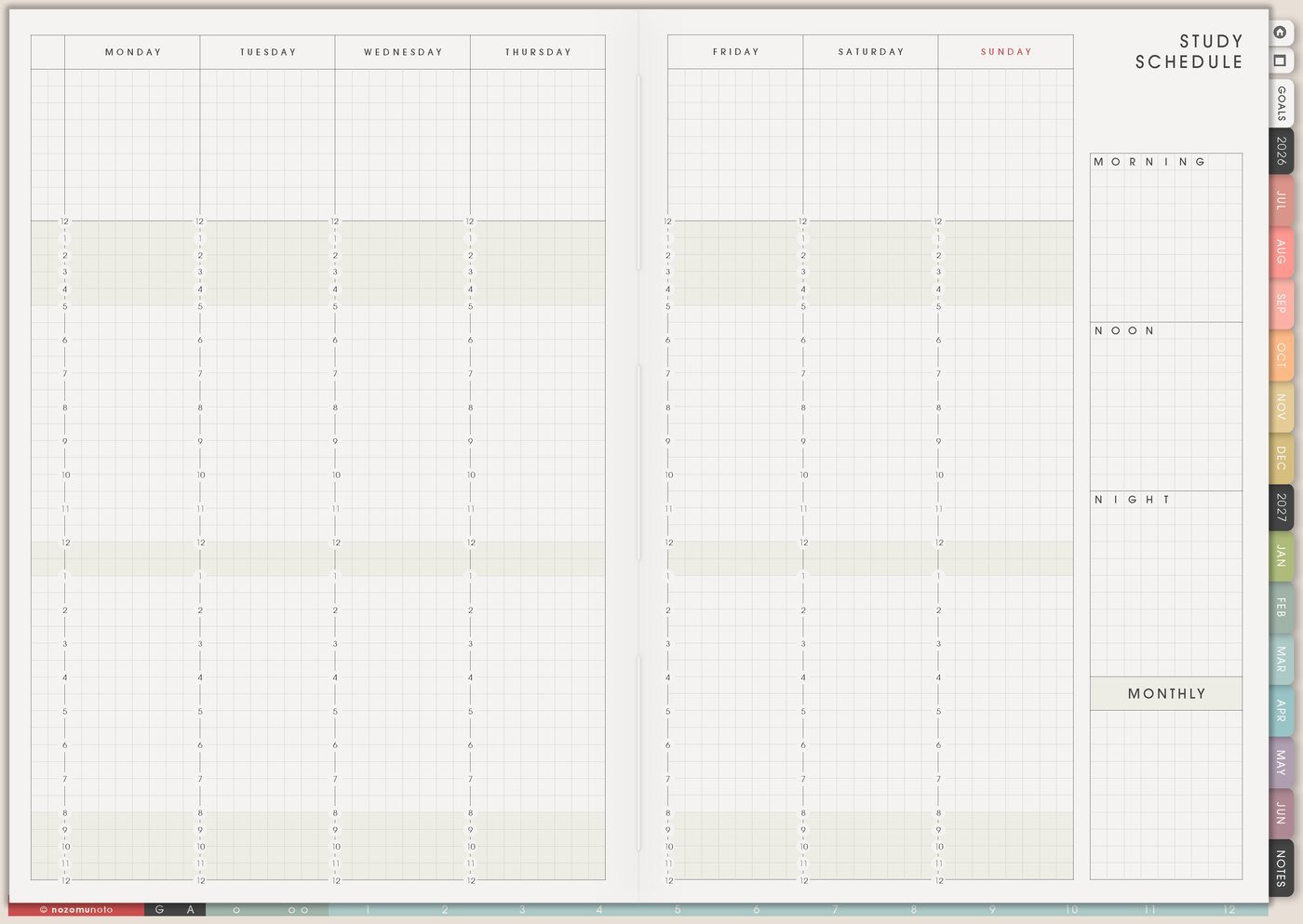
Use Study Schedule for the repeating shape of the week. Add class time, commute, work shifts, meals, rest, club activities, tutoring, office hours, and realistic study windows. Then name each block with an action: lecture review, reading, flashcards, practice questions, lab prep, language practice, essay drafting, or group project check-in.
The goal is a week that matches real life. If Tuesday already has class, commute, and work, Tuesday can be a lighter review day. Save deeper work for the day with more room. For page-specific examples, open Study Schedule page ideas.
3. Track assignments by stage, not only by due date
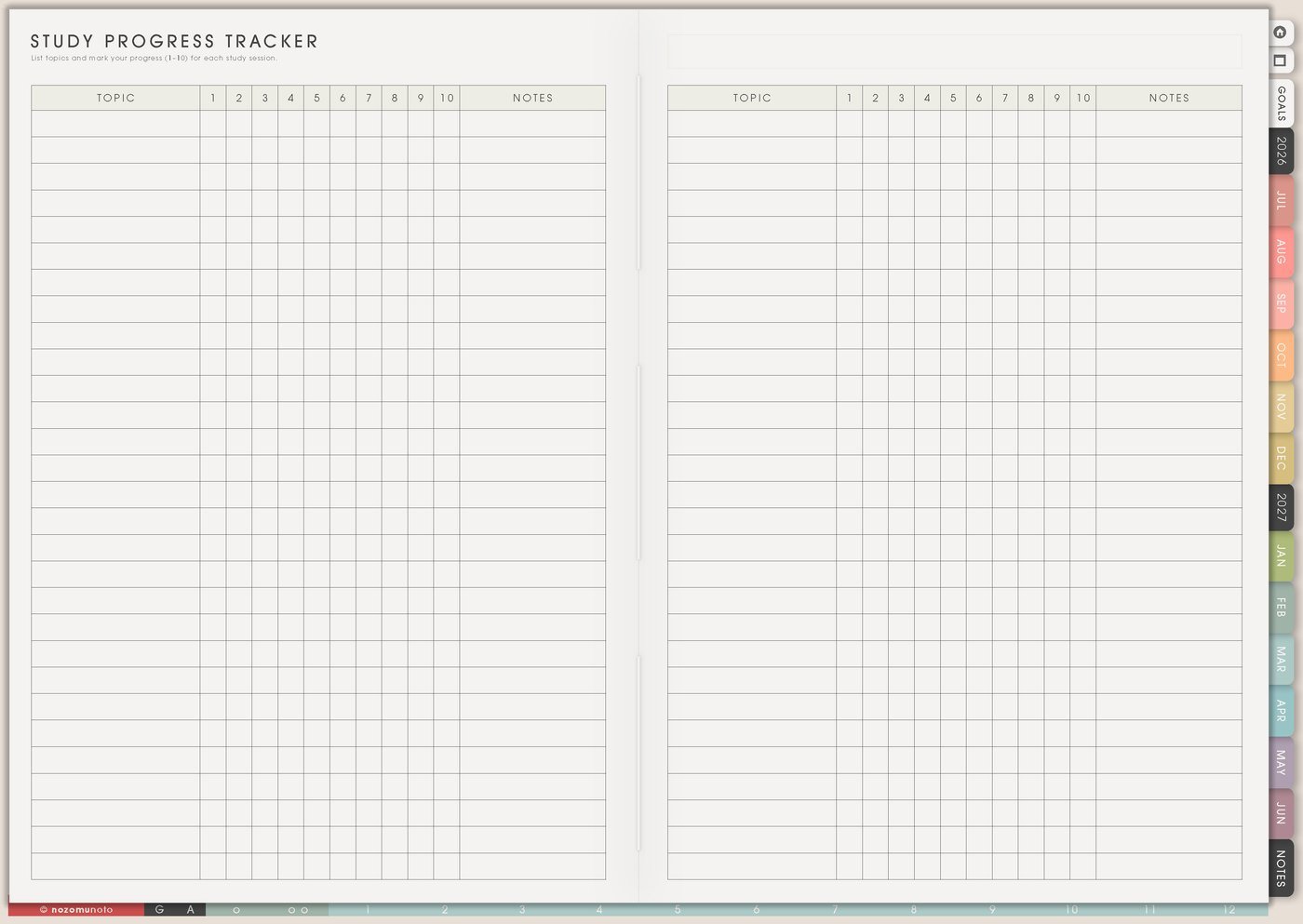
Use Study Progress Tracker when an assignment has a middle, because the middle is where most stress hides. Instead of writing only the final due date, break the work into stages: choose topic, collect sources, outline, draft, revise, format, submit, and confirm upload.
For a group project, add owner, next step, and waiting item. For an exam, use the same page like a study path: collect notes, review chapter 1, make flashcards, answer practice questions, review weak topics, and pack what you need for exam day. The detailed guide is Study Progress Tracker page ideas.
4. Give each class one home page
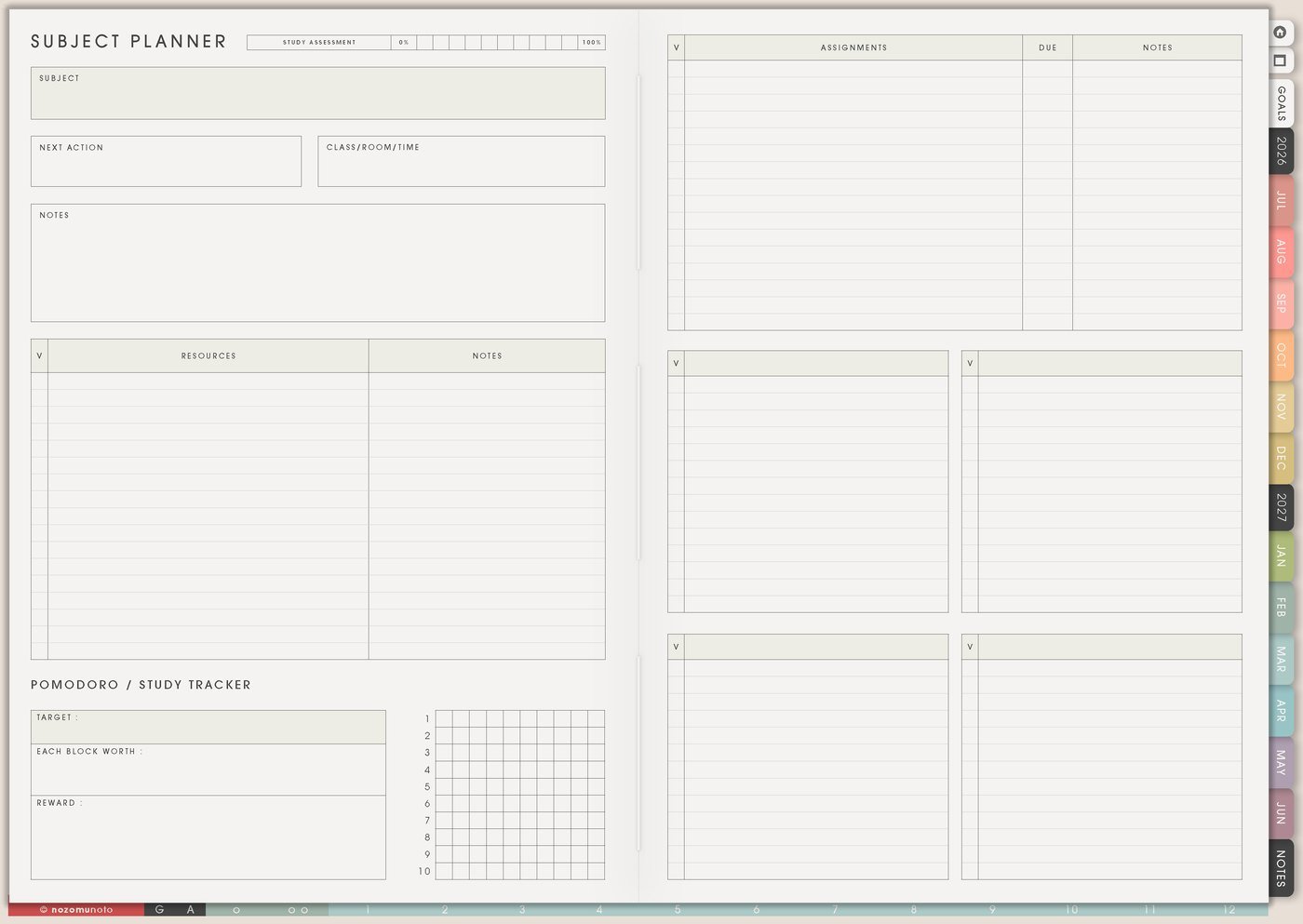
Use Subject Planner when one class has too many details for the weekly page. Keep the subject name, teacher or lecturer, class time, room or meeting link, grading notes, textbook chapters, recurring assignments, exam style, and questions to ask.
This helps when one professor posts in email, another uses a portal, and another mentions changes during lecture. The subject page can hold the class memory while Weekly only holds what needs action now. For a deeper setup, use Subject Planner page ideas.
5. Keep links and class materials off the weekly page
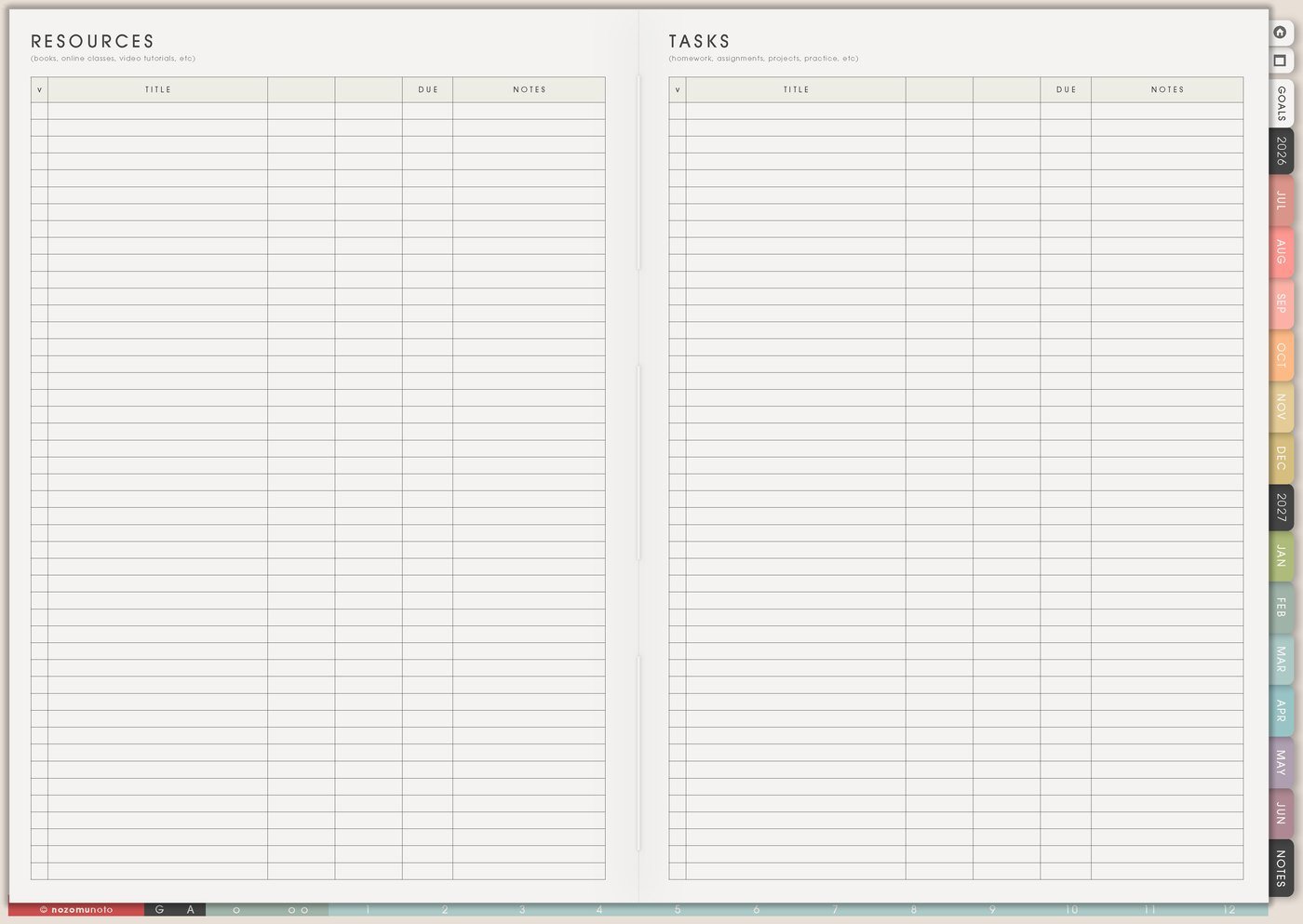
Resources / Tasks is where school clutter can live without crowding the weekly plan. Keep rubric links, reading PDFs, citation links, teacher notes, office-hour questions, class portal links, lab instructions, group chat follow-ups, files to download, and forms to submit.
At the start of the week, pull only the needed action from this page. A resource library is useful; a weekly page full of links is hard to read. If the link matters this week, write the action on Weekly, like open rubric, download article, ask teacher, or submit form. The matching article is Resources / Tasks page ideas.
6. Let Weekly and Daily carry only the next action
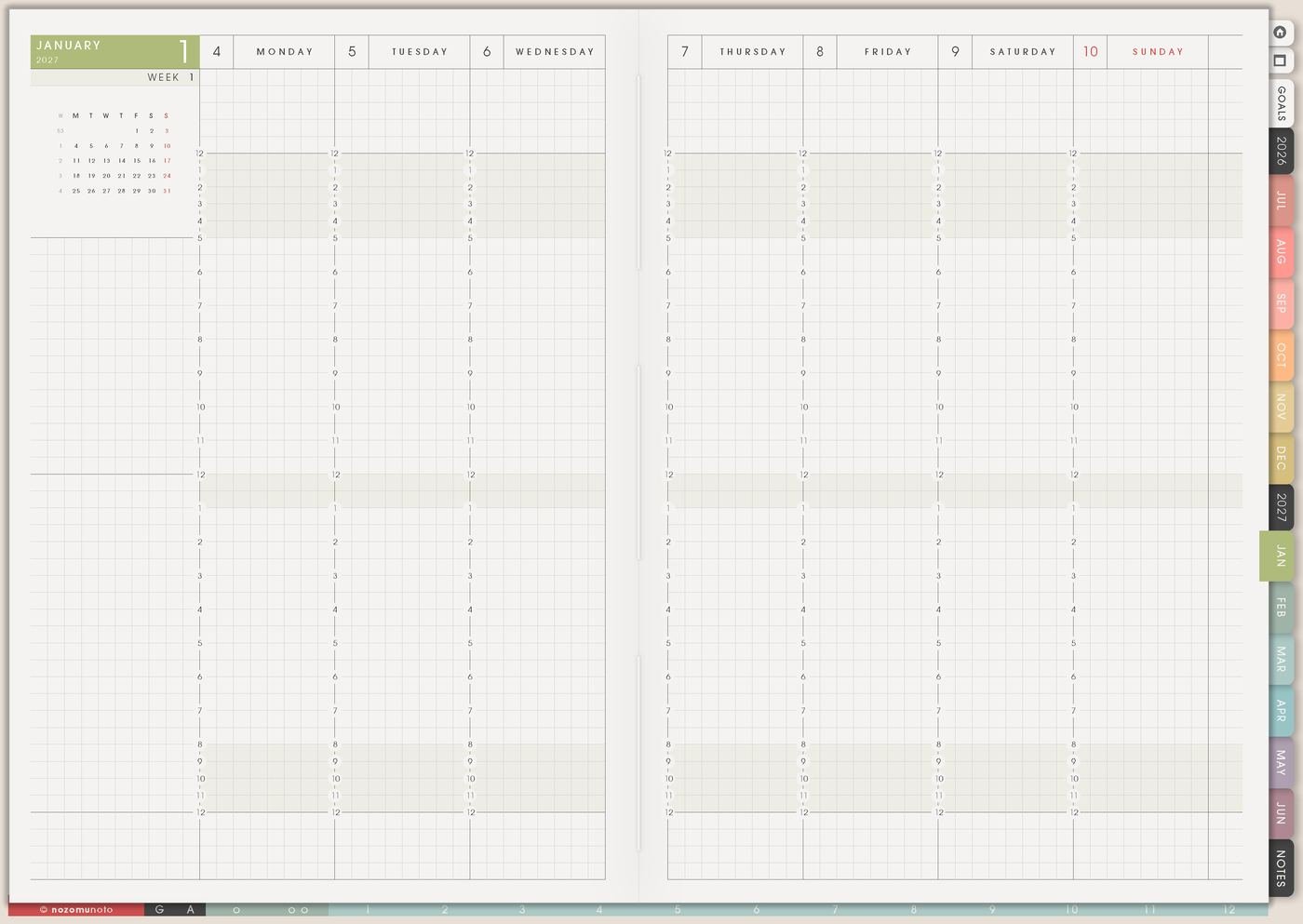
Weekly is the decision page. Choose the school actions that fit this week. Daily is the starting page. Write the smallest version you can begin today: open chapter 3 notes, solve five questions, revise the introduction, email the group member, print the worksheet, pack calculator, or upload the final file.
This keeps the full semester from landing on one daily page. The big map stays big, the class details stay with the class, and today stays small enough to start.
7. Use Weekly Review for catch-up weeks
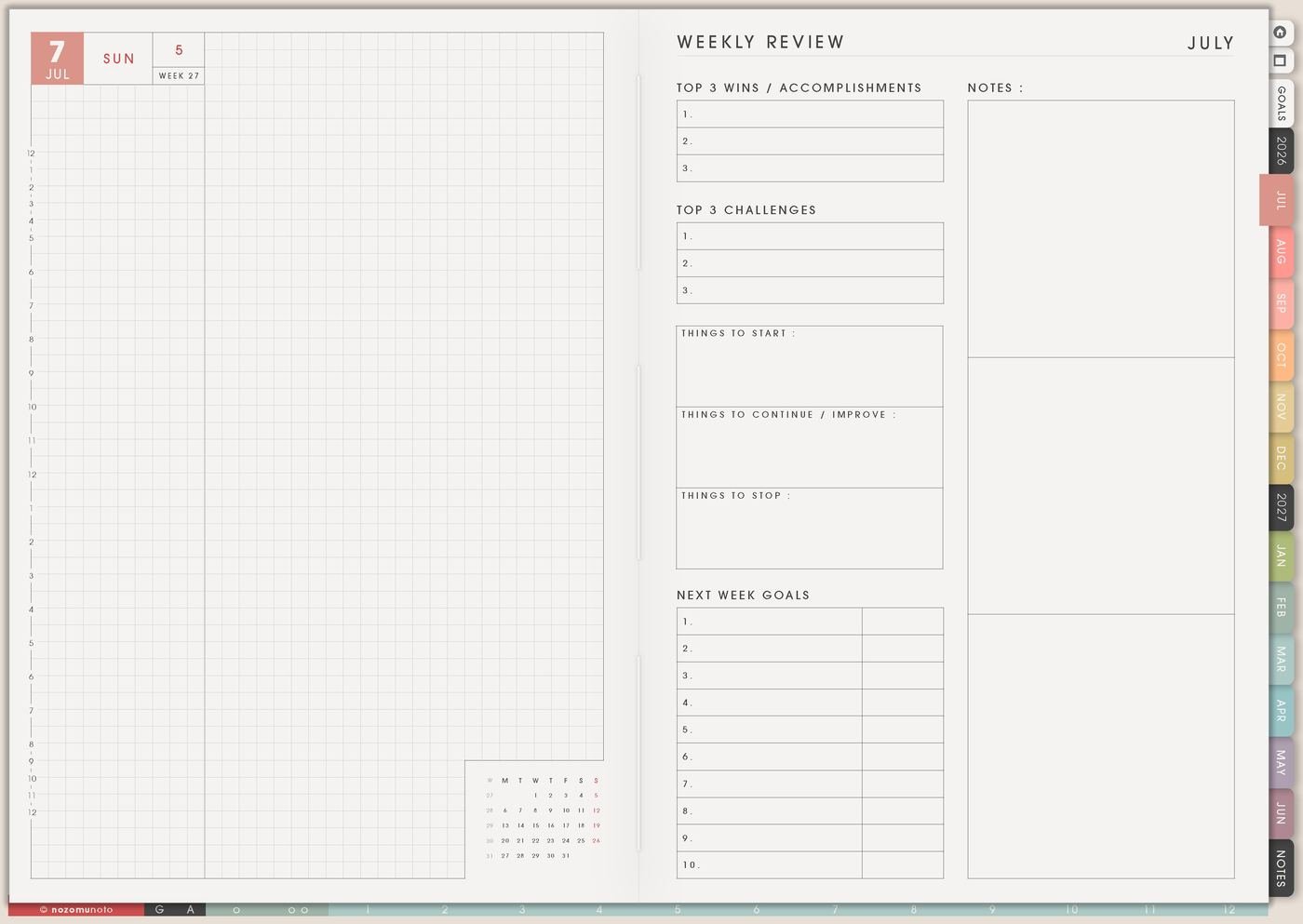
Use Weekly Review as a recovery page. Write what still matters, what expired, what can be dropped, what is waiting on someone else, and the first rescue action. If everything feels urgent, choose the task with the closest real consequence or the task that unlocks other work.
Skip the full-evening backfill and restart from the current week instead. A useful student planner helps everyone come back quickly.
Set it up in ten minutes
- Choose one real class first. Let one class prove the setup before adding every subject.
- Write the big dates. Put term dates, exam weeks, and major project deadlines on Study Yearly Planner.
- Add the weekly rhythm. Put classes, commute, work, rest, and study windows on Study Schedule.
- Break one assignment into stages. Use Study Progress Tracker for the middle steps.
- Create one Subject Planner. Give the messiest class a home for details and links.
- Move one action to Weekly. Keep Weekly focused on what can move this week.
- Choose today’s tiny start. Put the smallest physical action on Daily.
What I usually use it for and how I use it
Tips for keeping the student planner usable
- Write the middle steps, not only the deadline. An essay needs topic, sources, outline, draft, revise, format, submit, and confirm upload. Weekly only needs the next step.
- Make the schedule match real energy. Add commute, meals, work, family, club time, and tired evenings before adding study blocks.
- Give class details one home. Put syllabus notes, links, grading notes, recurring tasks, and teacher questions on Subject Planner or Resources / Tasks.
- Separate urgent from noisy. If every class feels urgent, choose by due date, consequence, and which task unlocks the next task.
- Restart from the current week. If the planner has blank days, open Weekly Review, write what still matters, then choose one rescue action.
- Name study blocks with action verbs. Write review chapter 3 notes, solve five practice questions, outline paragraph one, or make ten flashcards.
When you need setup help
For the planner workflow, keep Study Yearly Planner for the semester map, Study Schedule for the weekly rhythm, Study Progress Tracker for assignment stages, Subject Planner for class details, and Resources / Tasks for links. If the question is how to import the PDF, tap hyperlinks, duplicate a study page, or add images in your app, use the NozomuNoto Help Center for the button-by-button steps.
Final thought
For school, let Yume Techo hold the big map and the tiny next step at the same time. Put semester dates where you can see them, keep class details with the class, and make the current week small enough to start. I hope this setup helps your student planner feel like a clear desk, not another homework pile!