
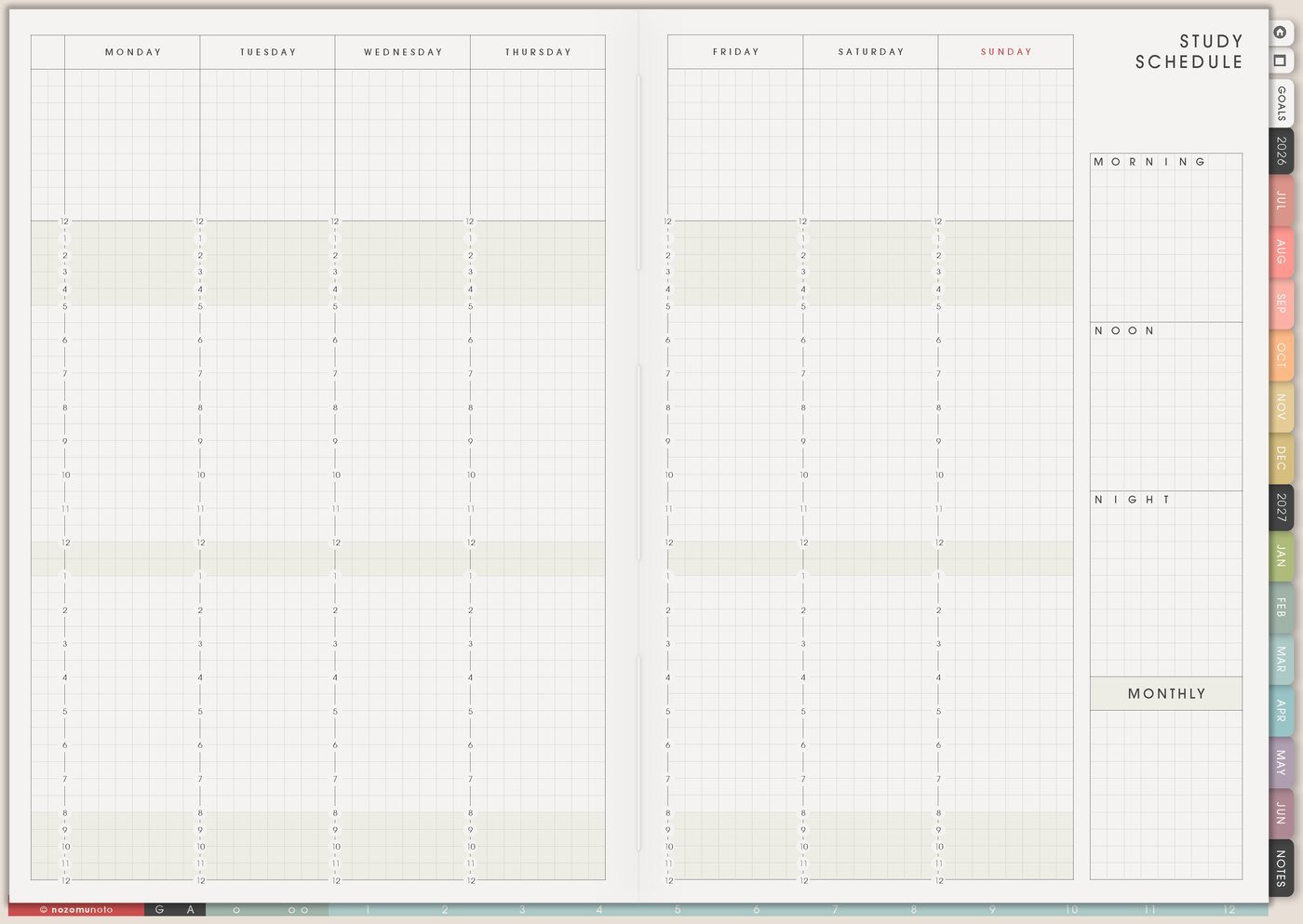
This digital teacher planner setup is for lessons, grading, meetings, student follow-ups, class resources, prep periods, classroom memories, and the life that still needs to happen after school. I use Yume Techo to keep teaching details out of one giant weekly list: the rhythm goes on Study Schedule, class memory goes on Subject Planner, materials go on Resources / Tasks, and this week’s real actions go on Weekly.
The goal is a teacher planner that can be opened on a full school day without making the week heavier. This article shows how I separate lesson flow, grading batches, follow-ups, materials, routines, and weekly review so the planner stays useful during real teaching weeks.
Use case ideas for a teacher planner
1. Map the class week before it fills up
Use Study Schedule for the repeating rhythm of school: class periods, planning blocks, duty, tutoring, office hours, meetings, grading windows, commute, pickup time, and the quiet work that never happens if it is not protected.
For example, if Tuesday has back-to-back classes and a staff meeting, give Tuesday a small prep block and put deeper grading on the day with more space. A teacher schedule should show capacity, not a fantasy week. For page-specific examples, open Study Schedule page ideas.
2. Give each class its own home base
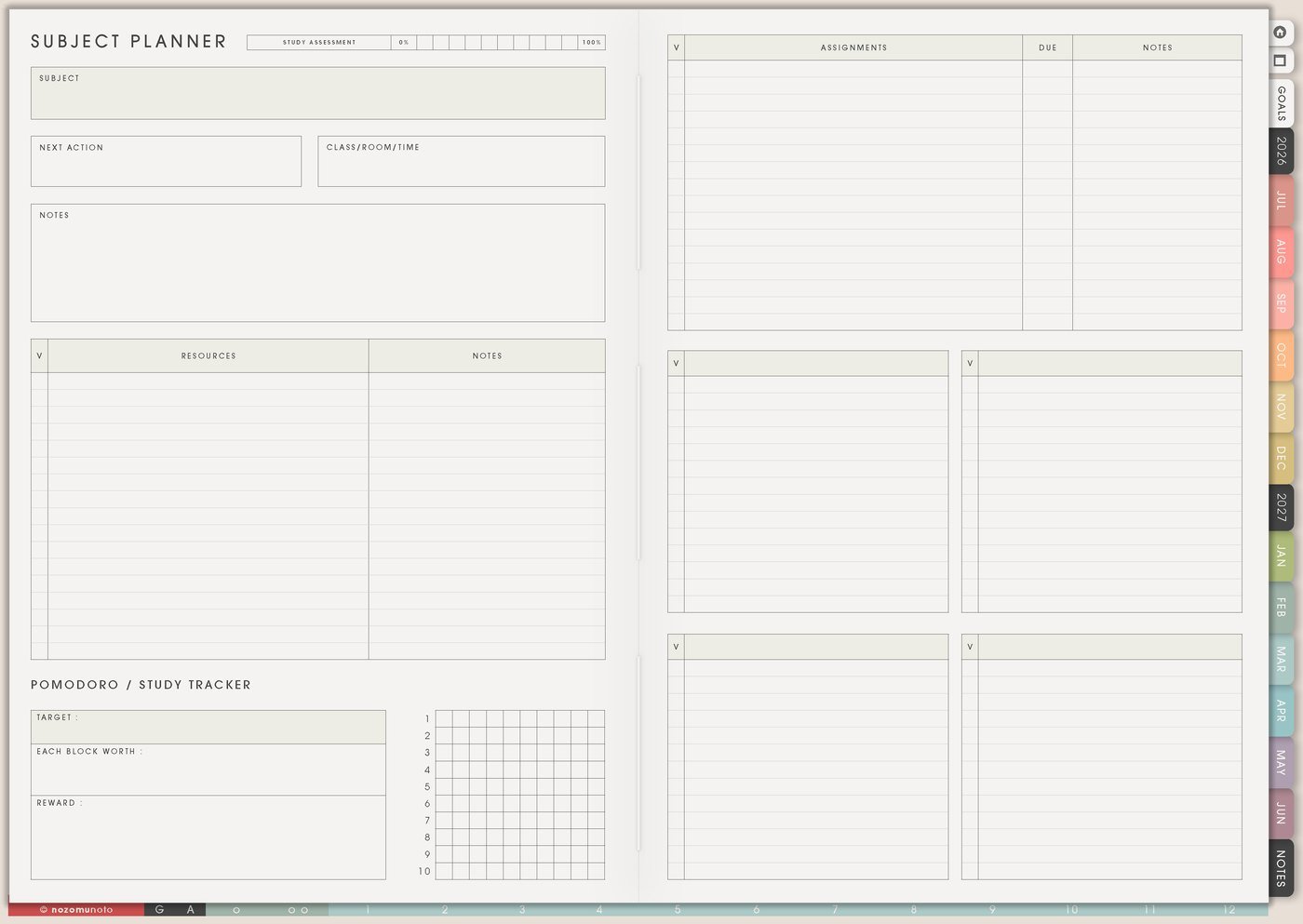
Use Subject Planner for each class, course, grade level, or student group. Keep the unit arc, lesson sequence, assessment dates, standards, key links, recurring reminders, class notes, and the things you want to remember before teaching that group again.
This is helpful when classes move at different speeds. Period 1 may need review, Period 3 may be ready for the next lesson, and one small group may need a different resource. Weekly should not carry all of that detail. The matching guide is Subject Planner page ideas.
3. Keep lesson materials off the weekly page
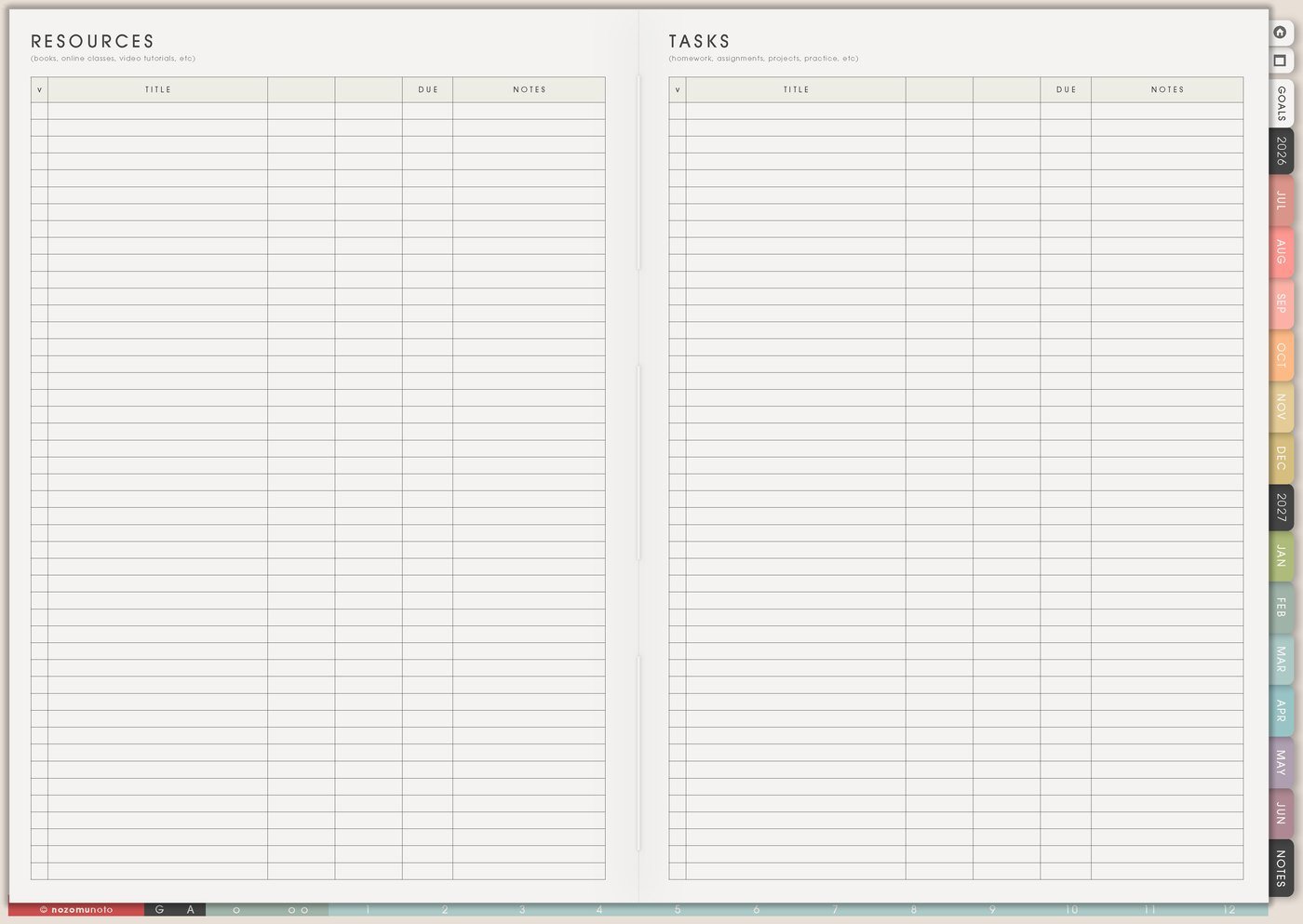
Use Resources / Tasks for links, slides, printables, videos, supply lists, rubrics, copies to make, files to upload, parent notes, accommodation reminders, and follow-up questions. This page is the storage shelf, not the daily plan.
At the start of the week, pull only the action into Weekly: print lab sheet, upload chapter slides, email parent, prepare exit ticket, check accommodation reminder, copy quiz, or ask office about a field trip form. For more examples, use Resources / Tasks page ideas.
4. Turn grading into small named batches
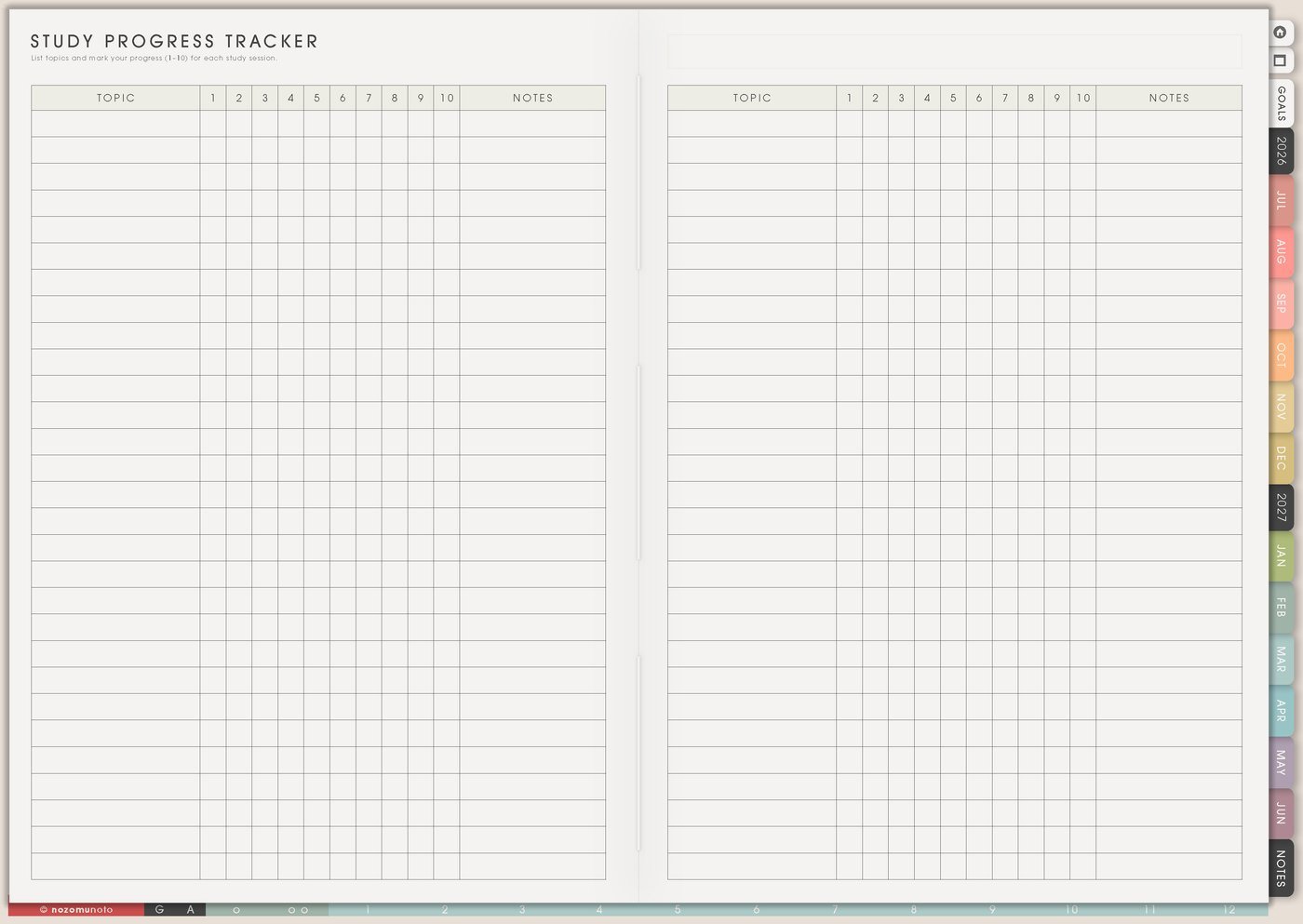
Grading feels endless when the task says only grade. On Weekly, name the batch and the finish line: grade Period 2 exit tickets, enter quiz scores, return 10 essays, update missing-work list, check late submissions, or leave voice notes for three projects.
Small named batches are easier to start because your brain can see the edge of the task. If a full stack is too much, write the minimum batch: five papers, one class set, one rubric section, or twenty minutes with a timer.
5. Keep student follow-ups visible after class
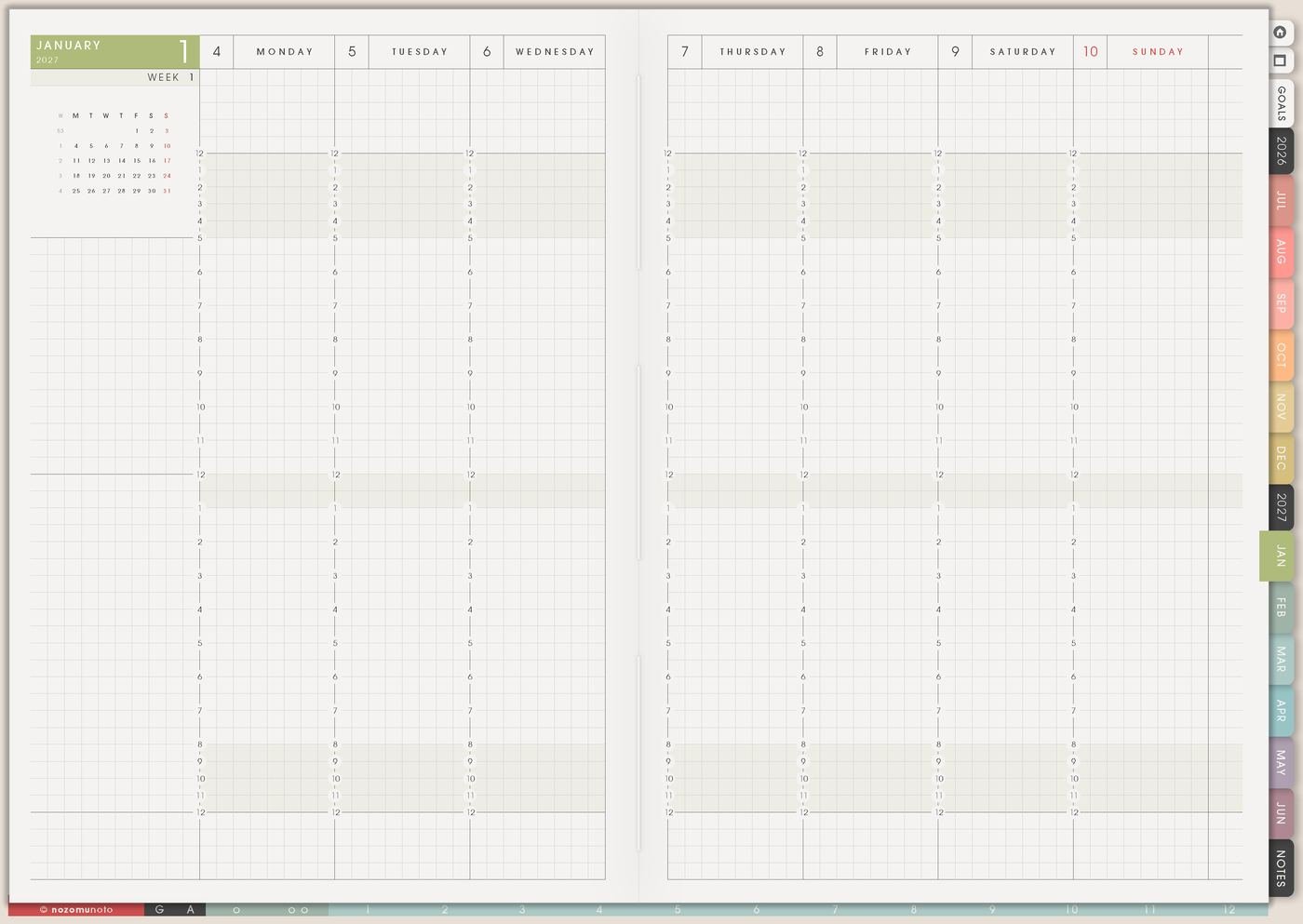
Student follow-ups disappear easily because they happen between everything else. Keep a simple follow-up list for absent students, missing work, parent replies, accommodation checks, tutoring invites, school-system reminders, supplies to replace, and students who need encouragement.
Use short labels so the list stays fast: ask, email, print, check, reply, document, remind, celebrate. Then move only the urgent follow-ups to Weekly so the follow-ups stay out of lesson notes.
6. Build repeat routines for classroom admin
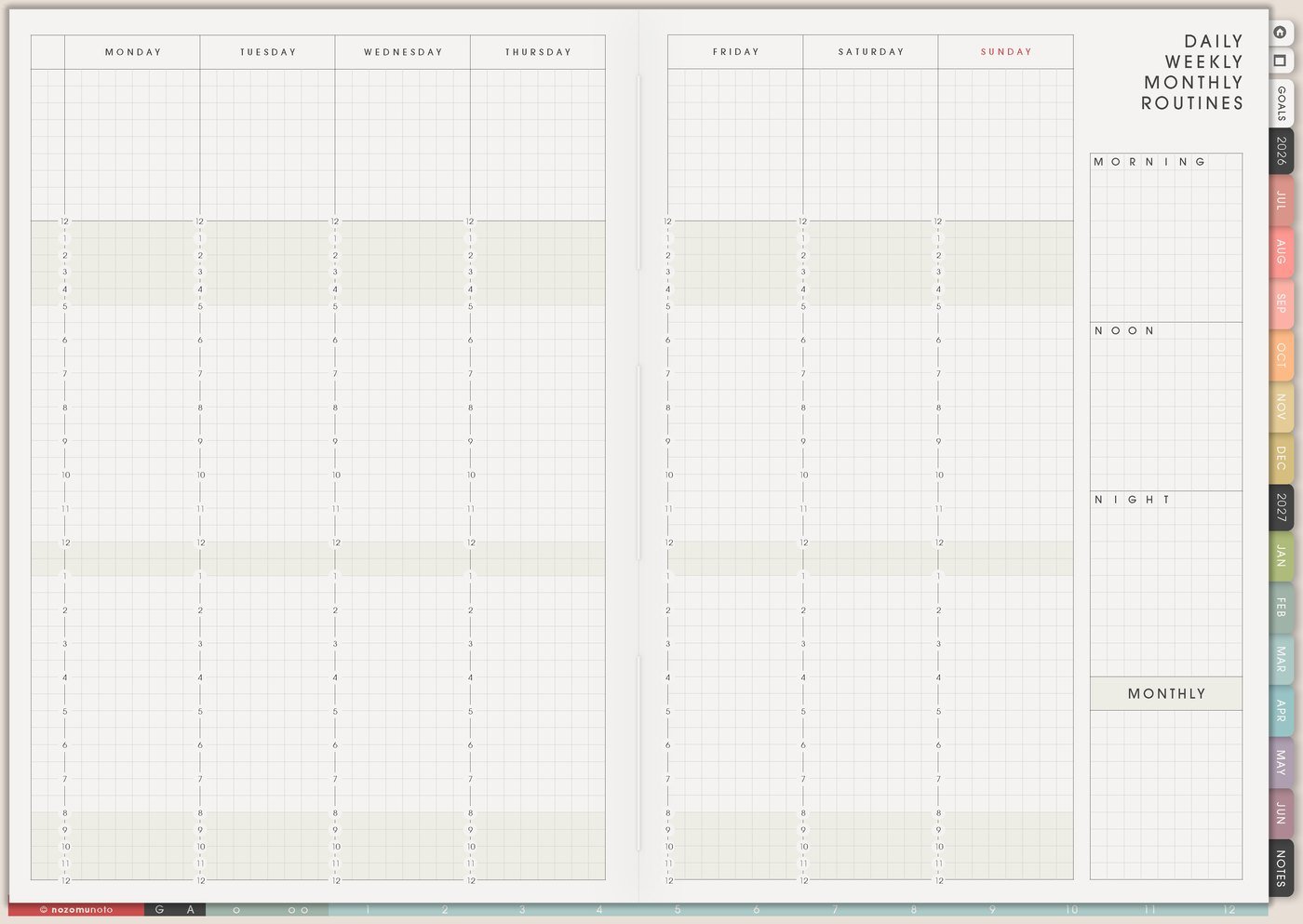
Use Daily Weekly Monthly Routines for repeat teacher admin: Friday copies, Monday attendance cleanup, weekly grade entry, monthly supply check, parent-message window, lesson upload, classroom reset, and file backup.
Routine pages help when the same tasks return every week but still feel surprising. Write the full version and the minimum version so the routine can survive busy school days. For page-specific setup ideas, open Daily Weekly Monthly Routines page ideas.
7. Close the week with one classroom memory
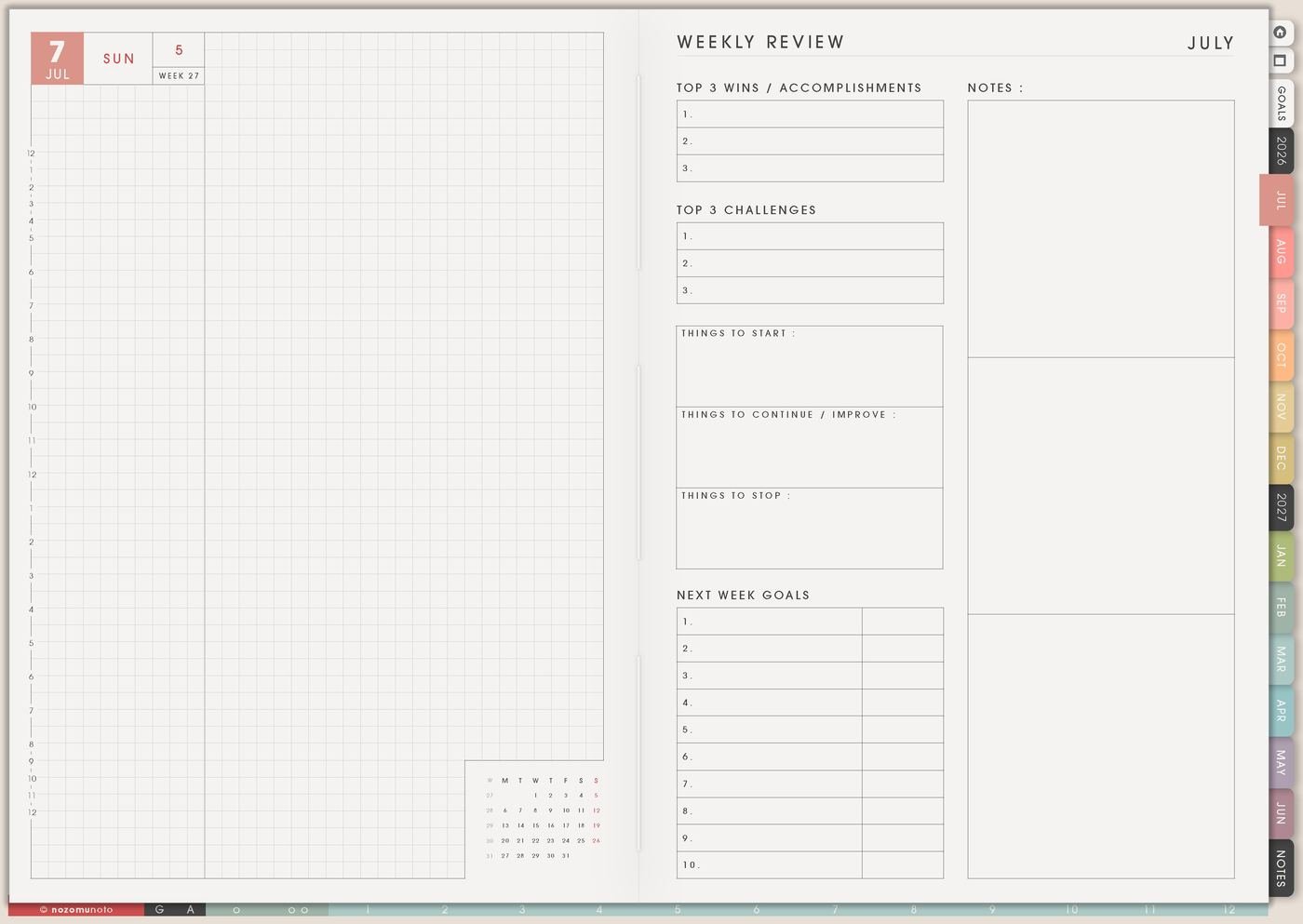
Use Weekly Review to write what worked, what confused students, what needs reteaching, what can wait, and one classroom moment worth remembering. It can be a funny answer, a better explanation you found, a student win, or a note that next week needs more breathing room.
This turns review into teaching memory. You are not only cleaning up tasks; you are learning what the class needs next.
Set it up in ten minutes
- Write the fixed teaching rhythm. Put classes, prep periods, meetings, duty, commute, and recovery space on Study Schedule.
- Choose one class home base. Create one Subject Planner for the class or group with the most moving parts.
- Move materials to Resources / Tasks. Put links, printables, rubrics, supplies, and upload tasks there.
- Name one grading batch. Choose a finish line small enough to start this week.
- Write three follow-ups. Use short verbs like email, print, ask, check, remind, or celebrate.
- Pick one repeat routine. Add one weekly admin task to Daily Weekly Monthly Routines.
- Review one classroom memory. End the week with one thing to repeat, reteach, or remember.
What I usually use it for and how I use it
Tips for keeping a teacher planner usable
- Keep Weekly light. Use Weekly for tomorrow’s flow, prep that must happen, grading blocks, and urgent follow-ups. Put full lesson notes on Subject Planner or copied Notes pages.
- Name the grading batch. Write grade 10 introductions, enter Period 2 scores, return exit tickets, check late submissions, or comment on one rubric section. A named batch is easier to start than a giant grade task.
- Use action verbs for follow-ups. Write email, print, ask, document, remind, check, or celebrate so the next move is visible between classes.
- Protect teacher energy. Put light admin after heavy teaching days and deeper planning on days with more room. The schedule should respect your real body and voice.
- Make Resources / Tasks the material shelf. Store links, rubrics, slides, printables, supply notes, and upload tasks there. Weekly only needs the action for this week.
- Sort student follow-ups by timing. Use today, this week, waiting, and later. Put only today and this week on Weekly so the whole care list stays readable.
- Review one classroom memory. Add one student win, funny answer, better explanation, or reteaching note so Weekly Review is more than unfinished tasks.
When you need setup help
For the teaching workflow, let Study Schedule show the fixed school rhythm, Subject Planner hold each class story, Resources / Tasks store materials and follow-ups, and Weekly show only the prep and grading blocks that need attention soon. If the difficulty is app control, such as importing the planner, opening hyperlinks, copying a notes page, or adding classroom images, use the NozomuNoto Help Center for exact app steps.
Final thought
A teacher planner feels lighter when each page has one job. Study Schedule shows the rhythm, Subject Planner remembers the class, Resources / Tasks catches materials, and Weekly shows the few actions that need attention soon. I hope this setup helps tomorrow's lesson feel easier because today's notes finally have somewhere to land!