
This digital family planner setup is for appointments, school dates, meals, groceries, bills, routines, forms, refills, gifts, memories, and all the tiny household details that can turn into mental tabs. I use Yume Techo to separate fixed dates, repeating rhythms, food decisions, loose admin, and the few actions that need attention now.
The goal is to give each type of family information a clear home. Monthly shows the fixed dates, Family Schedule shows the repeating rhythm, food pages answer dinner and grocery questions, Resources / Tasks catches loose admin reminders, and Weekly carries only the next few actions.
Use case ideas for a mom and family planner
1. Put fixed family dates on Monthly
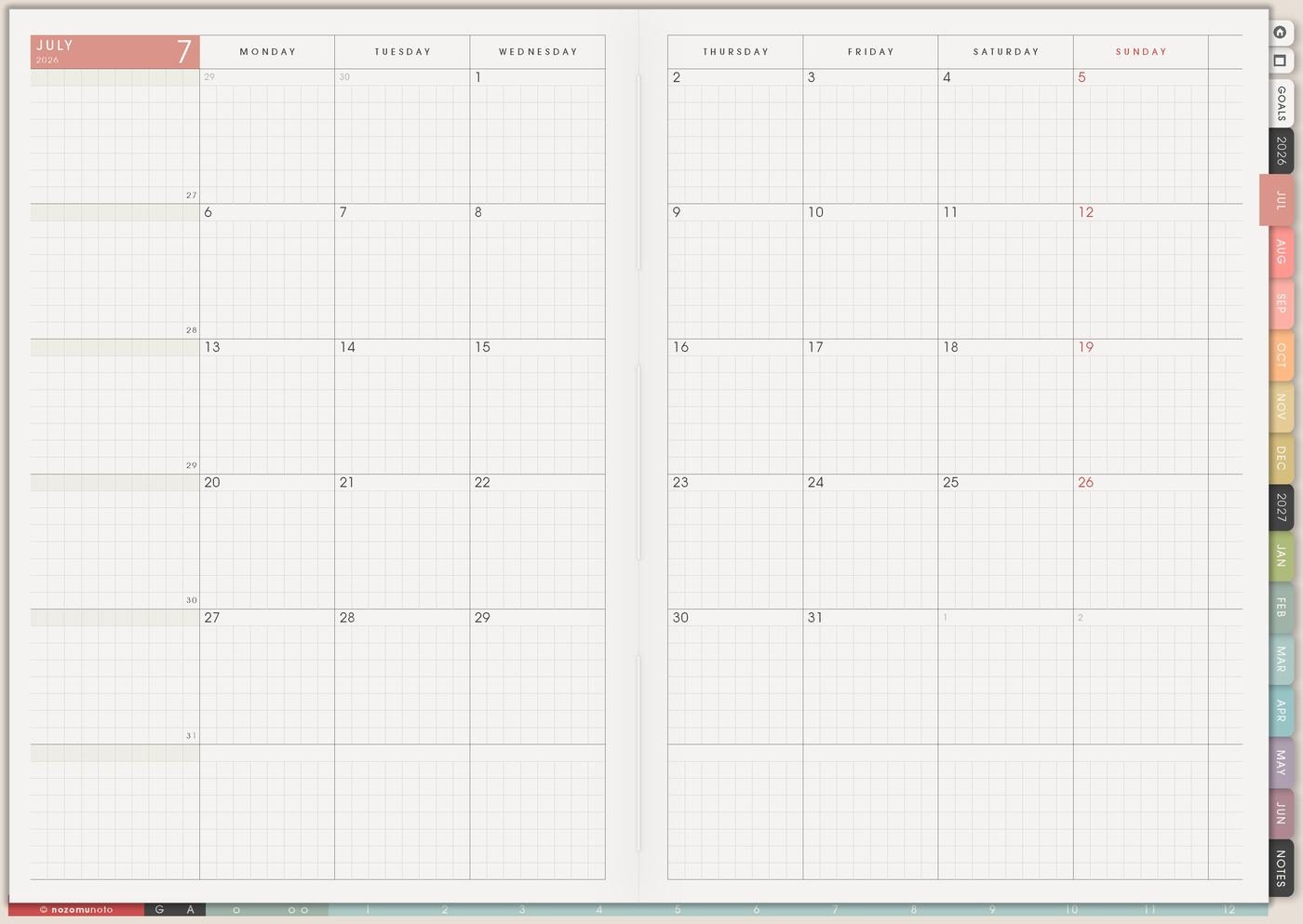
Use Monthly for dates that affect the whole family: school events, appointments, birthdays, activity days, bills, trips, medicine refills, library due dates, school forms, dentist visits, holidays, subscription renewals, and anything that gets stressful when it appears too late.
Keep this page easy to scan. Monthly should show what is coming, not every chore in the house. When a date needs preparation, write the date on Monthly and move the preparation step to Weekly. For more examples, open Monthly page ideas.
- Monthly: school concert Friday, bill due Monday, medicine refill June 20, birthday party Saturday.
- Weekly: wash concert outfit, pay bill, call pharmacy, buy birthday gift, pack snack bag.
- Daily: the one action that must happen today, like sign form or put gift in car.
2. Make Family Schedule the logistics map
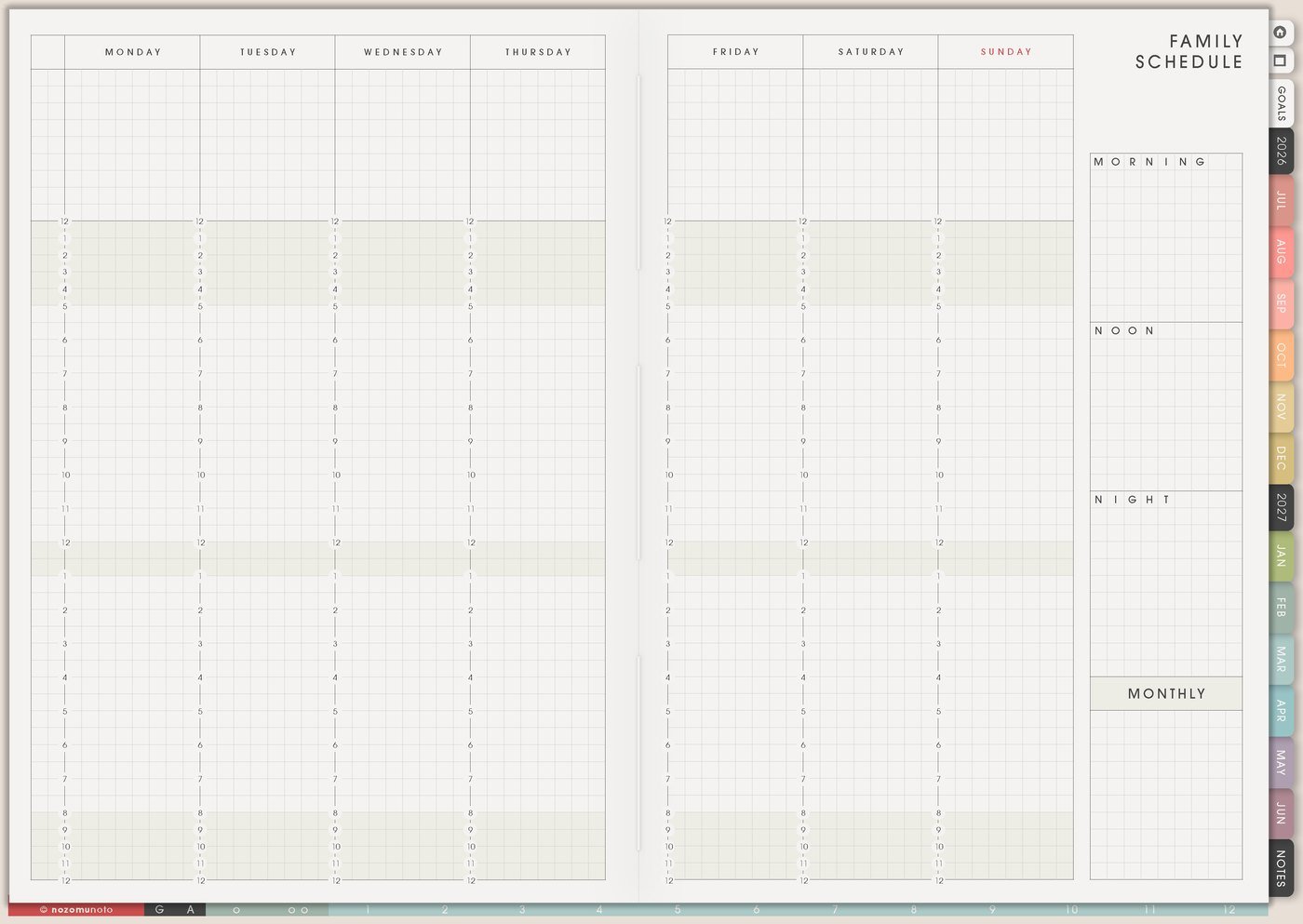
Use Family Schedule for the repeating rhythm of the household: school drop-off, pickup, work shifts, activities, cleaning rhythm, laundry days, meal prep, care tasks, shared errands, quiet time, screen-time rules, and the family admin that repeats every week.
This page is useful because family life is full of repeats that still feel surprising. If Tuesday always has practice, Thursday always needs lunchbox prep, and Sunday always needs laundry, put that rhythm here so Weekly does not rebuild it from memory every time.
A simple version can use columns for person, day, place, time, and reminder. For a single-parent week, the same page can show what is fixed, what needs backup help, and which days need easier meals or less ambitious chores. The matching guide is Family Schedule page ideas.
3. Use Monthly Meal Planner for tired-day food
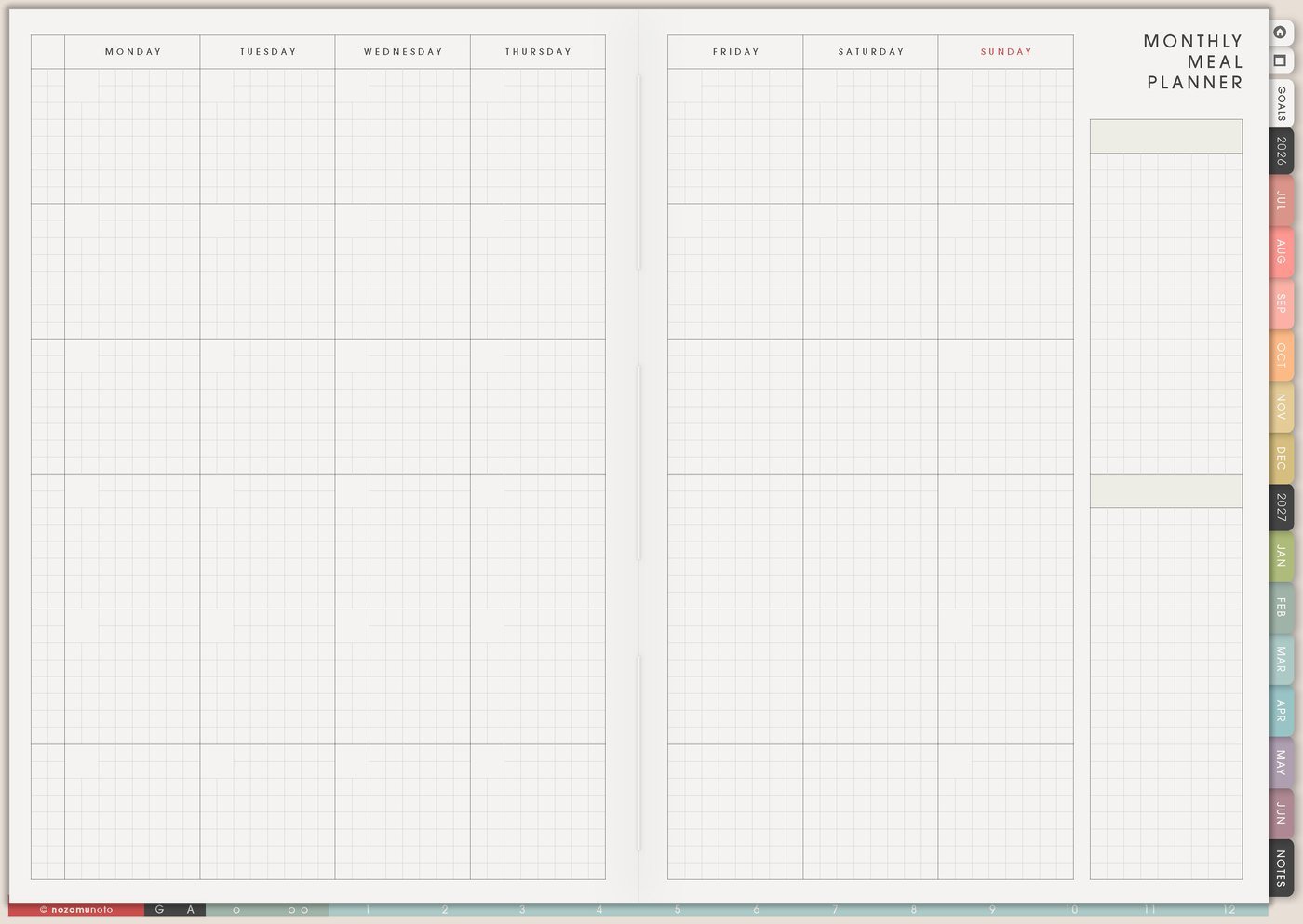
Use Monthly Meal Planner for repeat meals first: rice bowl night, udon night, soup, leftovers, breakfast-for-dinner, freezer meal, lunchbox refill, slow cooker meal, or one planned takeout night on the busiest day.
A family meal plan does not need to be fancy. It needs to answer what everyone can eat when the day is already loud. Start with the hard days first, then add fun meals only where the week has room. For page-specific ideas, use Monthly Meal Planner page ideas.
- Busy activity day: leftovers, freezer food, rice bowl, onigiri, or takeout on purpose.
- Normal day: one simple cooked meal with a repeatable base.
- Low-energy day: the backup meal that still feeds everybody.
4. Use Grocery List for staples and repeat buys
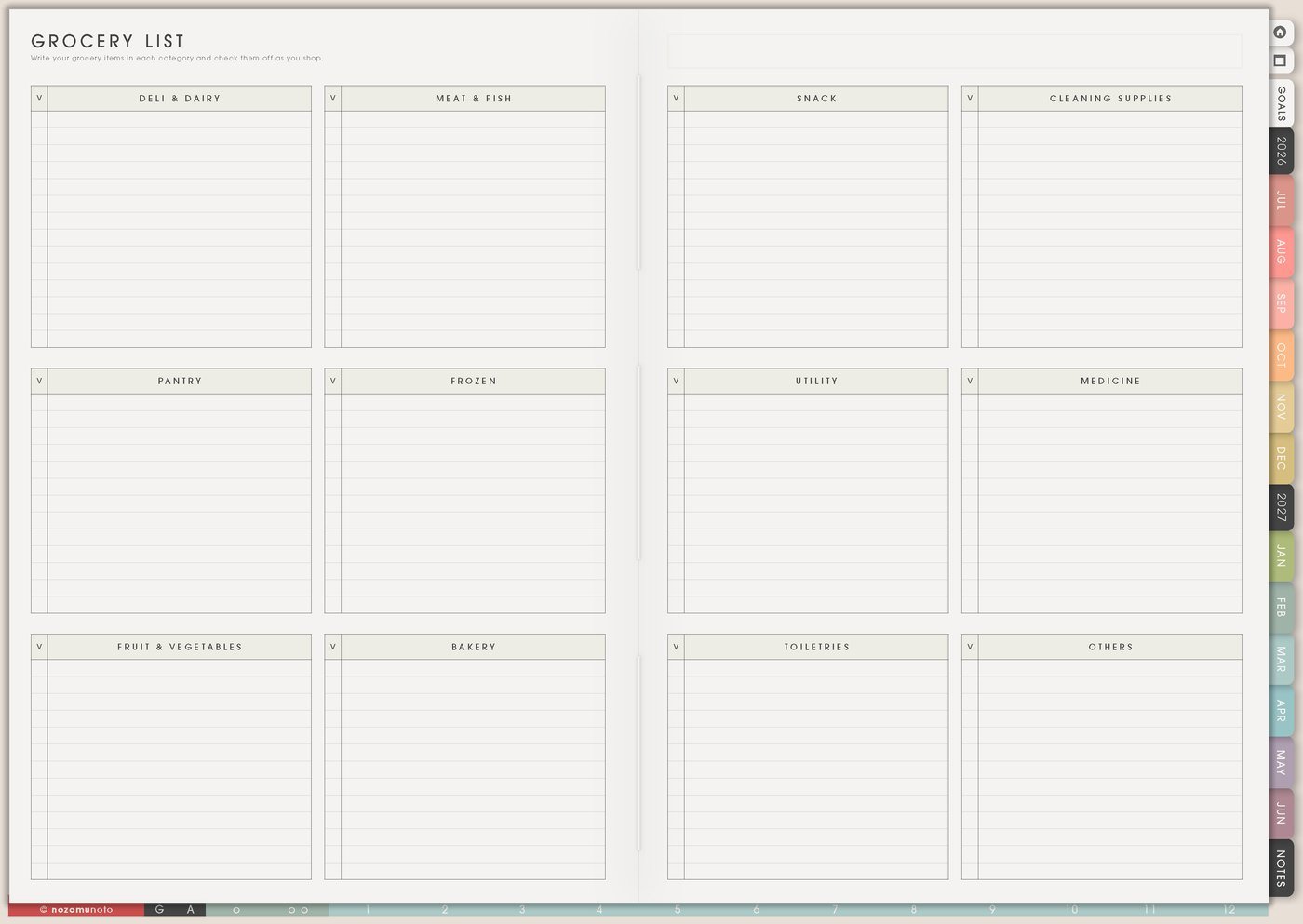
Use Grocery List for staples, snacks, lunchbox items, household items, medicine, pet food, freezer backups, toiletries, school supplies, and the ingredients tied to this week’s meals. If the grocery list is rebuilt from zero every week, make a repeat list and copy only what changed.
This page is also good for easy-to-forget items: batteries, toothpaste, lunch bags, birthday candles, wipes, printer paper, allergy medicine, dish soap, or the one ingredient everybody assumes is already at home.
Try grouping the list by store path or category: produce, protein, pantry, fridge, freezer, lunchbox, household, medicine, school, and pet. A grouped list is faster when shopping with a tired brain or a child asking questions every aisle. The matching article is Grocery List page ideas.
5. Build routines with a minimum version
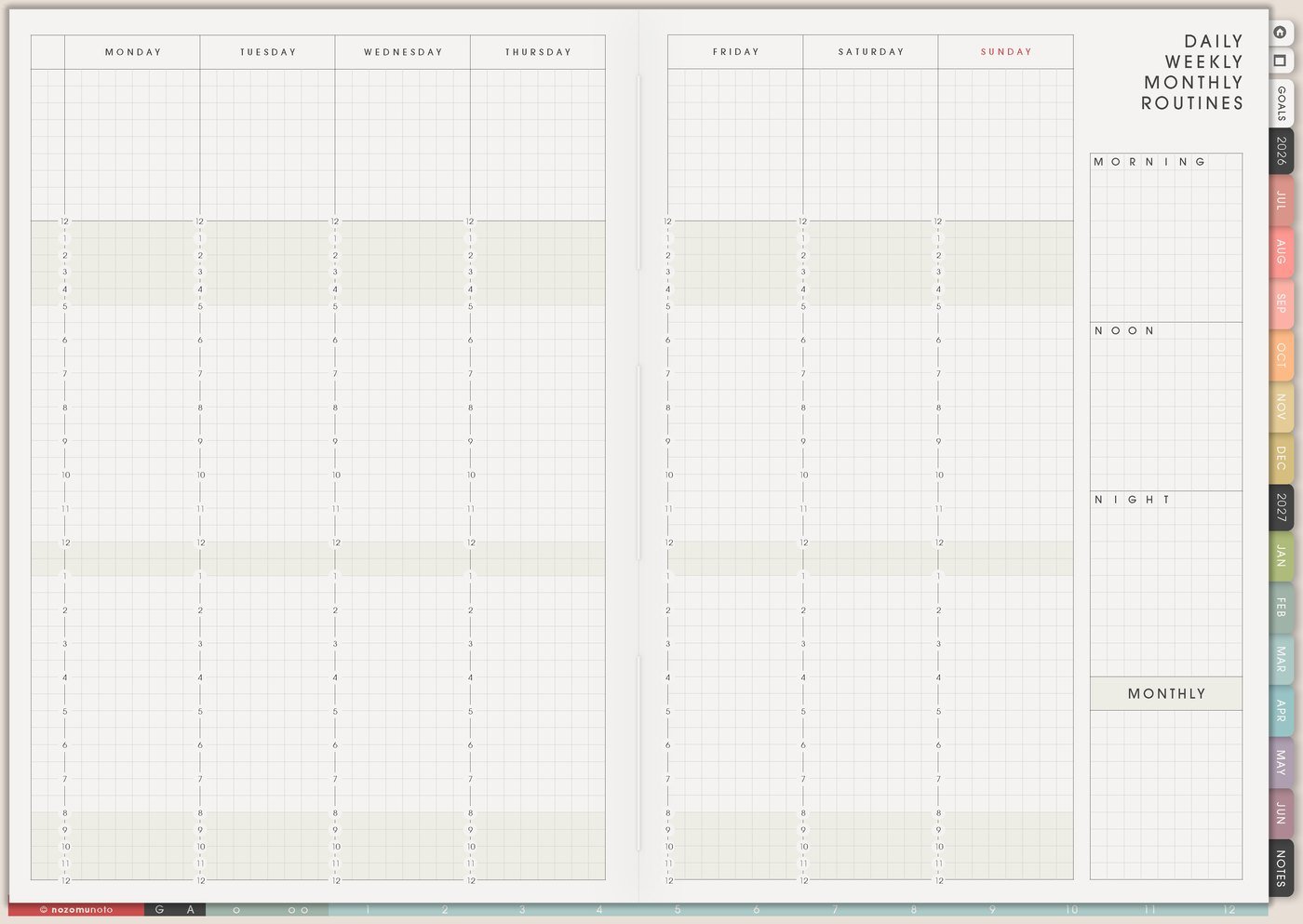
Use Daily Weekly Monthly Routines for morning, after-school, evening, Sunday reset, laundry, medicine, bags-by-door, lunchbox prep, bill check, and bedtime. Make two versions: normal and minimum. The minimum version is the one that saves tomorrow when everyone is tired.
For example, a normal evening routine might be dishes, lunchboxes, bags, clothes, medicine, quick tidy, and tomorrow note. A minimum evening routine might be medicine checked, bags by door, one clean outfit, and sink cleared enough for breakfast. That still counts!
This is especially helpful for ADHD households, busy work seasons, school events, sick weeks, and solo-parent days. A routine that bends is easier to return to than a routine that breaks after one hard night.
6. Keep invisible admin somewhere safe
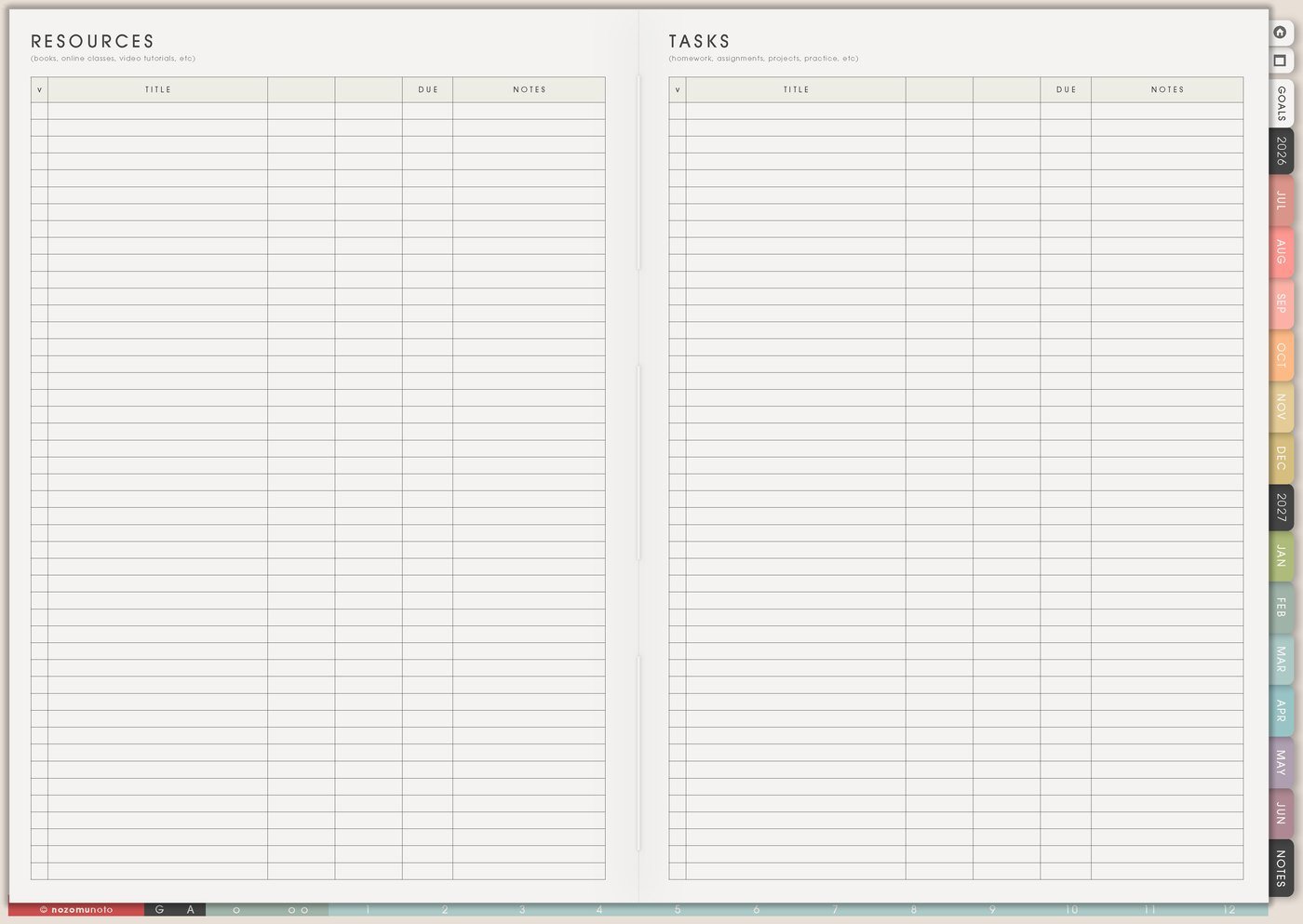
Use Resources / Tasks for items that are not tied to a date yet: school portal reminder, appointment questions, forms to print, birthday gift ideas, repair notes, insurance calls, size notes, recurring purchases, teacher-message reminders, refill questions, subscription details, and ask-later items.
At the start of the week, pull only the active item to Weekly: email teacher, book appointment, buy shoes, print form, check refill, reply to message, measure shelf, or call dentist. This keeps family admin from turning every note into an urgent task.
If another adult, grandparent, babysitter, teacher, or helper needs information, use this page for reminders and next actions, not private details. Keep sensitive school, health, address, and contact information somewhere secure, then write only the safe reminder here: pickup note, size check, link to review, contact person, or appointment question.
7. Keep memories without making another project
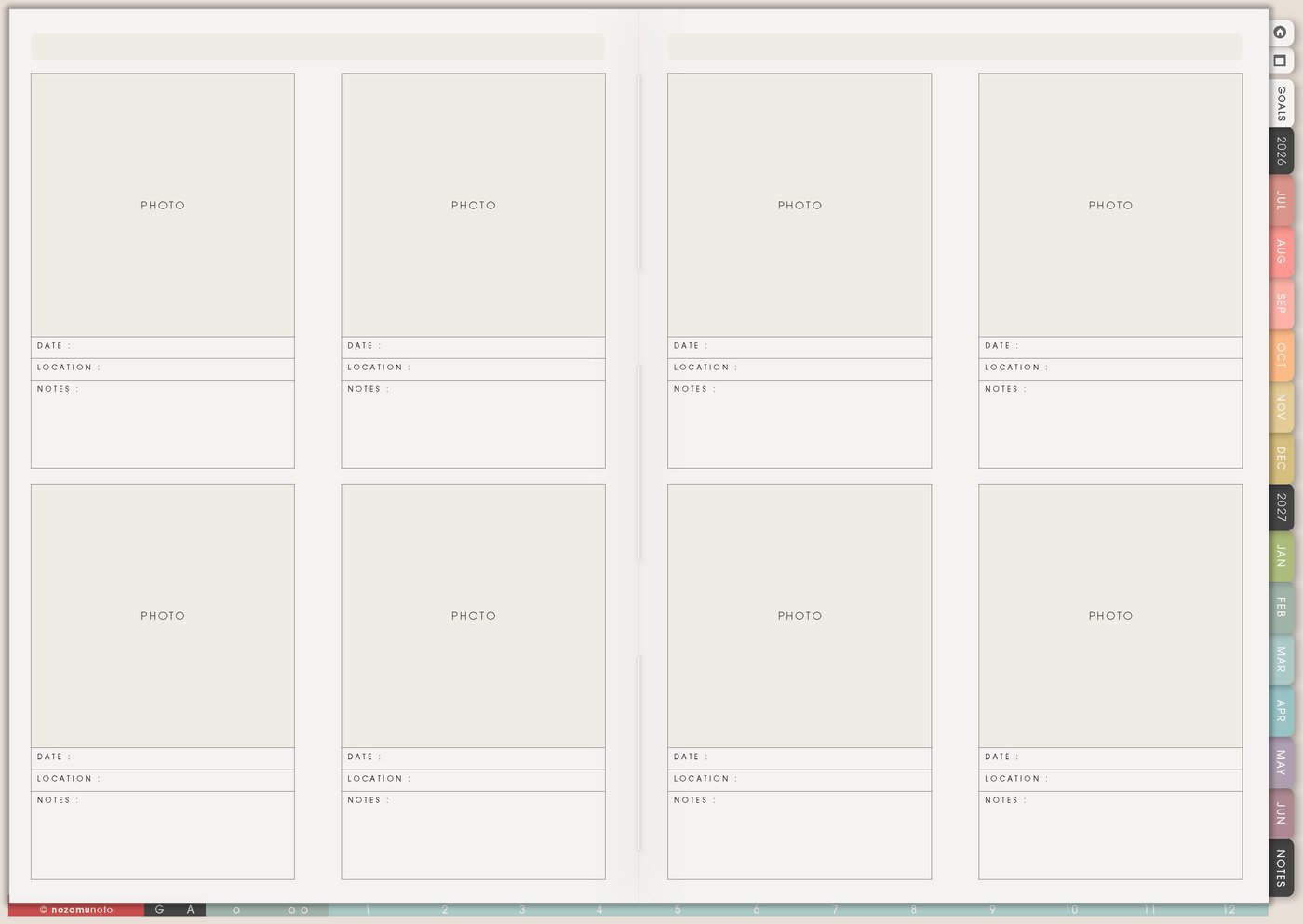
Use Memory Photos, One Line A Day – Journal, or Best Life Moments for small proof of ordinary life: funny quotes, meals together, school art, a walk, a tiny win, a messy kitchen after baking, a sweet message, a first attempt, or the moment everyone finally sat down.
One sentence is enough. The memory page should not become another assignment. It is a place to keep tiny things that might disappear behind errands, work, dishes, homework, and bedtime.
If a full scrapbook page feels too much, use a weekly rule: one photo, one sentence, one date. That is plenty!
Set it up in ten minutes
- Choose one family week. Start with the current week, not the whole year.
- Add fixed dates to Monthly. Appointments, school events, bills, due dates, activity days, and birthdays.
- Write the repeating rhythm. Add drop-off, pickup, work, meals, laundry, practice, and reset blocks to Family Schedule.
- Pick three default meals. Choose one easy meal, one backup meal, and one repeat meal for the busiest day.
- Make a repeat grocery list. Add staples, snacks, household items, medicine, and school items that come back often.
- Create one minimum routine. Choose the routine that protects the next morning or evening.
- Move only three actions to Weekly. Keep the week readable: one date prep, one food task, one admin task.
What I usually use it for and how I use it
Tips for keeping a family planner usable
- Give every type of information one home. Use Monthly for dates, Family Schedule for repeating rhythm, Resources / Tasks for loose admin reminders, and Weekly for the few things that need action now.
- Plan tired-day food first. Add repeat meals, backup meals, and one easy meal for the busiest day before adding fun recipes.
- Start with the smallest working setup. Monthly, Weekly, Family Schedule, and one food page may be enough for the first week.
- Add a reset line for changed plans. Use a move-if-needed area on Weekly and a tiny backup plan on Daily: freezer meal, shorter routine, one must-do task, and tomorrow prep.
- Keep a repeat grocery list. Check staples, snacks, medicine, household items, and meal ingredients, then copy only what changed this week.
- Use Resources / Tasks as the admin shelf. Add reminders and next actions there, then move only current-week actions to Weekly.
- Keep memory pages tiny. One photo, one sentence, and one date is enough. Ordinary family life counts.
When you need setup help
For the family workflow, use Monthly for fixed dates, Family Schedule for the repeating rhythm, Monthly Meal Planner and Grocery List for food decisions, Resources / Tasks for invisible admin, and Weekly for the few actions that need movement now. If the problem is technical, like importing the PDF, tapping links, copying a template, or adding a family photo, use the NozomuNoto Help Center for app-specific steps.
Final thought
For family planning, the biggest relief is fewer floating details. Let each page hold one type of household information, then let Weekly stay simple enough to use on a real busy day. I hope this setup helps your family planner carry the small reminders so your mind has a little more room for real life!