
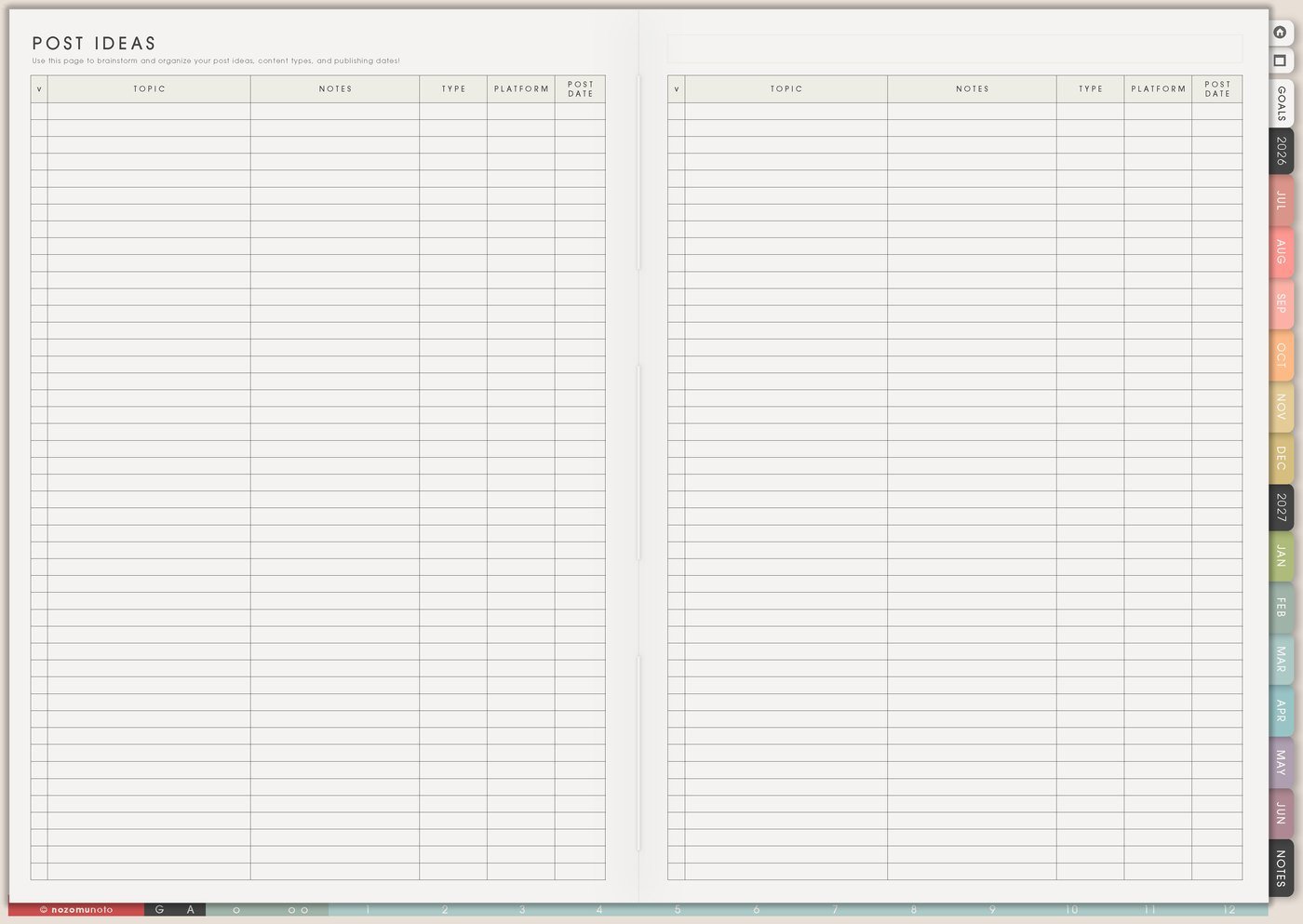
I use this Yume Techo content creator setup for post ideas, product demos, tutorials, captions, screenshots, batching, platform schedules, content review, and the recovery time that creative work actually needs.
For me, content is not only posting. It is explaining my planner pages, showing real use, answering customer questions, making design work visible, and keeping enough energy for the product itself. The planner helps me catch ideas without turning every idea into an emergency!
Use case ideas for a content creator planner
1. Use Post Ideas as the capture page
Use Post Ideas for every content idea before deciding whether it deserves a date. Add the topic, audience, format, product or page shown, why it helps, and one possible caption angle.
I use this page like a shelf, not a promise. It can hold Weekly Review when behind, ADHD planner setup with only four pages, Monthly page birthday reset, e-reader planner workflow, gift ideas, Kanban for unfinished projects, or one Yume Techo page people overlook.
Add a small note for the job of the post: teach, answer, show, compare, remind, invite, or tell a story. This keeps content from becoming only a pretty photo.
Related Tips: Post Ideas page ideas has more examples for collecting raw ideas before deciding what deserves a date.
2. Use Monthly Post Planner for themes
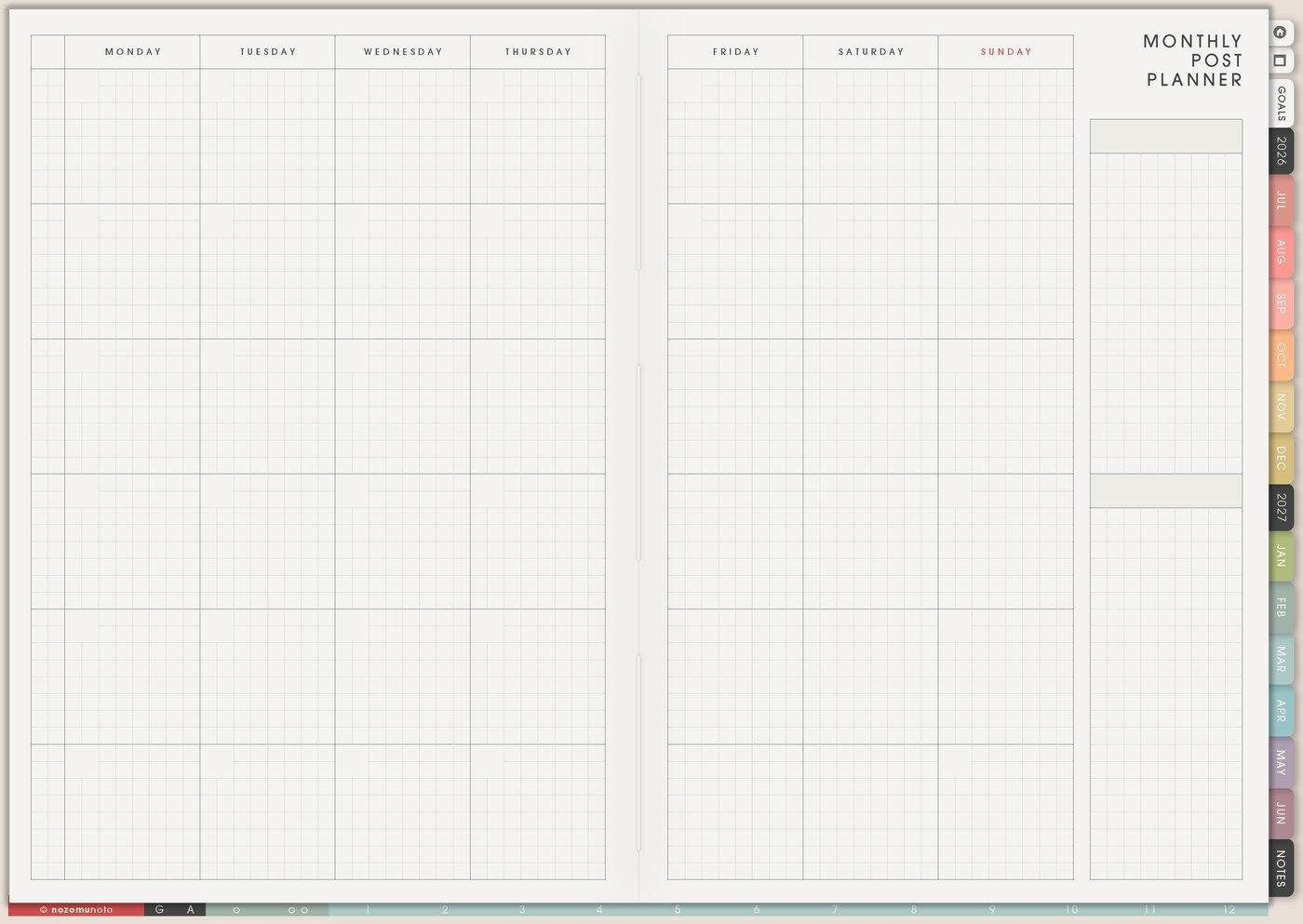
Use Monthly Post Planner to choose one or two themes for the month: back to school, ADHD planning, planner setup, e-reader workflows, gift season, page-by-page ideas, student planning, teacher planning, work setup, or creative reset.
A theme makes posts easier to connect and easier for people to remember. Instead of starting from zero every day, the month already has a direction.
For a product-based creator, I connect each theme to a product, Tips article, Help Center article, or real page example. For a personal creator, the theme can point to a story, lesson, habit, or experiment.
Related Tips: Monthly Post Planner page ideas gives more ways to turn themes, launches, questions, and seasonal reminders into a usable month.
3. Use Social Media Schedule for the weekly rhythm
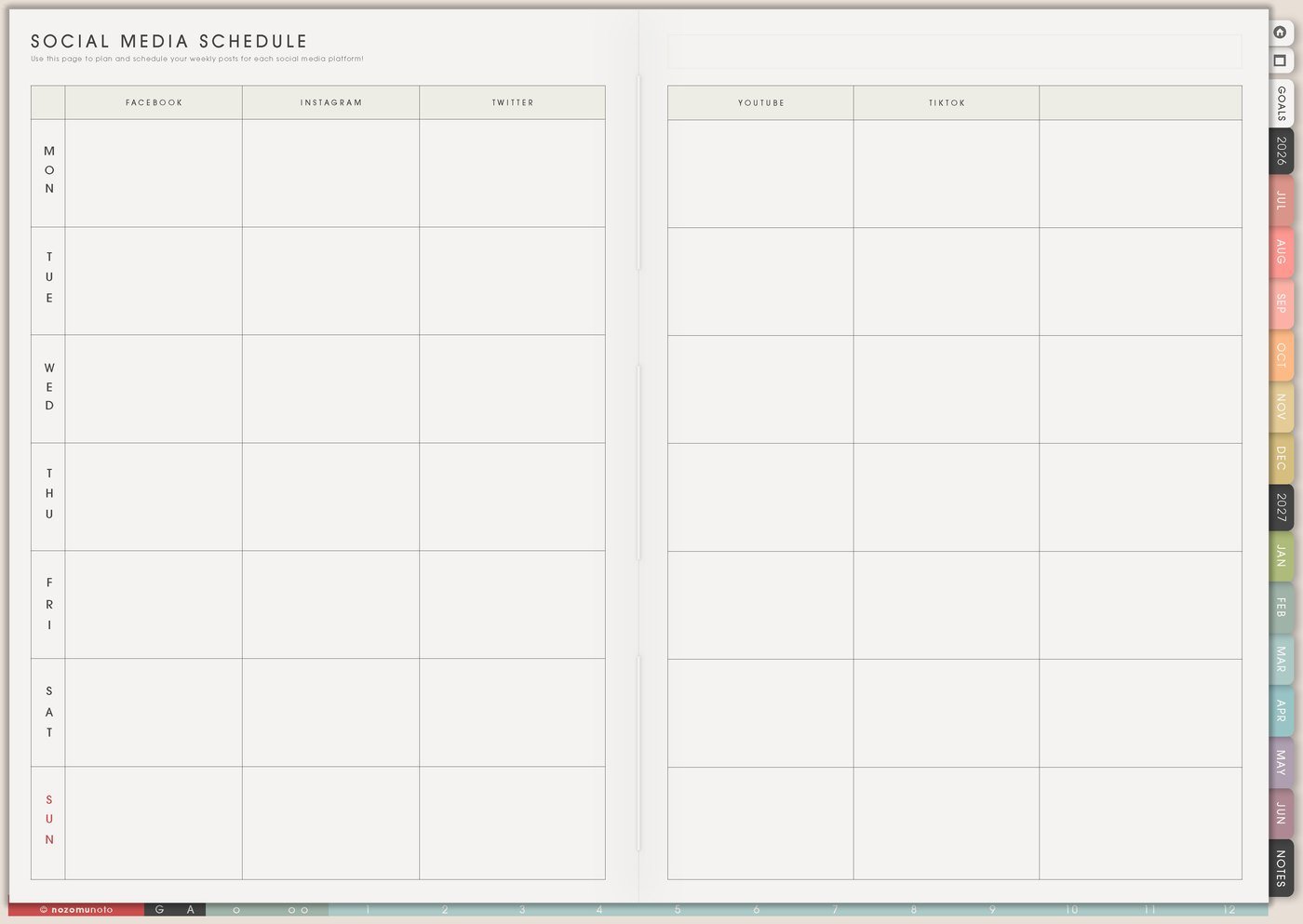
Use Social Media Schedule for repeating content slots that reduce decision fatigue. Try one tutorial, one product page demo, one common question, one behind-the-scenes note, one tip list, one reminder, and one rest or catch-up space.
Repeating slots are useful because people miss posts, forget details, and need to see the product in different real situations. The same page can become a tutorial, a setup example, a before/after, and a customer-question answer.
Keep the schedule realistic for the current season. A weekly rhythm can be three strong posts, one short video, and one email. It does not need to be everywhere at once.
Related Tips: Social Media Schedule page ideas has more examples for planning product education, launch posts, and repeatable content slots.
4. Use Weekly and Daily for batching
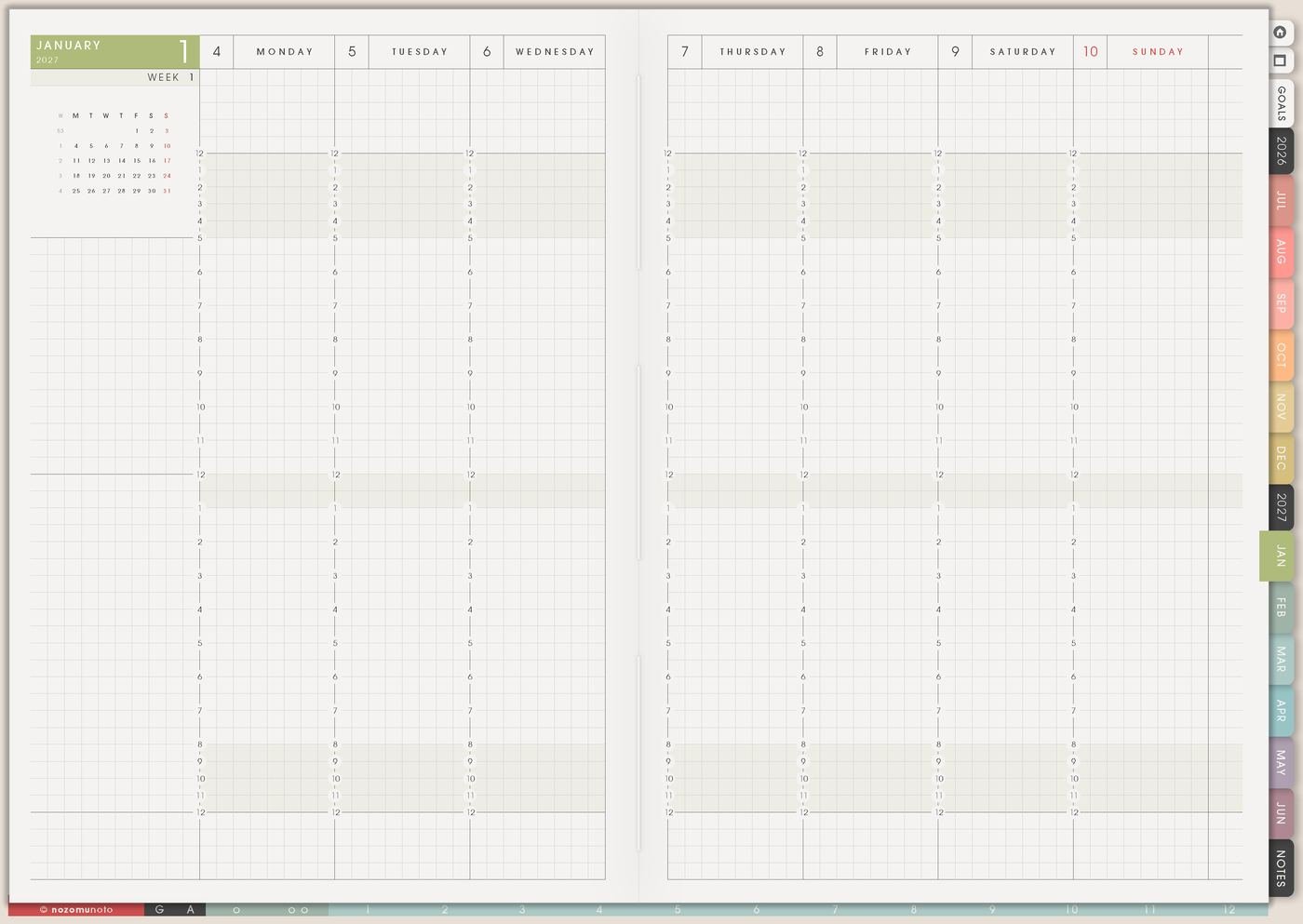
Use Weekly to choose the batch for this week: screenshots, article outline, captions, photos, short videos, Pinterest pins, email, scheduling, replies, or review. Use Daily for the next small task only.
I batch one type of work at a time. Screenshot day, caption day, edit day, scheduling day, and review day are easier to start than a giant task called make content.
- Screenshot batch: choose three pages, crop, rename, and save.
- Caption batch: write hooks, helpful steps, and one clear next action.
- Scheduling batch: upload, add links, check spelling, and set dates.
5. Use Resources / Tasks for raw material
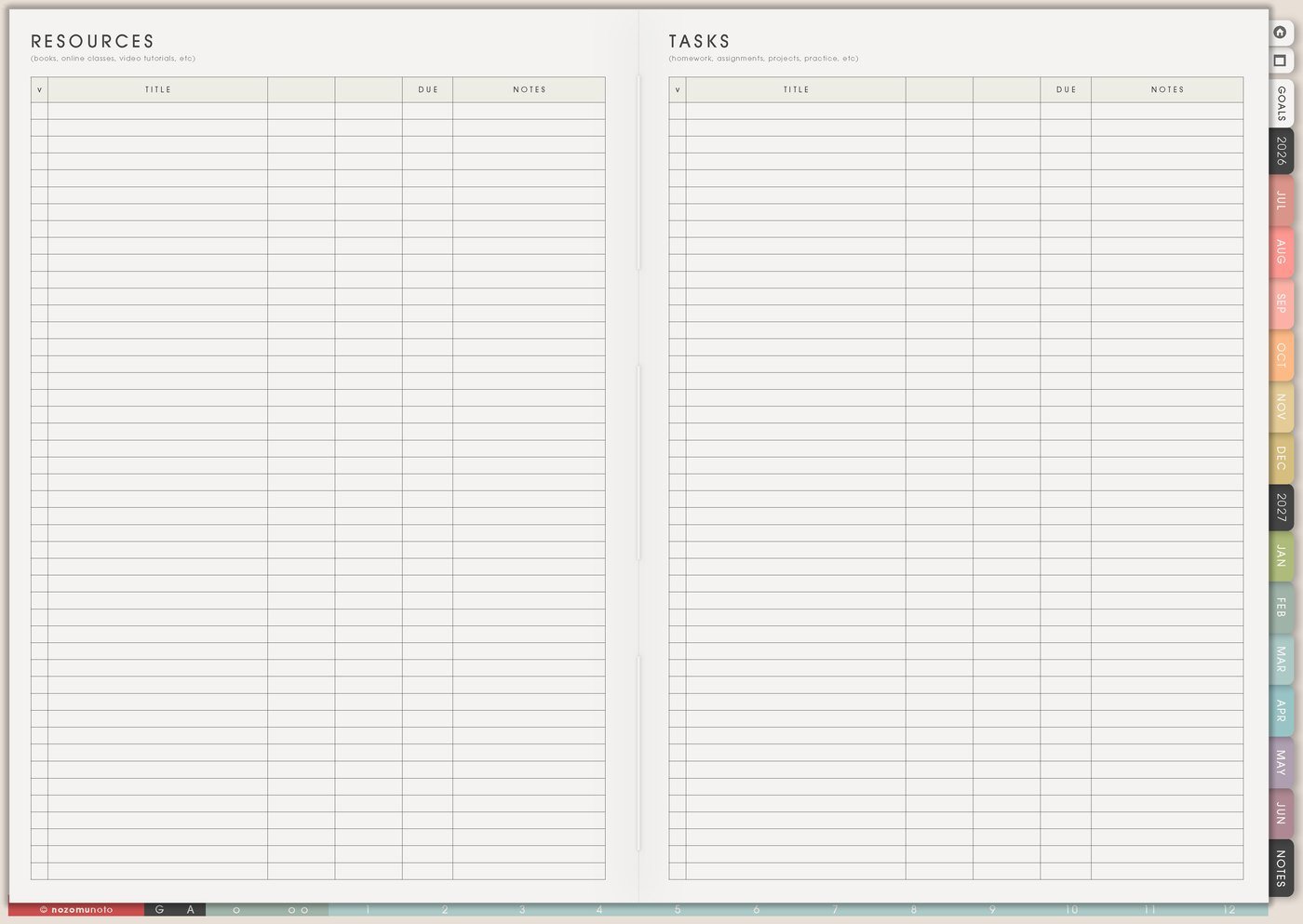
Use Resources / Tasks for screenshot folders, video ideas, links, customer questions, quotes, comments, product notes, app steps, page names, and anything that will become content later. This keeps raw material from crowding the posting schedule.
For example, a customer question can become a tutorial, a confusing setup step can become a Help Center link, and a product page screenshot can become a page-by-page idea post. The planner catches the clue before it disappears.
I write the source and use: comment, DM, Etsy question, email, app screenshot, product page, article idea, or reminder.
For privacy, I keep raw customer names, private messages, account screenshots, analytics dashboards, and order details in secure tools. In Yume Techo, I write the pattern, content idea, or next action.
6. Use Social Media Tracker for learning
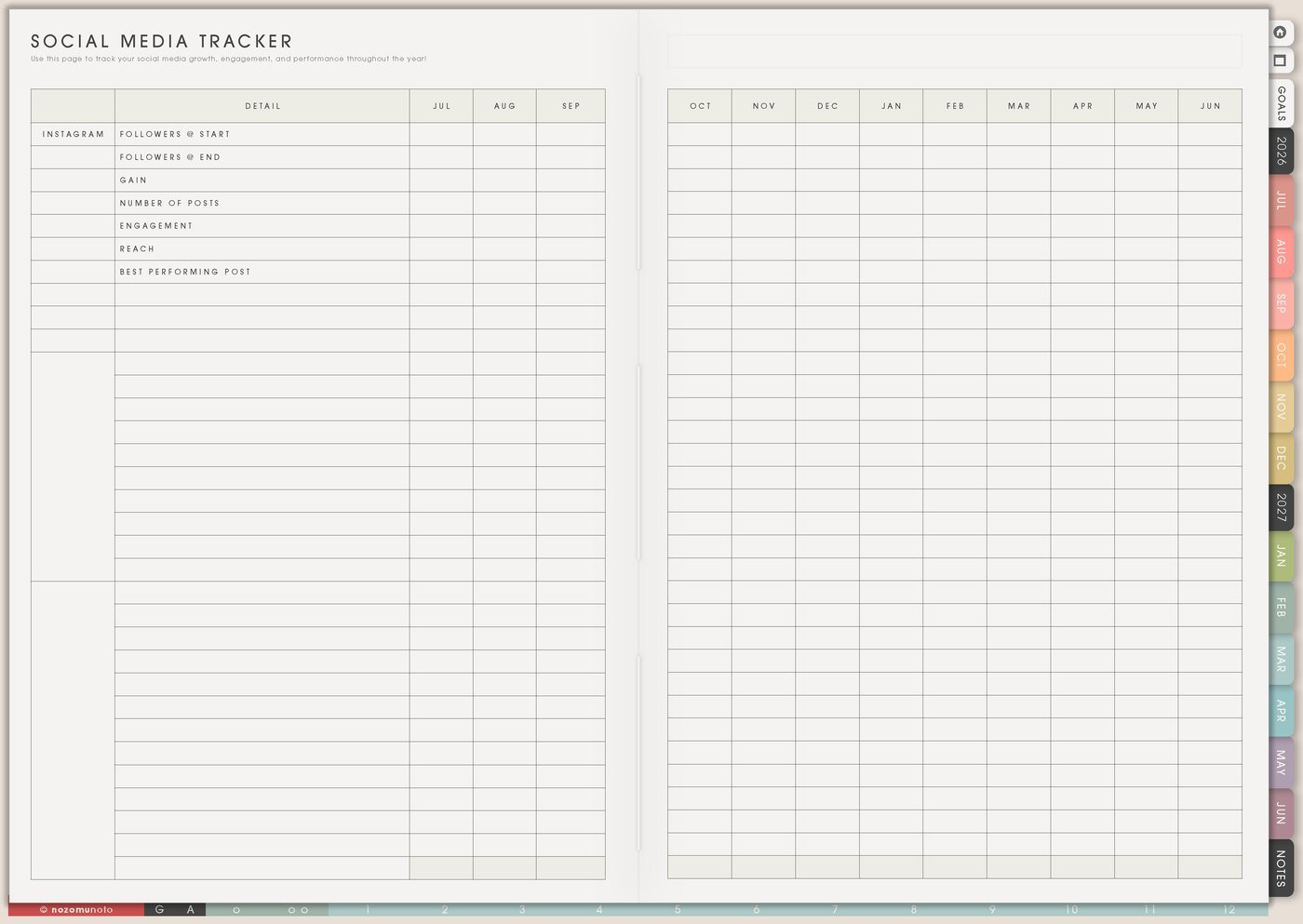
Use Social Media Tracker to track post date, topic, product, format, platform, clicks, saves, comments, shares, and what people asked next. Keep the tracker light enough that posting still feels doable.
A low-performing post can still be useful if it reveals a real question. A saved post can become a longer article. A comment can become the next tutorial. Track learning, not only approval.
Useful review notes are simple: saved because useful, got questions about app setup, needs clearer hook, better as carousel, turn into Tips article, make shorter video, or repeat next month.
Related Tips: Social Media Tracker page ideas shows more ways to track saves, clicks, comments, questions, and what each post teaches.
7. Use Weekly Review to protect creative energy
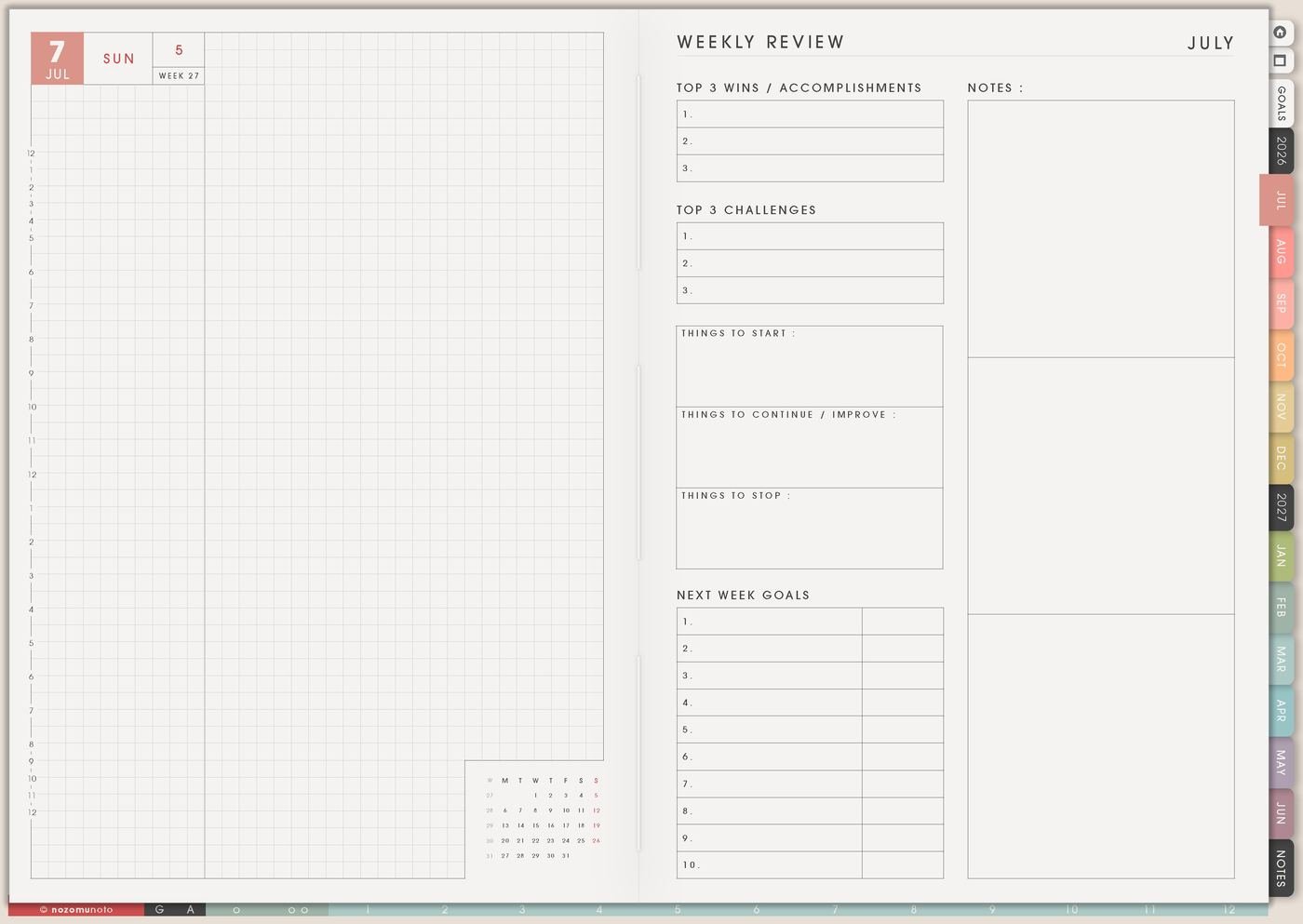
Use Weekly Review to ask what was easy to make, what took too long, what people cared about, what can be reused, and what needs rest. Content planning should include recovery because creative work uses attention, emotion, and decision-making.
If the plan was too big, I make the next week smaller. A steady content rhythm beats a giant burst followed by silence.
End the review with one decision: repeat a topic, turn a post into an article, update a product page, answer one question, or rest before the next batch.
Set it up in ten minutes
- Write ten raw ideas. Use Post Ideas without judging the ideas yet.
- Choose one monthly theme. Pick the topic that helps people now.
- Pick three content slots. Tutorial, question, page idea, story, reminder, or proof.
- Create one batch list. Screenshots, captions, video clips, editing, scheduling, or replies.
- Save raw material in Resources / Tasks. Keep links, comments, screenshots, and product notes together.
- Track only useful signals. Saves, clicks, comments, shares, questions, and what to make next.
- Review energy. Keep what was repeatable and shrink what took too much.
What I usually use it for and how I use it
Tips for using this setup
- Catch ideas before dating them. Let Post Ideas hold the pile first. Choose monthly themes, then move only the useful few to Monthly Post Planner and Weekly.
- Give each post one job. Write teach, answer, show, remind, compare, invite, or tell a story beside the idea so the post has a reason to exist.
- Batch one type of work at a time. Screenshots only, captions only, outlines only, scheduling only, or replies only. Put the next batch action on Daily.
- Track learning, not only approval. Write what people clicked, saved, asked, shared, or seemed confused by. Turn the question into the next useful post.
- Save raw material with a source. Add comment, DM, Etsy question, email, app screenshot, product page, or article idea so the clue is still findable later.
- Put a boundary around content work. Choose the version that fits this week: one screenshot post, one carousel, one short caption, one reused topic, or one product-use example.
- Clean the idea shelf during Weekly Review. Mark ideas as make, later, merge, article, discard, or repeat. A smaller active list is easier to use.
When you need setup help
For the content workflow, use Post Ideas for raw capture, Monthly Post Planner for themes, Social Media Schedule for the weekly rhythm, Resources / Tasks for screenshots and links, Social Media Tracker for learning, and Weekly for the next batch. If the technical step is the blocker, like importing Yume Techo, copying a content page, adding images, or using hyperlinks, use the NozomuNoto Help Center for exact app steps.
Final thought
Content planning works better for me when every idea does not need a posting date immediately. I hope this setup helps you capture generously, choose the ideas that help people right now, batch one type of work at a time, and let review show what everyone seems to need next!