

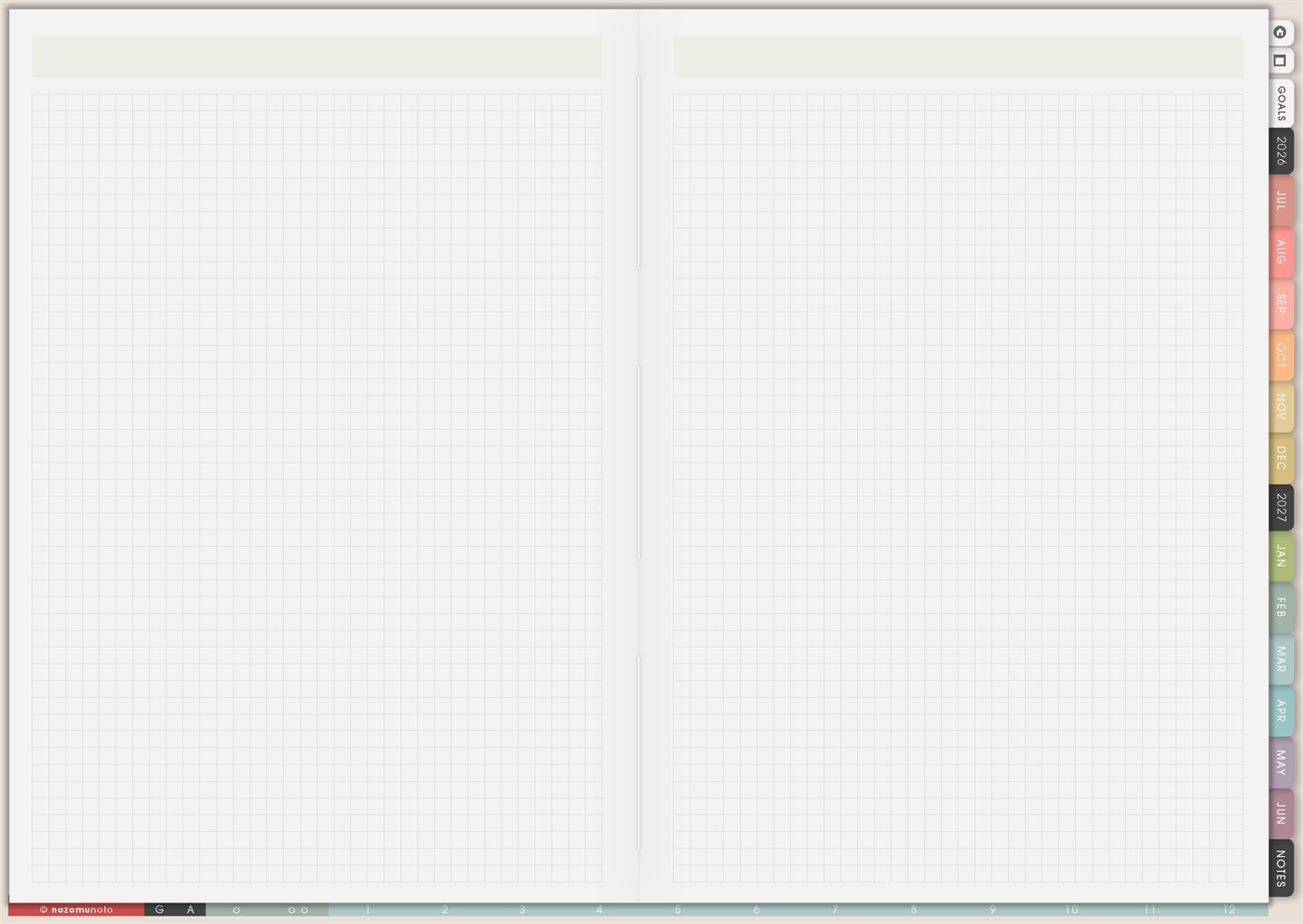
The Yume Techo Vision Board page is a reusable blank grid spread for visual goals, mood boards, reminders, quotes, screenshots, photos, color cues, and tiny pieces of direction. Use it when everyone needs to see what they are building, not only write a task list.
A useful Vision Board is not just a pretty collage. It connects a visual reminder to real choices. A steady desk image can become a Friday reset. A walking path can become a lunch walk. A study setup can become two weekly study blocks. A family photo can become one protected dinner night.
How to get to this page
- Open the main Index page: use the planner Index if you need to return to the map.
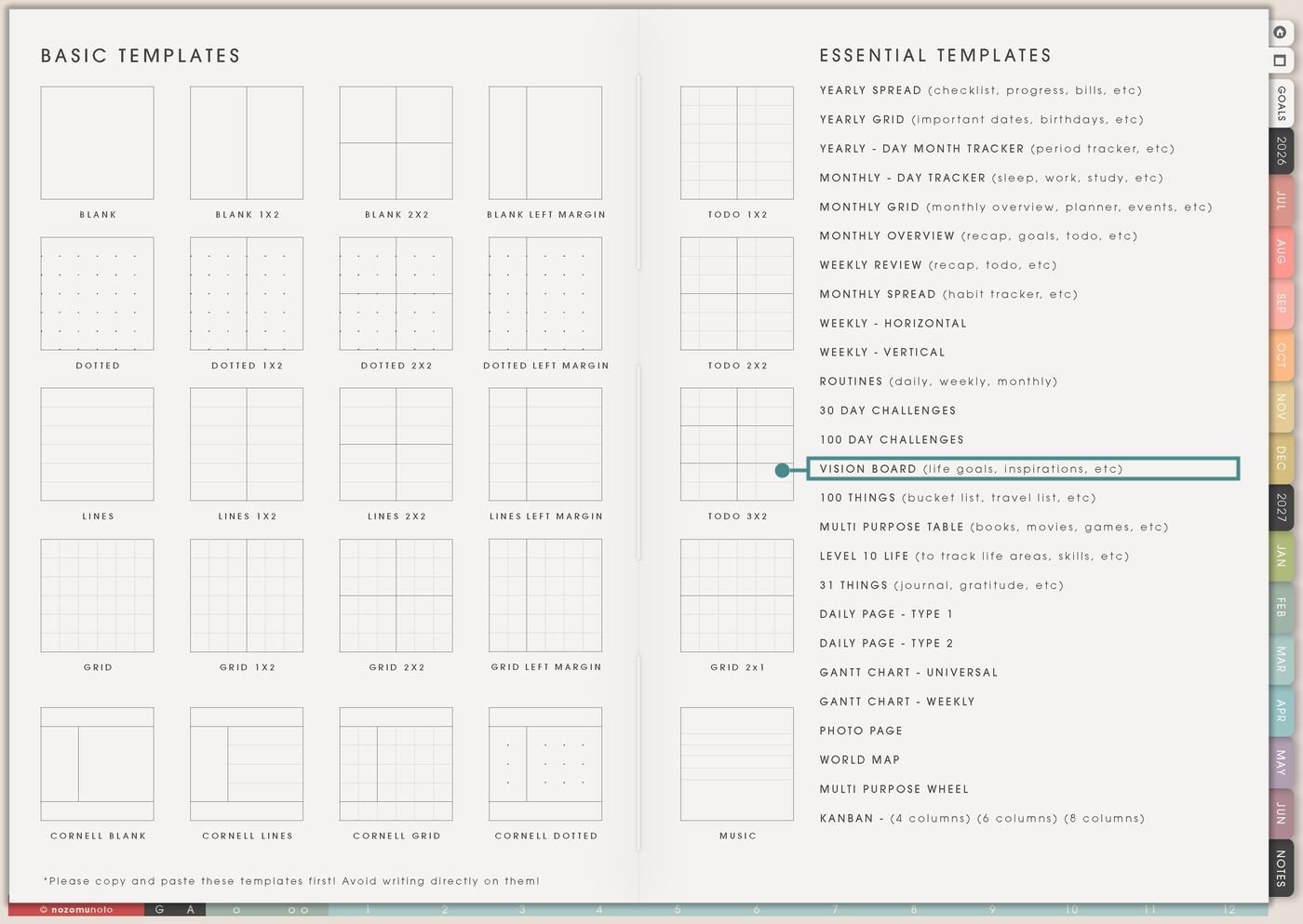
- Tap the Template Pages icon: this opens the Template Index with reusable clean pages.
- Tap Vision Board: it is under 100 Day Challenges in the Essential Templates list.
- Copy the page before writing: this is a clean template master. Duplicate it first, then write on the copy.
Before you write: copy the clean Vision Board first
Vision Board is an Essential Template Page. Keep the original clean and make a copy for the year, season, school term, project, home reset, business goal, faith focus, health help, or creative direction you want to see.
- Open Vision Board from Template Index.
- Duplicate or copy the page in your app. Use the page overview, thumbnail view, page manager, or page actions menu.
- Name the copy by purpose. Examples: 2026 Vision, Fall Study Mood, Home Reset Board, Creative Season, Soft Life Board, Shop Growth Board, or Faith Focus.
- Choose a simple structure. Divide the grid by life area, season, theme, feeling, project, or action.
- Connect the board to a next action. After adding images and words, write one action on Weekly, Monthly Overview, Goal Planner, Routines, or Kanban.
Ways to use this page
1. Seasonal vision board
Use Vision Board for the feeling and focus of one season. This works better than trying to make one board carry every dream forever.
2. Study or academic vision board
Use the page for school identity and motivation that connects to actual study behavior. Add images that remind everyone what focus looks like in real life.
3. Home and family board
Use Vision Board for the type of home rhythm you want to help. Keep it practical and warm: rooms, meals, bags, routines, memories, and steady corners.
4. Work, shop, or business board
Use the board for business direction without losing the next step. Visuals can remind you of brand feeling, product goals, customer experience, and steady growth.
5. Creative identity board
Use Vision Board to remember the type of creator, maker, writer, artist, planner, or designer you want to be. This helps when creative work gets buried under admin.
6. Health, energy, and body-care help board
Use this for helpful visuals around rest, movement, meals, water, sleep, appointments, recovery, or body care. Keep it about help and next steps, not pressure.
7. Faith, values, or life direction board
Use Vision Board for reminders of values, verses, prayers, words of the year, personal rules, or the type of person you want to practice being.
8. Travel or adventure board
Use the board for places, trips, daydreams, local adventures, or seasonal outings. A travel vision board is more useful when it separates desire from decision.
9. ADHD-friendly focus cue board
Use Vision Board as an attention anchor when words alone are easy to miss. A few visuals can make the current season easier to remember.
10. Year-end reflection or future-self board
Use Vision Board to collect proof of what mattered, not only what you want next. This can turn the page into a memory and direction board.
What I usually use it for and how I use it
Tips for using this page
- Write one action under the board or on Weekly. Ask: what does this image want me to do this week? Clean desk can become 10-minute Friday reset. Travel photo can become check dates. Study image can become one review block.
- Choose one structure: season, life area, project, or feeling. If you need many themes, make separate copied boards or use small labeled zones.
- Add grounded images too: one real desk corner, one easy meal, one small walk, one ordinary notebook, one quiet moment. Vision should invite, not shame.
- Add a review cue. Look at Vision Board during Monthly Overview, Weekly Review, or the first planning day of the month. Choose one image and one action.
- Add one word or tiny caption beside important images: steady, finish, family, brave, rest, study, warm, steady, clean, or return. A little meaning makes the image easier to use later.
- Time-box the board. Spend 20 minutes collecting visuals, 10 minutes arranging, then move one action into Weekly. The board helps planning; it does not replace it.
- Undo if possible. If not, bring in a fresh clean copy from the original planner file. After that, make "copy first" the first step every time you use an Essential Template Page.
Final thought
I hope this helps you choose one small next step! Vision Board is useful when it helps everyone remember what matters and choose one small next step. Copy the clean page, keep the board grounded, add meaning to the images, and let one visual reminder become one real action. Pretty is nice, but useful is the part that changes the week!
Need exact app steps for copying pages or adding images?
If you need the exact buttons for duplicating this template, importing images, cropping screenshots, or moving pages in your app, use the Help Center app guide for your device.