

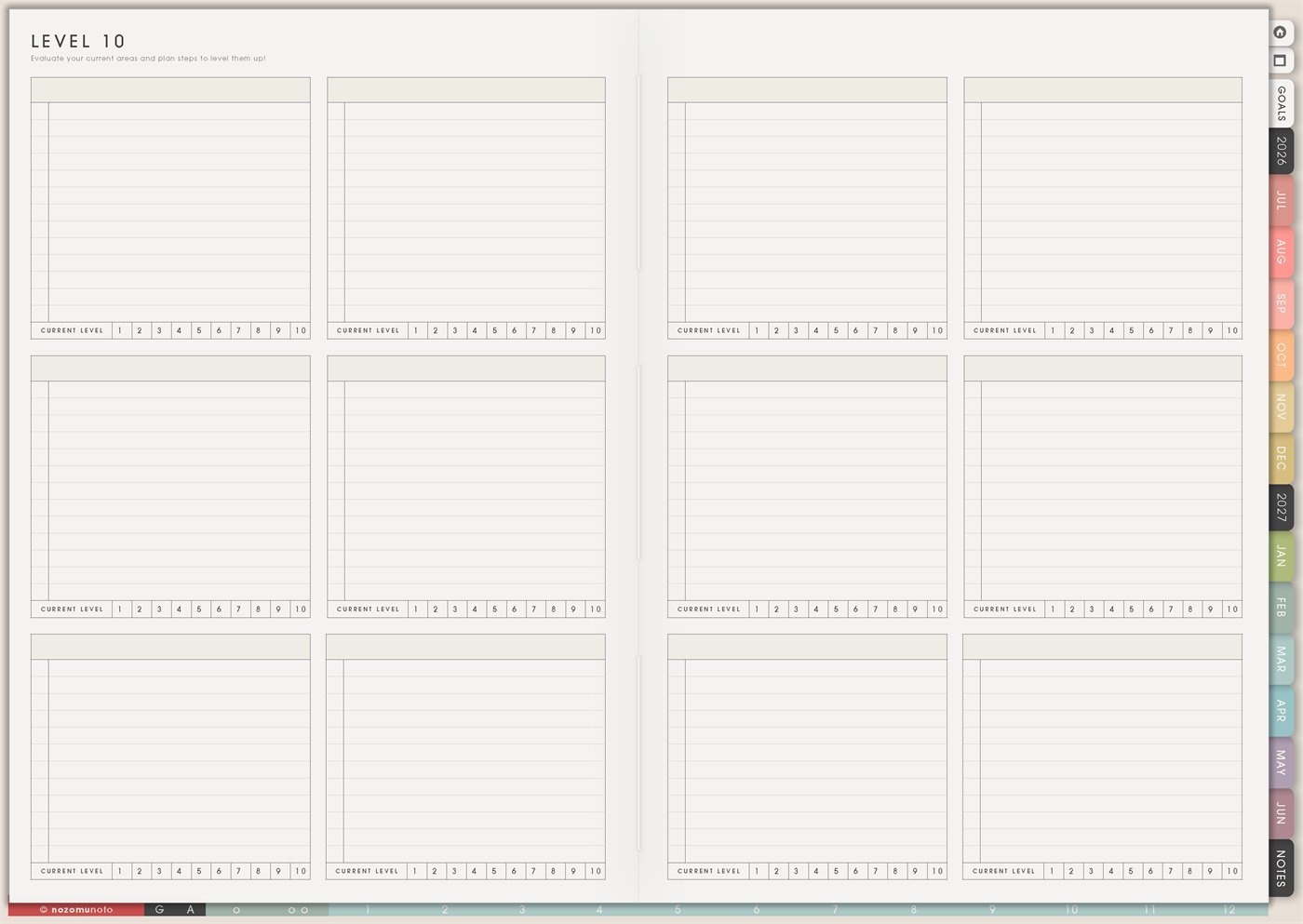
The Yume Techo Level 10 Life page is a reusable life-area check-in page. Each box gives space to name one area, write notes, and circle a current level from 1 to 10. Use it when everyone needs to step back from daily tasks and ask, “Which parts of life need help, and what is one small thing that would help?”
This page works best when it feels warm. The numbers are not grades. They are a quick snapshot so you can notice patterns, choose priorities, and stop trying to improve every part of life at the same time.
How to get to this page
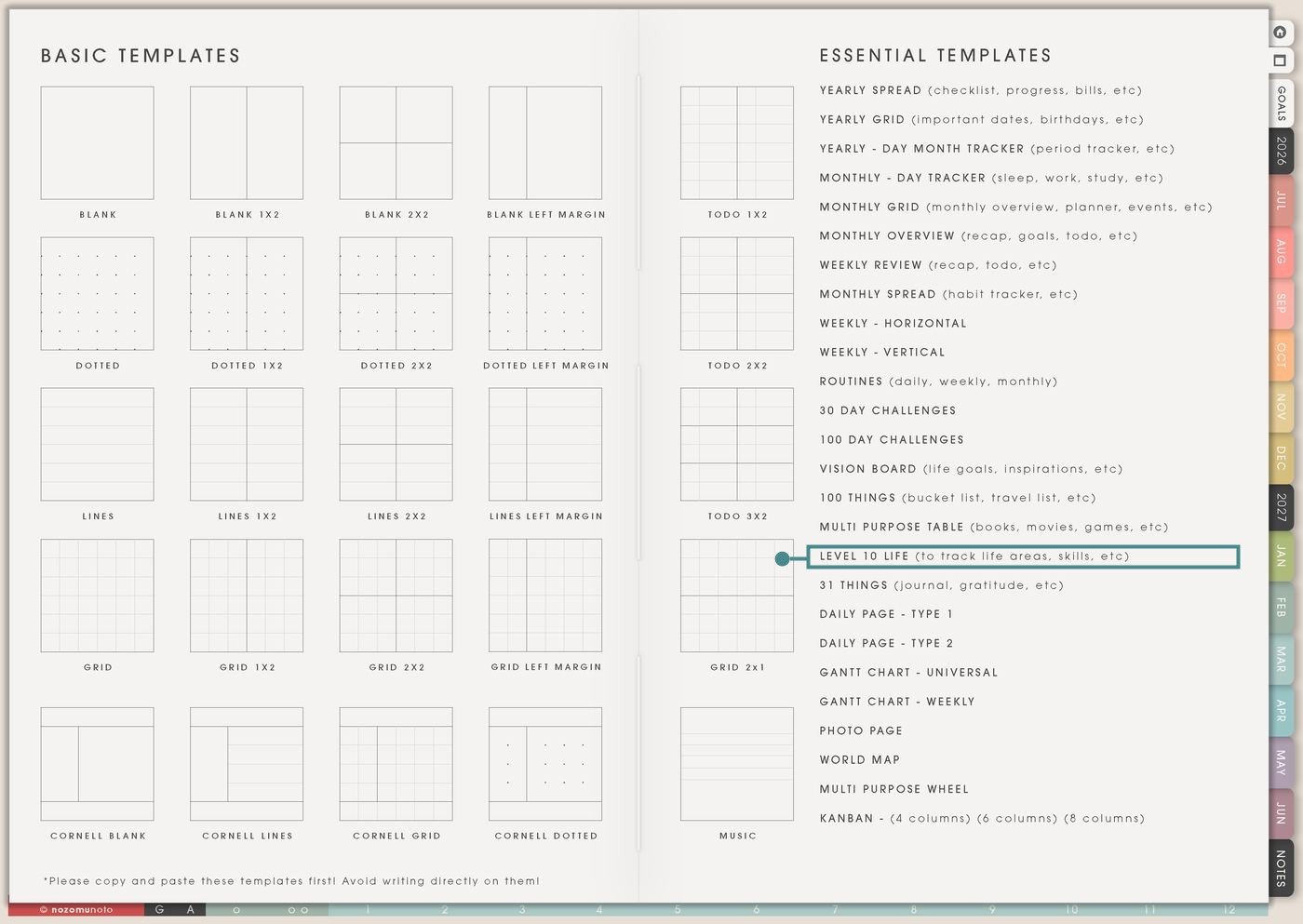
- Open the main Index page: use the planner Index if you need to return to the map.
- Tap the Template Pages icon: this opens the Template Index with reusable clean pages.
- Tap Level 10 Life: it is under Multi Purpose Table in the Essential Templates list.
- Copy the page before writing: this is a clean template master. Duplicate it first, then write on the copy.
Before you write: choose life areas for this season
Level 10 Life is an Essential Template Page. Keep the original clean and make a copy for the season, month, quarter, birthday reset, school year, or life transition you want to review.
- Open Level 10 Life from Template Index.
- Duplicate or copy the page in your app. Use the page overview, thumbnail view, page manager, or page actions menu.
- Name the copy by timing. Examples: June Life Check, Birthday Reset, Back-to-School Check-In, New Year Reset, or After Burnout Reset.
- Pick areas that actually matter right now. You can use health, home, family, money, faith, study, work, friendship, rest, creativity, business, body care, or joy.
- Choose one small next step after rating. The number shows where attention might help. The action is what makes the page useful.
Ways to use this page
1. Monthly life-area check-in
Use one copy at the start or end of the month to notice which areas are steady, which feel neglected, and which need only a tiny reset.
2. Birthday or New Year reset
Use the page for a bigger reset when you want to think about the next season of life without writing a huge resolution list.
3. Back-to-school or semester reset
Use Level 10 Life before a school term starts so study does not swallow everything else. This is useful for students, teachers, tutors, and families following an academic rhythm.
4. Work and life balance check
Use the page when work, business, caregiving, or side projects start taking over. The point is to see what is missing before the month becomes only output.
5. Burnout recovery or low-energy season
Use Level 10 Life slowly when life feels heavy. Try to use it for help, not judgment. Use it to find help areas and reduce pressure.
6. Home and family rhythm review
Use the page to check household areas without making one giant chore list. This helps when home care, school forms, meals, routines, and family needs are spread across too many places.
7. Money, admin, and paperwork reset
Use Level 10 Life to notice whether money and admin feel steady, avoided, messy, or urgent. The page does not need full numbers. It only needs enough truth to choose a next step.
8. Creative life and personal joy check
Use the page to make sure useful life still has room for ideas, art, books, hobbies, music, faith, play, memories, and little things that make the year feel alive.
9. Relationship and community check-in
Use the page to notice which relationships need care, boundaries, repair, celebration, or simple contact. Keep it warm and realistic.
10. Faith, values, or personal direction check
Use Level 10 Life when you want your planner to help who you are becoming, not only what you are finishing. This can be religious, reflective, values-based, or simply personal.
What I usually use it for and how I use it
Tips for using this page
- Write "current level, not character level" near the top. A number is only a snapshot. Follow every low score with one warm next step, such as clear one surface, choose easy dinner, or ask for help.
- Choose one to three focus areas only. Circle them. Everything else can be noticed without becoming active. The page is a map, not a command to fix everything.
- Make areas specific enough to act on. Instead of Health, choose Sleep, Meals, Movement, Appointments, or Body Care. Instead of Work, choose Admin, Deep Work, Clients, or Schedule.
- Write one physical next action. Examples: open bank app, list subscriptions, check bill date, put receipts in one folder, or move one money task to Weekly.
- Rate by usefulness in your real season. Ask, "Does this area help me enough right now?" not "Does this look impressive?" The next step should fit your body, family, money, time, and energy.
- Date the page and name the season. Examples: June Reset, Birthday 2026, Fall Semester Start, After Move, or Recovery Month. The context matters as much as the score.
- Undo if possible. If not, bring in a fresh clean copy from the original planner file. After that, make "copy first" the first step every time you use an Essential Template Page.
Final thought
I hope this helps you choose one small next step! Level 10 Life is useful when it helps everyone notice life slowly and choose small help steps. Copy the clean page, name the season, rate honestly without turning the number into a judgment, and pick only a few areas to help next. The goal is not a perfect 10. The goal is a clearer, easier next step!
Need exact app steps for copying this page?
If you need the exact buttons for duplicating this template, moving the copied page, importing Yume Techo, or using hyperlinks, use the Help Center app guide for your device.