

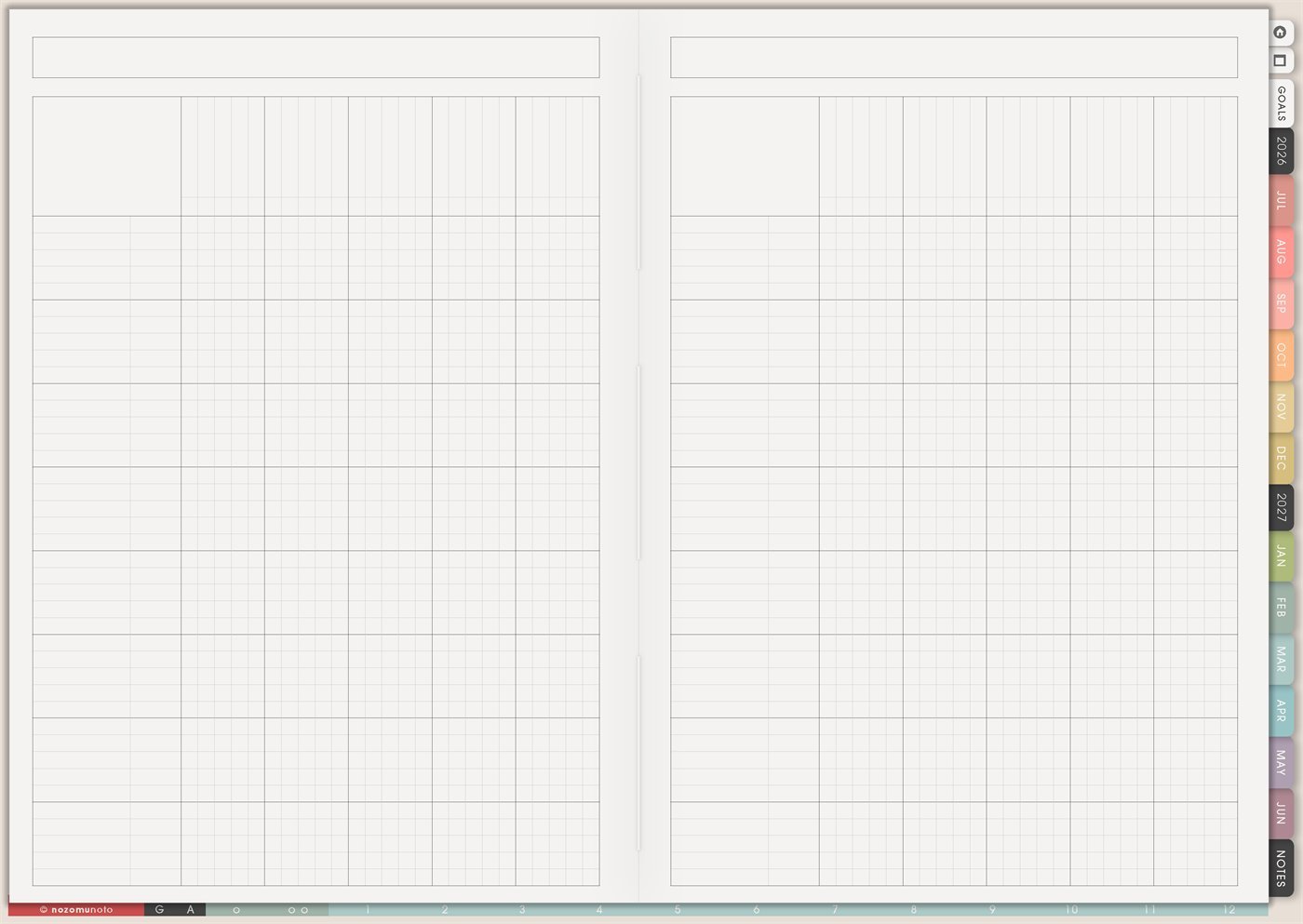
The Yume Techo Gantt Chart – Universal page is a reusable blank timeline grid. It has space at the top for the project name or date range, a left side for tasks or sections, and a wide grid for drawing bars across time. Use it when a project needs a timeline but the normal Monthly or Weekly pages are too small.
The word “universal” matters here. This page does not force one exact calendar. You choose the scale first: days, weeks, months, school terms, project phases, content stages, travel-prep windows, or anything else that makes the plan easier to see.
How to get to this page
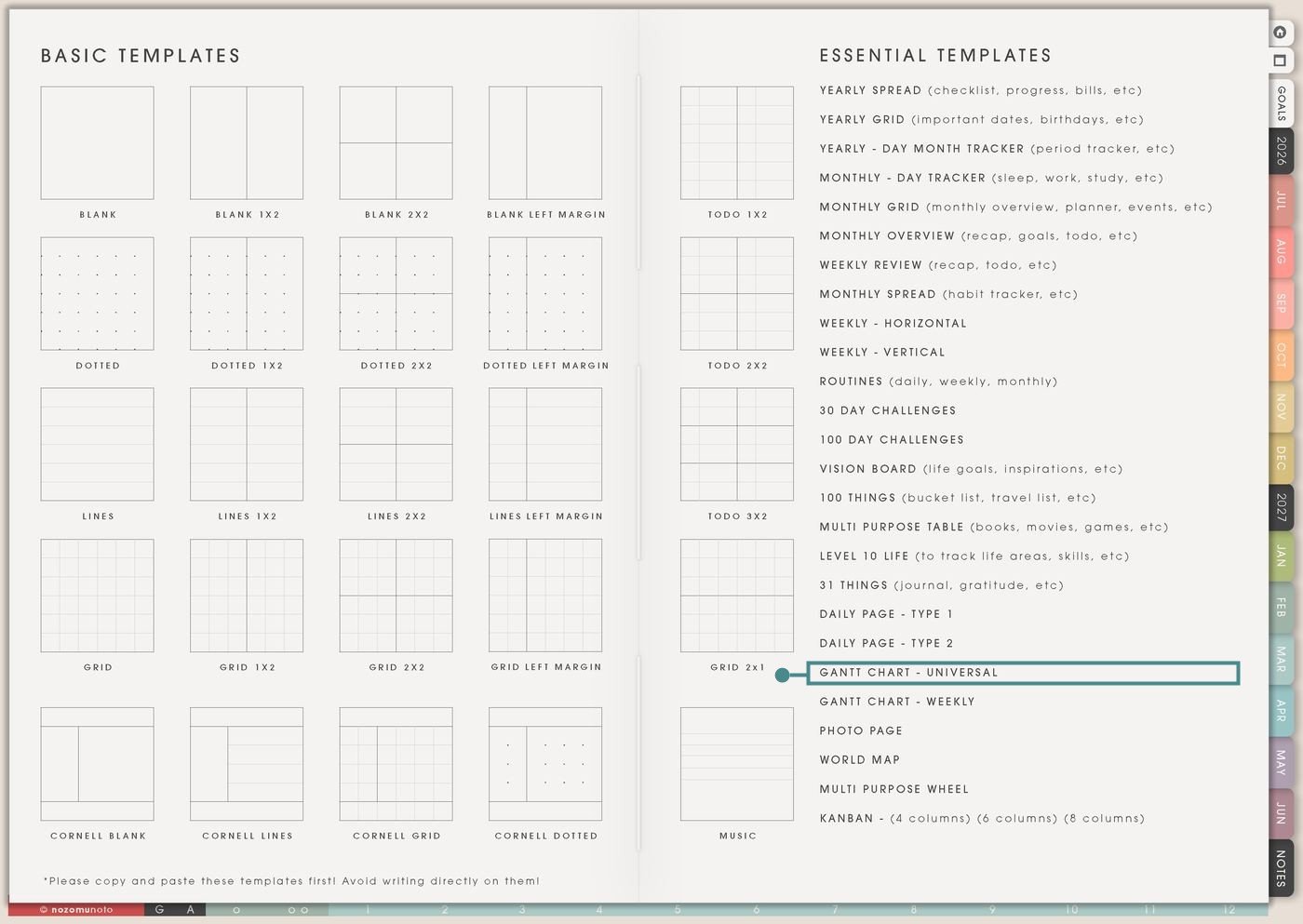
- Open the main Index page: use the planner Index if you need to return to the map.
- Tap the Template Pages icon: this opens the Template Index with reusable clean pages.
- Tap Gantt Chart – Universal: it is under Daily Page – Type 2 in the Essential Templates list.
- Copy the page before writing: this is a clean template master. Duplicate it first, then write on the copy.
Before you draw bars: choose the time scale
Gantt Chart – Universal is an Essential Template Page. Keep the original clean and make a copy for the project or plan you want to map.
- Open Gantt Chart – Universal from Template Index.
- Duplicate or copy the page in your app. Use the page overview, thumbnail view, page manager, or page actions menu.
- Name the copy by project. Examples: Product Launch Timeline, Semester Project, Moving Plan, Travel Prep, Craft Show, Website Update, or Family Event.
- Choose the column scale. The columns can mean days, weeks, months, lessons, stages, or custom phases.
- List work on the left before drawing bars. Use rows for tasks, deliverables, people, project areas, or phases. Then draw timeline bars across the grid.
Ways to use this page
1. Long project timeline
Use the page when a project is too big for a daily list but too practical to leave as a unclear goal. The Gantt view shows what overlaps, what depends on something else, and where the project might get crowded.
2. Product launch or shop update
Use Gantt Chart – Universal for product work with many moving pieces: files, screenshots, listings, photos, descriptions, testing, emails, freebies, and customer help links.
3. School assignment or exam plan
Use the chart for assignments, exam prep, semester projects, research papers, group work, or portfolio deadlines. This helps deadlines become stages instead of one scary due date.
4. Moving, renovation, or home project
Use the timeline when home work has stages, appointments, materials, shopping, cleanup, waiting time, and people involved.
5. Content production calendar
Use Gantt Chart – Universal when content has steps instead of only publish dates. It is useful for videos, blog posts, Pinterest pins, email sequences, product tutorials, or seasonal campaigns.
6. Travel preparation timeline
Use the chart before a trip to spread decisions out. Travel gets easier when booking, documents, packing, money, reservations, and home prep can start before the day before.
7. Event, birthday, wedding, or party planning
Use the Gantt view for events with invitations, food, supplies, venue, guests, decoration, schedule, payments, and cleanup.
8. Craft, maker, or creative build
Use the page for creative work that has phases: idea, materials, first version, testing, finishing, photos, packaging, or sharing.
9. Health, appointment, or care follow-up plan
Use the chart for practical follow-up timelines when appointments, refills, test dates, therapy homework, rest periods, forms, or care tasks need to be visible across weeks.
10. Multi-person family or team plan
Use the chart when several people or areas need coordination. Rows can be people, roles, tasks, subjects, or project areas.
What I usually use it for and how I use it
Tips for using this page
- Write the scale at the top before drawing anything. Examples: one column equals one week, one block equals one month, or columns are project phases.
- Use rows for phases or meaningful tasks. Tiny actions can live on Daily, Weekly, or a checklist. Gantt is for timing, not every click.
- Add buffer columns. Leave review space between major steps. A realistic timeline is more useful than a heroic one that collapses after the first delay.
- Review the chart during Weekly Review or Monthly Overview. Move bars, cross out old windows, and write the next real date. A Gantt chart is allowed to change.
- After reviewing the Gantt chart, move one next action to Weekly or Daily. The chart shows timing; Daily and Weekly make the work happen.
- Use Gantt when timing across days, weeks, months, or phases matters. Use Kanban for stages, Multi Purpose Table for comparisons, Monthly Grid for dates, and Daily for today.
- Undo if possible. If not, bring in a fresh clean copy from the original planner file. After that, make "copy first" the first step every time you use an Essential Template Page.
Final thought
I hope this helps you choose one small next step! Gantt Chart – Universal is useful when timing is the problem. Copy the clean page, choose the scale before drawing bars, keep rows meaningful, and move one real next action to Weekly or Daily after each review. A timeline should make the project easier to see, not heavier to start!
Need exact app steps for copying timeline pages?
If you need the exact buttons for duplicating this template, moving the copied page, importing Yume Techo, or using hyperlinks, use the Help Center app guide for your device.