

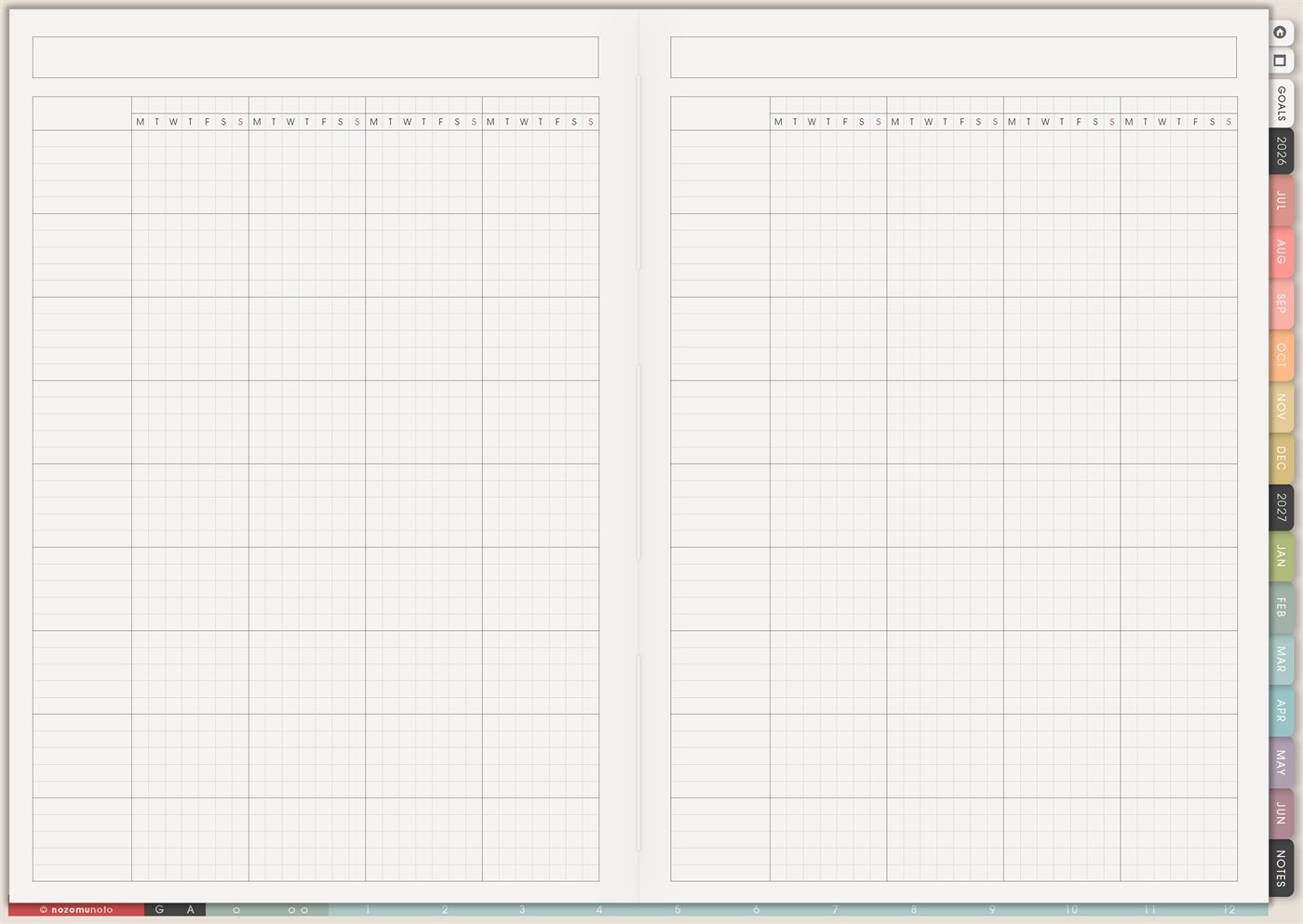
The Yume Techo Gantt Chart – Weekly page is a reusable timeline with weekday columns already built in. The top row repeats Monday through Sunday across multiple weeks, so it is made for plans where weekly rhythm matters: projects, study prep, content production, routines, events, chores, deadlines, or anything that needs several weeks of visible progress.
Use the Universal Gantt when you need a custom scale. Use the Weekly Gantt when the question is, “What happens on which day of the week, across several weeks?”
How to get to this page
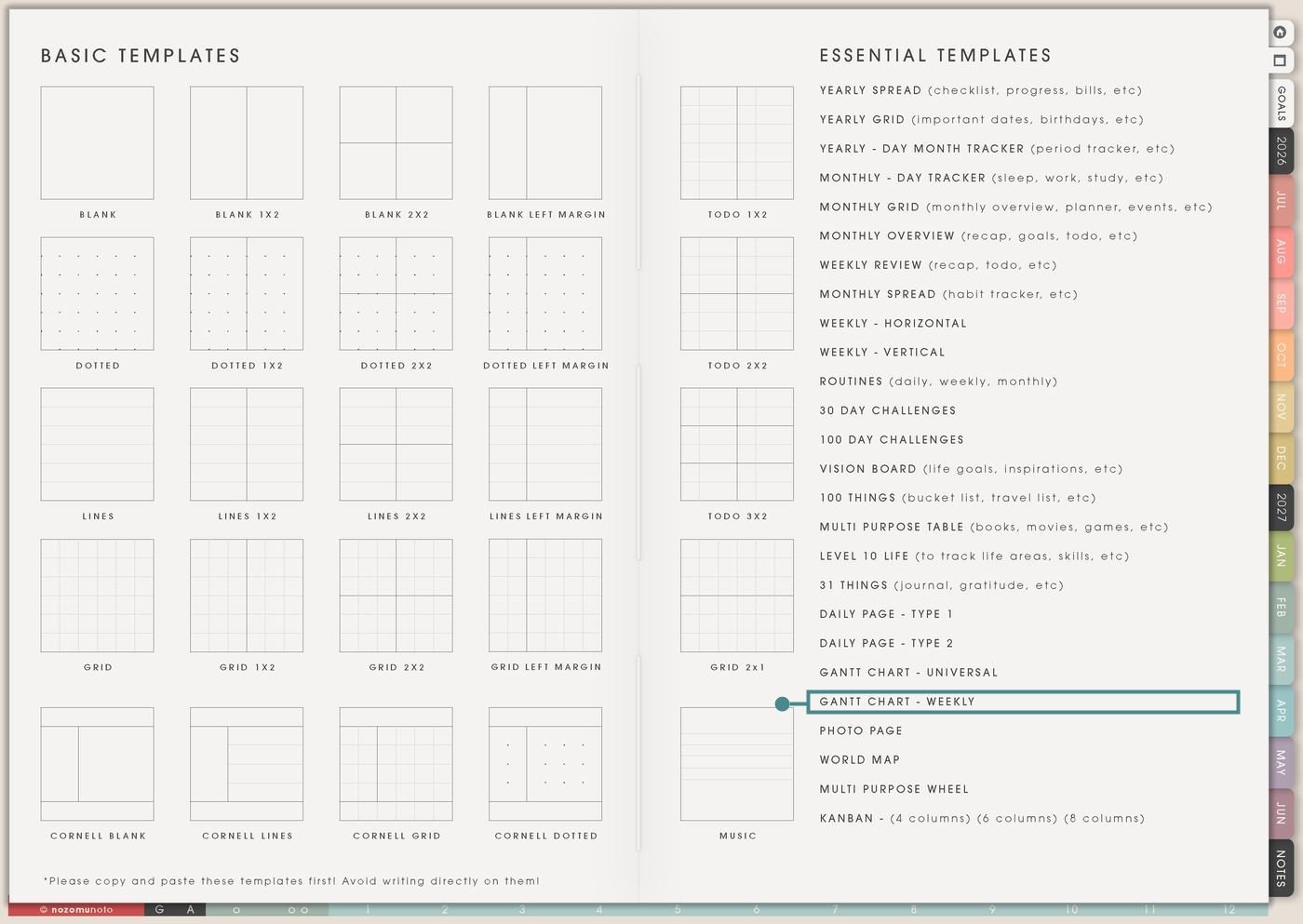
- Open the main Index page: use the planner Index if you need to return to the map.
- Tap the Template Pages icon: this opens the Template Index with reusable clean pages.
- Tap Gantt Chart – Weekly: it is under Gantt Chart – Universal in the Essential Templates list.
- Copy the page before writing: this is a clean template master. Duplicate it first, then write on the copy.
Before you draw bars: write the week range
Gantt Chart – Weekly is an Essential Template Page. Keep the original clean and make a copy for the weekly plan you want to build.
- Open Gantt Chart – Weekly from Template Index.
- Duplicate or copy the page in your app. Use the page overview, thumbnail view, page manager, or page actions menu.
- Name the copy by project or season. Examples: Exam Countdown, Listing Update Weeks, Moving Prep, Content Sprint, Routine Reset, or Holiday Prep.
- Write the start date or week range at the top. The weekday letters need a real week attached to them.
- Use rows for work areas. Write tasks, subjects, routines, project stages, people, or deliverables on the left, then mark active days across the week grid.
Ways to use this page
1. Multi-week project sprint
Use the page when a project needs steady progress across several weeks. The weekday columns show which days are realistic for each task.
2. Assignment, exam, or semester countdown
Use the chart to make school work visible before the deadline. This is useful when assignments have stages and study needs repetition.
3. Content production rhythm
Use Weekly Gantt when content has a repeatable production flow: idea, outline, shoot, edit, caption, schedule, publish, reuse.
4. Routine reset across several weeks
Use the page when you want to rebuild a routine gradually instead of expecting it to work every day immediately.
5. Home, chores, and family rhythm
Use the weekday grid for recurring family or home tasks that need spacing. This is easier than putting every chore on one day.
6. Launch week and follow-up planning
Use the page to see the weeks before and after a launch, sale, school event, product release, or campaign.
7. Travel or event countdown
Use Weekly Gantt for the weeks before a trip or event, especially when tasks need to happen on specific days around work, school, and family schedules.
8. Work shifts, client work, or team rhythm
Use the page when people, clients, or work blocks repeat weekly. The chart can show handoff days, focus days, admin days, meeting days, or delivery windows.
9. Creative practice or skill-building plan
Use Weekly Gantt for practice that needs repetition but not perfection: language study, art, music, writing, Bible study, coding, exercise, or reading.
10. Recovery, care, or appointment follow-up rhythm
Use the chart for practical care rhythms across weeks: appointments, refills, rest days, easy movement, therapy homework, paperwork, or help check-ins.
What I usually use it for and how I use it
Tips for using this page
- Write the start date, week range, or month at the top before drawing bars. If the chart covers four weeks, label each week boundary too.
- Mark unavailable days first. Then place only realistic work. Weekends can hold rest, buffer, review, or one small task, not everything that did not fit Monday to Friday.
- Use rows for project areas, routines, subjects, people, or phases. Put tiny daily actions on Weekly or Daily. The Gantt chart should show rhythm, not every detail.
- Use Weekly Gantt as the overview. Then move this week's real actions to the dated Weekly or Daily page. The Gantt chart shows timing; Weekly shows what to do next.
- Draw an arrow, extend the bar, or move the next active day. A weekly Gantt chart is meant to adjust. The useful question is what still needs time.
- Use Gantt Chart – Universal when the scale is custom. Use Gantt Chart – Weekly when weekday rhythm matters. Choosing the right Gantt page saves a lot of friction.
- Undo if possible. If not, bring in a fresh clean copy from the original planner file. After that, make "copy first" the first step every time you use an Essential Template Page.
Final thought
I hope this helps you choose one small next step! Gantt Chart – Weekly is useful when the rhythm of the week matters. Copy the clean page, write the week range, mark unavailable days first, and use the bars to show when work realistically happens. Then move the next real action to Weekly or Daily so the timeline becomes something everyone can actually follow!
Need exact app steps for copying weekly timeline pages?
If you need the exact buttons for duplicating this template, moving the copied page, importing Yume Techo, or using hyperlinks, use the Help Center app guide for your device.