

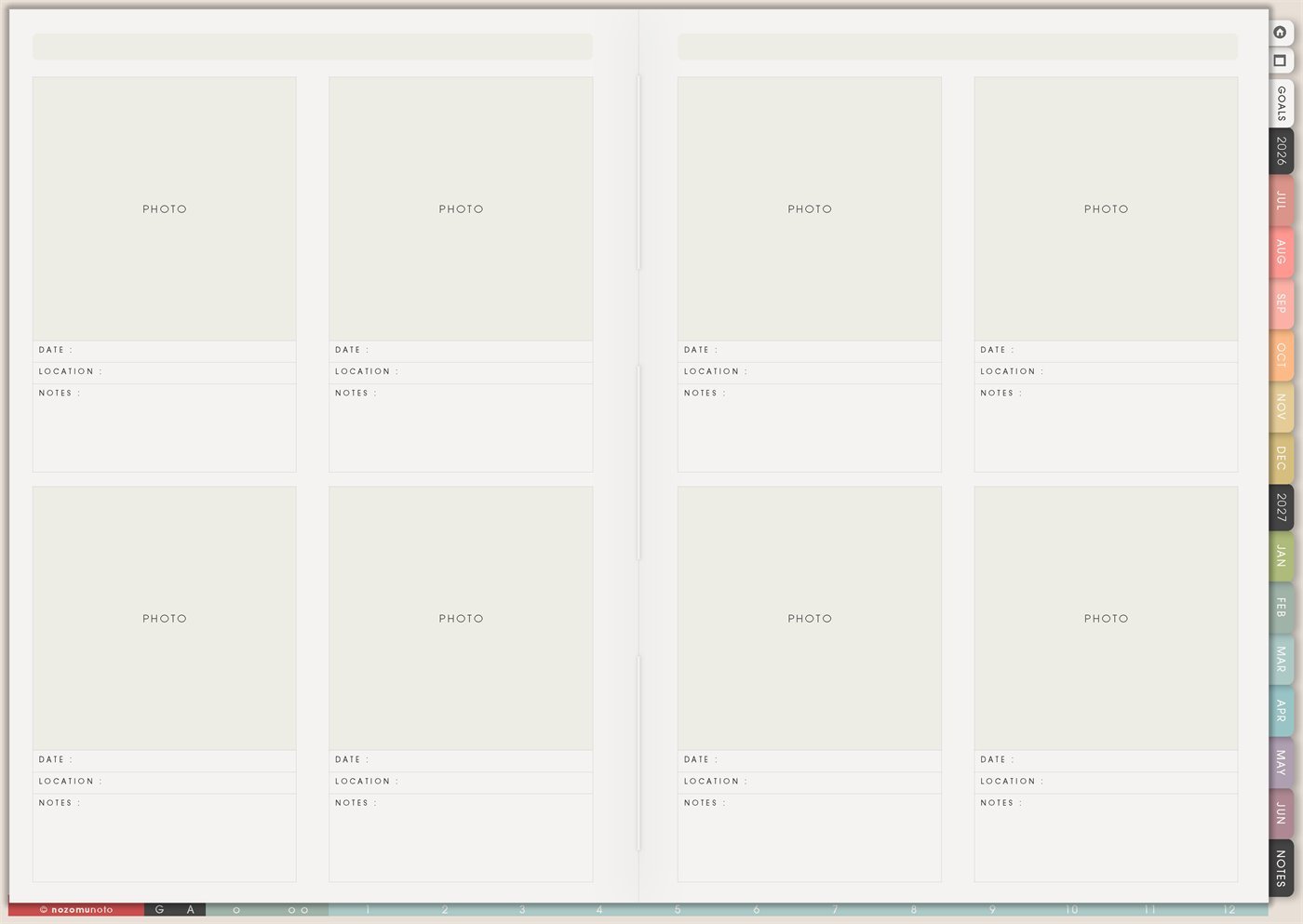
The Yume Techo Photo Page is a reusable visual record page with photo spaces and small fields for date, location, and notes. Use it when photos need context, not just storage. A picture can show a memory, project stage, family moment, before-and-after, trip detail, product idea, home reset, study evidence, or small joy, and the note tells future-you why it mattered.
This page is not only for pretty photos. It is for useful photos: the ones that help everyone remember, compare, explain, prove progress, or keep a visual reference close to the plan.
How to get to this page
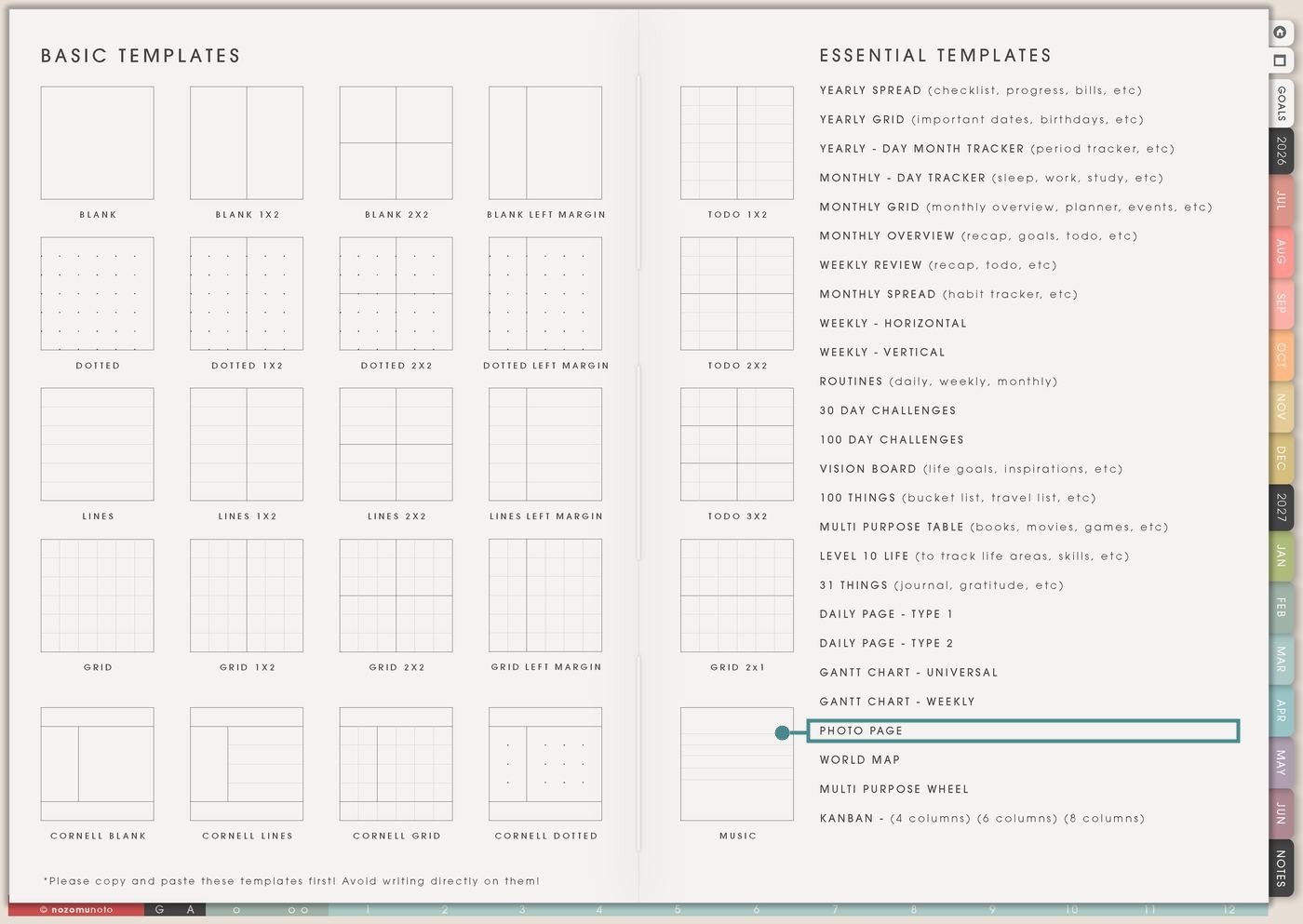
- Open the main Index page: use the planner Index if you need to return to the map.
- Tap the Template Pages icon: this opens the Template Index with reusable clean pages.
- Tap Photo Page: it is under Gantt Chart – Weekly in the Essential Templates list.
- Copy the page before writing: this is a clean template master. Duplicate it first, then write on the copy.
Before you add photos: choose what this page remembers
Photo Page is an Essential Template Page. Keep the original clean and make a copy for the memory, project, trip, or visual record you want to build.
- Open Photo Page from Template Index.
- Duplicate or copy the page in your app. Use the page overview, thumbnail view, page manager, or page actions menu.
- Name the copy by theme. Examples: July Memories, Garden Progress, Product Photos, Trip Highlights, Kid Quotes, Room Reset, or Before and After.
- Add only the photos that need context. If every photo is added, the page becomes heavy and hard to use.
- Write date, location, and one short note. A small note makes the photo easier to understand later.
Ways to use this page
1. Monthly memory page
Use Photo Page to hold a few photos that represent the month. This is easier than making a full scrapbook when life is busy.
2. Travel or outing photo log
Use the page for trip highlights, route memories, hotel notes, favorite meals, train stations, museums, or small details you want to remember.
3. Family, kids, pets, or relationship moments
Use Photo Page for little memories that would otherwise disappear inside a phone gallery.
4. Before-and-after home progress
Use the page to show progress in a room, shelf, desk, pantry, closet, craft area, or digital folder. Photos can make progress visible even when the work feels small.
5. Product, shop, or creative project record
Use the page to track visual decisions during a product or creative project. This is helpful for comparing versions, remembering settings, or documenting the process.
6. Craft, art, or making progress
Use Photo Page for crochet, sewing, drawing, painting, journaling, model building, baking, gardening, or anything where progress is visual.
7. Study, field trip, or class documentation
Use the page when photos help learning: experiment results, museum notes, diagrams, workbook progress, whiteboard notes, field trip observations, or project evidence.
8. Visual gratitude or joy collection
Use Photo Page for small things that make life feel warmer. This can become a easy proof-of-good-things page.
9. Outfit, meal, or routine reference
Use the page for visual references you want to repeat: outfits, lunch ideas, lunchbox setups, meal plates, skincare shelf, school bag setup, desk setup, or morning routine layout.
10. Screenshot record for digital work
Use Photo Page for screenshots that need context: app settings, planner setup, download proof, website before/after, product mockups, or tutorial evidence.
What I usually use it for and how I use it
Tips for using this page
- Choose the strongest photos only. Use one page for highlights, not the whole camera roll. Crop photos before adding them if the file is huge.
- Fill at least one of the small fields: date, location, or note. A few words are enough: before reset, favorite cafe, first draft, works better, or repeat this.
- Crop before placing the image or zoom the image inside the app if possible. Keep the important part large enough to understand without hunting.
- Add one useful note per photo. Use words like repeat, fix, choose, done, before, after, favorite, reference, or next step.
- Crop, blur, cover, or avoid adding private details. Keep the page useful without storing sensitive information that does not need to be there.
- After adding the photo, write one action or lesson if it matters. Move the action to Weekly, Daily, Kanban, or Monthly Overview.
- Undo if possible. If not, bring in a fresh clean copy from the original planner file. After that, make "copy first" the first step every time you use an Essential Template Page.
Final thought
I hope this helps you choose one small next step! Photo Page is useful when a picture needs context. Copy the clean page, choose photos that tell a story or help a decision, and write the date, location, or one small note while the memory is still fresh. A few clear photos with tiny notes can hold a whole season beautifully!
Need exact app steps for adding photos?
If you need the exact buttons for duplicating this template, adding images, cropping screenshots, importing Yume Techo, or moving copied pages, use the Help Center app guide for your device.