

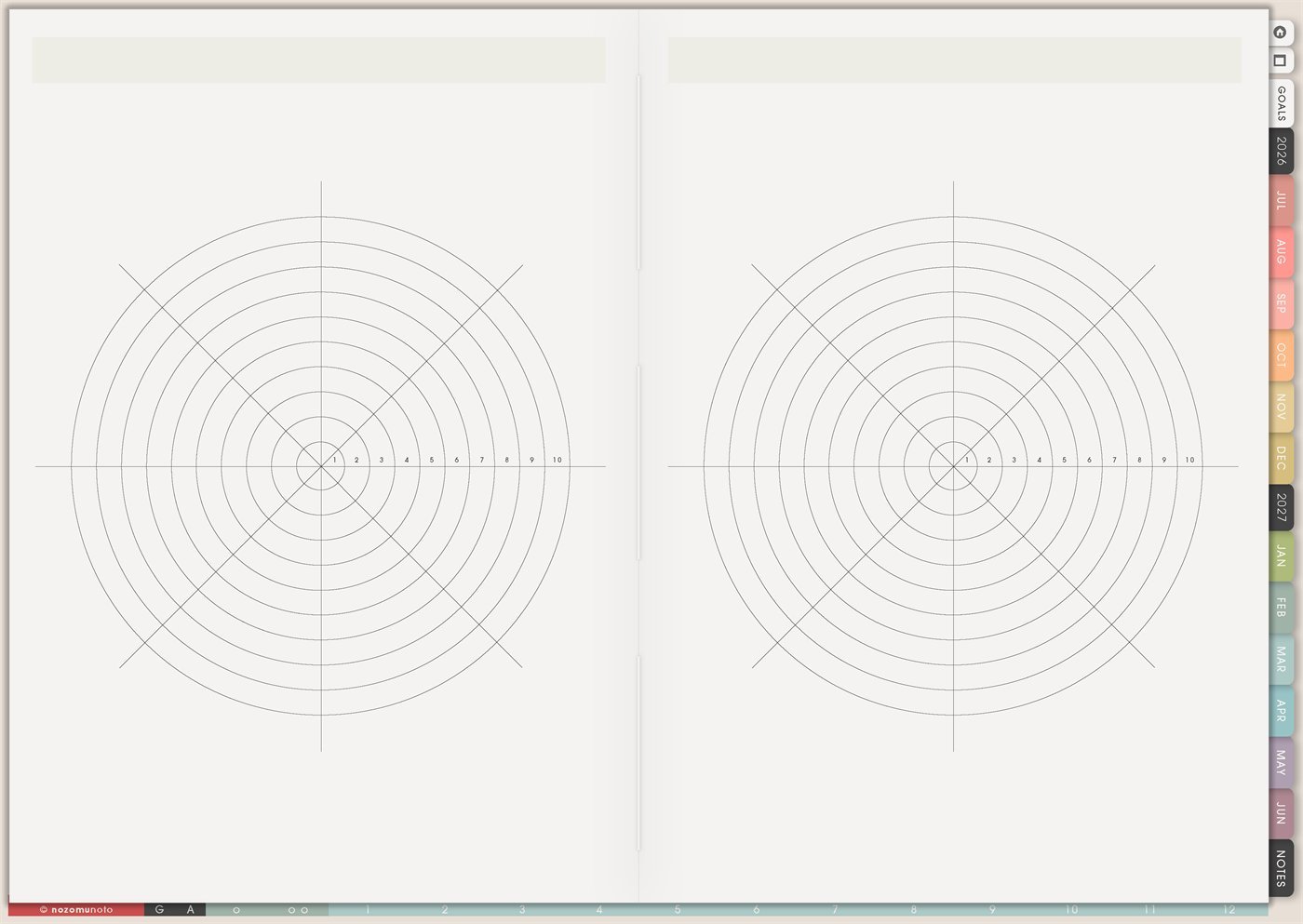
The Yume Techo Multi Purpose Wheel page is a reusable wheel chart template for seeing balance, priorities, ratings, progress, and comparison at a glance. Use it when a normal list feels too flat and you want to see which area is strong, which area needs attention, and which one small change would help next.
Each wheel can become a life balance check, study confidence map, wellness review, project health chart, routine score, family load map, creative review, or before-and-after comparison. It works best when the wheel has one clear question, one simple scale, and one next action after the review.
How to get to this page
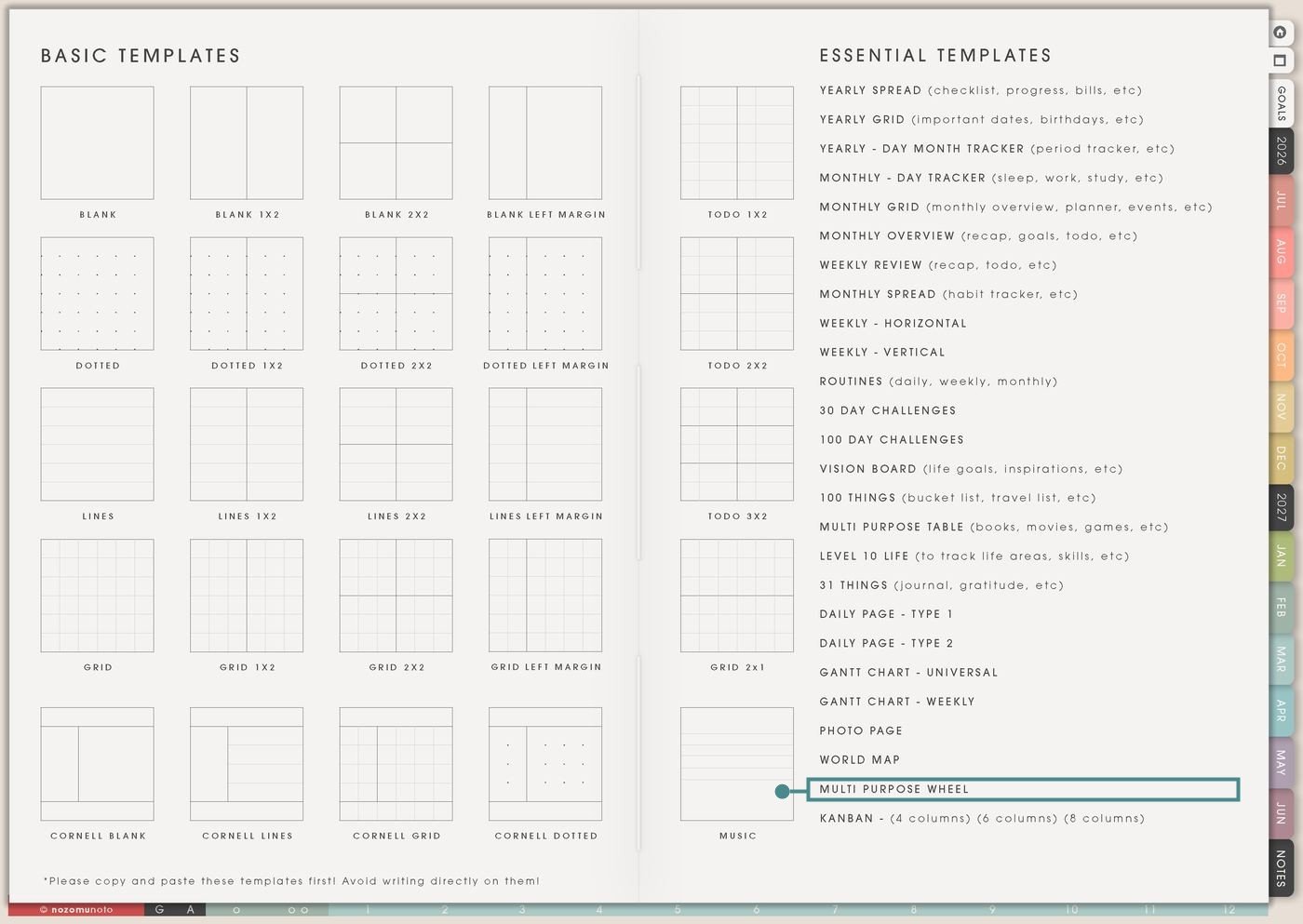
- Open the main Index page: use the planner Index if you need to return to the template section.
- Tap the Template Pages icon: this opens the Template Index with reusable clean pages.
- Tap Multi Purpose Wheel: it is under World Map in the Essential Templates list.
- Copy the page before writing: this is a clean template master. Duplicate it first, then write on the copy.
Before you fill the wheel: choose the question
Multi Purpose Wheel is an Essential Template Page, so keep the original clean and make a copy for each review. The page is flexible, but it becomes confusing if every wheel tries to answer everything at once.
- Name the wheel. Examples: Life Balance June, Study Confidence, Project Health, Home Load, Wellness Check, Content Review, or Routine Reset.
- Choose the sections before rating. Write the category names around the wheel first so the numbers have meaning.
- Define the scale. Decide what 1 and 10 mean for this wheel. A 10 does not have to mean perfect; it can mean steady enough for this season.
- Rate the current reality. Fill the wheel based on now, not the version of life you wish you had.
- Move one action forward. After reviewing the shape, choose one wedge and write one small action on Weekly, Daily, or a related planner page.
Ways to use this page
1. Life balance wheel
Use the wheel to check the main life areas without writing a long journal entry. Label the wedges with areas like health, home, work, money, study, relationships, creativity, rest, faith, or personal growth.
2. Goal priority wheel
Use the wheel when there are many goals and they all feel urgent. Each wedge can be one goal, project, or life area. Rate importance, energy, urgency, or readiness.
3. Energy and capacity check-in
Use the wheel to see where energy is going. This is helpful during busy seasons when everyone knows they are tired but cannot see why.
4. Wellness and body-care review
Use the wheel as a easy body-care overview. Keep it practical and helpful: sleep, meals, hydration, movement, medication or supplements if relevant, appointments, pain notes, stress, and rest.
5. Study confidence wheel
Use the wheel before exams, assignments, or a new semester. Each wedge can be one subject, chapter, skill, assignment stage, or exam topic.
6. Work or project health wheel
Use the wheel when a project has many invisible parts. Label wedges with planning, files, communication, deadline, budget, supplies, review, delivery, follow-up, and energy.
7. Home and family load map
Use the wheel to see where home life is carrying too much weight. This can include meals, laundry, school papers, appointments, bills, cleaning, transport, groceries, bedtime, pet care, or emotional help.
8. Creative or small business review
Use the wheel for a creative project, shop, content plan, or product idea. Wedges can be idea clarity, photos, listing, keywords, tutorial, customer questions, delivery, packaging, promotion, and follow-up.
9. Habit or routine comparison
Use one wheel for the normal version of a routine and the second wheel for the tiny version. This is helpful when a routine breaks because it only has an ideal version.
10. Before-and-after season review
Use the two wheels on the page to compare before and after: start of month vs end of month, before exam week vs after exam week, before launch vs after launch, or current season vs next season.
What I usually use it for and how I use it
Tips for using this page
- Start with six to ten categories. If you need more detail, make a second wheel for that one area instead of forcing everything onto one chart.
- Write the scale before rating. For example: 1 means needs help now, 5 means functioning but uneven, and 10 means steady enough for this season.
- Treat low numbers as information. A low wedge means "this area needs help," not "I am failing." Choose one tiny help action and let the wheel stay warm.
- Rate now first. If you want, use the second wheel for the desired version. The gap between current and desired can show the next help step.
- After every wheel, choose one wedge and one next action. Write it on Weekly, Daily, Kanban, Study Schedule, Monthly Overview, or Notes.
- Label both wheels before filling them. Good labels are Current / Next, Before / After, June / July, Me / Family, Study / Work, or Normal / Tiny.
- Undo if possible. If not, bring in a fresh clean copy from the original planner file. After that, make a duplicate first every time you use an Essential Template Page.
Final thought
I hope this helps you choose one small next step! Multi Purpose Wheel is helpful because it turns a fuzzy feeling into a visible shape. Copy the clean page, choose one question, define the scale, rate the current season honestly, and move one small action into the week. The wheel does not need to fix everything. It just needs to show the next warm, useful step!
Need exact app steps for copying this wheel page?
If you need the exact buttons for duplicating this template, moving the copied page, importing Yume Techo, or using page overview tools, use the Help Center app guide for your device.