

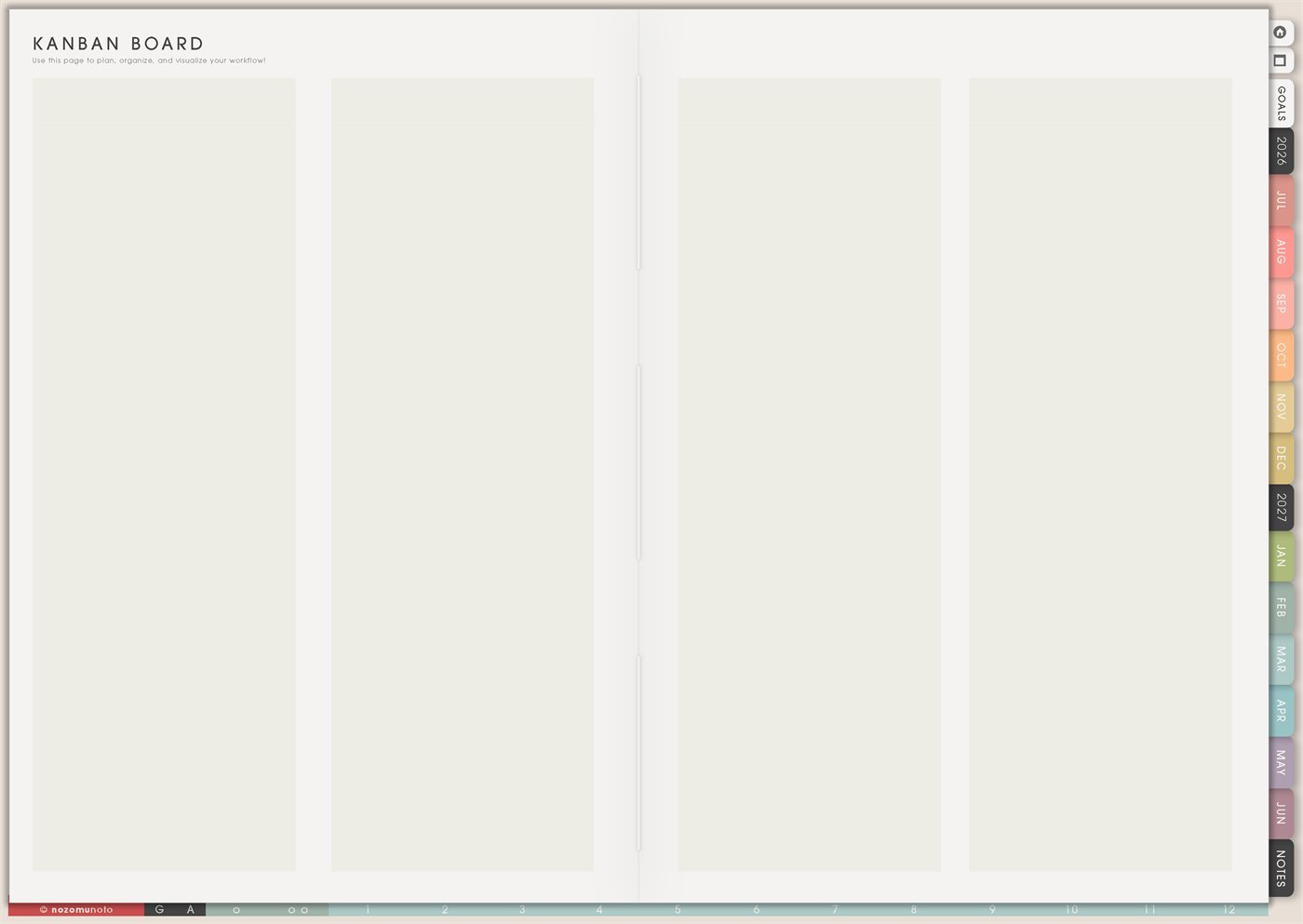
The Yume Techo Kanban Board pages are reusable project boards for tasks that move through stages. Use Kanban when a normal list becomes too long, when a project has waiting parts, or when everyone needs to see what is active, what is stuck, and what is finished.
Yume Techo includes 4-column, 6-column, and 8-column Kanban templates. They are not separate topics. They are three sizes of the same idea: choose fewer columns for simple action, more columns when a workflow has real stages.
How to get to this page
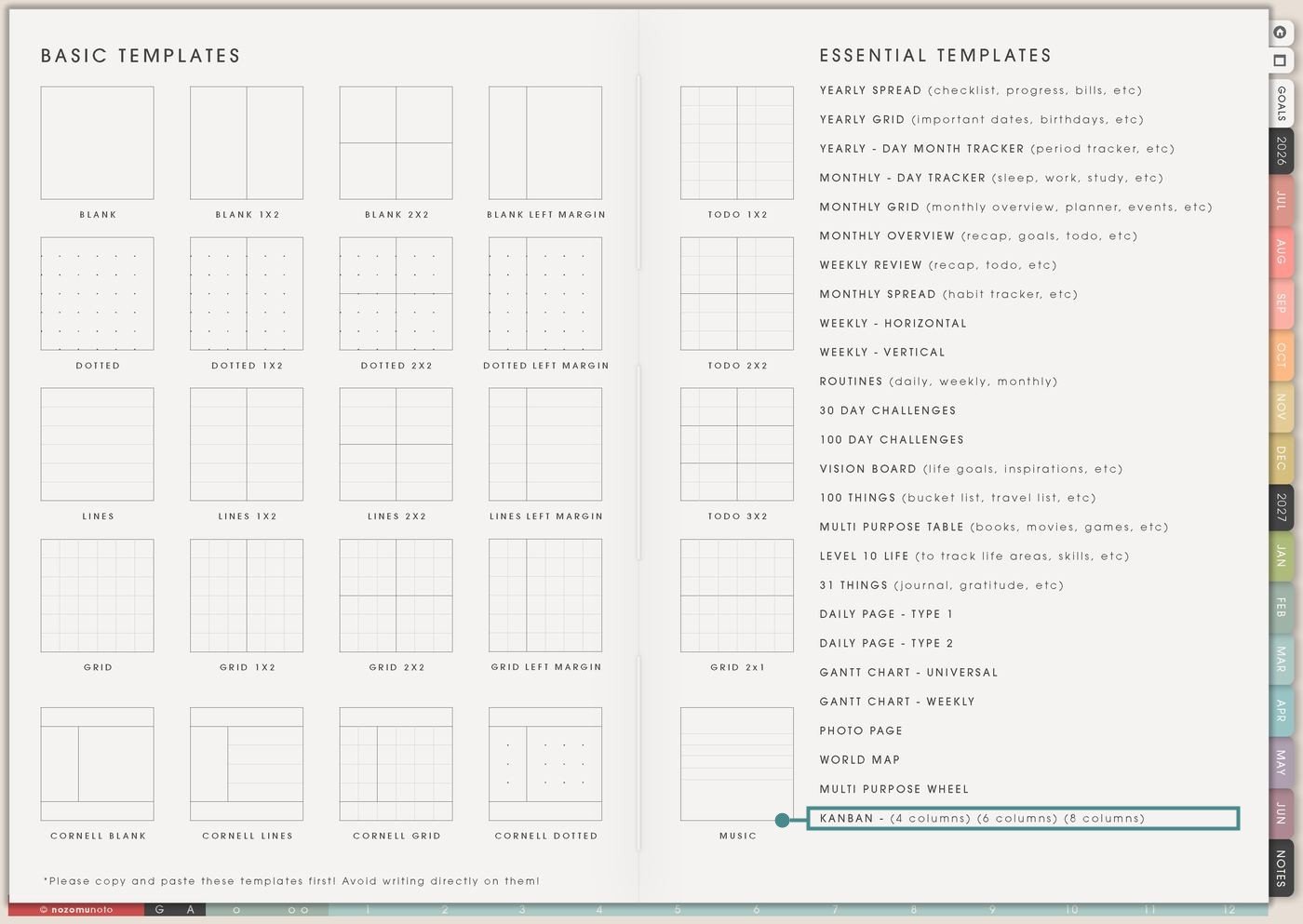
- Open the main Index page: use the planner Index if you need to return to the template section.
- Tap the Template Pages icon: this opens the Template Index with reusable clean pages.
- Tap Kanban: choose the 4-column, 6-column, or 8-column version from the Kanban row.
- Copy the page before writing: this is a clean template master. Duplicate the version you need first, then write on the copy.
Choose the right Kanban size
Pick the smallest board that can show the real movement of the work. More columns are useful only when they make decisions clearer.
4 columns: simple and fast
The first image above shows the 4-column board. Use it for most everyday projects. Good column sets are Backlog / Next / Doing / Done, To Do / Doing / Waiting / Done, Ideas / This Week / Active / Finished, or Assigned / Working / Waiting / Submitted.
6 columns: enough stages for a real workflow
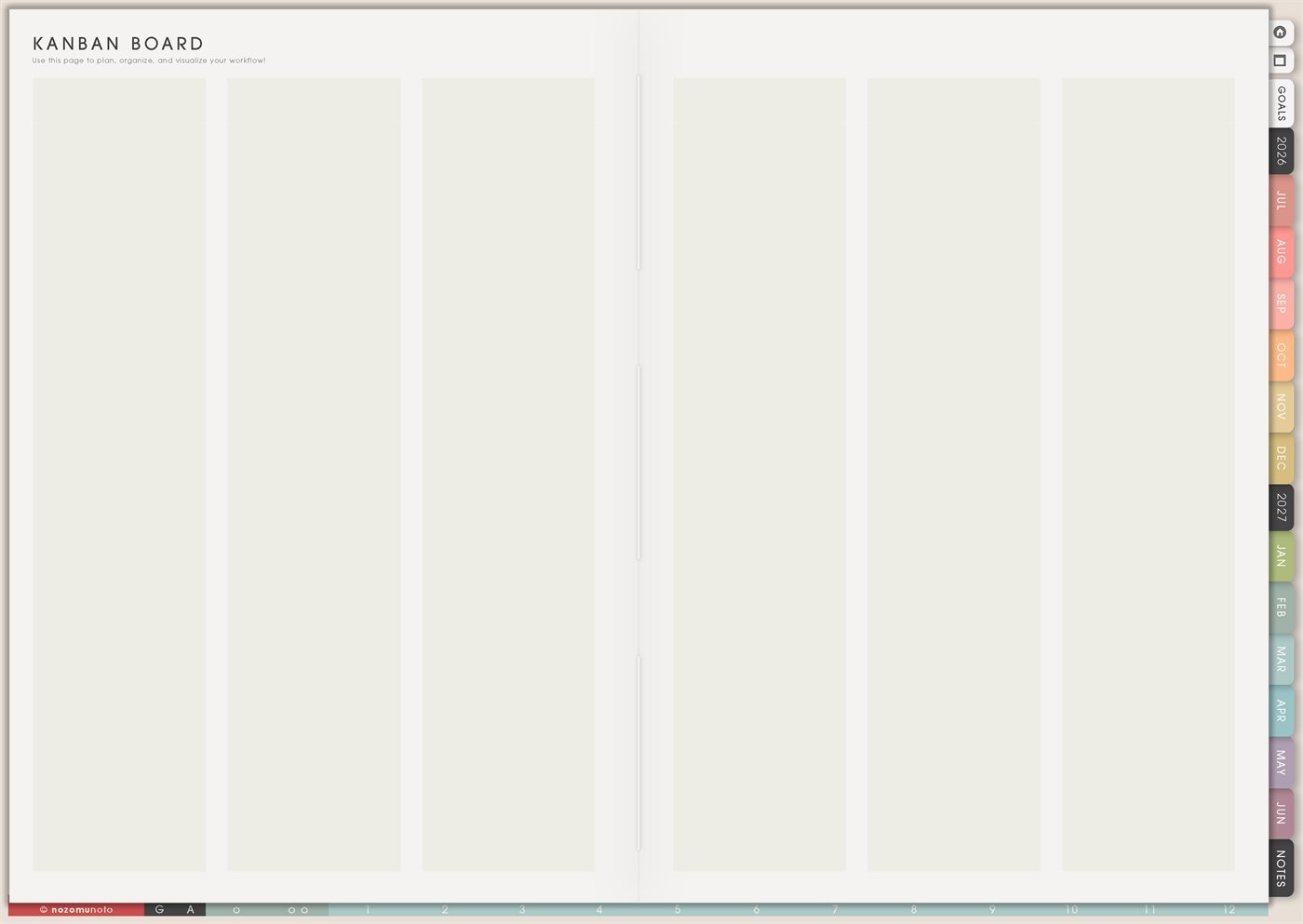
Use the 6-column board when the project has middle steps that matter. Good column sets are Ideas / Chosen / Draft / Review / Waiting / Done, Backlog / This Week / Doing / Waiting / Check / Done, or Supplies / Start / Make / Photo / List / Done.
8 columns: complex projects only
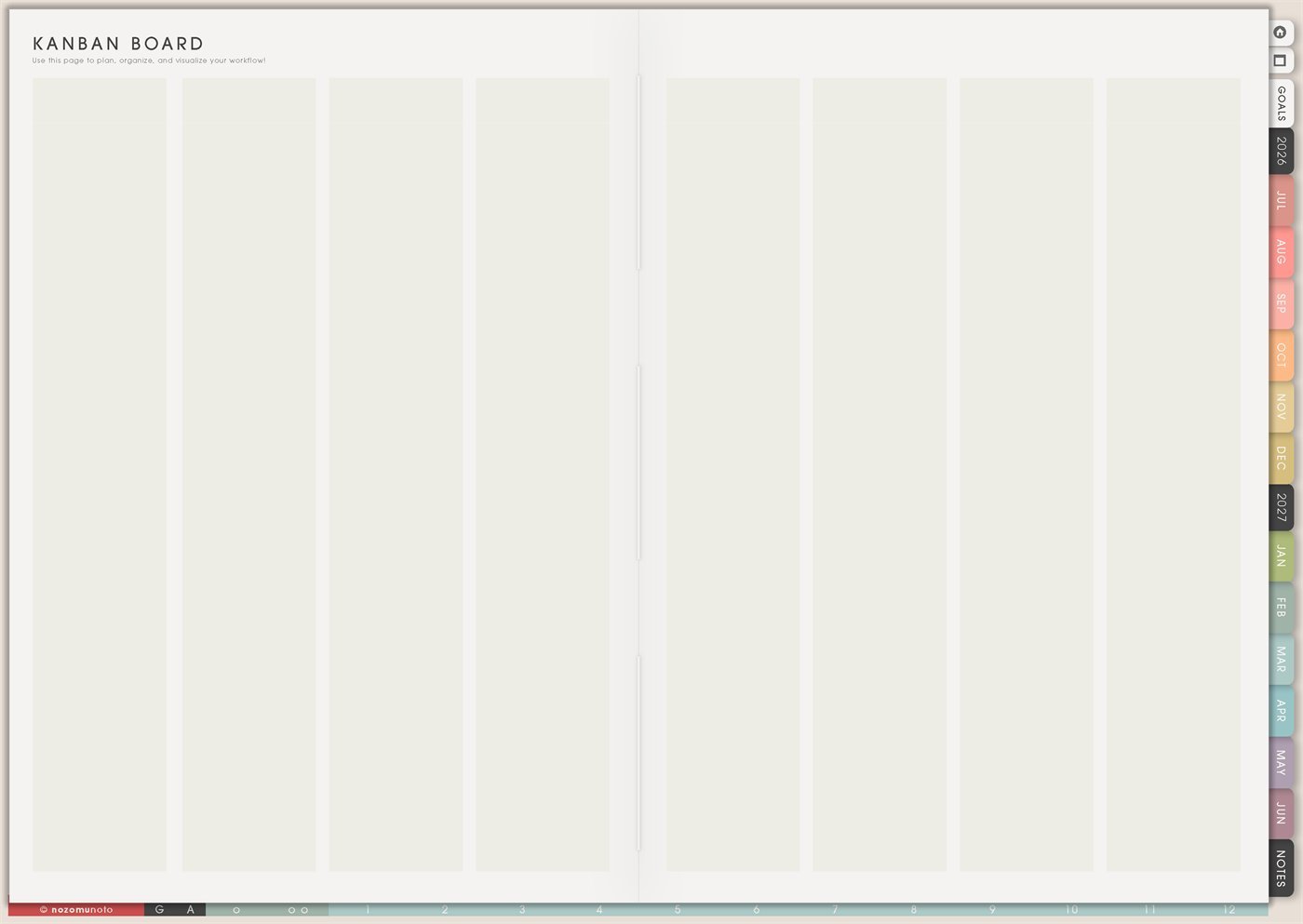
Use the 8-column board when each stage is different enough to need its own place. This works for launches, content pipelines, craft production, course work, product updates, house projects, or big event prep.
Before you build the board: write the column names first
Kanban is an Essential Template Page. Keep the original clean, copy the version you need, then name the board and the columns before adding tasks.
- Name the board. Examples: Website Fixes, Exam Paper, Spring Cleaning, Etsy Listing Update, Birthday Party, Craft Orders, or Weekly Admin.
- Choose the column flow. Use stages that show movement, not categories that hide decisions.
- Write cards as next actions. “Essay” is too big. “Draft introduction” or “find 3 sources” can move.
- Limit the Doing column. A Kanban board helps because it shows what is active. Too many active cards turns it back into a messy list.
- Review and clear the board. Move finished cards, update waiting cards, and remove tasks that no longer matter.
Ways to use this page
1. Simple project board
Use the 4-column Kanban for one project that keeps spreading. The board shows what exists, what should happen next, what is actively being worked on, and what is finished.
2. Study assignment or exam board
Use Kanban for school work with several stages. This is helpful when assignments become unclear in the planner and need a visible path.
3. Home admin and family follow-up
Use Kanban for home tasks that involve waiting, calls, forms, appointments, school papers, repairs, or errands. A Waiting column is especially useful here.
4. Content or launch workflow
Use the 6-column or 8-column board when content has repeatable stages. This keeps ideas separate from posts that are truly active.
5. Small business product help
Use Kanban for product updates, customer questions, listing improvements, tutorial pages, screenshots, and delivery fixes. The board helps you see what is blocked and what is shippable.
6. Craft, art, or making workflow
Use Kanban for creative projects with materials, test versions, photos, finishing, packaging, or sharing. This works better than a plain list when the project has stages.
7. Travel or event preparation
Use Kanban when a trip, party, school event, holiday, or family gathering has many moving pieces. The board keeps open loops visible.
8. Weekly command board
Use a small Kanban for the week when normal to-do lists feel crowded. Only put tasks that are alive this week on the board.
9. Procrastination and stuck-task board
Use Kanban to separate tasks that are truly active from tasks that are unclear, waiting, or too big. Stuck tasks usually need a smaller next action or a missing decision.
10. Team, family, or classroom board
Use Kanban when several people are involved and tasks need a visible status. Keep names simple and avoid private details if the planner is shared or shown to others.
What I usually use it for and how I use it
Tips for using this page
- Limit Doing to one to three cards. Move the rest back to Next, Waiting, or Backlog. Kanban works because it narrows the active work.
- Name columns by movement: Backlog, Next, Doing, Waiting, Review, Done. Use separate boards if the categories need different workflows.
- Split large cards into smaller next actions. A card should be movable: take cover photo, write first paragraph, test link, send email, or export ZIP.
- Add Waiting, Blocked, Reply Needed, or Follow Up. Put the next follow-up date on Weekly or Monthly so the card does not disappear.
- Use 4 columns for simple tasks. Save 6 or 8 columns for workflows with real stages, like a launch, class project, event, or production process.
- Clear Done during Weekly Review. Save important finished notes to a project notes page, Photo Page, or Monthly Overview if you want a record.
- Undo if possible. If not, bring in a fresh clean copy from the original planner file. After that, duplicate the Kanban version you need before adding any cards.
Final thought
I hope this helps you choose one small next step! Kanban is useful when work needs movement, not just storage. Copy the clean board, choose the smallest column count that fits, write movable next-action cards, protect the Doing column, and review the board weekly. A good Kanban page makes the next step easier to see!
Need exact app steps for copying Kanban?
If you need the exact buttons for duplicating this template, moving the copied page, importing Yume Techo, or using page overview tools, use the Help Center app guide for your device.