

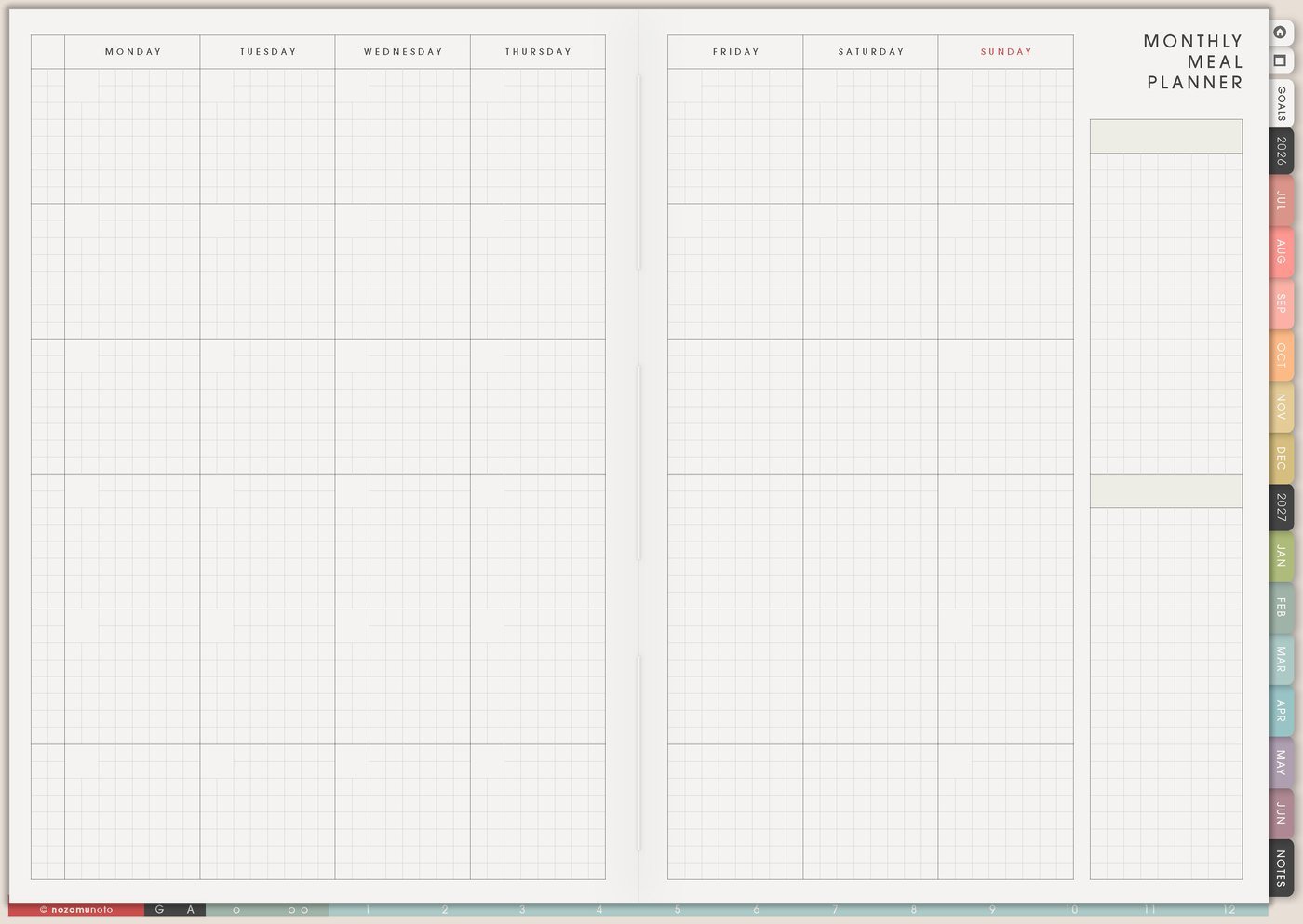
The Home pages in Yume Techo are for the repeated household decisions that can take too much brain space: meals, groceries, recipes, family schedules, and home notes. This article shows how to use the Home section as a practical place for recurring home information, so Weekly only needs the few actions that matter now.
How to get to these pages
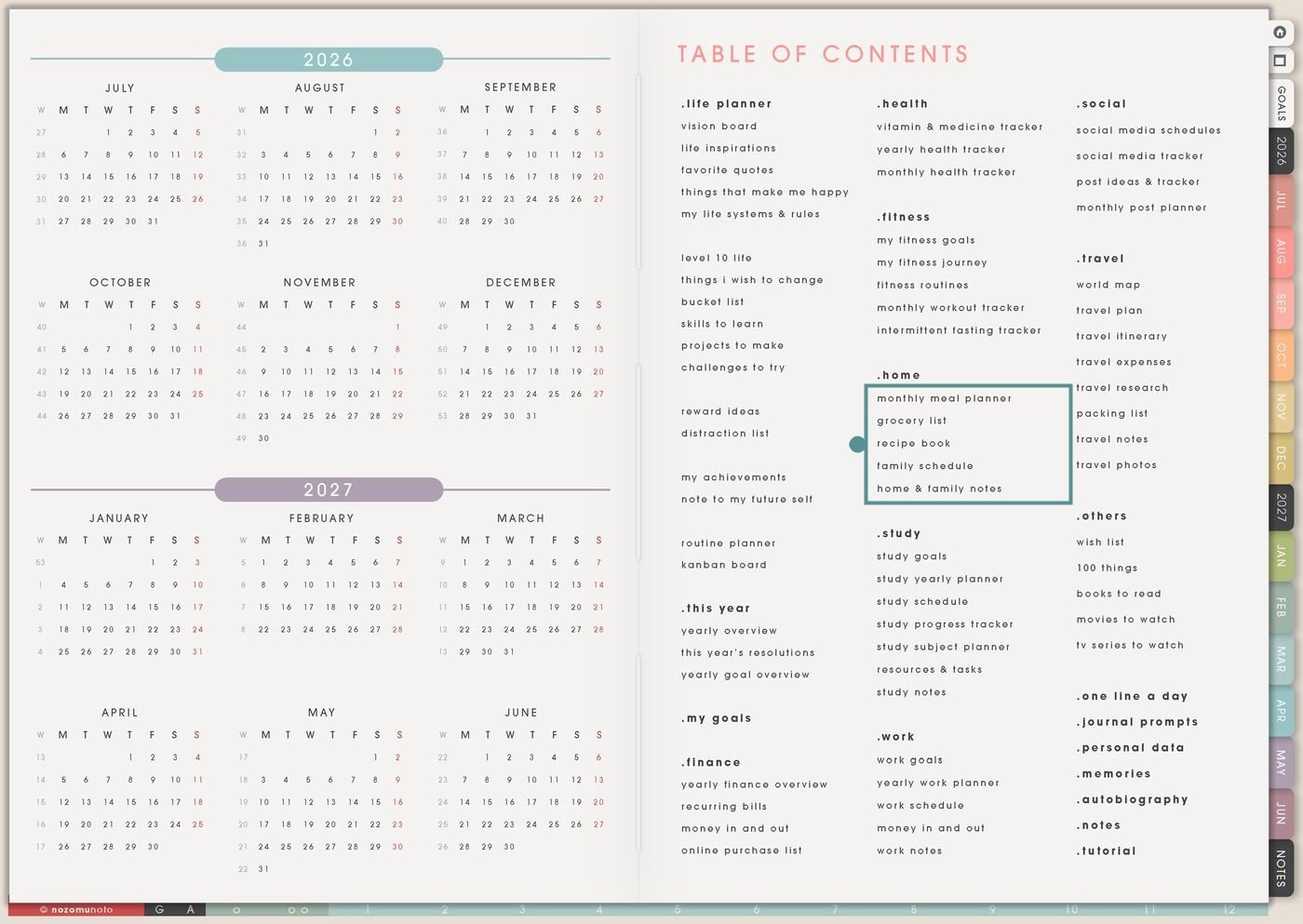
- Open the main Index / Table of Contents. The Home section is in the middle column below Fitness.
- Tap the Home page you need. The section includes Monthly Meal Planner, Grocery List, Recipe Book, Family Schedule, and Home & Family Notes.
- Start with the current pain point. If food is the problem, start with Monthly Meal Planner or Grocery List. If the family week is the problem, start with Family Schedule.
- Duplicate for separate jobs. Make a copy for a holiday menu, school lunch list, recipe collection, chore rhythm, shared family plan, or moving/home project.
Pages included in Home
- Monthly Meal Planner: for dinners, school lunches, leftovers, prep days, grocery rhythm, and low-energy food plans.
- Grocery List: for store lists, pantry restock, meal-based shopping, household items, and repeat basics.
- Recipe Book: for family favorites, quick meals, holiday recipes, freezer meals, lunch ideas, and meal-prep notes.
- Family Schedule: for school, work, appointments, lessons, chores, pickups, family routines, and shared weekly rhythm.
- Home & Family Notes: for overflow details like measurements, repair notes, school info, home projects, packing lists, or family admin.
Ways to use the Home pages
1. Use Monthly Meal Planner to lower food decisions
Use Monthly Meal Planner for the everyday food question: what can everybody realistically eat this week? The page does not need a perfect menu. It needs enough structure to make the next grocery trip and the next busy evening easier.
- Dinner map: write simple dinners for the month, or only for the busiest weeks.
- Leftover rhythm: plan leftover nights, freezer meals, eating out, or easy backup meals on busy days.
- School and work lunches: make a short rotation so lunch does not start from zero every morning.
- Prep notes: mark chop vegetables, cook rice, thaw meat, wash fruit, batch soup, or pack snacks before the week starts.
A practical meal plan can repeat meals. Repeating meals is not boring if it makes the week easier to run.
2. Use Grocery List for categories, stores, and repeat basics
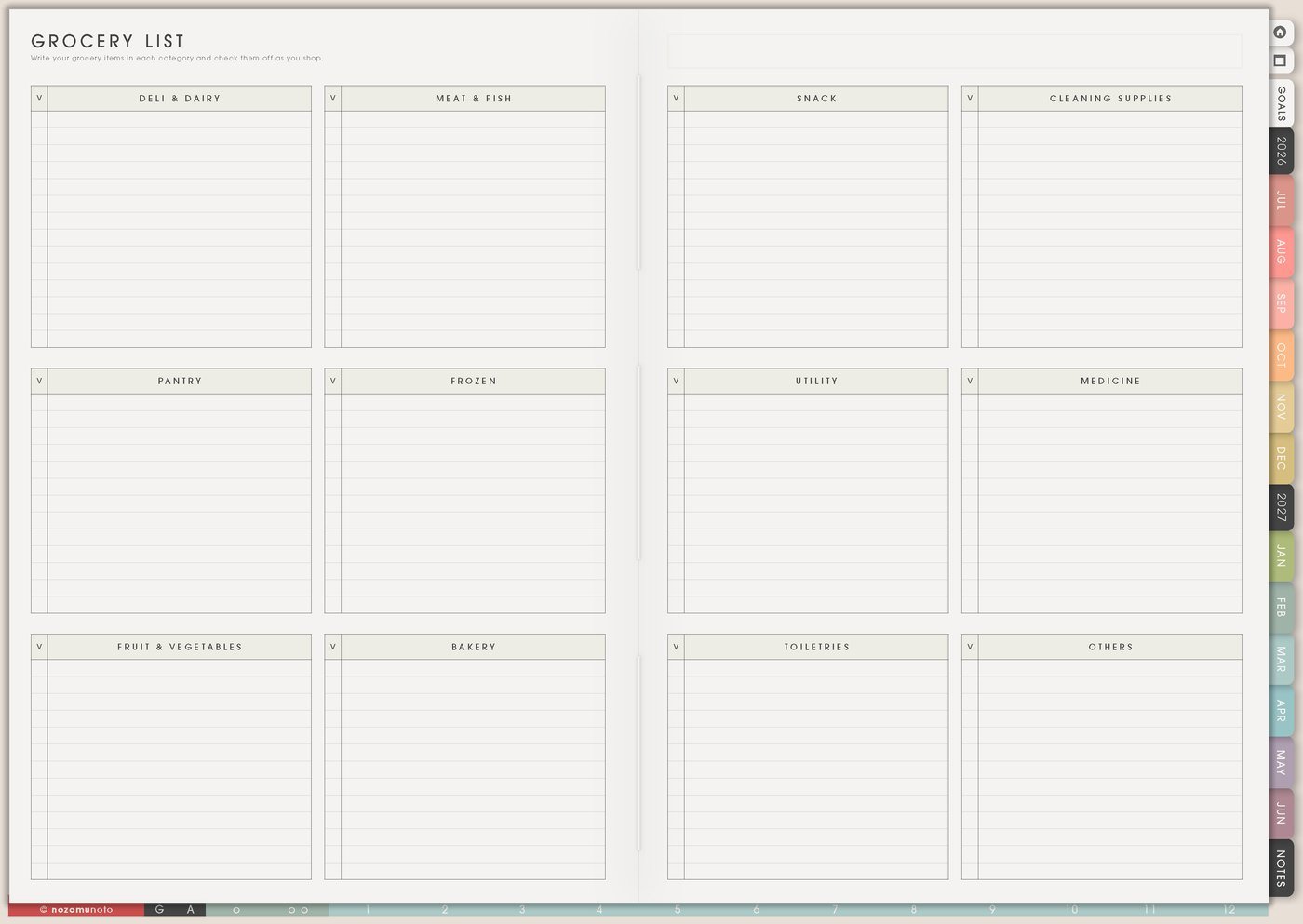
Use Grocery List when the pantry, phone notes, screenshots, recipes, and “oh we are out of that too” thoughts are all competing for attention. The page is especially useful when the list is grouped by store area or meal plan.
- Store sections: produce, meat, freezer, dairy, pantry, household, snacks, school lunch, and personal care.
- Meal-based list: write ingredients under each meal so you can see what one recipe needs.
- Pantry restock: keep a copied list for rice, udon, flour, oil, sauces, coffee, tea, cleaning supplies, paper goods, and pet items.
- Budget check: mark must-buy, wait, coupon, bulk, or next trip if the list becomes too expensive.
Before shopping, move only the actual trip action to Weekly: check pantry, make grocery order, go to store, or pick up order.
3. Use Recipe Book for meals you want to repeat
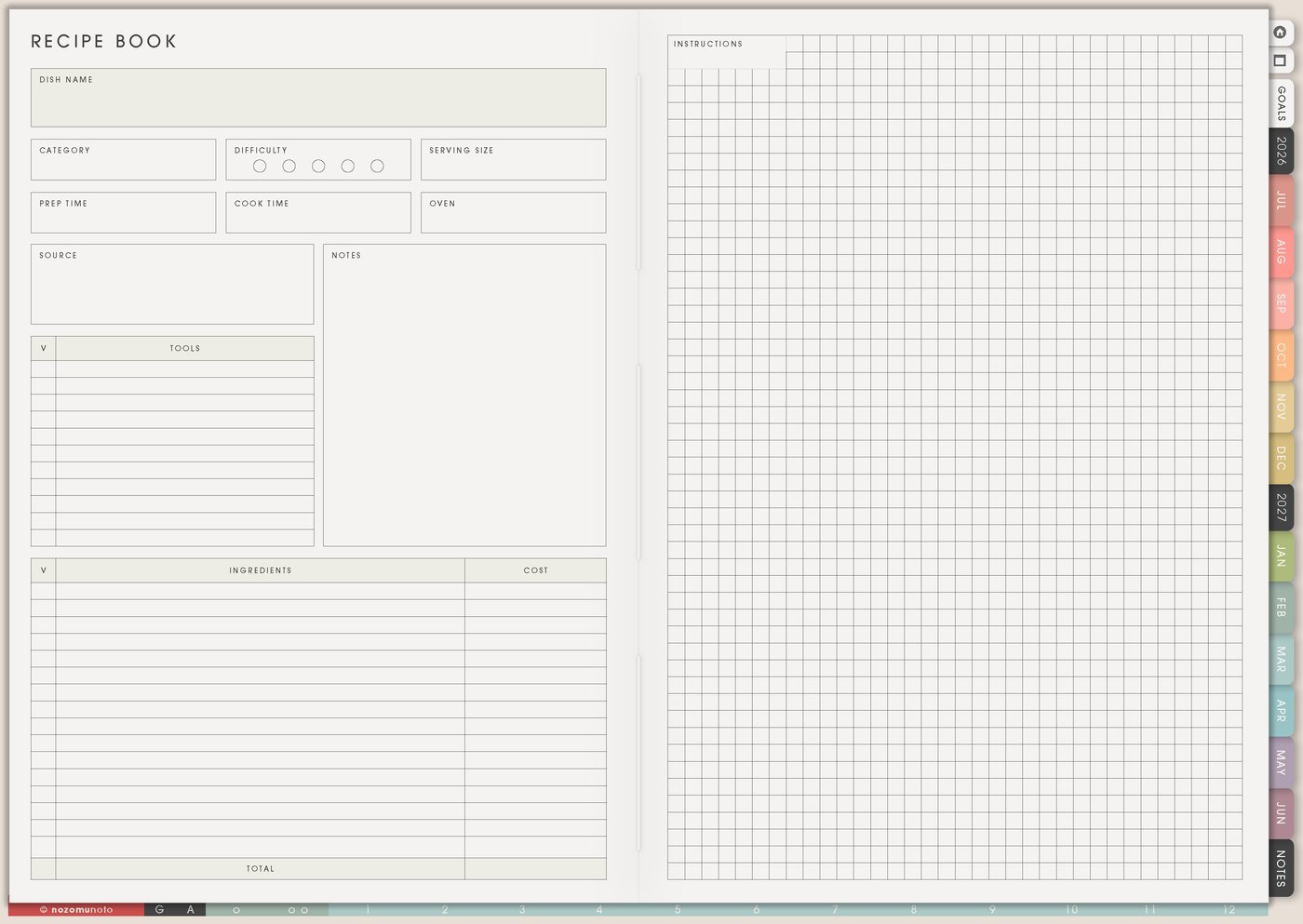
Use Recipe Book for meals that have earned a repeat. This can be family meals, easy dinners, lunch box ideas, holiday recipes, baking notes, freezer meals, or food that everyone actually eats.
- Family favorites: write the recipes that are already proven, not only aspirational meals.
- Quick meals: keep a section for tired days: eggs, noodles, soup, rice bowls, onigiri, frozen backups, or simple udon.
- Recipe notes: add what to change next time, who liked it, cooking time, substitutions, and shopping notes.
- Holiday and gift food: save recipes for birthdays, Mother’s Day, school events, Christmas, care packages, or family gatherings.
Recipe Book becomes useful when it stores real repeat meals. If a recipe is beautiful but nobody eats it, it does not need to become a regular page.
4. Use Family Schedule for the weekly home rhythm
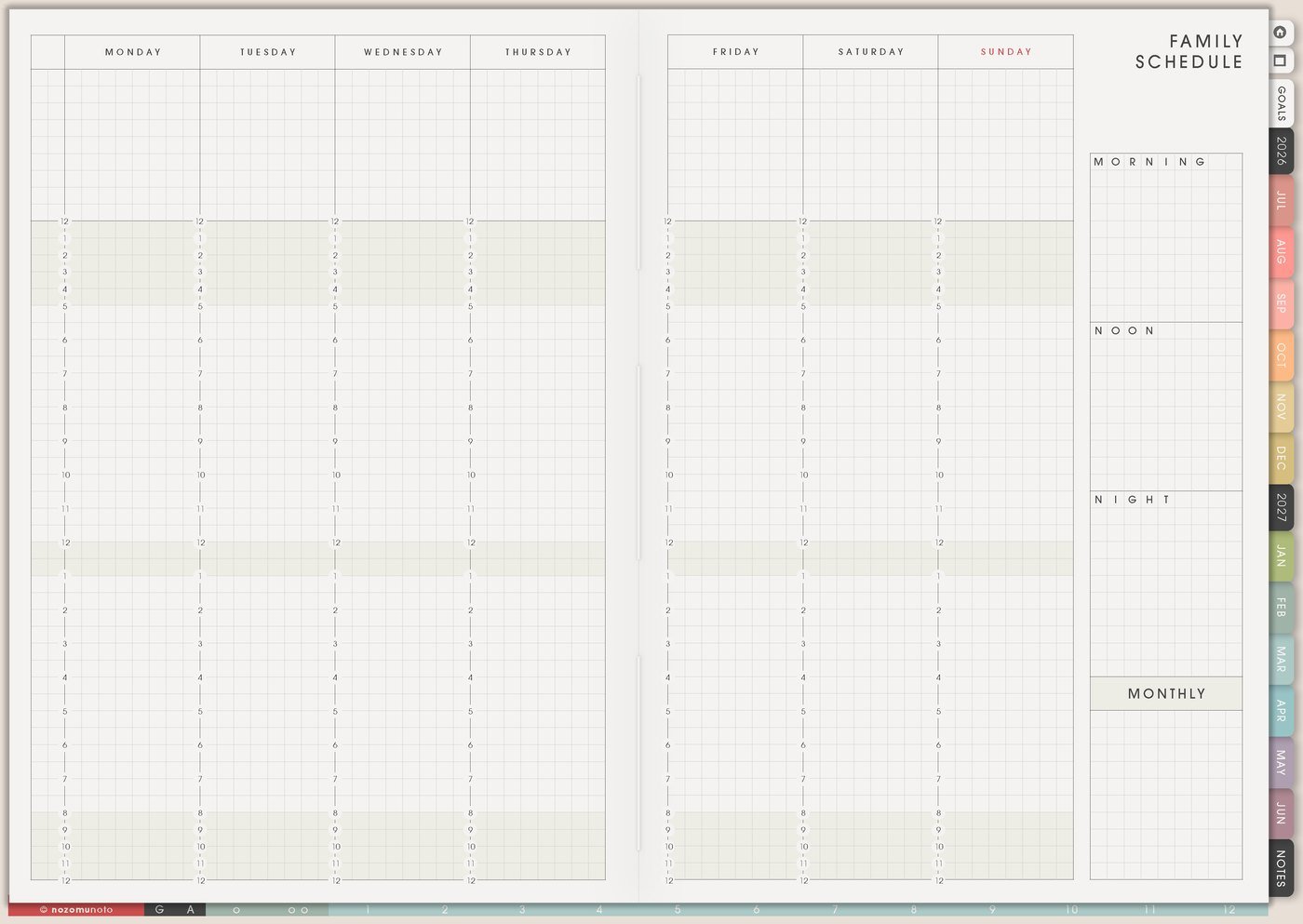
Use Family Schedule when the week has repeating times, people, pickups, lessons, chores, and appointments. This page helps show the rhythm before it becomes a pile of reminders.
- People rows: use rows for each family member, school, work, daycare, lessons, appointments, or transport.
- Routine blocks: add school drop-off, pickup, homework, dinner, bath, bedtime, laundry, trash, cleaning, and weekly reset.
- Shared responsibilities: write who handles grocery, lunch prep, pet care, bills, chores, errands, or calls.
- Exception notes: mark early dismissal, field trip, doctor visit, payment due, class change, or no-school day.
The Family Schedule page can hold the repeat pattern. Weekly can hold this week’s exceptions and actions.
5. Use Home & Family Notes for overflow details
Use Home & Family Notes for household details waiting outside meal, grocery, recipe, or schedule pages. It can become the family admin parking place for measurements, school notes, repair reminders, packing lists, and the details that are useful later but too bulky for Weekly.
- Home projects: measurements, paint colors, repair notes, appliance info, room plans, moving notes, or maintenance ideas.
- School info: teacher names, class links, uniform notes, lunch rules, activity fees, or pickup instructions.
- Family admin: appointment reminders, gift ideas, packing lists, pet care notes, or recurring errands.
- Decision notes: what worked, what was too much, what to repeat, and what to stop doing next month.
Keep this notes page as overflow, not the main plan. If a note becomes an action, move that action to Weekly or Daily.
6. Use the Home pages as one weekly home reset
The Home section works best when every page has a job. Meal Planner answers what to eat, Grocery List answers what to buy, Recipe Book answers how to make it again, Family Schedule shows the repeat rhythm, and Weekly holds the actions.
- Choose meals for the next few days. Plan only the next few days if this week is already enough.
- Build the grocery list from those meals. Add pantry basics and household items after the meal list.
- Check the family schedule. Put busy nights, pickup changes, and appointments on Weekly.
- Move only the next actions. Grocery order, prep lunches, thaw food, call school, pay activity fee, or pack bag.
For privacy, keep full addresses, school account details, medical details, emergency contacts, passwords, and private family documents in a secure place. In the planner, write only the reminder, short label, or place to check.
What I usually use it for and how I use it
Tips for using the Home pages
- Add backup meals on purpose. Leftovers, freezer food, rice bowls, noodles, eggs, onigiri, or takeout night can save a tired evening.
- Mark grocery items by decision. Use must-buy, wait, and next trip. Let the meal plan decide what can be simplified.
- Save recipes that fit real life. After trying a recipe, add repeat, change, weekend only, too much, kid liked, or freezer-friendly.
- Keep repeat rhythm separate from this week’s exceptions. Family Schedule can hold repeating routines; temporary actions move to Weekly or Daily.
- Pull actions back out of Home Notes. Review the notes page once a week and choose one to three next actions for Weekly.
When you need setup help
If the app step is the hard part, open the NozomuNoto Help Center for duplicating pages, bookmarking active Home pages, importing Yume Techo, using links, and finding page thumbnails in your app.
Tips for using this page
- Choose the one part of this page that helps the current week instead of trying to fill everything at once.
- Move one small next action to Weekly or Daily so the page changes what happens next.
- Keep the page easy to return to by linking it from Index, favorites, bookmarks, or the related planner section.
Final thought
Home pages are useful when they stop repeated household questions from living only in your head. I hope this section helps you keep the repeat information in Home, choose the next few actions for Weekly, and let the planner carry some of the remembering!