

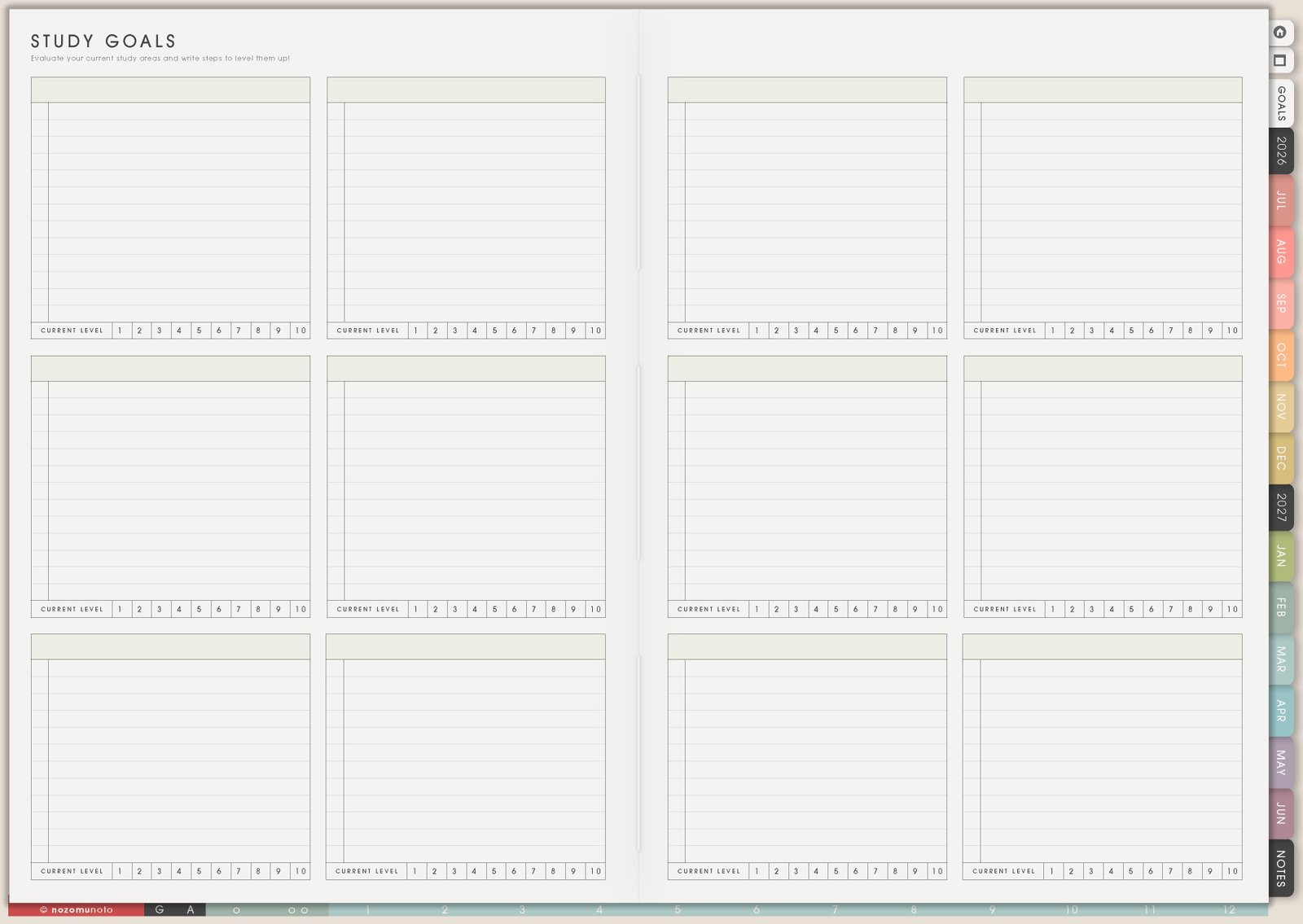
The Study pages in Yume Techo help everyone turn classes, assignments, exams, courses, and self-study into a visible plan. Use this section to keep the school year, weekly class rhythm, subject details, progress, resources, and study notes together without crowding the current Weekly page.
Quick start
- Choose one class, exam, or course first. Start with one real pressure point before setting up every subject.
- Put big dates on Study Yearly Planner. Add exams, assignment waves, breaks, and project deadlines.
- Use Study Schedule for the repeat rhythm. Add classes, review blocks, tutoring, and realistic study time.
- Use Subject Planner and Resources / Tasks for details. Keep links, files, class notes, and assignment stages there.
- Move only the next action to Weekly. Weekly should say read chapter 4, draft outline, review flashcards, or ask teacher, not hold the whole class.
How to get to these pages
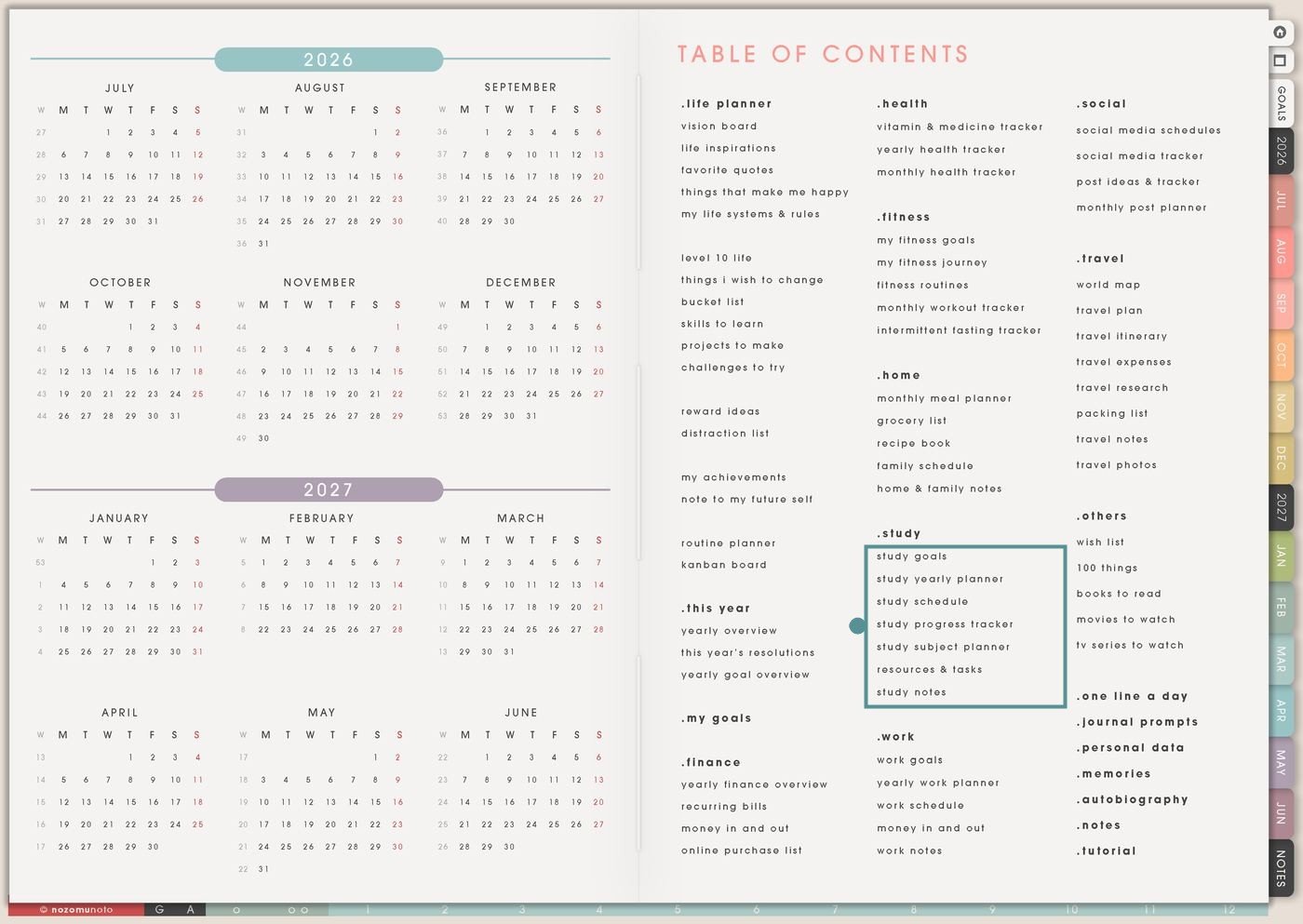
- Open the main Index / Table of Contents. The Study section is in the middle column below Home.
- Tap the Study page you need. The section includes Study Goals, Study Yearly Planner, Study Schedule, Study Progress Tracker, Study Subject Planner, Resources & Tasks, and Study Notes.
- Start with the biggest pressure point. If deadlines are confusing, start with Study Yearly Planner. If the week is messy, start with Study Schedule.
- Duplicate for separate classes or courses. Make copies for each subject, semester, exam block, certification, language study, homeschool unit, or long course.
Pages included in Study
- Study Goals: for the reason, target grade, exam goal, course outcome, skill goal, and study promise you want to keep visible.
- Study Yearly Planner: for semesters, exam weeks, assignment seasons, school breaks, project deadlines, and academic-year overview.
- Study Schedule: for class times, tutoring, office hours, study blocks, review sessions, and repeat weekly learning rhythm.
- Study Progress Tracker: for chapters, modules, lessons, practice tests, readings, flashcards, and progress checkmarks.
- Study Subject Planner: for one class or subject: assignments, due dates, resources, notes, next action, and class details.
- Resources & Tasks: for links, books, PDFs, videos, teacher notes, files, questions, follow-ups, and task lists.
- Study Notes: for extra thinking space, lecture notes, summaries, formulas, vocabulary, essay ideas, or exam review notes.
Ways to use the Study pages
1. Use Study Goals to choose the real study target
Use Study Goals before filling every other page. The goal page gives the study setup a direction: what class matters most, what grade or outcome you want, what exam is coming, and what a realistic study week looks like.
- Outcome goal: pass the exam, finish the course, submit every assignment, improve one weak topic, build a portfolio, or finish a certification.
- Reason: write why this study season matters: graduation, scholarship, career move, confidence, homeschool progress, language practice, or personal growth.
- Minimum study promise: define the smallest version that still counts: one chapter, ten flashcards, one practice problem set, or twenty minutes.
- Help list: teacher, tutor, study buddy, office hours, textbook, app, video playlist, old exams, flashcards, or notes folder.
Choose only the areas that matter this season. A clear Study Goals page helps the rest of the Study section feel intentional instead of becoming another place to write every possible school worry.
2. Use Study Yearly Planner for semesters, exams, and big deadlines
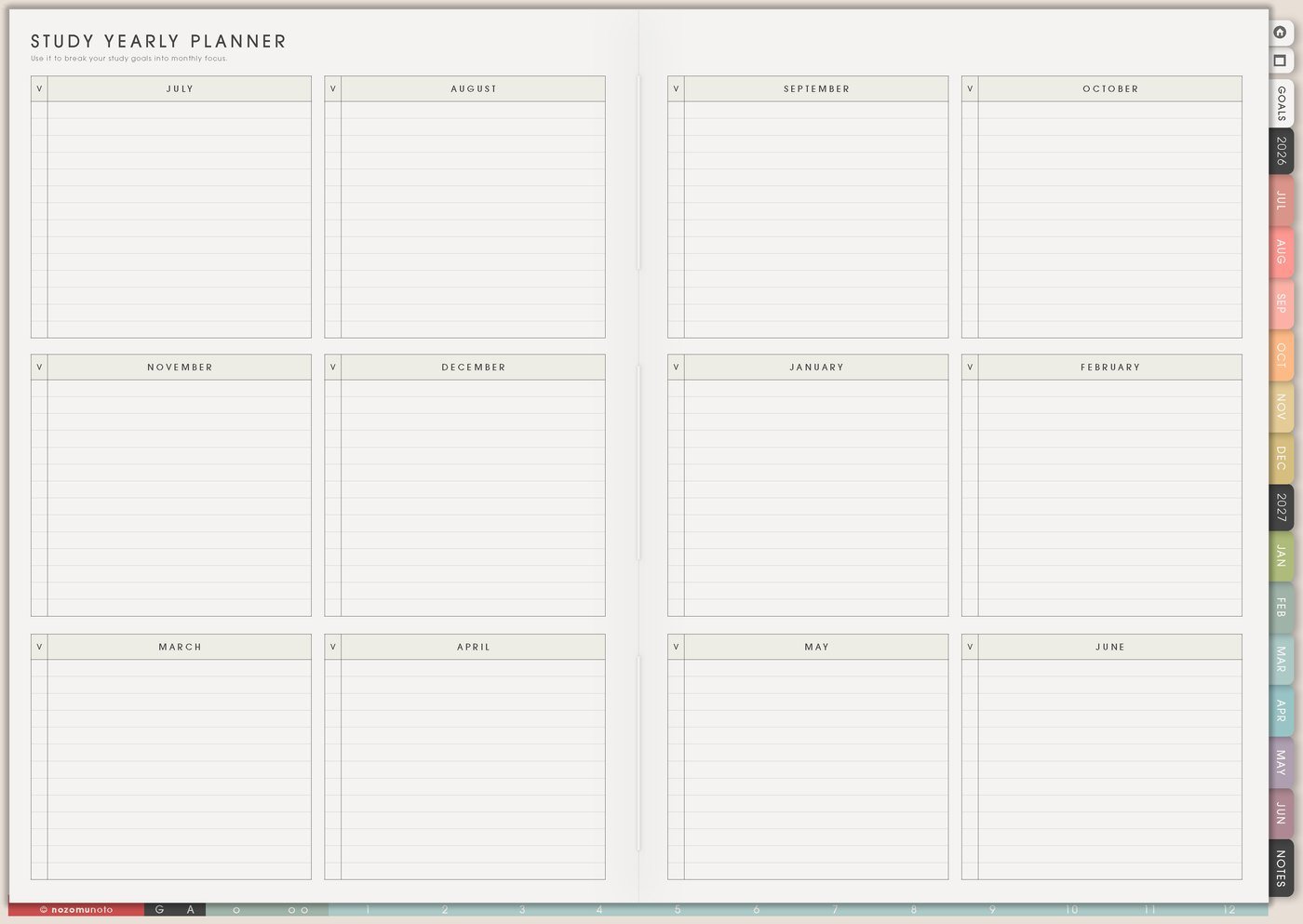
Use Study Yearly Planner when the academic year needs a big-picture map. This page is for deadlines that are too far away for Weekly but too important to keep in memory.
- Semester map: mark term start, school breaks, holidays, exam weeks, assignment waves, and project deadlines.
- Class overview: write each class, course, teacher, room, credit, grade goal, or main requirement.
- Exam planning: mark mock tests, review weeks, registration dates, final exams, and result days.
- Long projects: add research, outline, draft, feedback, revision, final submission, and presentation dates.
Review this page before planning each month. The yearly page tells Monthly and Weekly what is coming before the deadline feels sudden. For a deeper setup, open Study Yearly Planner page ideas.
3. Use Study Schedule for the weekly class rhythm
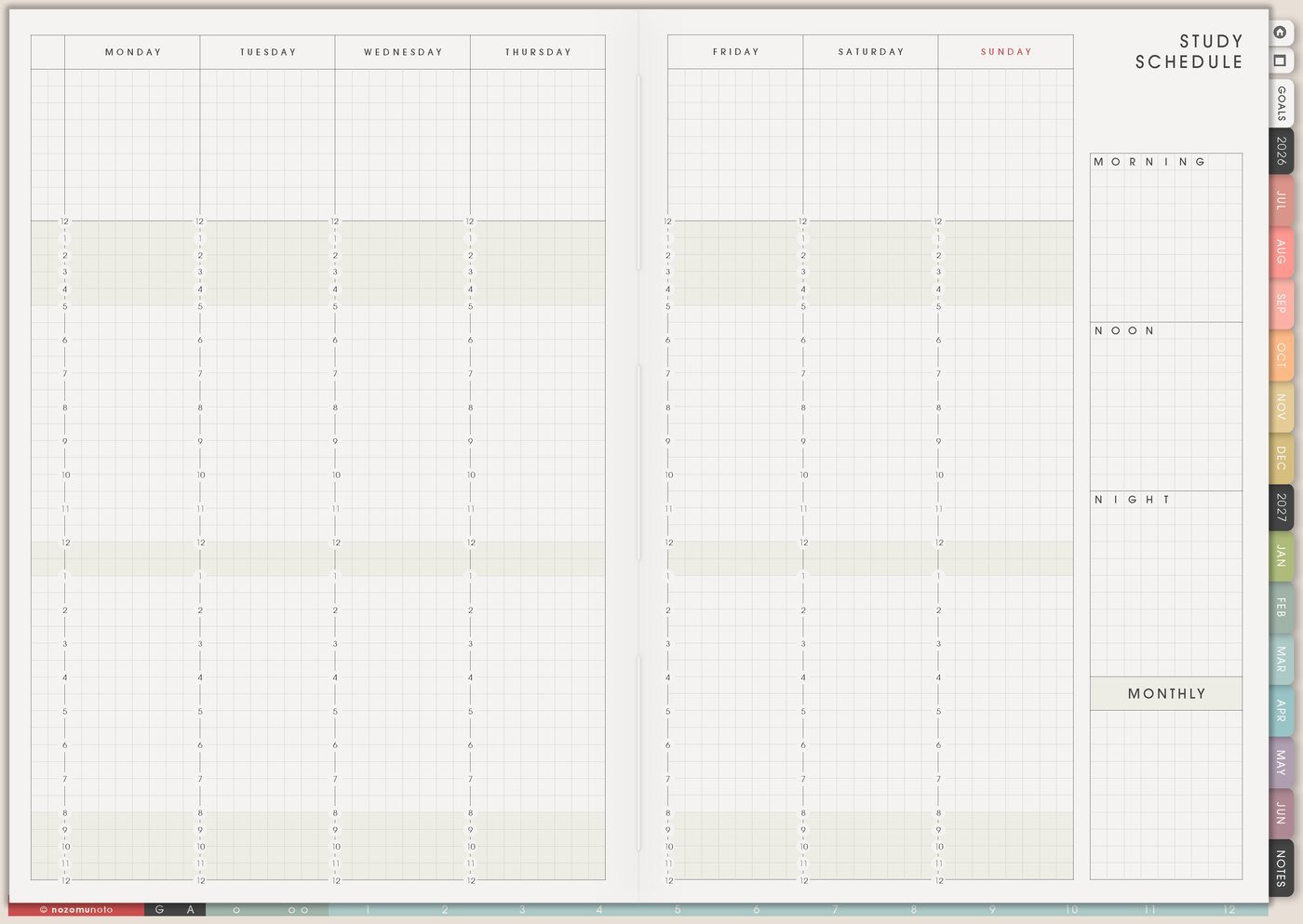
Use Study Schedule for repeating class times and study blocks. This page is not only for students with classes. It also works for online courses, language study, homeschool lessons, tutoring, certification prep, or self-study routines.
- Fixed classes: lecture, lab, tutorial, tutoring, office hours, study group, or live online lesson.
- Study blocks: reading, flashcards, practice questions, essay drafting, project work, review, and catch-up.
- Energy-aware planning: put harder study when your brain is usually better, and easier review on tired days.
- Buffer time: add travel, food, reset, printing, upload, commute, or transition time so the plan fits the real day.
When the Study Schedule is ready, copy only this week’s study blocks into Weekly. The schedule is the rhythm; Weekly is the action page. For class rhythm examples, open Study Schedule page ideas.
4. Use Study Progress Tracker for chapters, modules, and practice
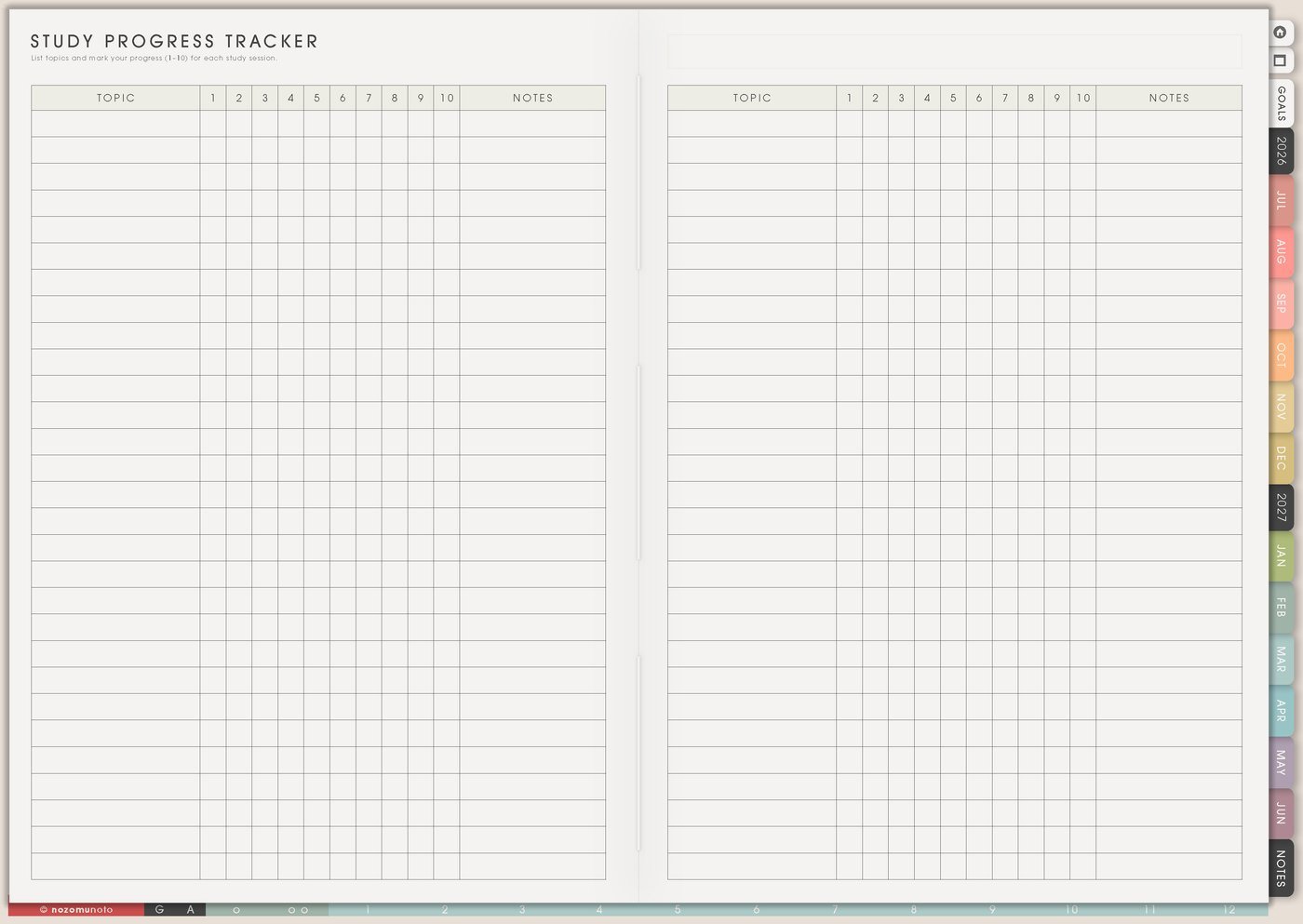
Use Study Progress Tracker when there are many pieces to finish. It works for textbook chapters, video modules, workbook units, flashcard decks, practice tests, essay steps, language lessons, art practice, or coding lessons.
- Chapter tracker: list chapters and mark read, notes, questions, exercises, review, and done.
- Module tracker: list course lessons, videos, assignments, quizzes, and project checkpoints.
- Exam practice: track mock tests, score, topic weakness, review date, and next practice set.
- Skill practice: track vocabulary, grammar, drawing drills, music theory, coding topics, or math problem sets.
This page is especially useful when progress feels invisible. A small checkmark can show that study is moving even before the exam result exists. For assignment stages and practice tracking, open Study Progress Tracker page ideas.
5. Use Study Subject Planner for one class at a time
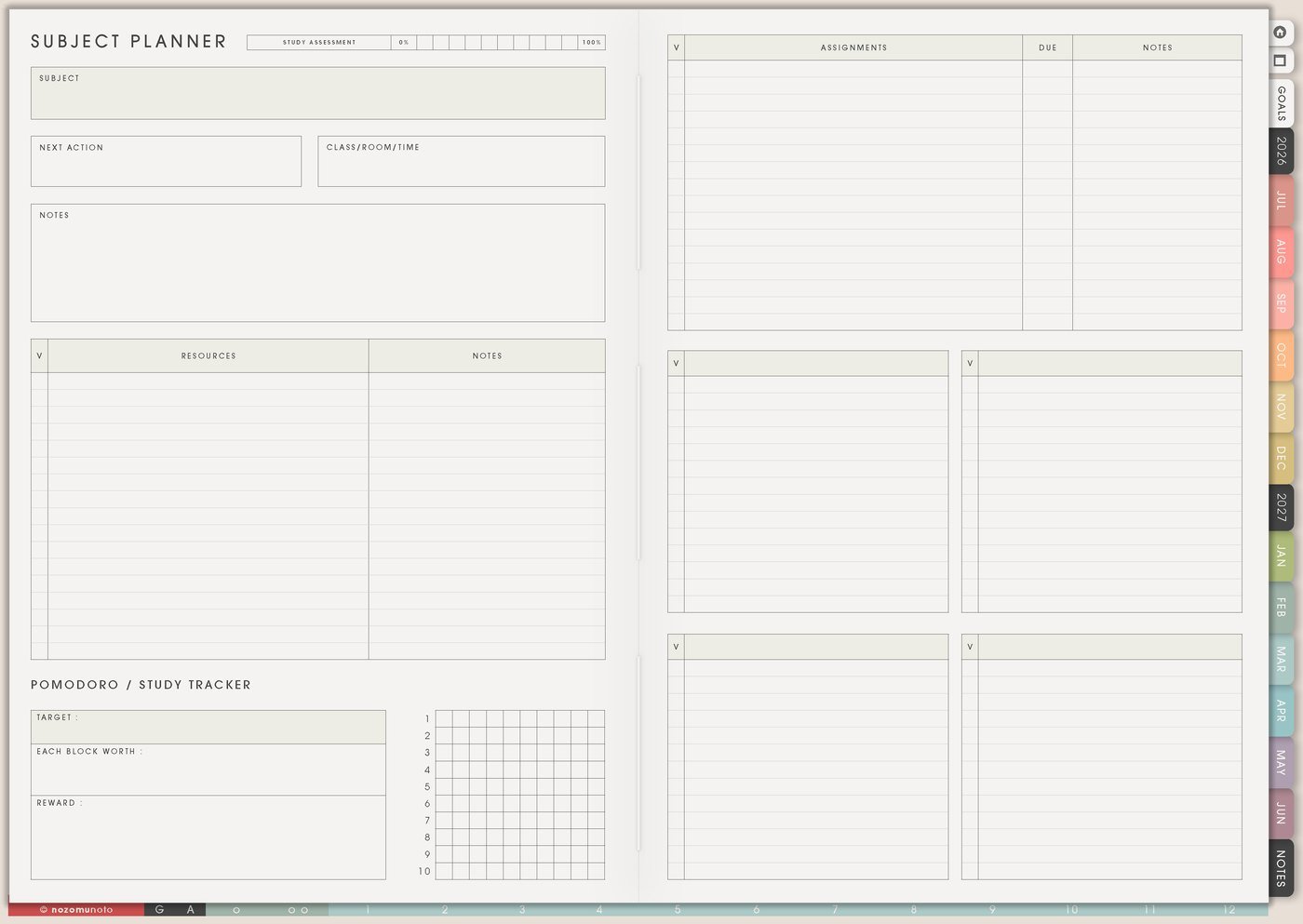
Use Study Subject Planner as the home base for one class, subject, or course. Duplicate it for each important class so assignments and resources stay separate.
- Subject details: class name, teacher, room, time, online link, grading rule, exam format, textbook, and contact notes.
- Assignments: title, due date, stage, next action, submitted checkbox, and feedback notes.
- Resources: textbook chapters, PDFs, websites, slides, videos, old papers, formulas, vocabulary, or reading lists.
- Notes: class questions, confusing topics, office-hour questions, and what to review next.
Subject Planner keeps class details together. Weekly only needs the next action: read chapter 3, draft outline, email teacher, finish quiz, or review flashcards. For one-class setup examples, open Subject Planner page ideas.
6. Use Resources / Tasks for links, files, and follow-ups
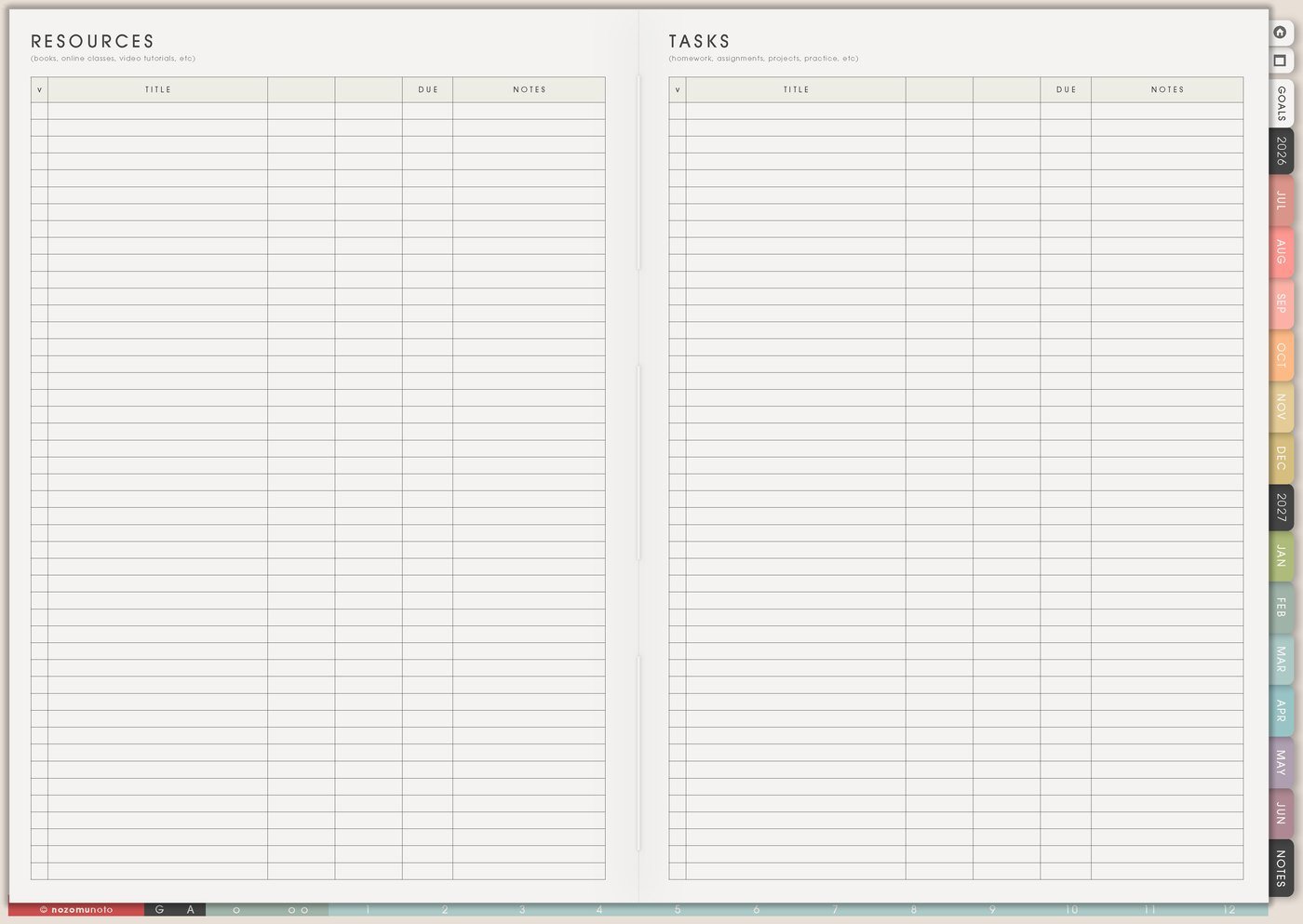
Use Resources / Tasks when study material is scattered. This page can hold useful links, file names, textbook pages, video playlists, app notes, teacher instructions, and task lists that belong to a class or exam.
- Resource list: lecture slides, PDFs, textbook pages, YouTube playlist, online course link, school portal, or practice website.
- Task list: print worksheet, download file, ask question, watch module, summarize notes, make flashcards, or submit assignment.
- Question list: confusing topics, teacher questions, tutor questions, discussion points, or exam doubts.
- Follow-up list: missing grade, feedback to read, file to upload, form to sign, group project message, or deadline to confirm.
Use this page for storage and decision help. Move only the next physical action into Weekly or Daily.
7. Use Study Notes for extra thinking space
Use Study Notes when the class needs more room than the structured pages give. This can be lecture notes, formula summaries, essay outlines, vocabulary lists, mistake logs, mind maps, diagrams, or exam review sheets.
- Lecture notes: write the main idea, examples, questions, and homework reminder.
- Exam review: make one page for formulas, one for weak topics, one for practice mistakes, or one for last-week reminders.
- Essay planning: thesis, sources, quotes, argument order, draft checklist, and feedback notes.
- Language study: vocabulary, grammar pattern, example sentences, mistakes, and review schedule.
If you use extra Study Notes, bookmark the active note page in your app so it does not disappear inside the planner.
8. Use the Study pages together for one school week
The Study section works best when each page has a different job. Study Yearly Planner shows the academic year, Study Schedule shows the weekly rhythm, Study Progress Tracker shows what is moving, Subject Planner stores class details, Resources / Tasks stores links and follow-ups, and Weekly holds only this week’s actions.
- Check the big dates. Open Study Yearly Planner and notice deadlines coming in the next month.
- Choose the weekly rhythm. Open Study Schedule and pick study blocks that actually fit.
- Pick the subject actions. Open Subject Planner and Resources / Tasks for the class that needs attention.
- Move actions to Weekly. Write only the next study steps, not the whole class plan.
- Mark progress after working. Update Study Progress Tracker after the study session, not before.
What I usually use it for and how I use it
Tips for using these pages
- Split deadlines into middle steps. A deadline tells the date, but it cannot show research day, outline day, draft day, edit day, and submit reminder unless those steps have a place. Put the stages on Subject Planner or Study Progress Tracker, then move the next stage to Weekly.
- Choose by due date, consequence, and effort size. When every class feels urgent, open Study Yearly Planner and Subject Planner together. Pick the next two or three actions that matter most instead of jumping between every subject.
- Make Study Schedule honest. Add meals, commute, part-time work, family time, tired evenings, and backup blocks. A 25-minute review block that happens is better than a three-hour block that only looks impressive.
- Give scattered resources one address. If a teacher sends a PDF, the class link lives in email, and the reading sits in a portal, write the file name, link, page number, or folder name on Resources / Tasks.
- Track tiny proof of progress. Mark finished chapters, modules, practice tests, flashcards, or problem sets. Studying often looks invisible until the grade appears, so small checkmarks help the effort feel real earlier.
- Keep private school details somewhere safer. Student ID numbers, login passwords, full school account details, classmate contact information, private grades, and official records belong in the school portal, password manager, or another secure place. In Study, keep only the reminder, short label, and where to check.
When you need setup help
If the app step is the hard part, open the NozomuNoto Help Center for importing Yume Techo, using links, duplicating class pages, bookmarking active subjects, and finding page thumbnails in your app.
Tips for using this page
- Choose the one part of this page that helps the current week instead of trying to fill everything at once.
- Move one small next action to Weekly or Daily so the page changes what happens next.
- Keep the page easy to return to by linking it from Index, favorites, bookmarks, or the related planner section.
Final thought
Study pages are useful when they turn a whole academic season into visible pieces. Keep class details and resources in Study, move only the next actions to Weekly, and let the planner help everyone return to the work without starting from panic. I hope these pages make studying feel more visible, more realistic, and easier to restart when life gets full!