

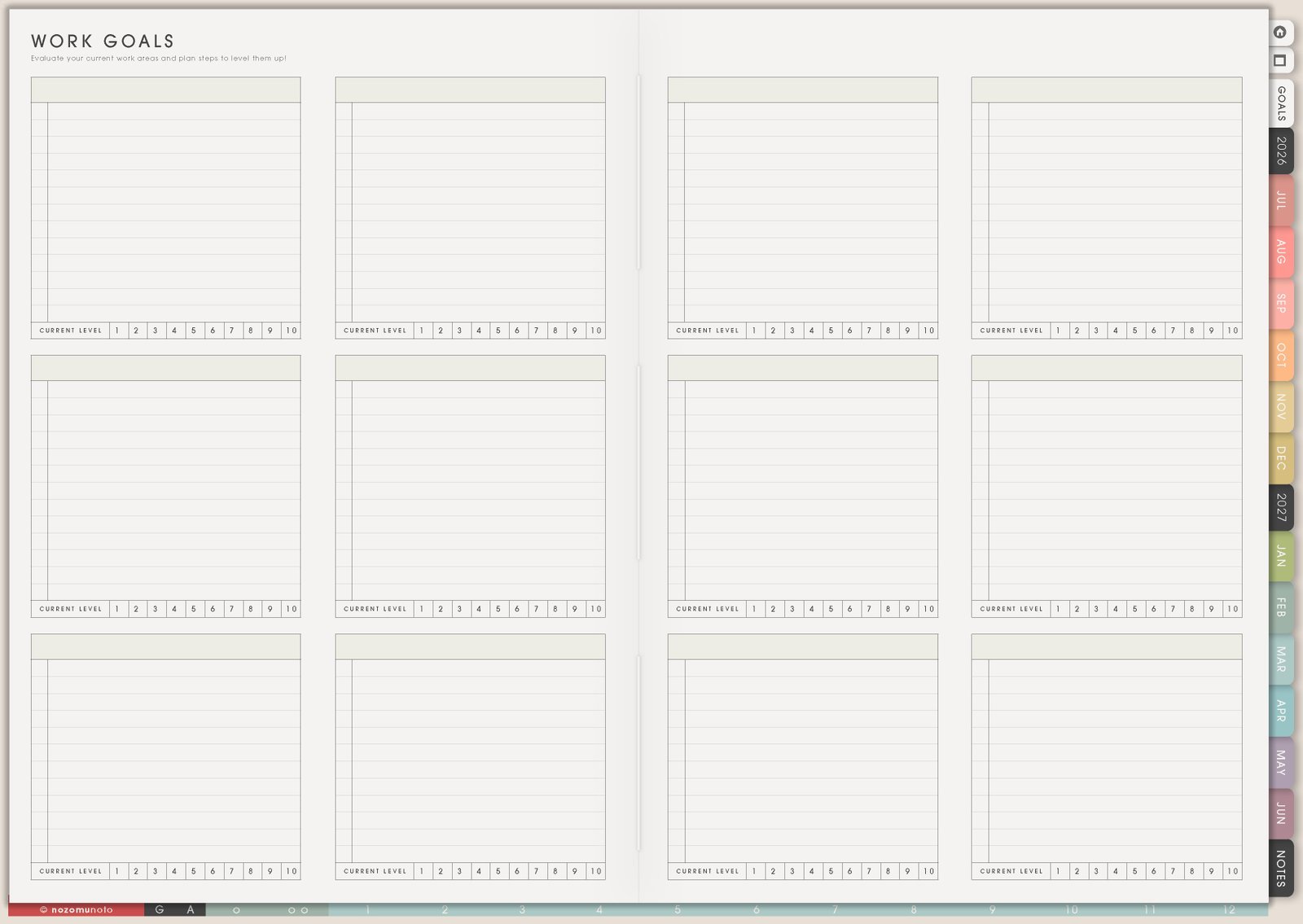
The Work pages in Yume Techo are for keeping work goals, workload seasons, weekly work rhythm, income and expense notes, and project details separate from the dated planner. Use this section when Weekly is starting to carry too much: deadlines, client work, admin, launches, meetings, invoices, follow-ups, project notes, and things you need to remember for later.
How to get to these pages
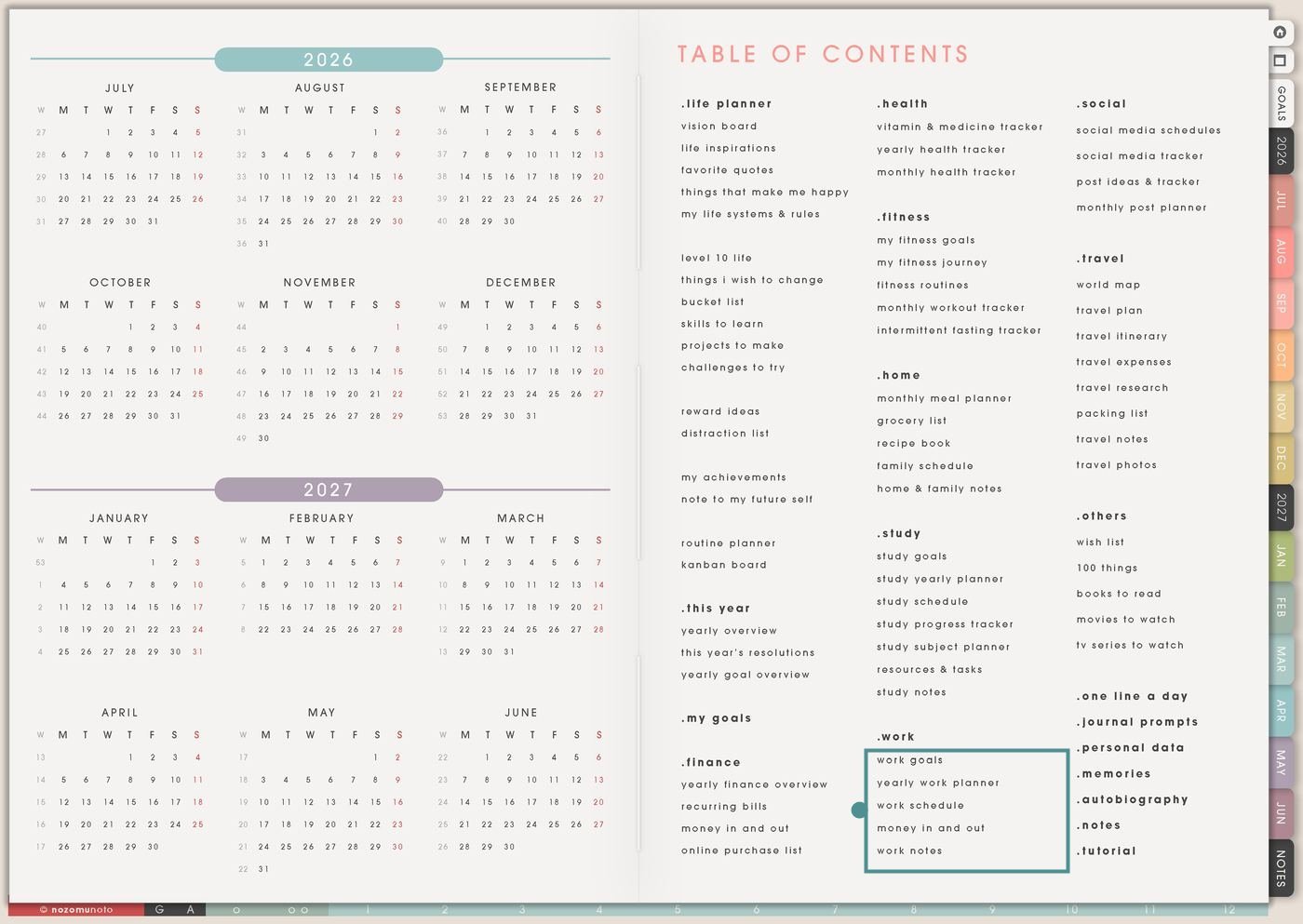
- Open the main Index / Table of Contents. The Work section is near the bottom of the middle column.
- Tap the Work page you need. The section includes Work Goals, Work Yearly Planner, Work Schedule, Money In And Out, and Work Notes.
- Choose one work pressure point first. If the year feels unclear, start with Work Yearly Planner. If days are messy, start with Work Schedule. If money follow-ups are scattered, start with Money In And Out.
- Duplicate when one page needs its own copy. Make separate copies for freelance clients, shop launches, teaching work, content work, part-time jobs, craft shows, commissions, admin seasons, or big projects.
Pages included in Work
- Work Goals: for choosing the work areas that need attention and what a better version looks like.
- Work Yearly Planner: for launches, deadlines, busy seasons, renewals, tax months, product updates, school terms, events, and long projects.
- Work Schedule: for weekly work blocks, meetings, admin time, deep work, office hours, content days, and reset time.
- Money In And Out: for simple work income, expenses, reimbursements, fees, purchases, payouts, and money notes.
- Work Notes: for project notes, meeting notes, client details, shop ideas, content drafts, process notes, and follow-ups.
Ways to use the Work pages
1. Use Work Goals to choose the work areas that need attention
Use Work Goals before building a huge work system. The page helps everyone choose what needs improvement: workload, income, visibility, admin, customer help, skill building, boundaries, product quality, or consistency.
- Small business: rate product listings, customer help, content rhythm, product updates, file delivery, finance review, and marketing.
- Freelance work: rate client pipeline, communication, pricing, portfolio, invoice follow-up, project delivery, and rest time.
- Employee work: rate focus time, meetings, admin, skill growth, documentation, follow-ups, and workload clarity.
- Creative work: rate idea capture, production, editing, publishing, packaging, promotion, and cleanup.
Write one next step for each area you choose. If the area is customer help, the next step might be update one help article, save a reply template, or collect the top five repeated questions.
2. Use Work Yearly Planner for seasons, launches, and big deadlines
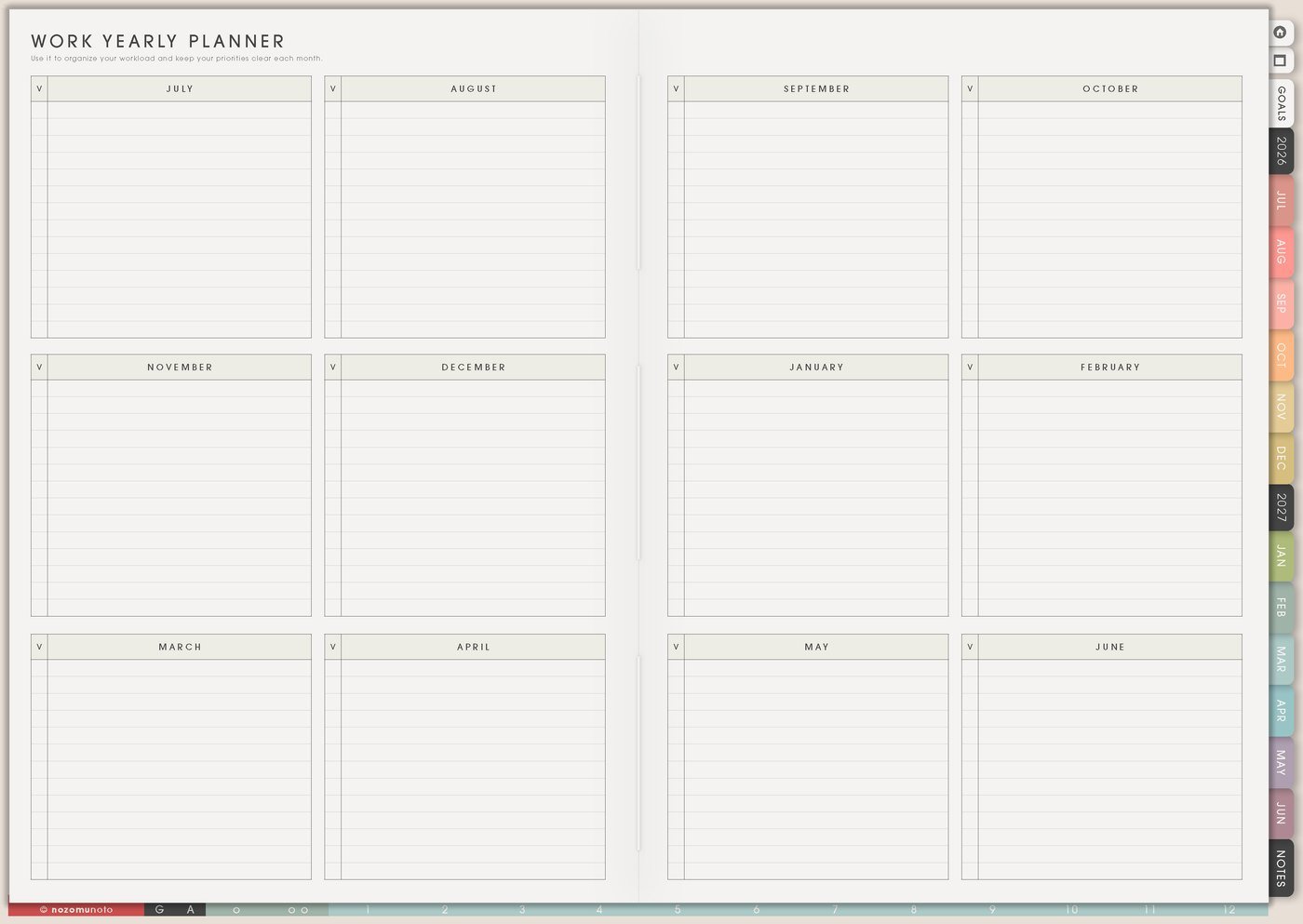
Use Work Yearly Planner for work that needs a long view. This page is for deadlines that are too far away for Weekly but too important to remember later.
- Launch planning: research month, draft month, photo month, listing month, proofreading week, launch week, and after-launch cleanup.
- Seasonal work: tax season, school year, holiday sales, craft fairs, exam seasons, subscription renewals, or yearly maintenance.
- Client or project pipeline: discovery, proposal, deposit, draft, review, revision, delivery, invoice, and testimonial request.
- Content planning: content themes, product education, tutorial weeks, email topics, video days, and repurposing windows.
Review this page before each monthly setup. The yearly view helps you see work before it becomes urgent. For launch seasons and admin dates, open Work Yearly Planner page ideas.
3. Use Work Schedule for the weekly work rhythm
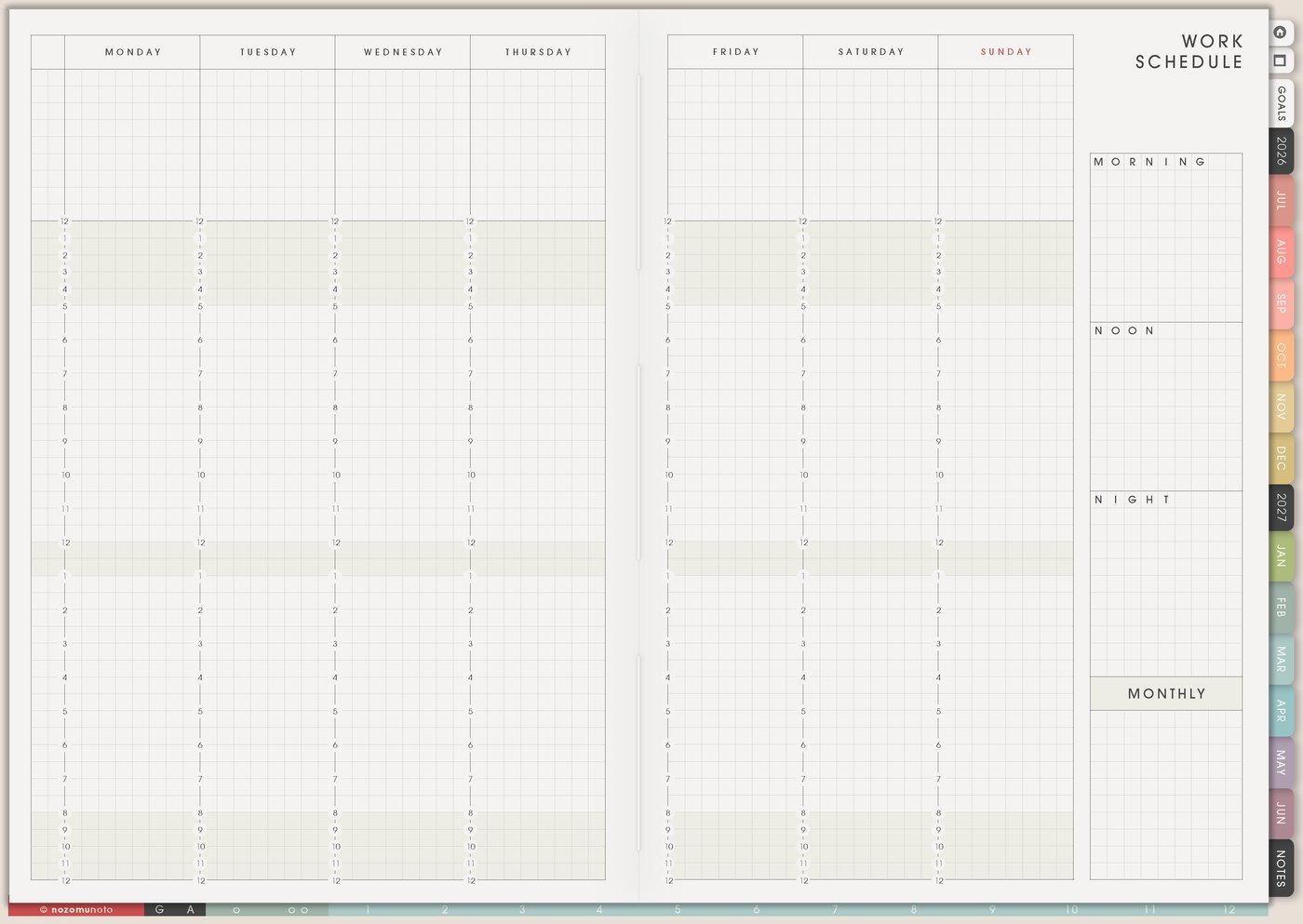
Use Work Schedule for repeating work blocks. This is the page for patterns, not every tiny task. It can show when meetings happen, when creative work fits, when admin gets handled, and when follow-ups need a place.
- Deep work blocks: writing, design, product editing, studying, coding, bookkeeping, lesson planning, or focused client work.
- Admin blocks: email, orders, invoices, customer replies, file cleanup, scheduling, and documentation.
- Content blocks: research, photo, caption, edit, upload, schedule, and respond.
- Energy-aware work: put harder thinking where your day usually has more focus, and put simple admin in lower-energy windows.
Once the rhythm is visible, Weekly only needs the current tasks. The Work Schedule can stay as the repeat pattern. For weekly work blocks and admin rhythm, open Work Schedule page ideas.
4. Use Money In And Out for work money movement
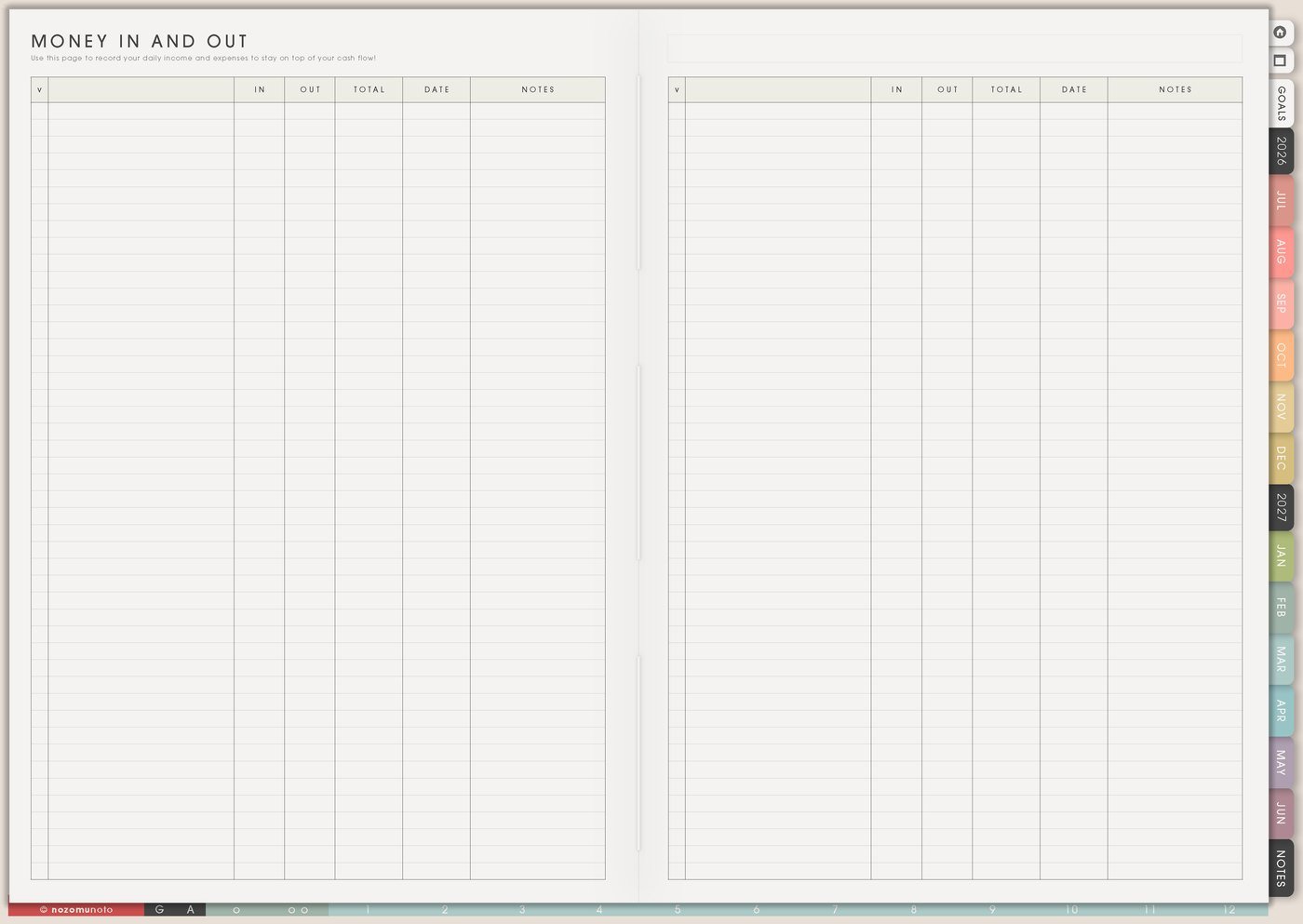
Use Money In And Out for simple work-related money notes. It is not a replacement for full bookkeeping, but it is useful for seeing what needs follow-up inside the planner.
- Income notes: payouts, deposits, client payments, marketplace deposits, affiliate income, teaching payment, or commission payment.
- Expense notes: software, fonts, supplies, printing, ads, fees, subscriptions, shipping, props, courses, or tools.
- Follow-up notes: invoice sent, payment due, receipt saved, refund expected, reimbursement requested, or tax category to check.
- Decision notes: renew, cancel, pause, upgrade, buy later, compare price, or ask before spending.
Use this page for visibility and follow-up. Detailed accounting can live in a spreadsheet or accounting app, while Yume Techo carries the reminder and summary. For simple money rows, open Money In And Out page ideas.
5. Use Work Notes for project details and meeting memory
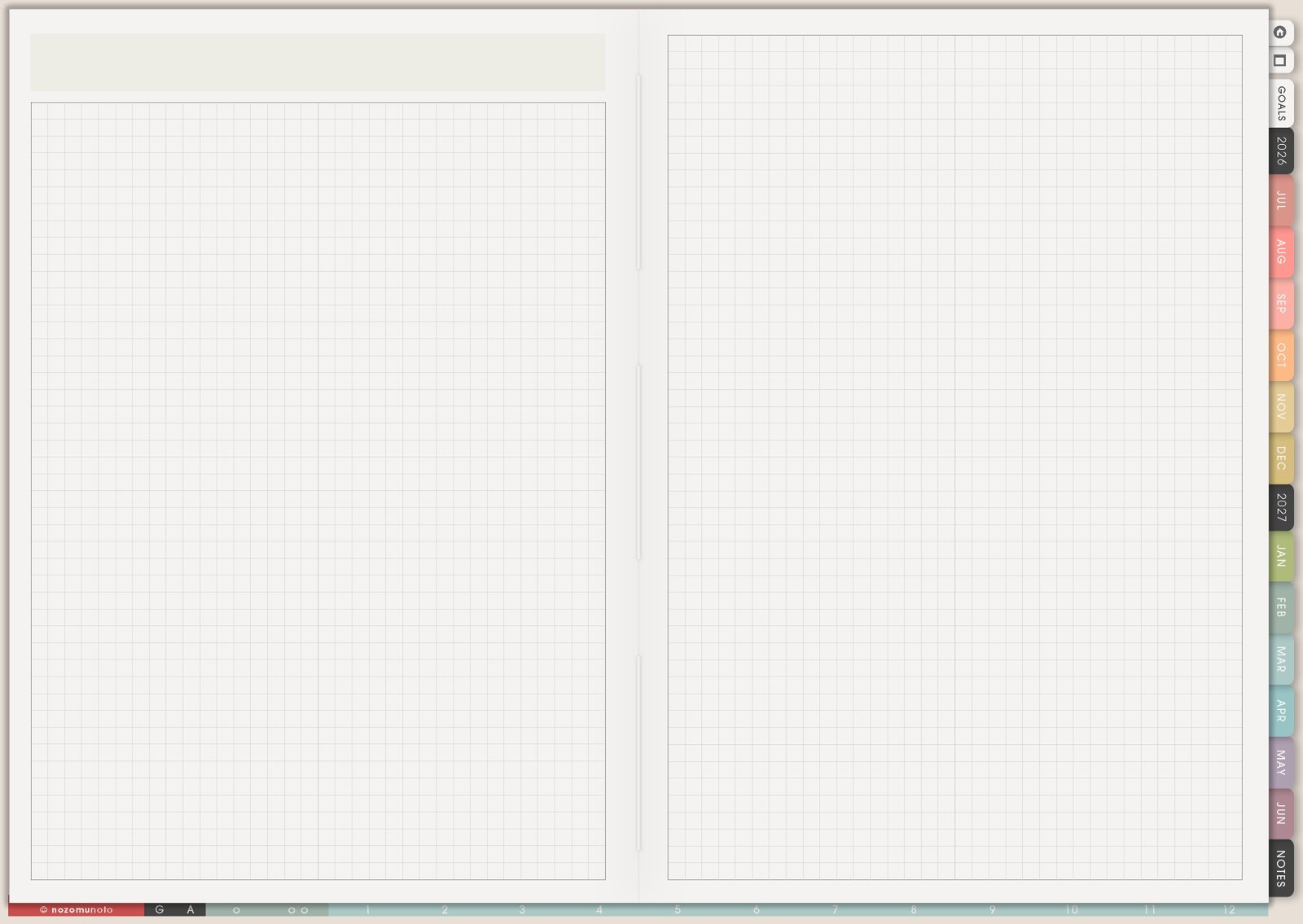
Use Work Notes when work needs room to think. This can be meeting notes, client notes, product ideas, process notes, launch checklists, decision notes, content drafts, or a simple project brain dump.
- Meeting notes: date, person, decision, question, promised follow-up, and next action.
- Project notes: goal, files, links, assets, blockers, version notes, draft checklist, and delivery steps.
- Customer help notes: repeated questions, confusing steps, screenshot needs, tutorial ideas, and wording to improve.
- Creative notes: product ideas, design directions, caption lines, photo ideas, launch angle, and things to test later.
At the end of a note, write one next action. Notes are easier to trust when they always end with what happens next. For links, files, and follow-ups that belong outside Weekly, open Resources / Tasks page ideas.
6. Use the Work pages together for one work week
The Work section works best when every page has a different job. Work Goals chooses the direction, Work Yearly Planner shows the seasons, Work Schedule shows the weekly rhythm, Money In And Out catches money follow-ups, Work Notes stores details, and Weekly holds only the current actions.
- Check the big picture. Open Work Yearly Planner and notice deadlines or busy seasons coming soon.
- Choose the weekly rhythm. Open Work Schedule and decide where focus, admin, and follow-up blocks fit.
- Check money follow-ups. Open Money In And Out for payments, expenses, receipts, renewals, or invoices that need action.
- Review one notes page. Pull the next action from Work Notes instead of rereading every detail.
- Move only the next actions to Weekly. Keep the rest in the Work section until it becomes active.
What I usually use it for and how I use it
Tips for using these pages
- Separate storage from action. Keep ideas in Work Notes, seasons on Work Yearly Planner, repeating rhythm on Work Schedule, and only current actions on Weekly. This keeps product ideas, invoice reminders, customer questions, marketing plans, and tiny errands from becoming one impossible list.
- Add real interruptions to the schedule. Work needs space for family, messages, admin, tired days, errands, and unexpected tasks. Add buffer blocks and admin blocks on purpose so the schedule can survive a normal week.
- Give money rows a status word. A row that only says software is hard to act on later. Add paid, due, receipt, refund, renew, cancel, ask, save, or compare so the next money action is clear.
- End notes with one next action. Meeting notes, project notes, and customer questions are easier to trust when the last line says who replies, what file to send, what to check, or when to follow up.
- Open the yearly plan during monthly setup. A yearly work page is useful only when it comes back into planning. Copy the next launch, admin date, renewal, or prep task into Monthly or Weekly before it becomes late.
- Keep private work details somewhere safer. Customer private details, passwords, bank numbers, full card details, tax IDs, contracts, invoices, and private messages belong in a secure app, accounting tool, or protected folder. In Work pages, keep short labels, deadlines, follow-up reminders, and where to check.
When you need setup help
If the app step is the hard part, open the NozomuNoto Help Center for importing Yume Techo, duplicating work pages, bookmarking active projects, using links, and finding page thumbnails in your app.
Tips for using this page
- Choose the one part of this page that helps the current week instead of trying to fill everything at once.
- Move one small next action to Weekly or Daily so the page changes what happens next.
- Keep the page easy to return to by linking it from Index, favorites, bookmarks, or the related planner section.
Final thought
Work pages are useful when they give work a home before it becomes this week's pressure. Keep big seasons in the yearly page, keep the repeat rhythm in the schedule, keep details in notes, and let Weekly carry only the next useful actions. I hope these pages make work easier to see, choose, and return to without turning every idea into an emergency!