

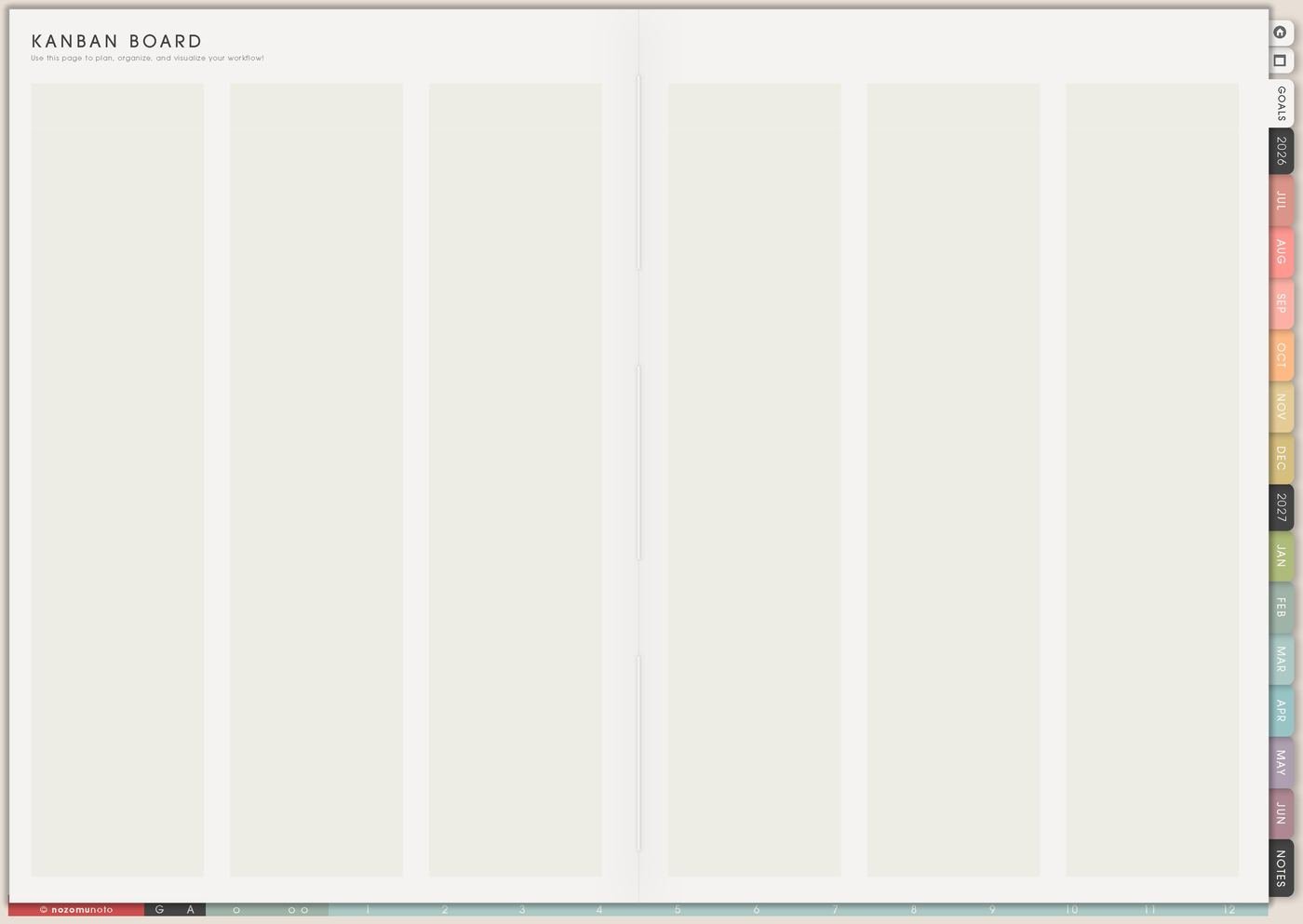
The Kanban Board page is for work that moves through stages. I use it for projects, home tasks, shop content, school assignments, crafts, writing, moving tasks, product updates, and anything that gets confusing when it sits in a plain to-do list.
Kanban helps because it shows status. A card can be an idea, active, waiting, stuck, ready, or done. Once the status is visible, Weekly only needs the next few actions.
How to fill Kanban Board
- Choose the project type. Content, school, home, craft, shop, writing, moving, or admin.
- Name the columns. Use stages that match how the work really moves.
- Add short cards. Each card should be small enough to move.
- Limit Doing. Keep active work honest.
- Use Waiting as a real status. Write what the card is waiting for.
- Move next actions to Weekly. Kanban shows status; Weekly shows the current move.
Ways to use Kanban Board
1. Columns that match real movement
Start with simple columns: Backlog, This Week, Doing, Waiting, Done. For school, try Assigned, Research, Draft, Review, Submitted. For home, try Ideas, Supplies, This Weekend, Waiting, Finished. For content, try Ideas, Outline, Photos, Draft, Published.
The column names should tell you what to do next. If a column sounds nice but does not help decisions, rename it.
2. Limit the Doing column
If everything is Doing, nothing is truly Doing. Keep active work small so the board stays honest. One to three active cards is usually enough for a busy week.
Active cards should be visible actions: draft article intro, photograph product page, call dentist, revise essay, test download link, clean pantry shelf, outline lesson, or choose fabric. If the task is too big for a card, break it down.
3. Waiting as a real place
Waiting for replies, supplies, money, feedback, energy, files, approvals, or a decision should not sit in the same pile as active tasks. Waiting is not failure. It is a status.
Write what it waits for: photo, payment, teacher reply, supplies, Saturday energy, customer answer, file export, shipment, or approval. This stops the same blocked card from being rewritten every week.
4. Move cards during Weekly Review
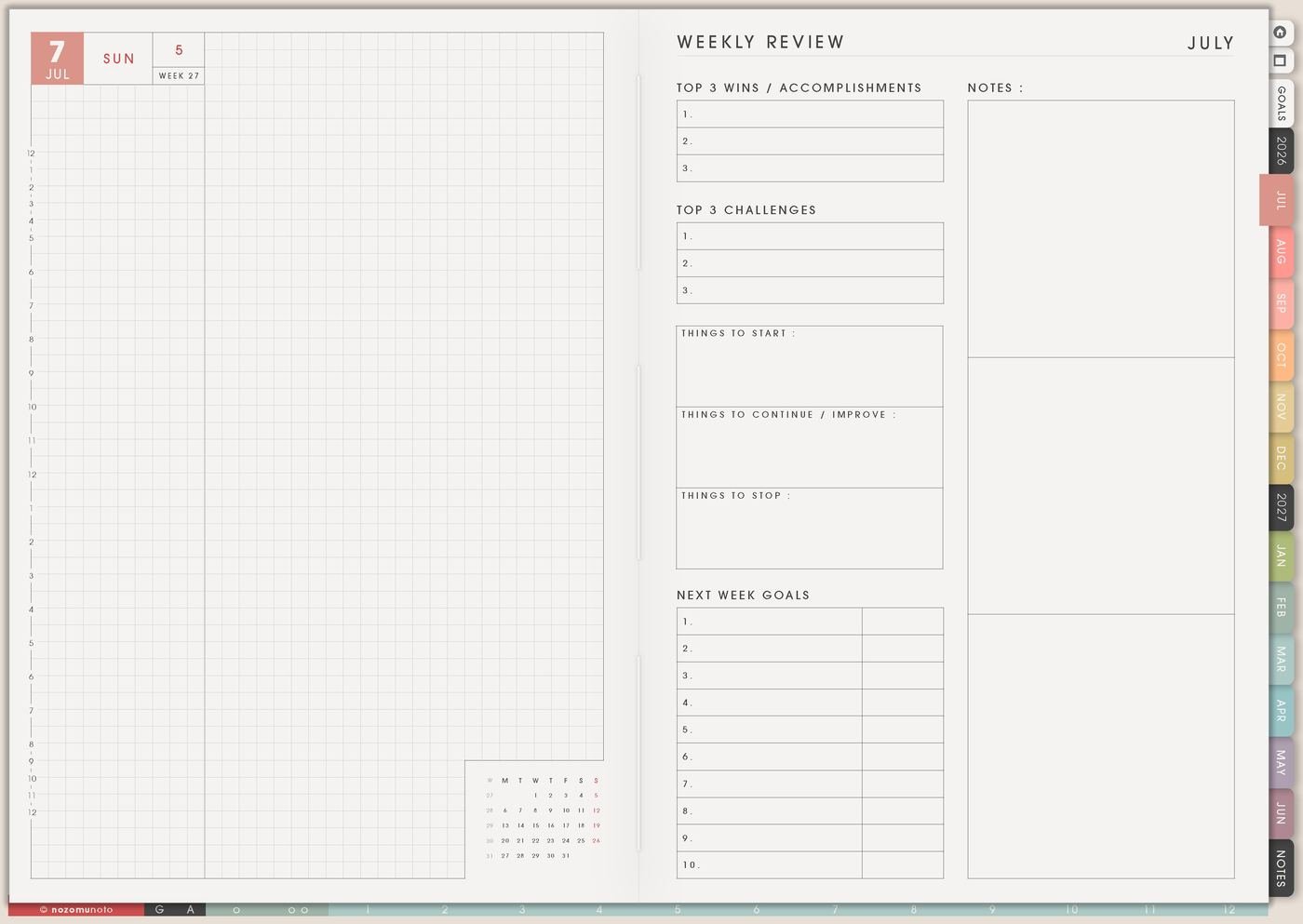
During Weekly Review, move cards deliberately. Ask what finished, what got stuck, what is waiting, what should move back to Later, and what belongs in This Week.
Then copy only one to three next actions from Kanban to Weekly. Kanban holds the project story. Weekly holds the current moves.
5. More than work projects
Kanban can help content planning, craft projects, home repairs, class assignments, moving house, product updates, cleaning, writing, music practice, and any task with stages.
A craft board can be Ideas, Supplies, Making, Blocking, Gifted. A home board can be Ideas, Supplies, This Weekend, Waiting, Done. Make the board match the life you are actually planning.
6. Details belong on helper pages
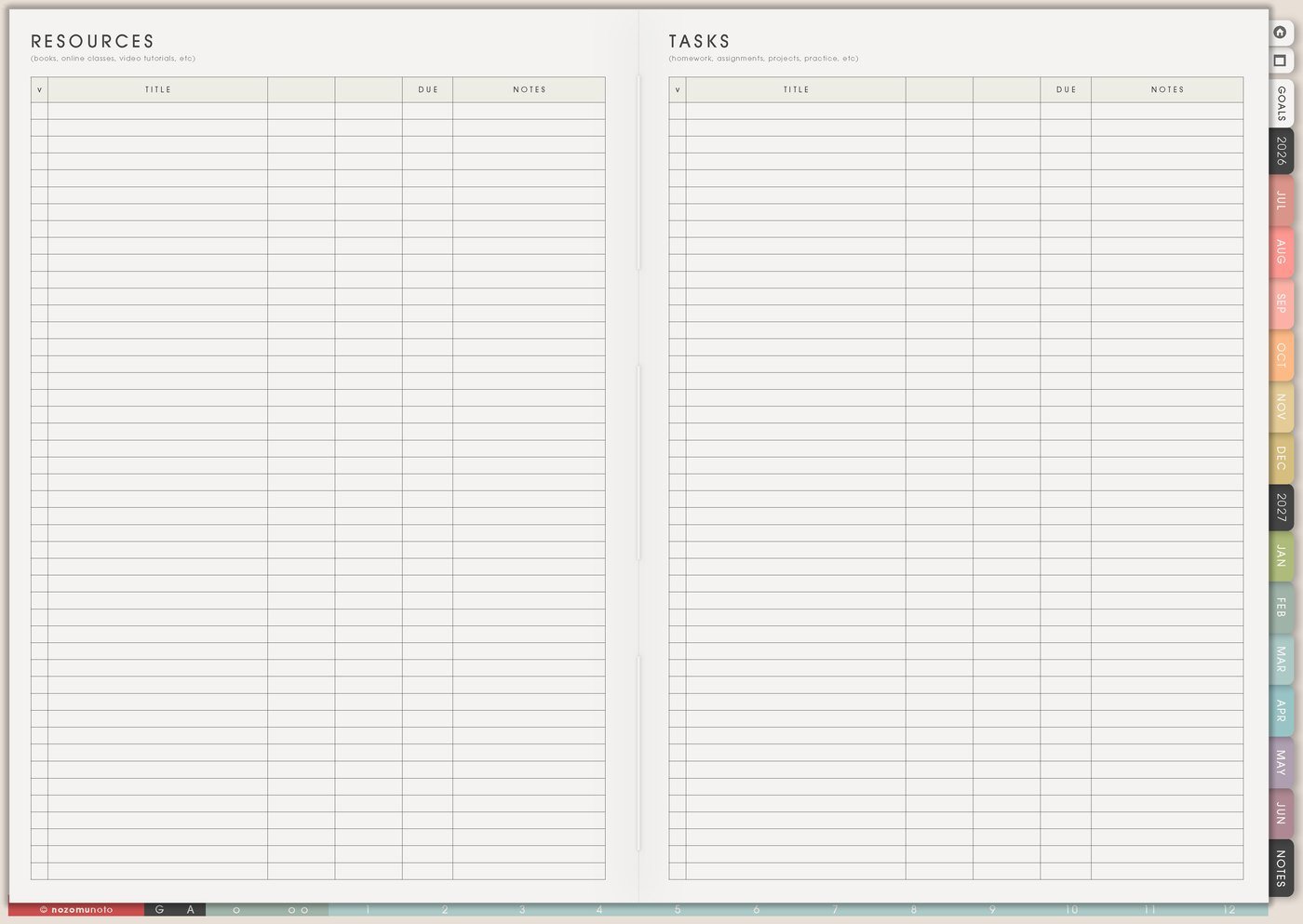
A Kanban card should be short enough to move. If a task needs links, notes, files, measurements, references, or full instructions, put those details on Resources / Tasks, Notes, Subject Planner, or the matching project page.
The card can say draft listing photos. Resources / Tasks can hold the shot list, file folder, and upload link.
A simple Kanban Board setup
- Choose one project type. Content, school, home, craft, shop, writing, or moving tasks.
- Make four or five columns. Use names that match the real stages.
- Add only active cards. Keep Doing to one to three cards.
- Use Waiting honestly. Write what each blocked card waits for.
- Move one action to Weekly. Kanban shows status; Weekly shows the current move.
- Review weekly. Move cards and clear finished work.
What I usually use it for and how I use it
Related Tips: Weekly page setup helps me move only the current Kanban actions forward, Weekly Review page ideas helps me move cards at the end of the week, Resources / Tasks page ideas helps me store links and details outside the board, and Projects To Make page ideas helps me keep project ideas from becoming active too soon.
Tips for using this page
- Keep Doing small. Move cards into Backlog, Waiting, This Week, Doing, or Done. Doing should hold only the tasks that are truly active now.
- Let Waiting be honest. If a task waits for a reply, supply, payment, teacher answer, export, or approval, move it to Waiting and write what it waits for.
- Make cards movable. If one card says launch product, clean room, write essay, or plan trip, split it by stage: outline, gather, draft, test, review, publish, or clean one area.
- Send only the next action to Weekly. Kanban shows project status. Weekly should get one to three physical next actions, not the whole board.
- Move details out of the card. Put links, notes, instructions, files, measurements, and questions on Resources / Tasks or Notes so the board stays easy to scan.
Keep private project details safe
Kanban cards can include shop work, client work, school assignments, home tasks, money, travel, health, family plans, and private creative projects. Keep passwords, full account details, client names, addresses, private family details, medical records, financial documents, and sensitive school or work files in a secure place outside the planner. In Yume Techo, use safe card names like listing photos, essay draft, home repair, reply follow-up, supplies, file export, or weekly cleanup.
When you need setup help
Kanban Board helps with project status and current actions. If you need exact app steps for copying pages, using hyperlinks, importing Yume Techo, or adding stickers/images, open the NozomuNoto Help Center for your app or device.
Final thought
Kanban Board is useful when it shows what is moving, what is waiting, and what is actually active. Keep the board simple, let Waiting be real, and send only the next few actions to Weekly. I hope the page makes moving projects easier to see!