
Browse tips
Yume Techo Use Cases
- As a Student
- As a Teacher
- For Moms & Family
- For Work
- For Creative Projects
- For Bible Study
- For Small Business
- For Content Creation
- For Fitness & Health
- For Travel
- For Rapid Logging
- For Life Planning
- For Journaling & Reflection
- For Budget & Finance
- For Meals & Grocery
- For Project Planning
- For Home Management
- For Creative Writing
- For Music Writing
- For Brainstorming
- For Homeschooling
Page-by-Page Use Ideas
Essential Template Pages
- Template Index
- Yearly Spread
- Yearly Grid
- Yearly - Day Month Tracker
- Monthly - Day Tracker
- Monthly Grid
- Monthly Overview
- Weekly Review
- Monthly Spread
- Weekly - Horizontal
- Weekly - Vertical
- Routines
- 30 Day Challenges
- 100 Day Challenges
- Vision Board
- 100 Things
- Multi Purpose Table
- Level 10 Life
- 31 Things
- Daily Page - Type 1
- Daily Page - Type 2
- Gantt Chart - Universal
- Gantt Chart - Weekly
- Photo Page
- World Map
- Multi Purpose Wheel
- Kanban - 4/6/8 columns
- Template Pages
- Level 10
- Daily Template
- Yearly Tracker
Life Planner Pages
- Life Planner Index
- Life Planner
- Vision Board
- Life Inspirations
- Favorite Quotes
- Things That Make Me Happy
- My Life Systems and Rules
- Level 10 Life
- Things I Need To Change
- Bucket List
- Skills To Learn
- Projects To Make
- Challenges To Try
- Resolutions
- Yearly Goal Overview
- Goal Planner
- Reward Ideas
- Distraction List
- My Achievements
- Note To My Future Self
- Routines
- 30 Day Challenges
- Kanban Board
Books
Projects To Make Page Ideas for Yume Techo Digital Planner
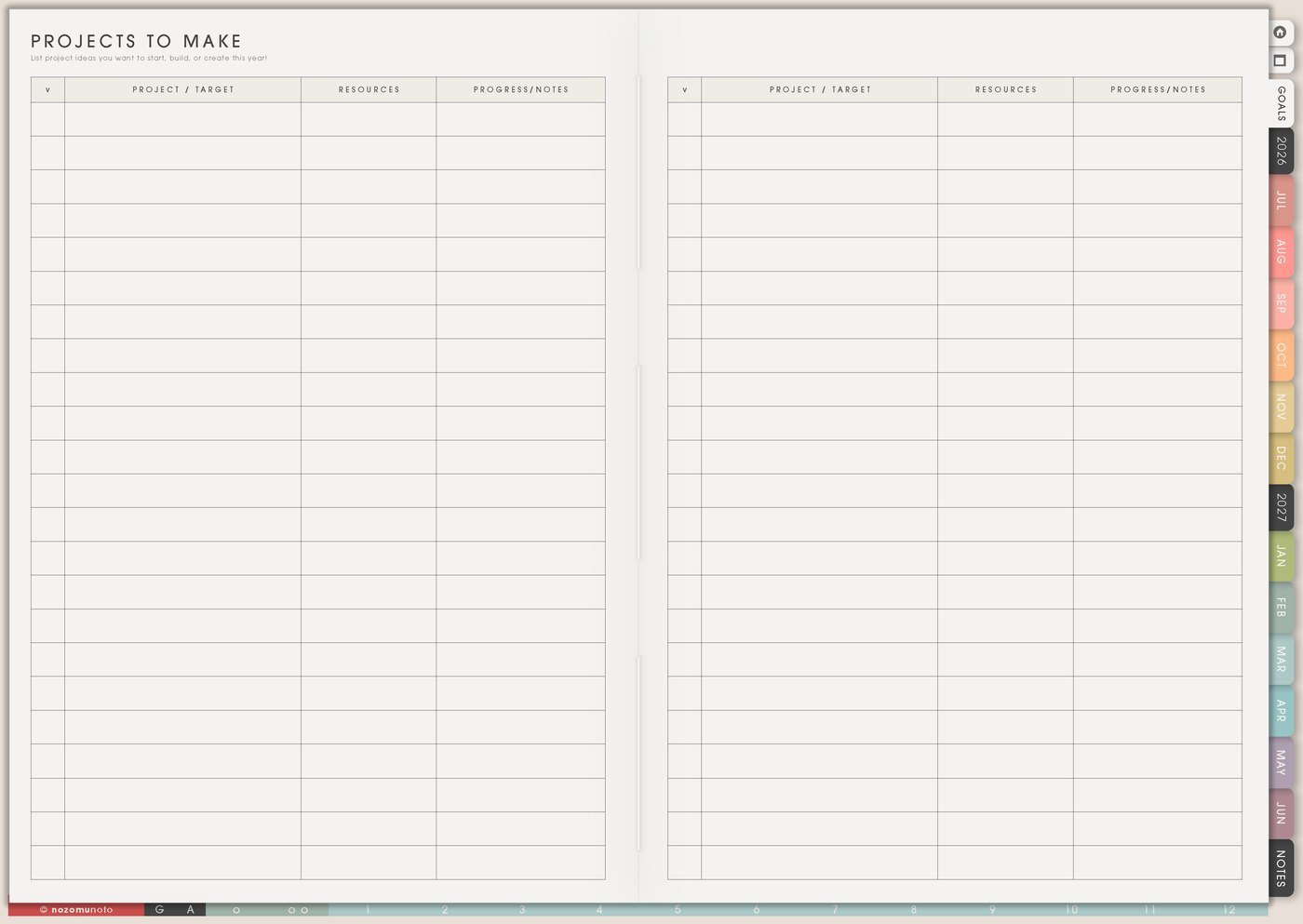
Use a Yume Techo Projects To Make page to collect creative projects, home projects, study projects, shop ideas, and future plans without starting everything.
The Projects To Make page is for project ideas that deserve a place before they become active work. Use it for creative projects, home projects, school projects, shop products, gifts, repairs, launches, writing ideas, family projects, and someday plans.
This page works best as an idea shelf. It can hold many projects, but only the current projects should move into Kanban, Monthly, or Weekly.
Projects To Make page ideas
Use this page to collect project ideas before you are ready to start them.
You can add:
- Creative projects.
- Home projects.
- Study projects.
- Writing projects.
- Craft projects.
- Shop or business ideas.
- Personal projects.
- Family projects.
Add a simple status beside each idea:
- Maybe.
- Later.
- Ready.
- Active.
- Done.
Choose only one active project at a time. Move that project to a project planner page when you are ready to work on it.
Related Tips: digital project planner for work and creative projects, Kanban Board for projects, tasks, home, study, and content workflows, and digital brainstorming planner for ideas and mind maps.
How to fill Projects To Make
- Write the project name. Add enough detail to remember it later.
- Add why or who it is for. Give the project a reason.
- Define finished. Write what done will look like.
- Choose the status. Active, later, waiting, or someday.
- Choose a resource home. Put links, supplies, files, or notes somewhere easy to find.
- Move one next action forward. Only active projects need a Weekly action.
Ways to use Projects To Make
1. Idea shelf, not a promise list
Write ideas before they disappear: room shelf refresh, card set for a friend, teacher gift, product mockup, essay project, closet repair, family photo album, garden corner, story draft, recipe book, or holiday printable.
Add a few words of context. Repair blue bag strap is easier to restart than bag. Mystery story in stationery shop is easier to return to than story idea. Capturing the idea does not mean starting it today.
2. Active, later, waiting, someday
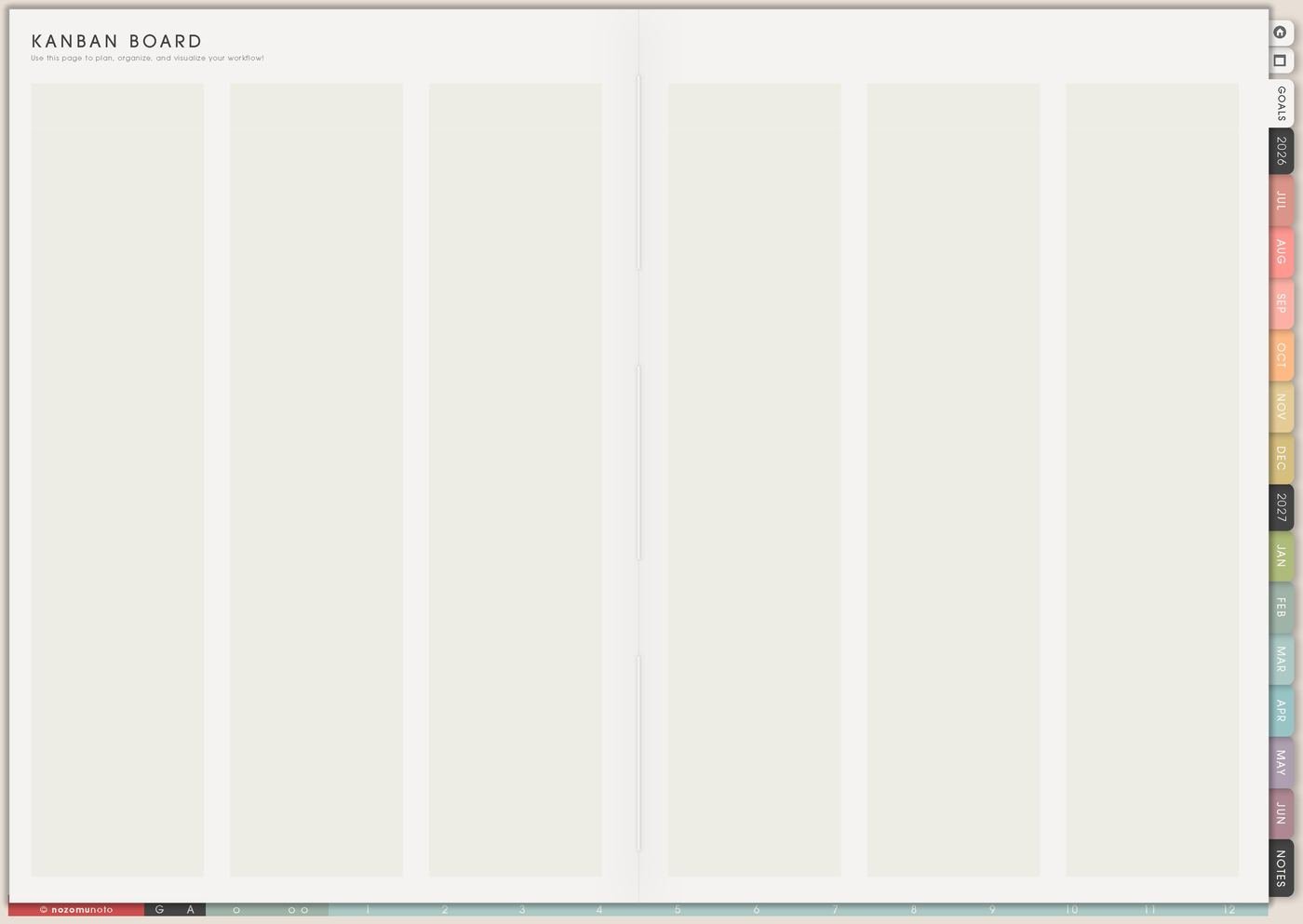
Status labels stop every project from competing at the same volume. Active means it gets attention now. Later means useful, but not this season. Waiting means blocked by supplies, money, approval, feedback, information, or time. Someday means saved for the future.
Move only active projects to Kanban. Keep Projects To Make as the wider idea shelf, so good ideas can wait without crowding the current week.
3. A visible finish line
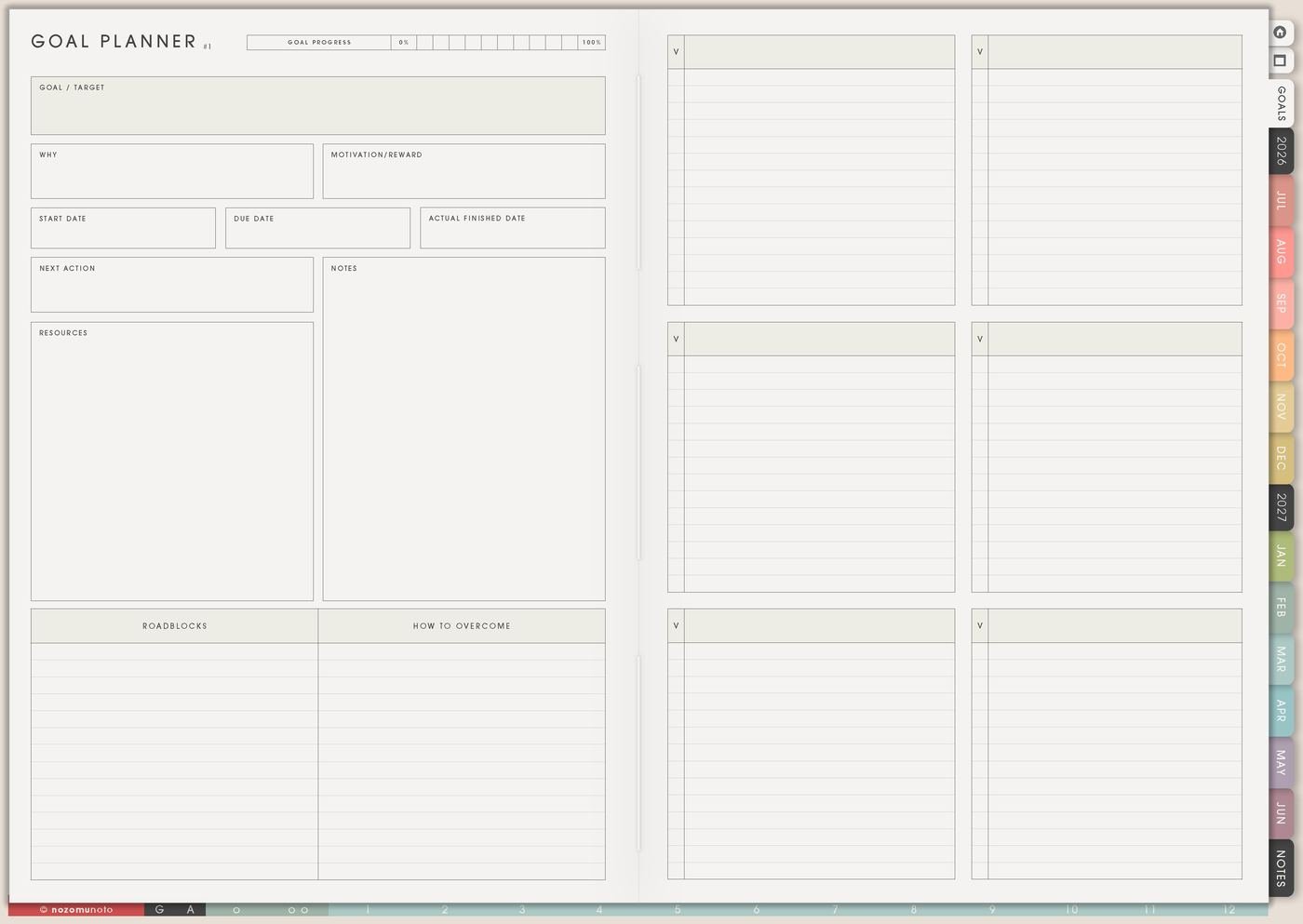
Write what finished means in plain language: publish the listing, submit the assignment, repair the strap, print the photos, give the card, organize one shelf, launch the freebie, finish the first draft, or send the file.
A finish line protects the project from growing forever. Room refresh might mean clear desk surface and label one drawer, not rebuild the entire room.
4. Resource home for project details
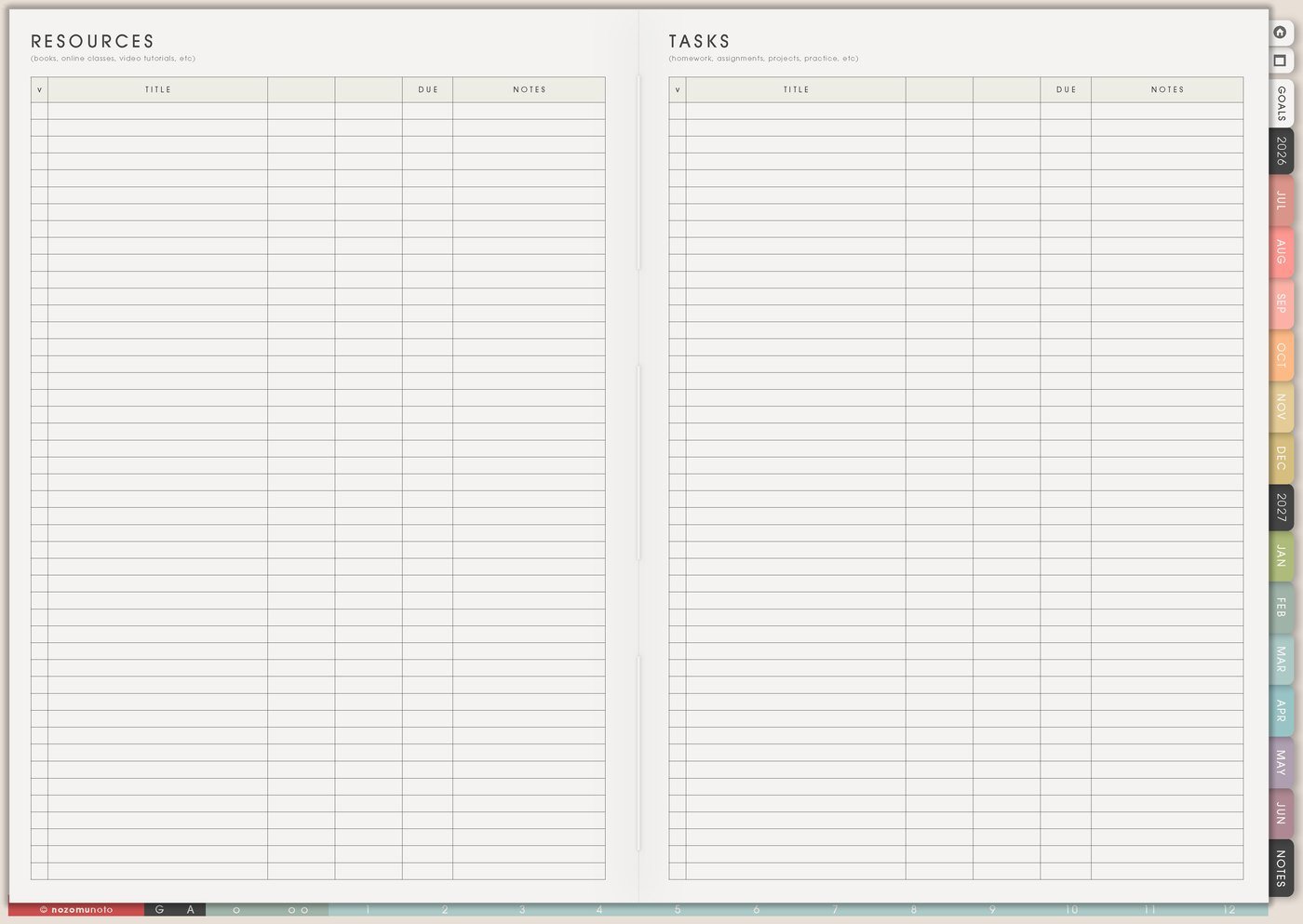
Use Resources / Tasks or Notes for links, supplies, reference photos, measurements, budgets, people to ask, tutorials, files, and product notes. Keep the Projects To Make page readable enough to choose what matters.
A craft project might need color notes, pattern link, supply list, and gift deadline. A school project might need rubric, source links, due date, and group notes. A shop project might need photo ideas, keywords, mockup folder, and product notes.
5. One next action on Weekly
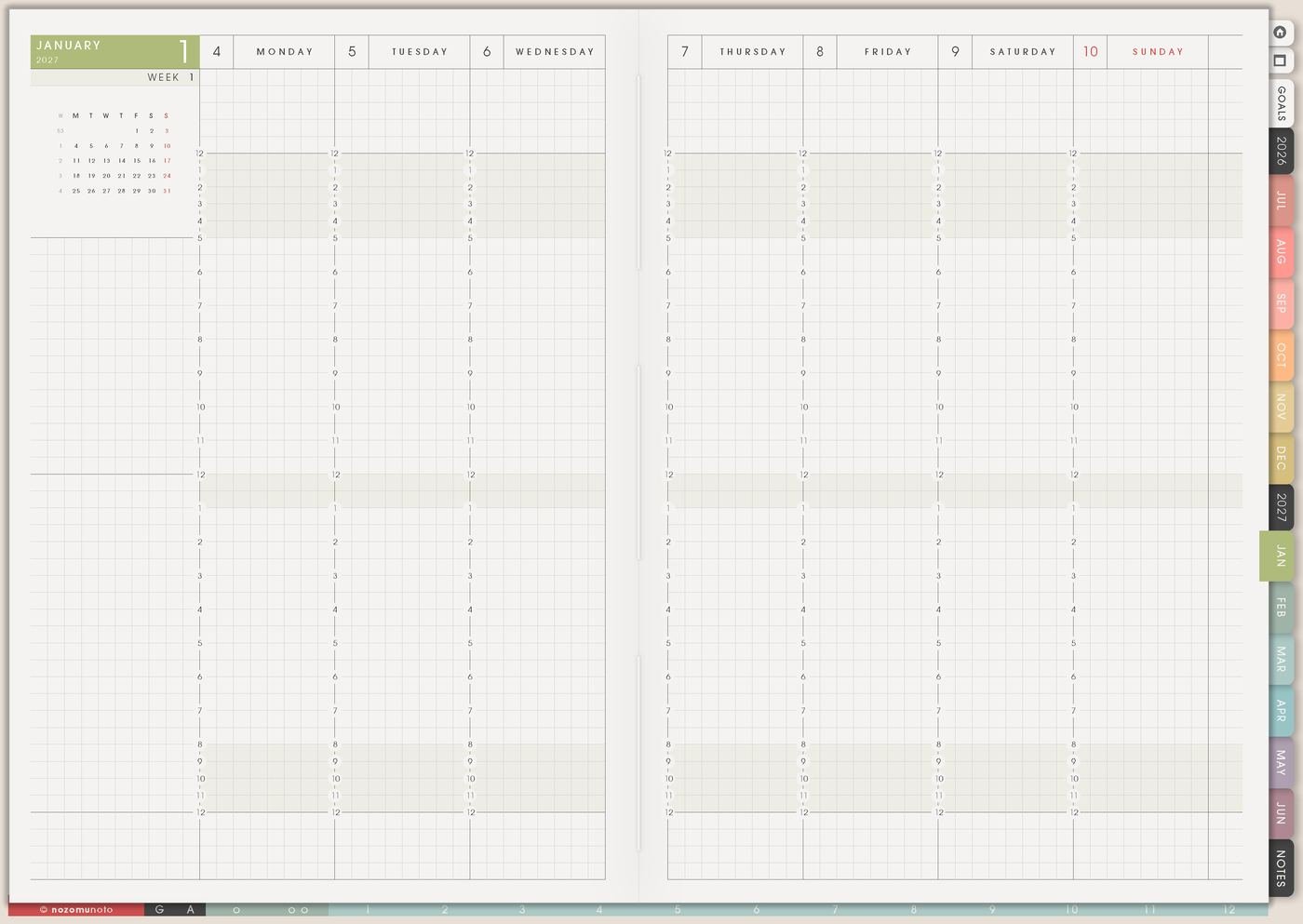
Weekly does not need the whole project. It needs the next physical action: measure shelf, choose photo, email teacher, draft outline, buy paper, test template, wash fabric, export file, check supplies, or write the first paragraph.
Projects To Make holds the bigger idea. Kanban can hold the project stages. Weekly carries the one to three actions that truly belong now.
6. Finished projects become proof
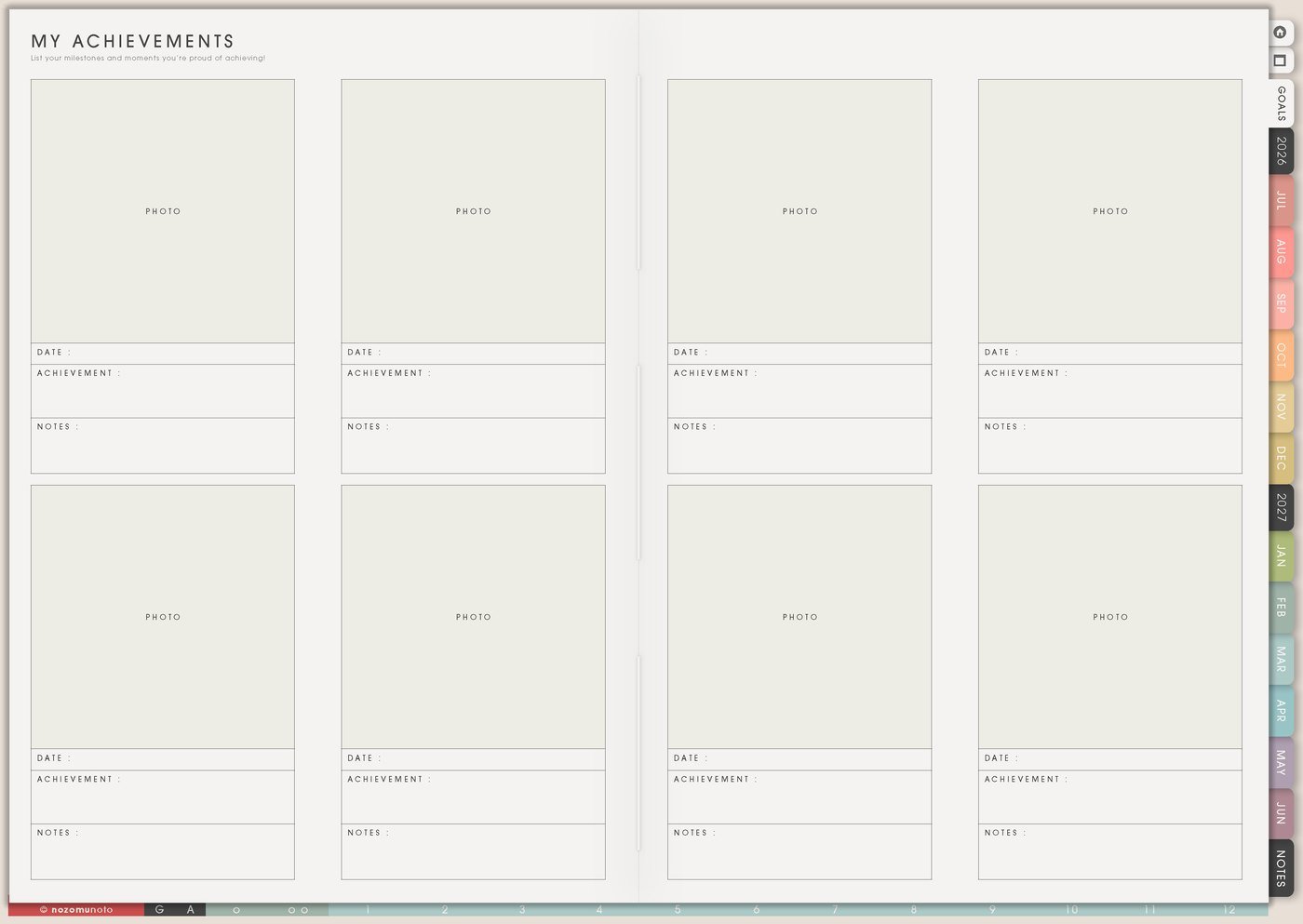
When a project is finished, save the result on My Achievements, Memory Photos, Weekly Review, or Monthly Overview. Add the date, photo, link, final file, lesson, or one note for next time.
Finished projects remind you that ideas can become real things. They also make the next project feel less abstract.
A simple Projects To Make setup
- List project ideas. Add a short memory note beside each one.
- Pick one project to define. Write what finished means.
- Mark the status. Active, later, waiting, or someday.
- Move active projects to Kanban. Keep the idea shelf separate from the work board.
- Create one resource home. Use Resources / Tasks or Notes for links, supplies, budget, files, and people.
- Copy one next action to Weekly. Choose the smallest physical move that restarts the project.
What I usually use it for and how I use it
Tips for using Projects To Make
- Separate storage from current work. Mark each project as active, later, waiting, or someday. Move only active projects to Kanban or Weekly.
- Write one finish line before the project grows. A room refresh can mean clear desk surface and label one drawer, not repaint the whole room.
- Give each project one resource home. Put links, measurements, files, supplies, budget notes, and tutorials in Resources / Tasks or Notes, then link the project back to that home.
- Name the next physical action. Open template folder, choose one mockup, draft title, export sample, take first photo, wash fabric, or measure the shelf.
- Keep Weekly small. Put only the next one to three physical actions on Weekly. Keep the full plan on Projects To Make, Kanban, or Goal Planner.
When you need setup help
Projects To Make helps with planning the project. If you need exact app steps for copying pages, writing on Yume Techo, adding images, importing the planner, or using hyperlinks, open the NozomuNoto Help Center for your app or device.
Tips for using this page
- Choose the one part of this page that helps the current week instead of trying to fill everything at once.
- Move one small next action to Weekly or Daily so the page changes what happens next.
- Keep the page easy to return to by linking it from Index, favorites, bookmarks, or the related planner section.
Final thought
Projects To Make works when it protects ideas without turning every idea into this week's job. I hope this page helps you save the projects you care about, choose the one that matters now, and move only the next action into Weekly!
Browse NozomuNoto products
Find the planner, notebook, e-reader file, or add-on that fits the way you actually plan.
About NozomuNoto
NozomuNoto creates Japanese-inspired digital planners, notebooks, stickers, and e-reader PDFs for people who want useful pages that still work in real life.
Yume Techo is built with dated yearly, monthly, weekly, daily, Life Planner, Planner Pages, and Template Pages so one planner can hold study, work, home, ADHD-friendly routines, lists, and creative projects without adding paper bulk.
New to digital planning? Start there, use the Help Center for setup help, or browse NozomuNoto products when you are ready to choose your planner.